RFP Approval Workflow and Publish RFP
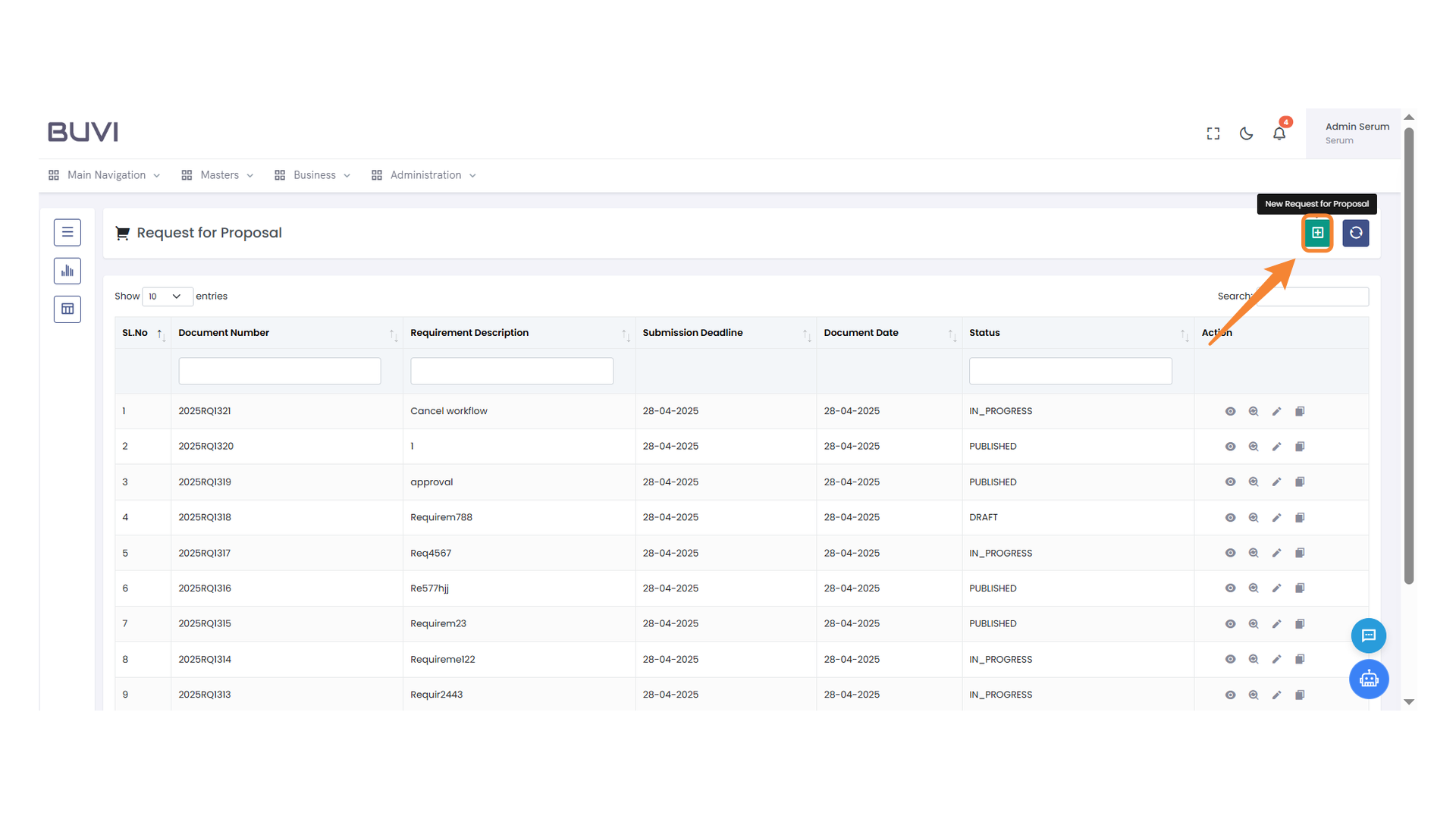
1. New Request for Proposal Button
Click this button to initiate a new request for proposal process.
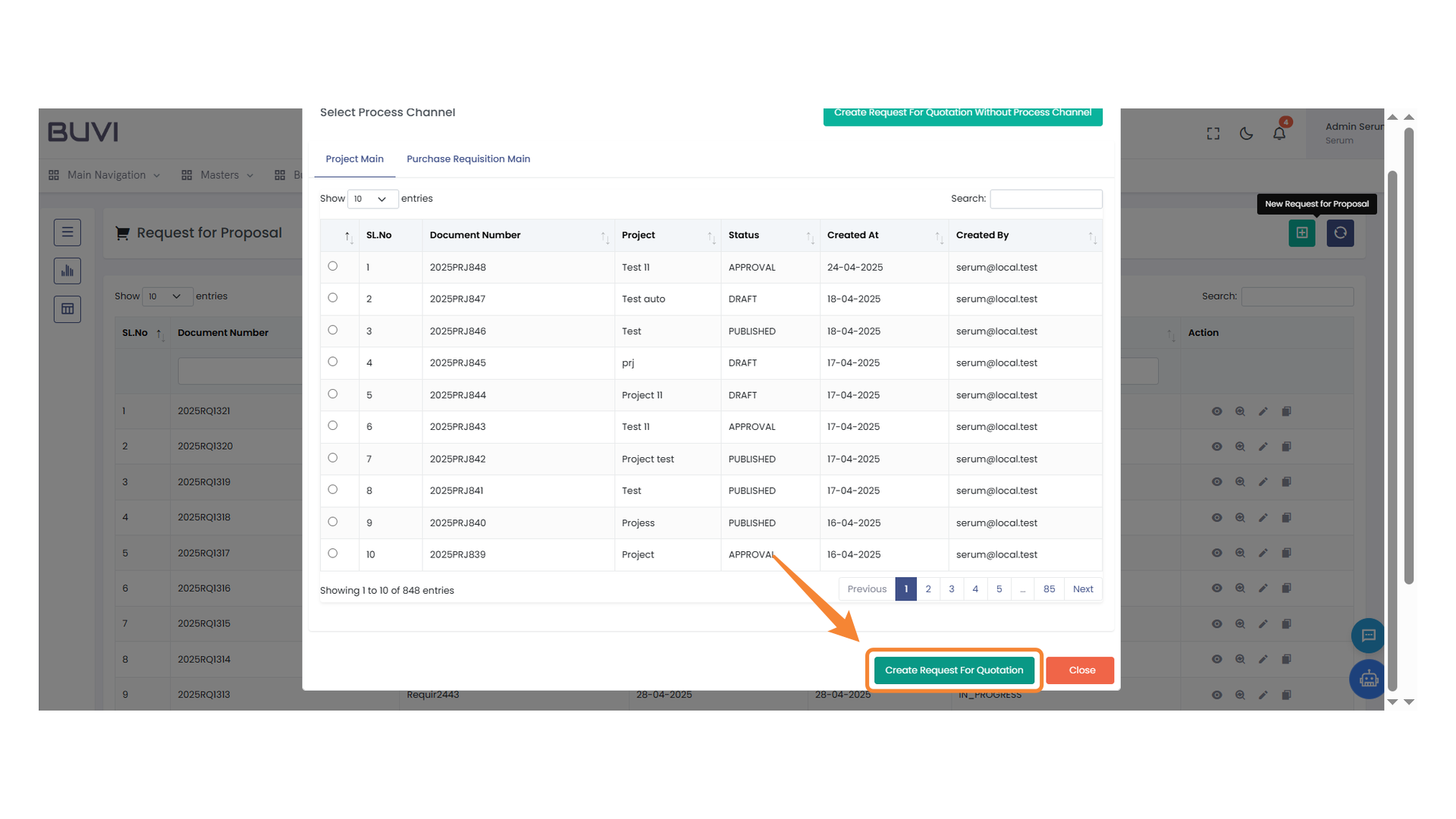
2. Create a New Quote Request
Press the button to initiate a request for a new quotation.
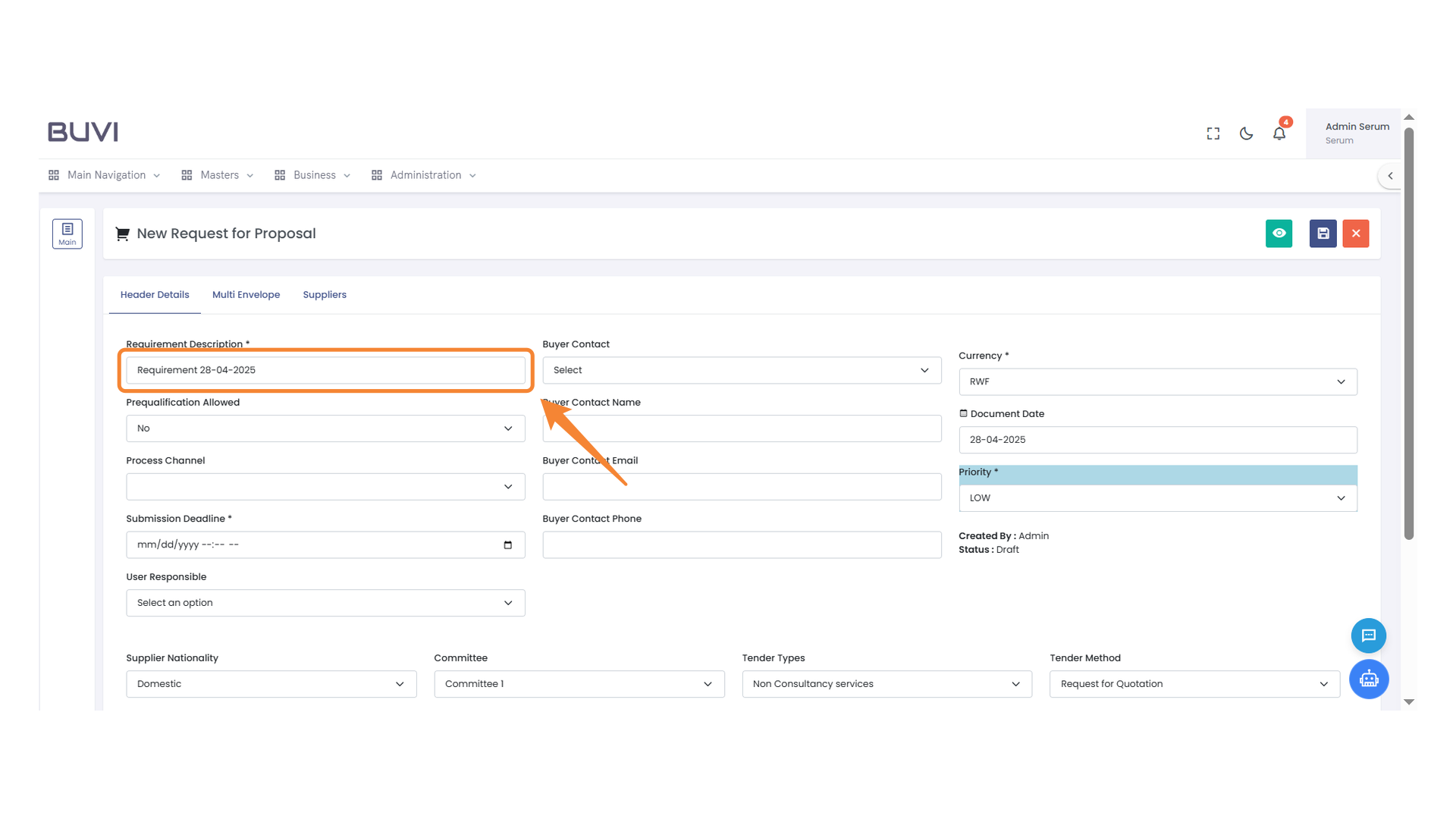
3. Requirement Description
Enter the requirement details and specify the date.
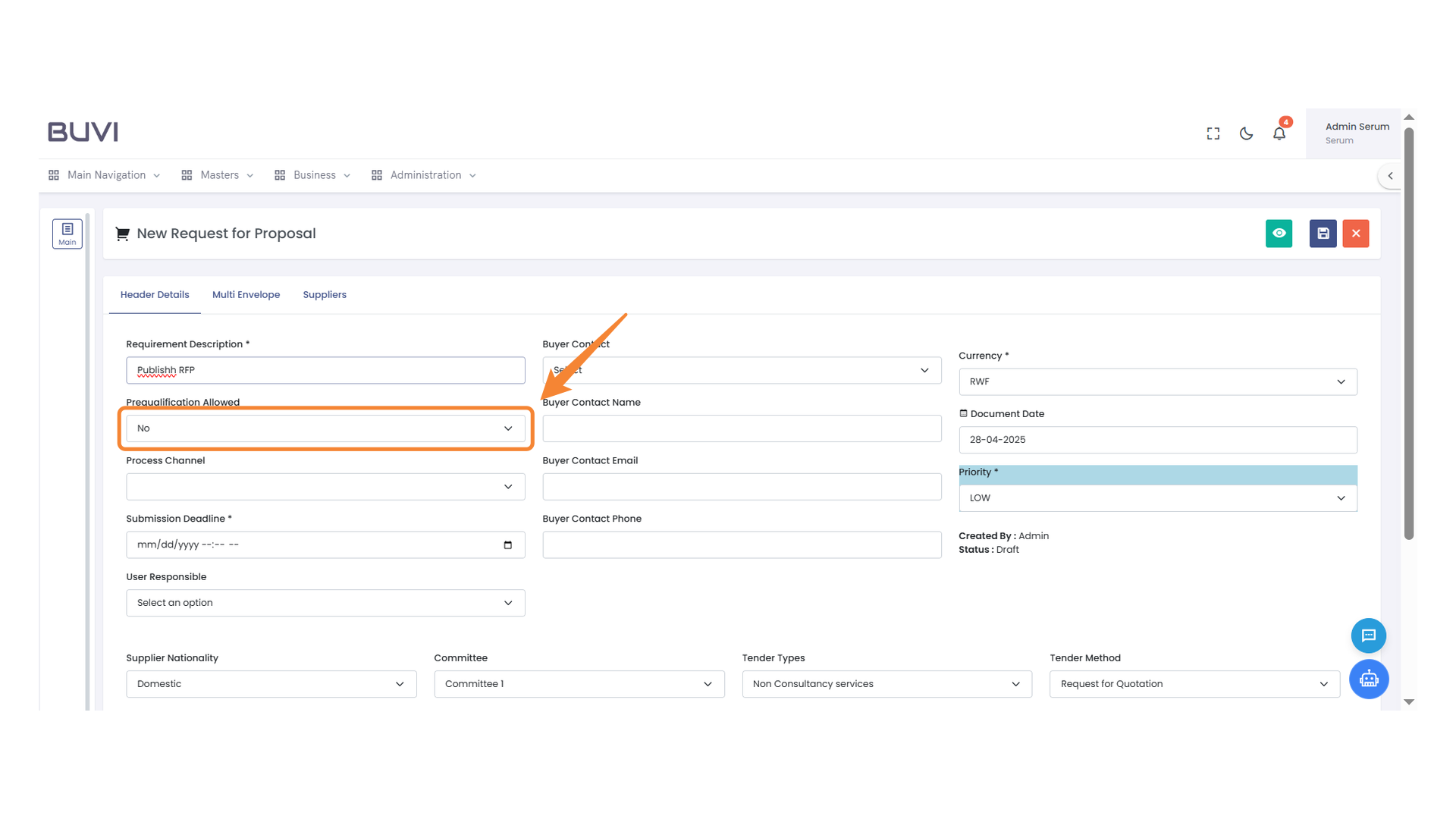
4. Prequalification Status
Select whether prequalification is allowed for this proposal.
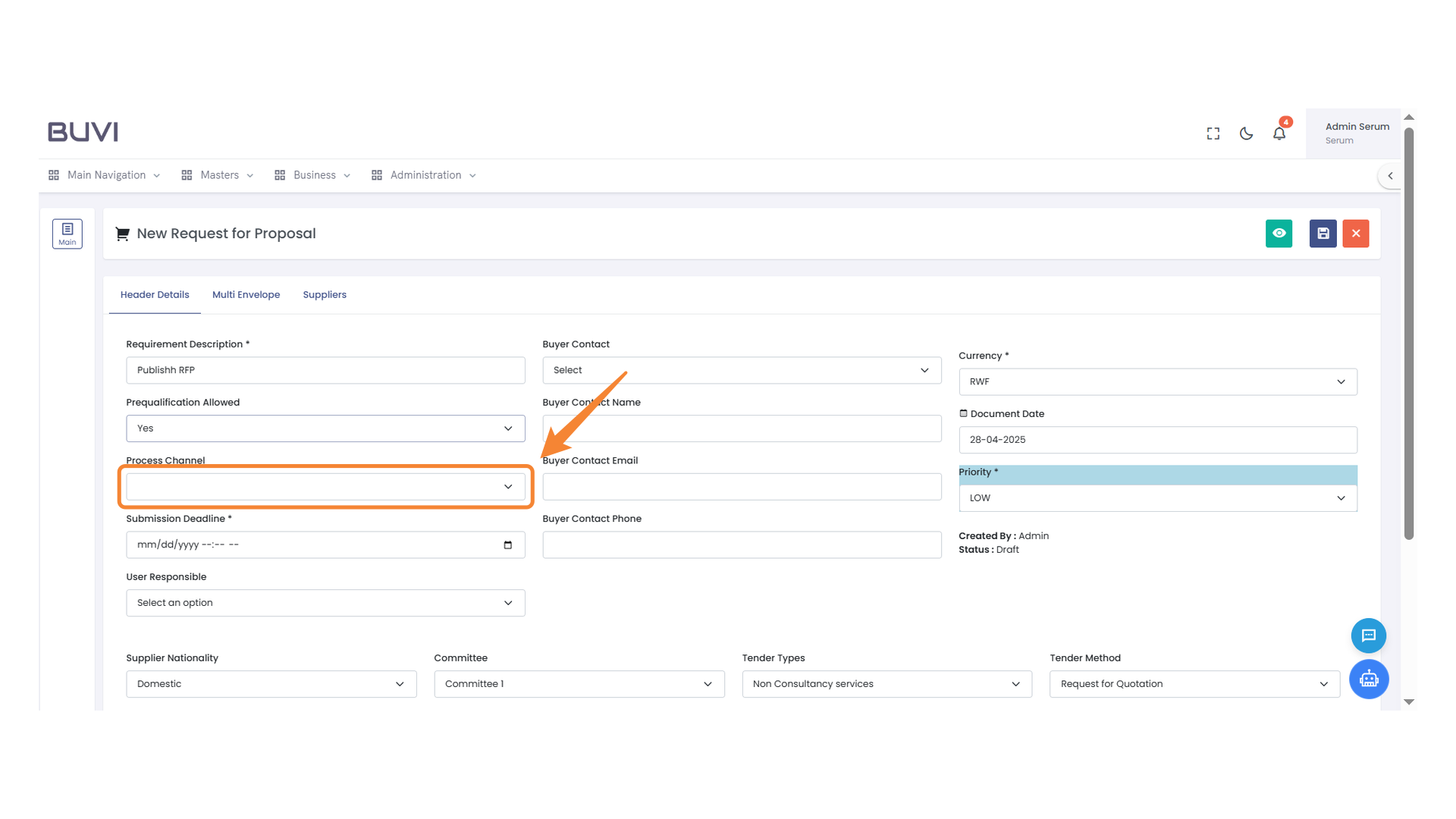
5. Process Channel Selection
Select a process channel from the dropdown menu.
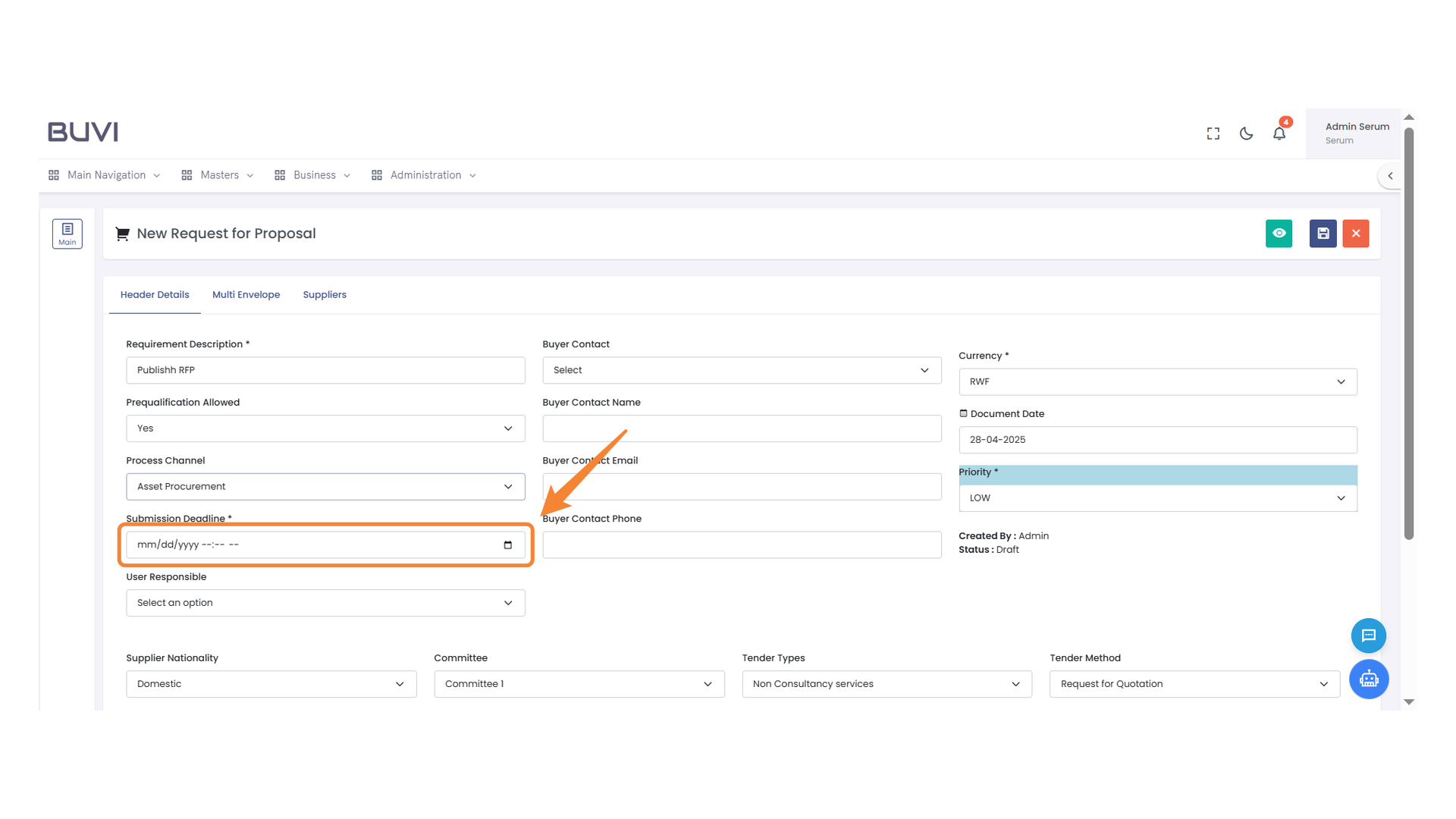
6. Submission Deadline Input
Enter the submission deadline in the specified format.
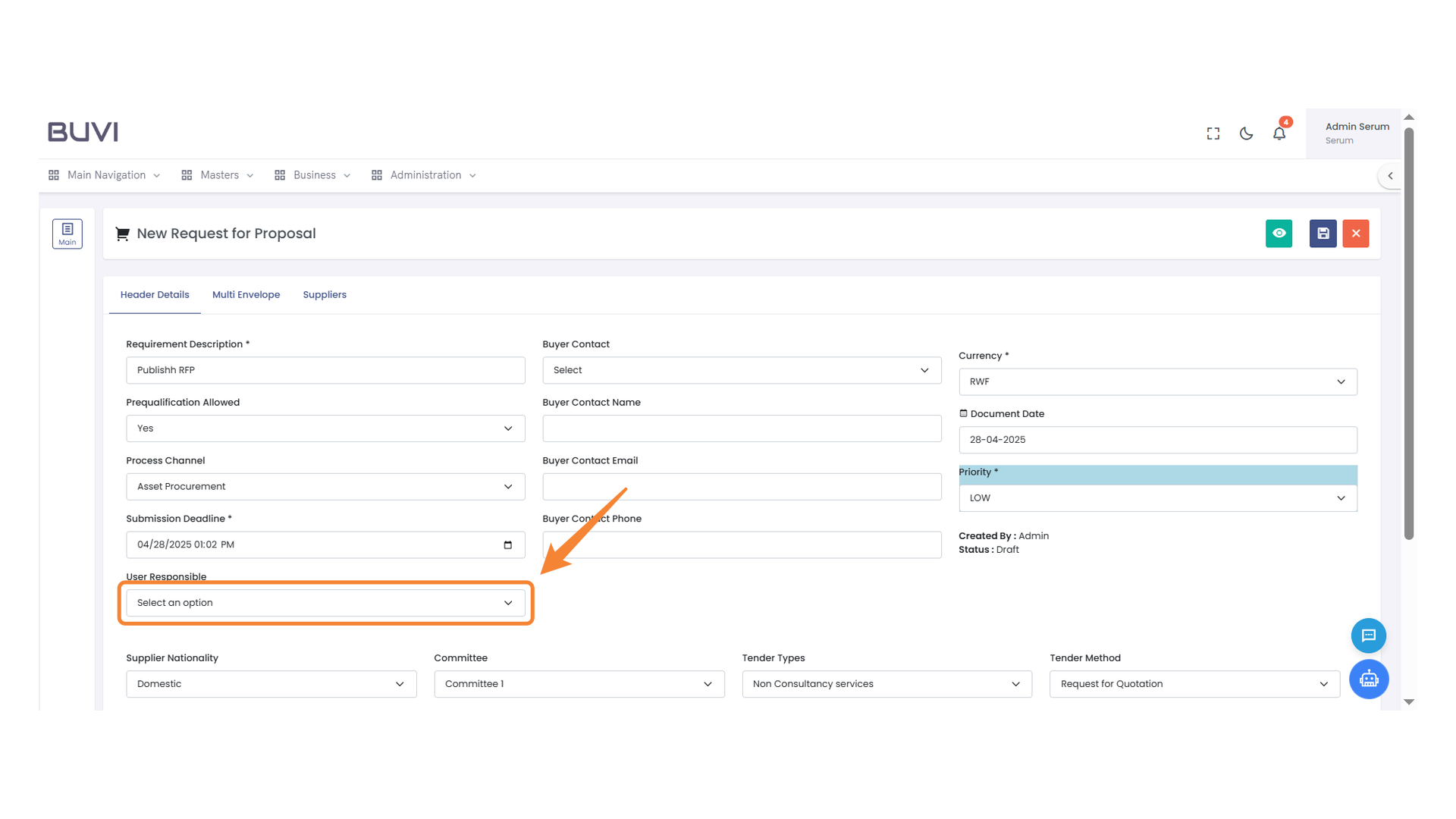
7. User Selection Dropdown
Choose an option from the dropdown menu to assign the responsible user.
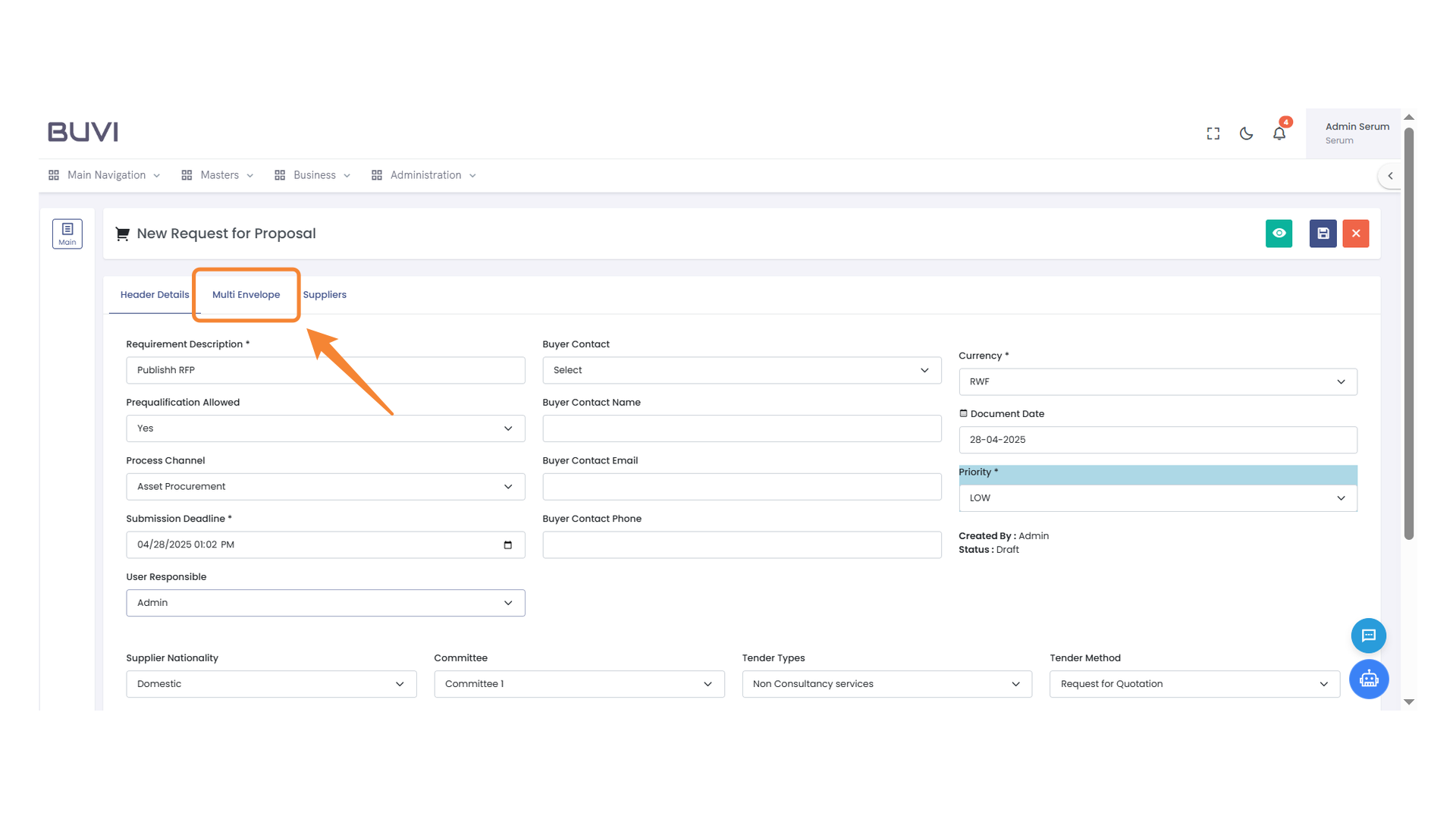
8. Multi Envelope Tab
Select this tab to access multi-envelope options for proposals.
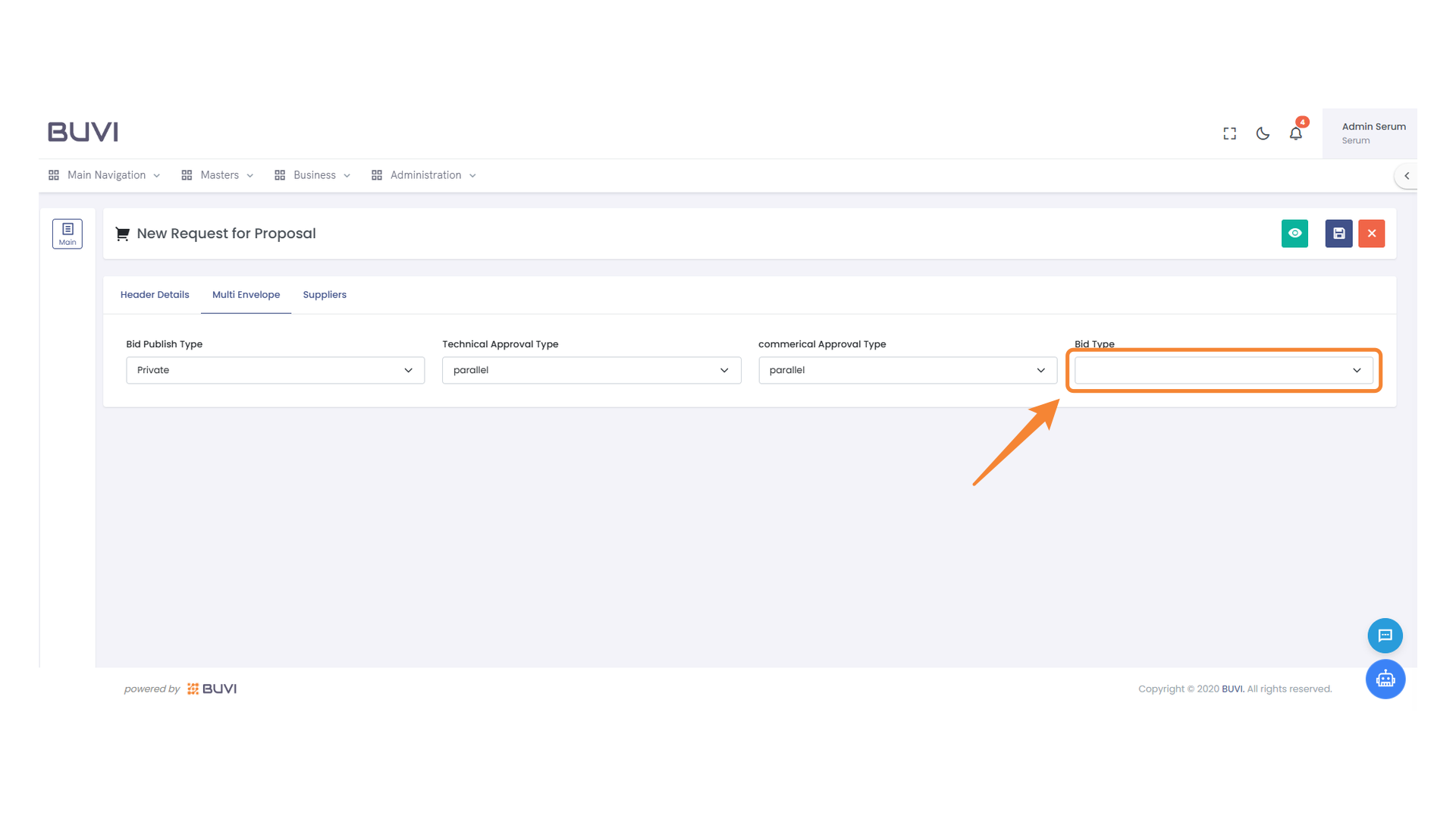
9. Bid Type Selection Menu
Choose the appropriate bid type from the dropdown menu to proceed.
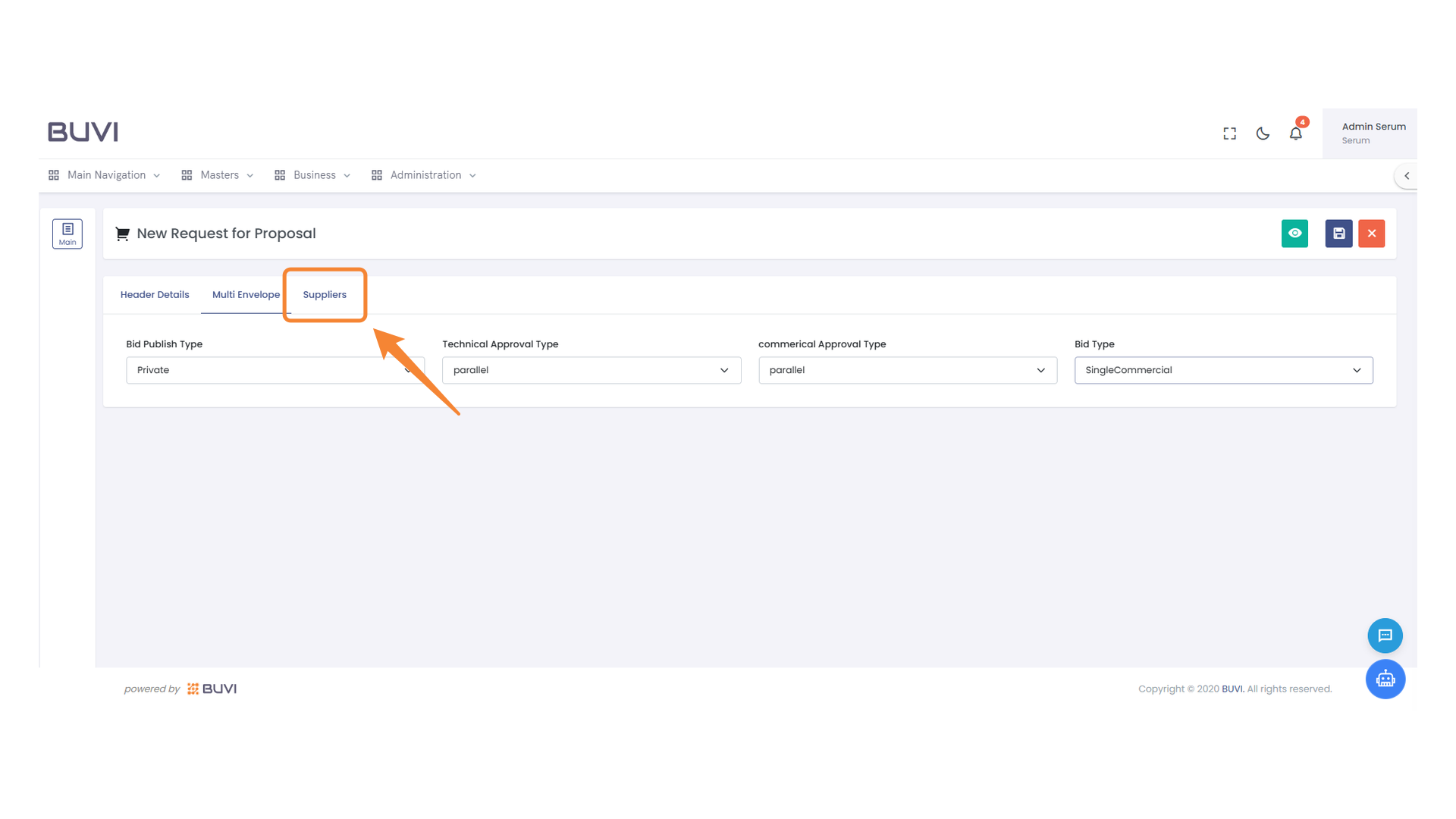
10. Suppliers Tab
Navigate to the Suppliers section to manage supplier-related information and actions.
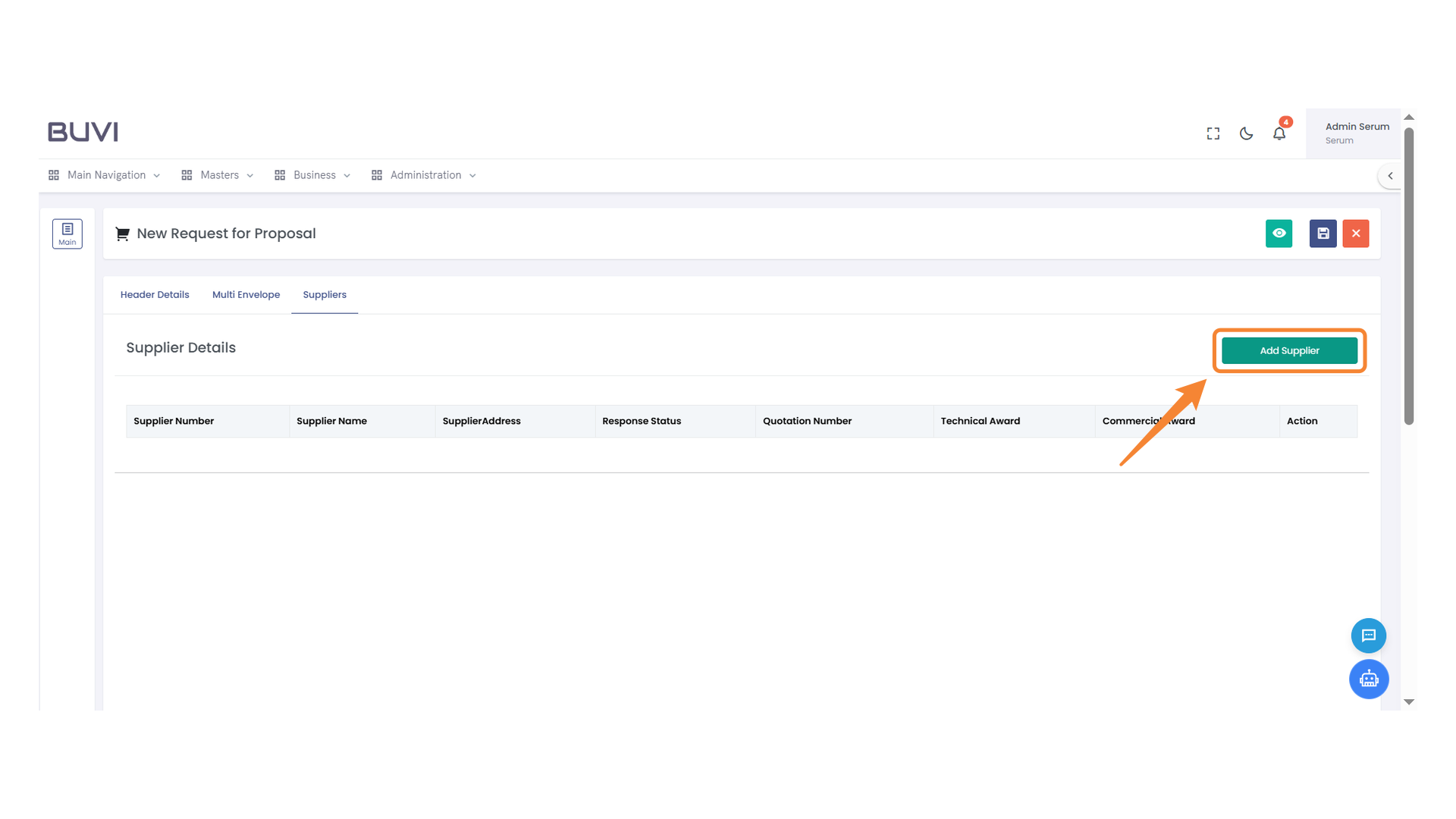
11. Add Supplier Button
Click to add a new supplier to the list.
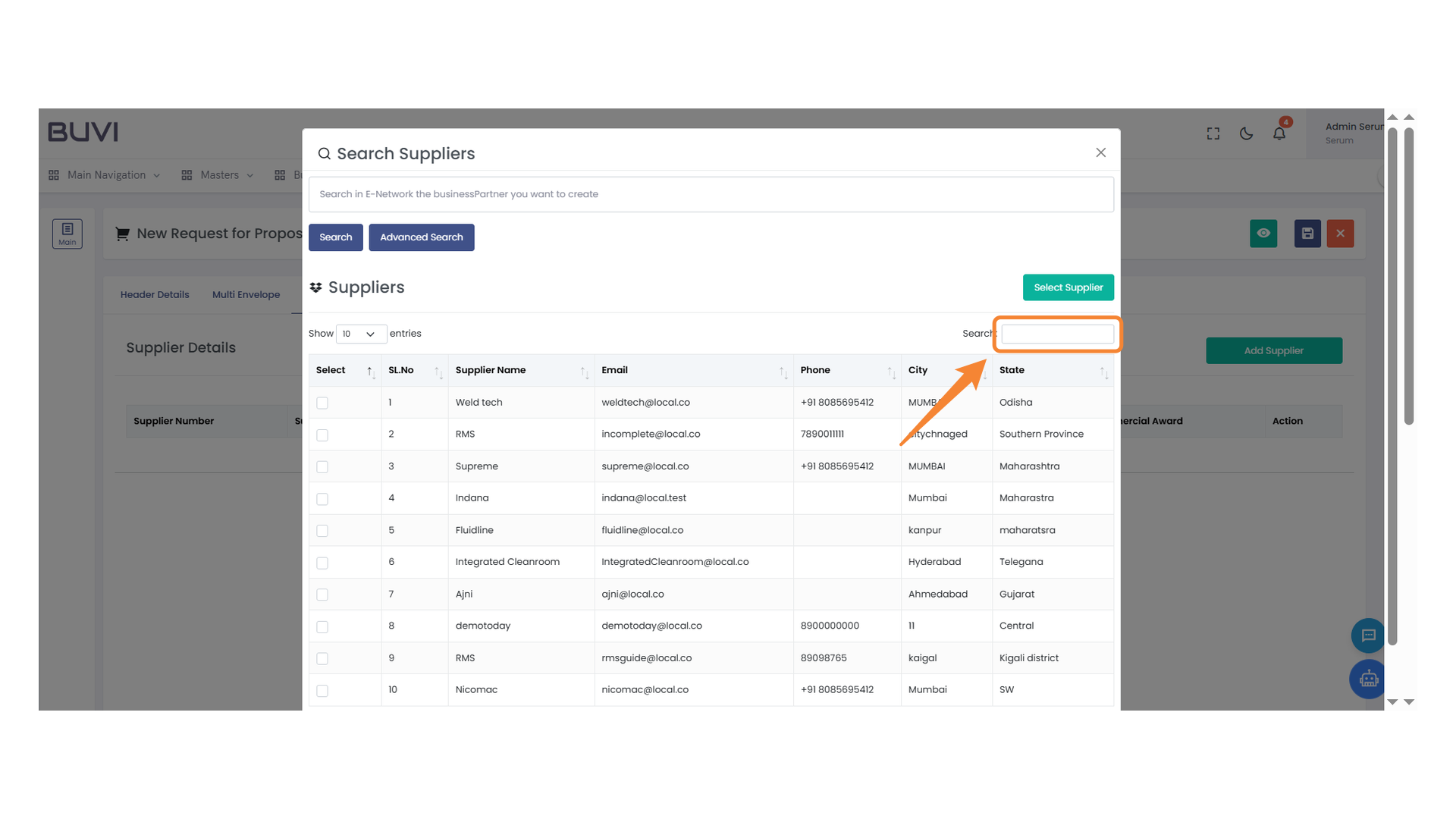
12. Search Supplier Field
Enter a keyword to find a specific supplier in the list below.
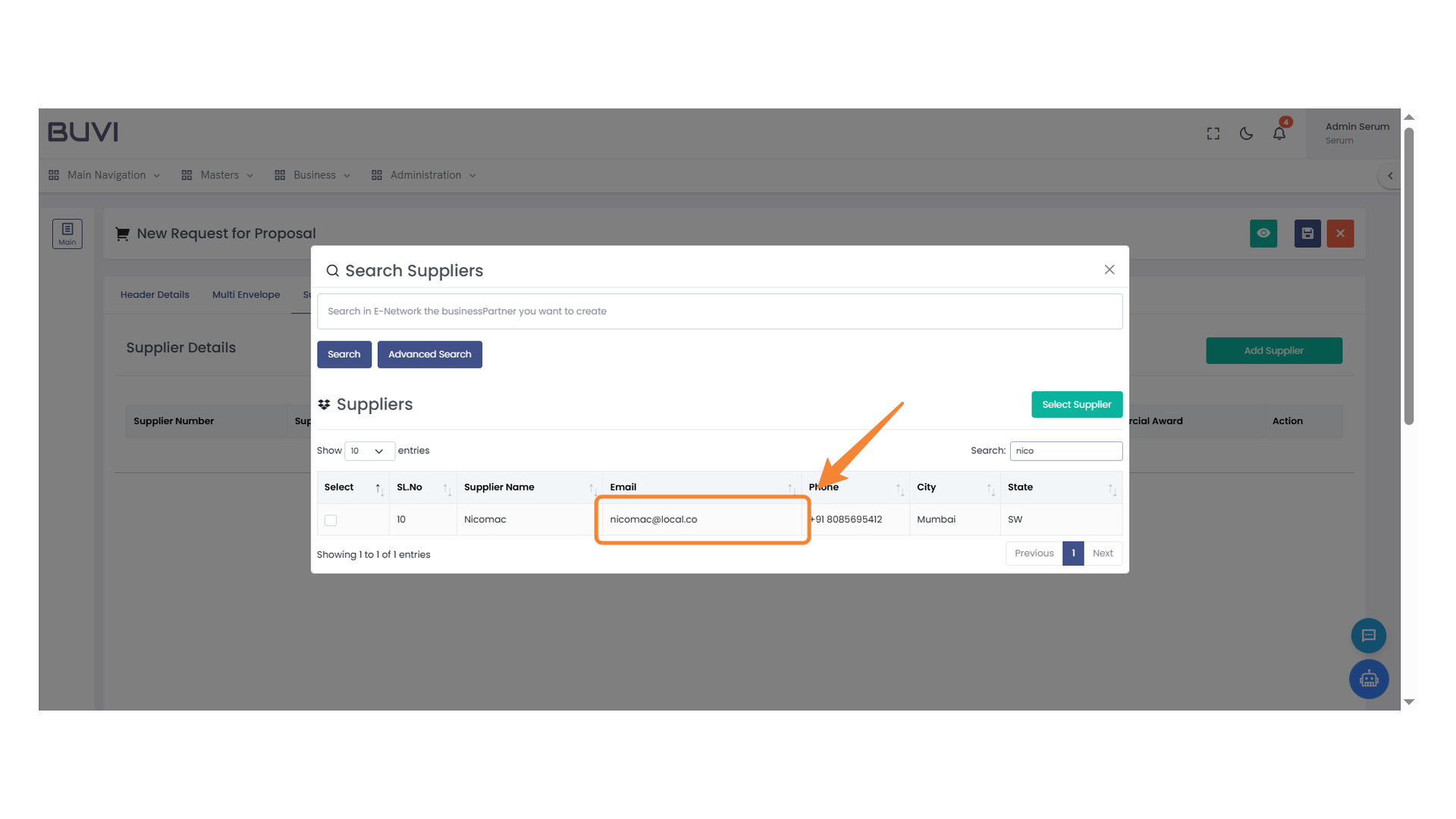
13. Supplier Email Highlight
Review the highlighted email address of the supplier in the list.
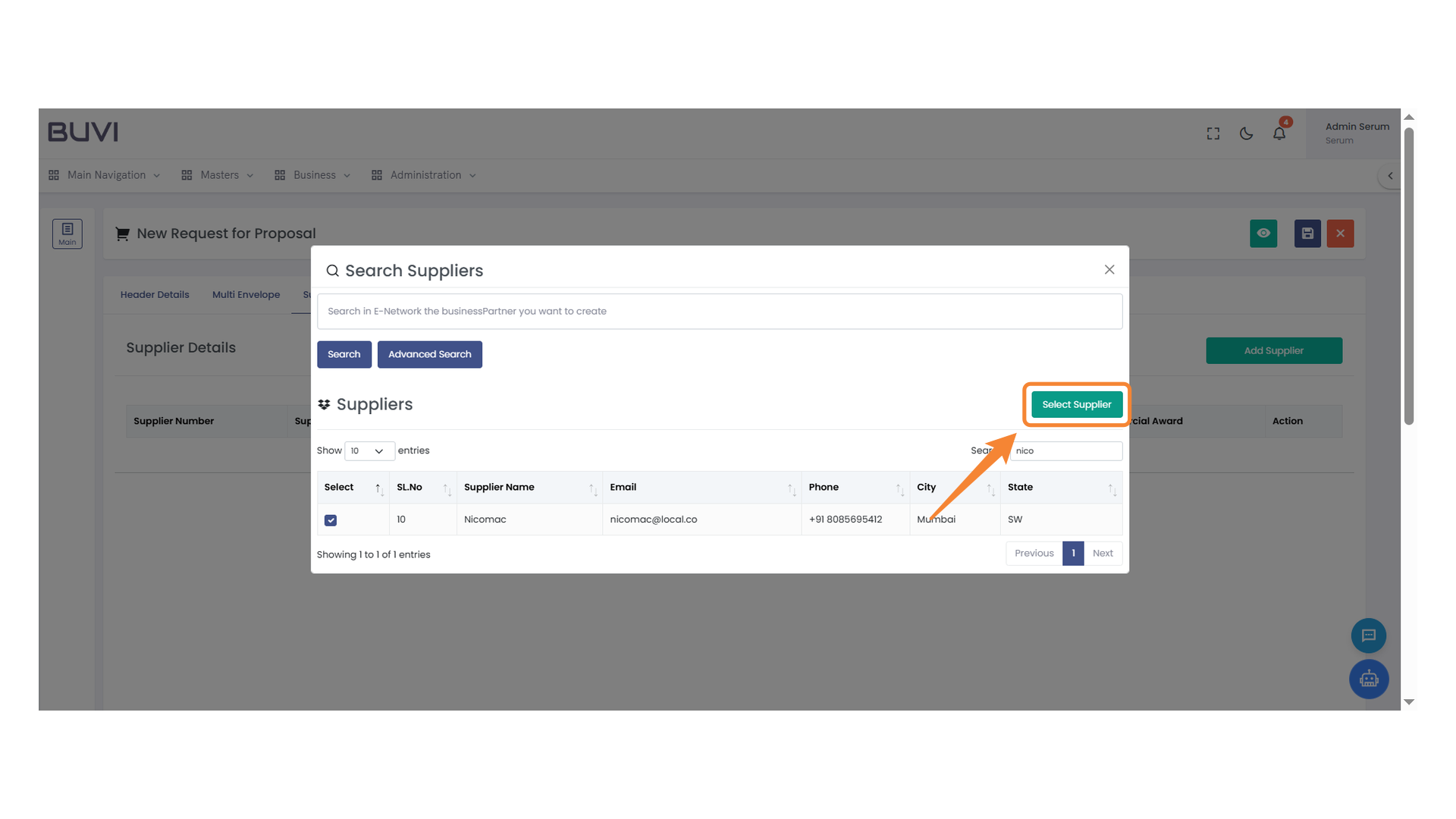
14. Supplier Selection Button
Click to confirm your supplier choice.
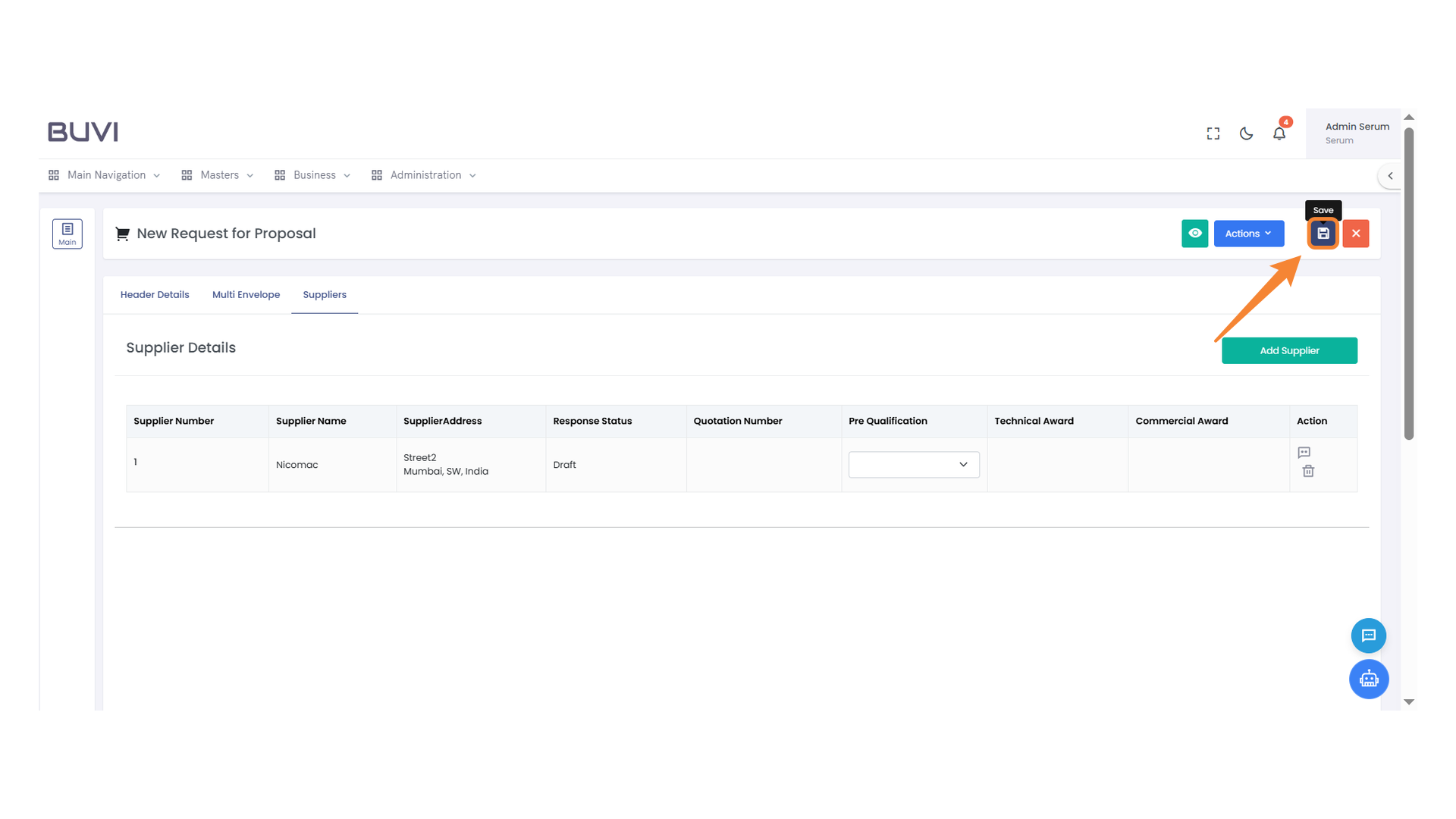
15. Save Proposal Button
Click the button to save the current proposal.
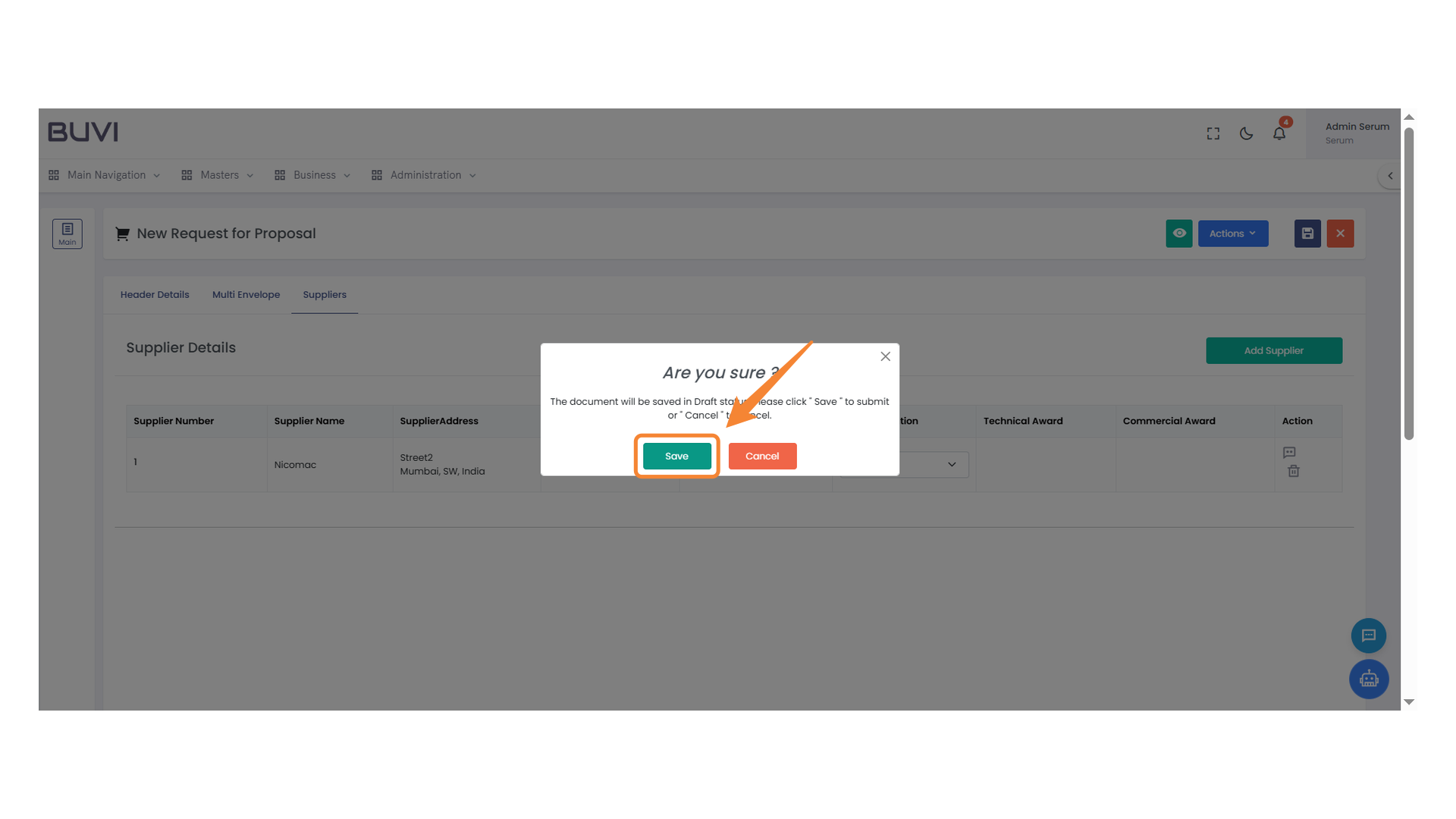
16. Confirmation Dialog Box
Click 'Save' to proceed with saving the document.
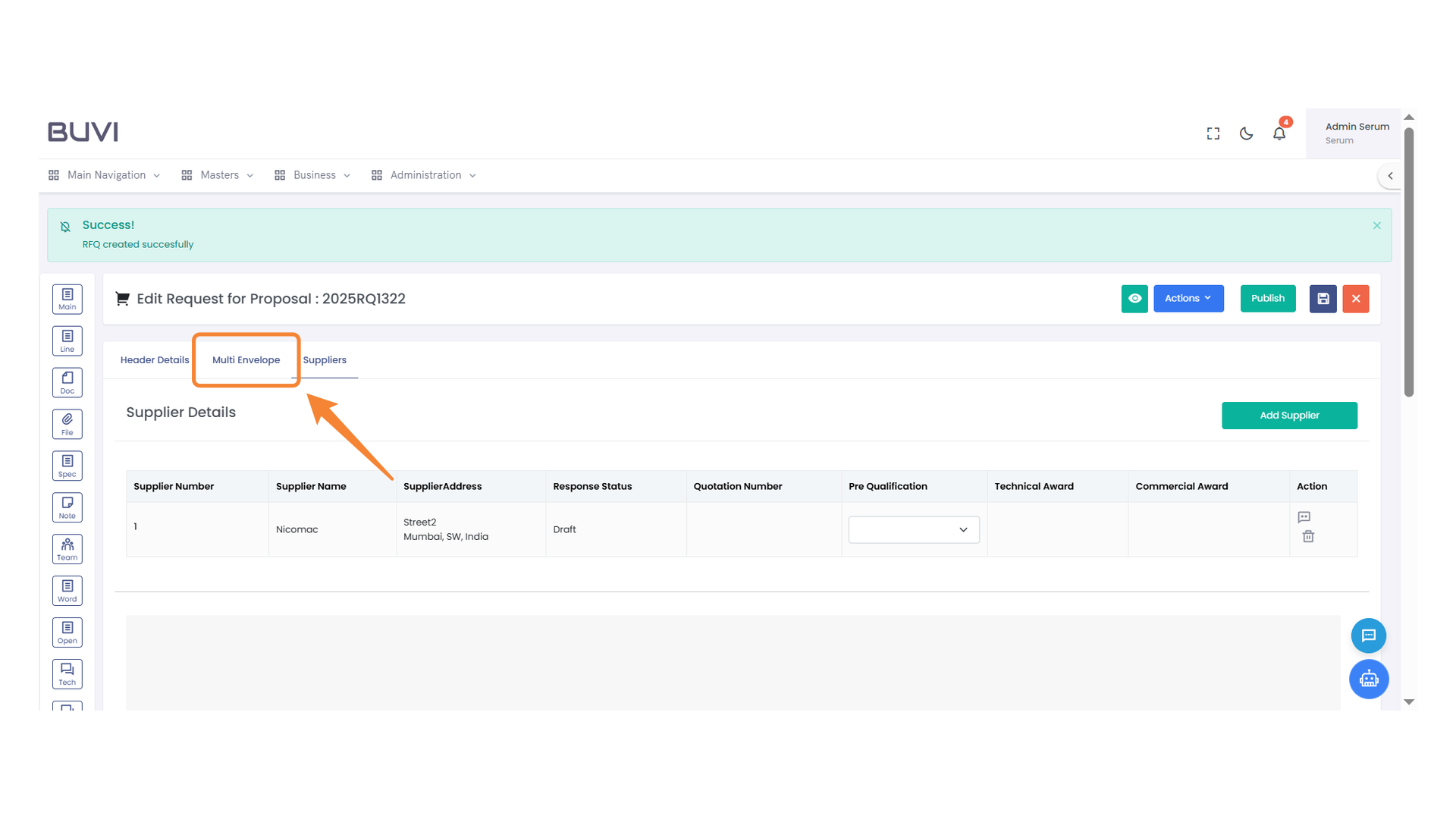
17. Multi Envelope Section
Access detailed information about the multi-envelope process.
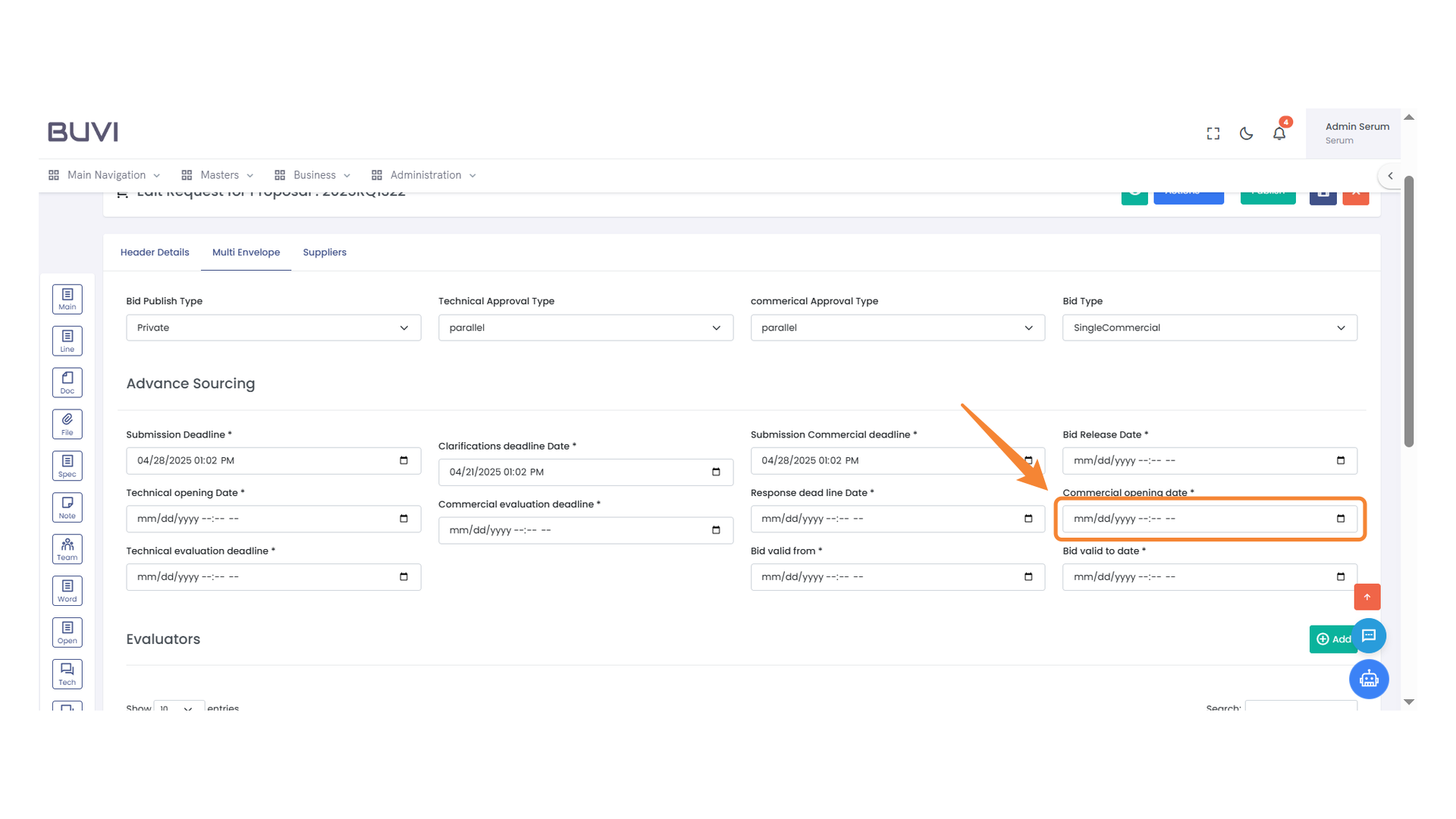
18. Commercial Opening Date Input
Enter the commercial opening date in the specified format.
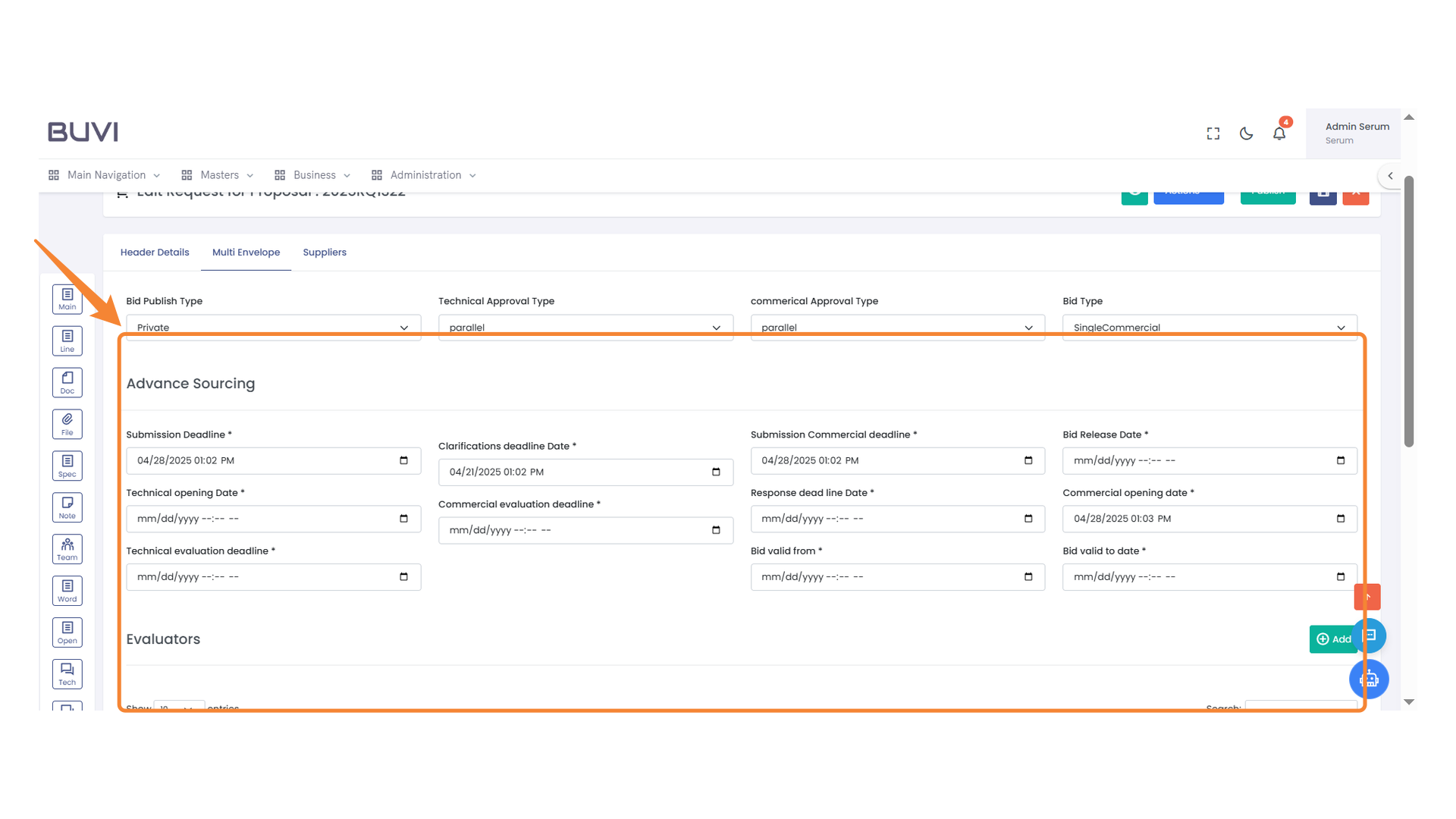
19. Advance Sourcing Deadline Management
Fill in the mandatory fields for submission deadlines, opening dates, and evaluation periods to ensure compliance with sourcing requirements.
20. Add New Record
Select this button to add a new entry to the list.
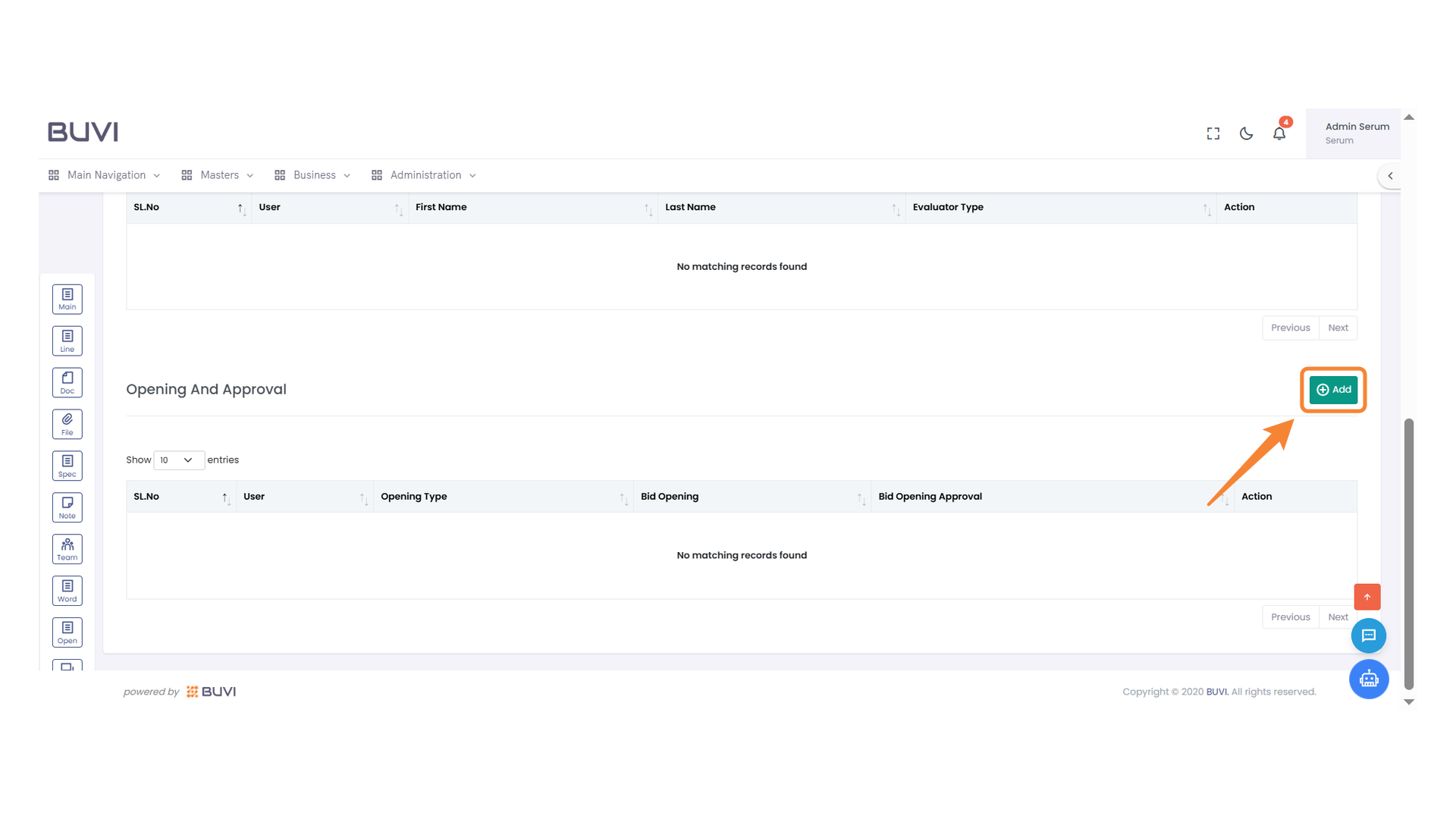
21. User Selection Dropdown
Choose an option from the dropdown menu to select a user.
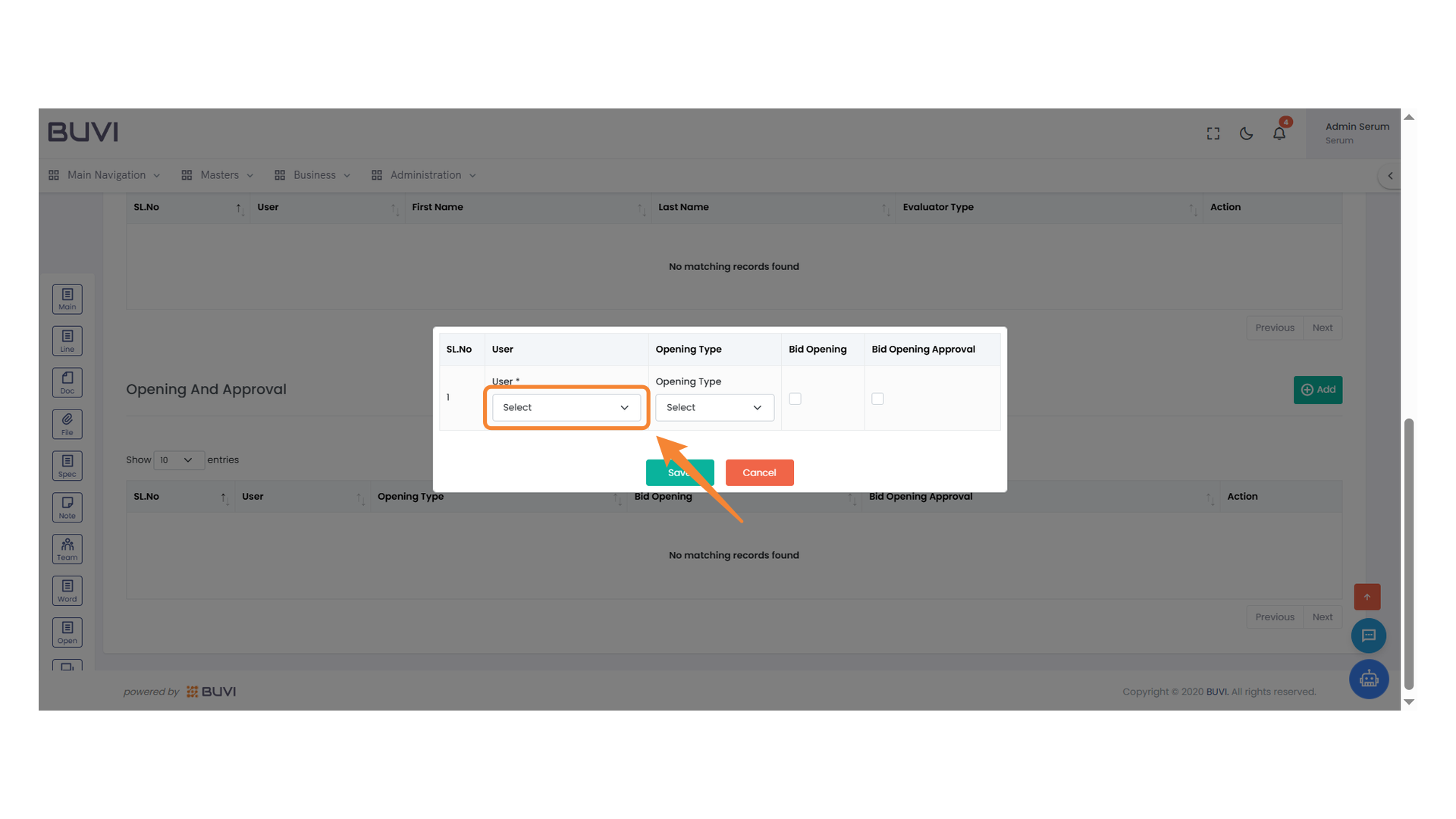
22. Opening Type Selection
Choose the appropriate opening type from the dropdown menu.
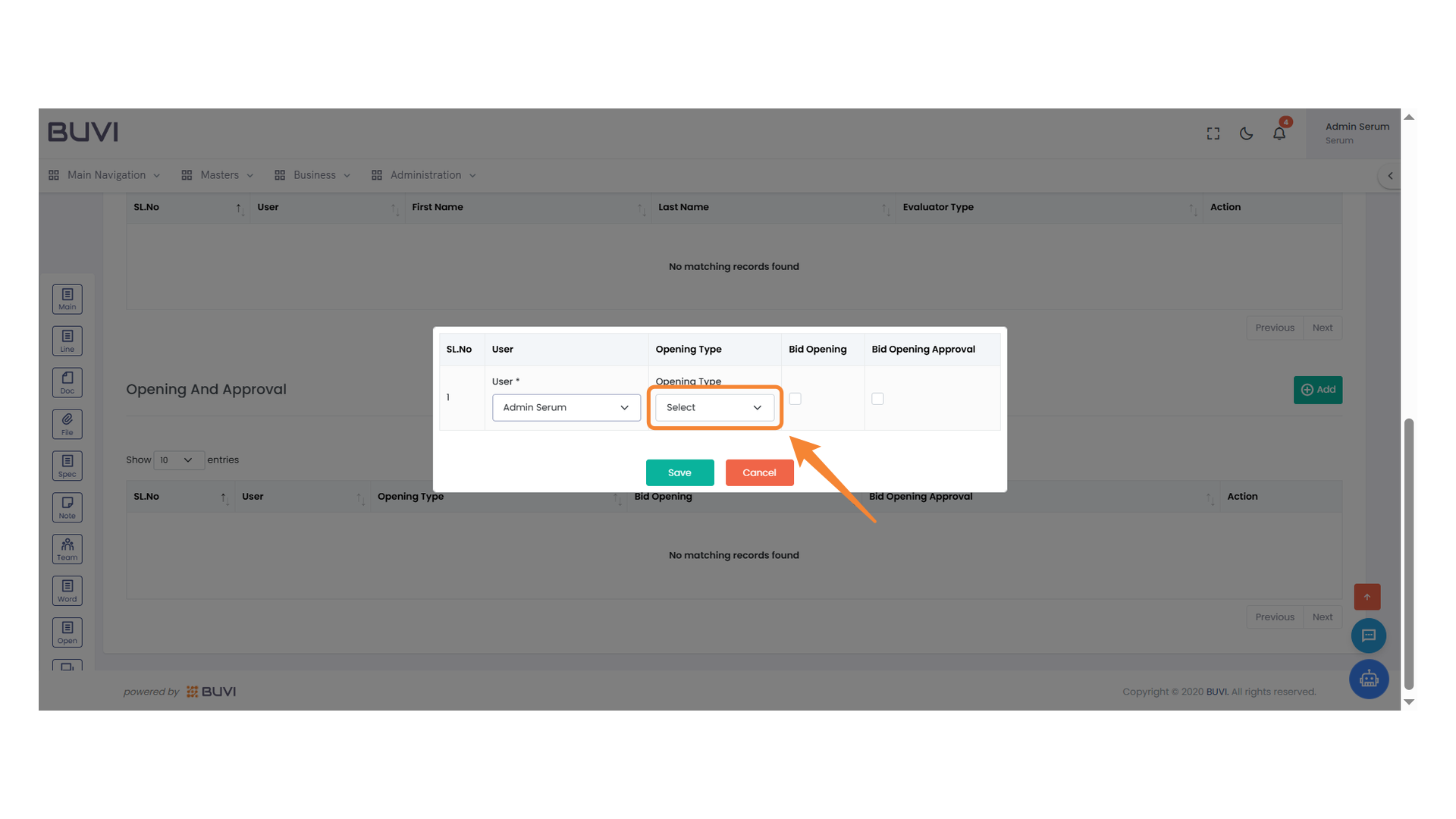
23. Checkbox for Bid Opening
Click the checkbox to select the bid for opening.
24. Bid Opening Approval Checkbox
Select the checkbox to approve the bid opening process.
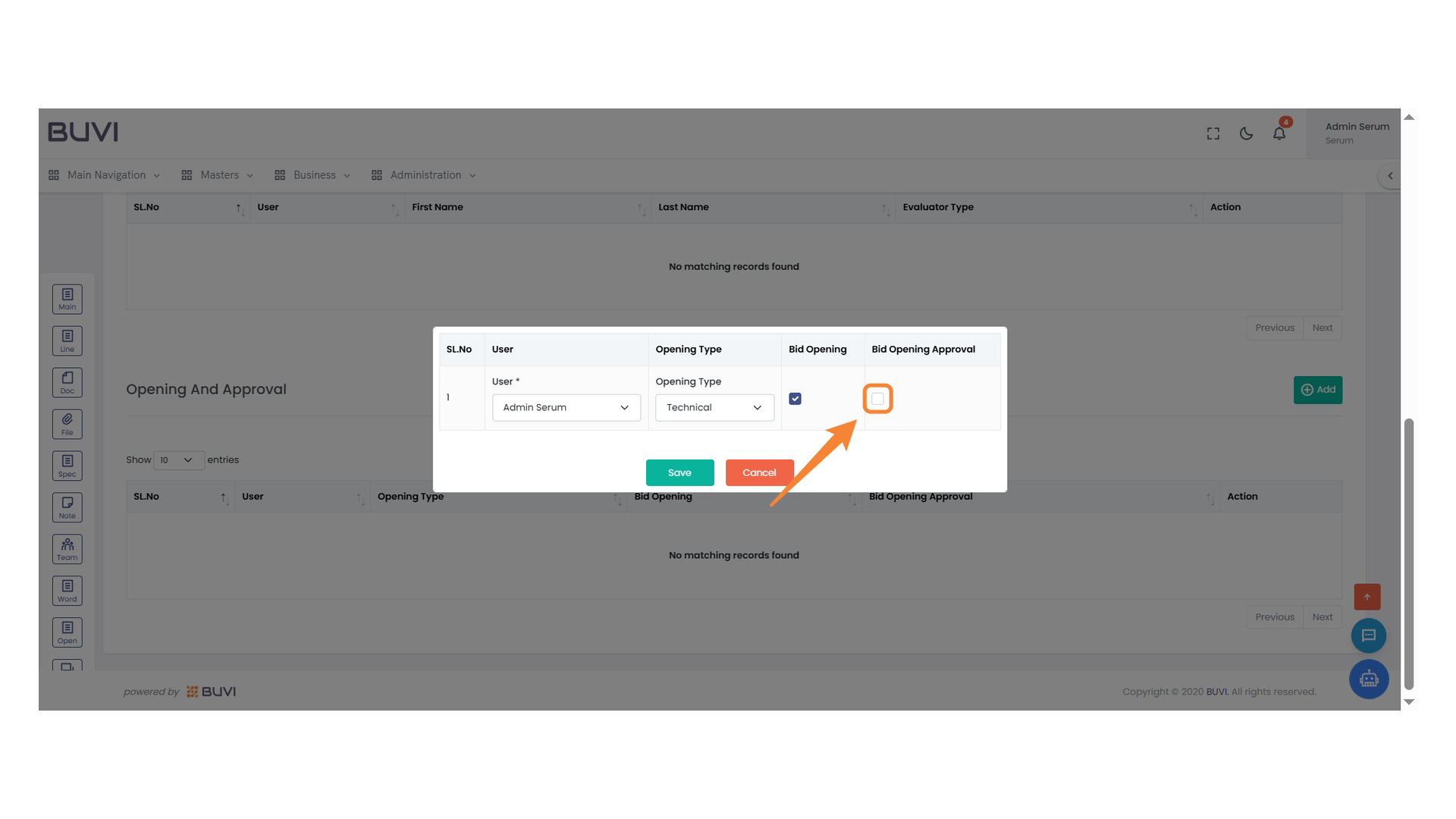
25. Save Button Highlight
Click to save your current changes.
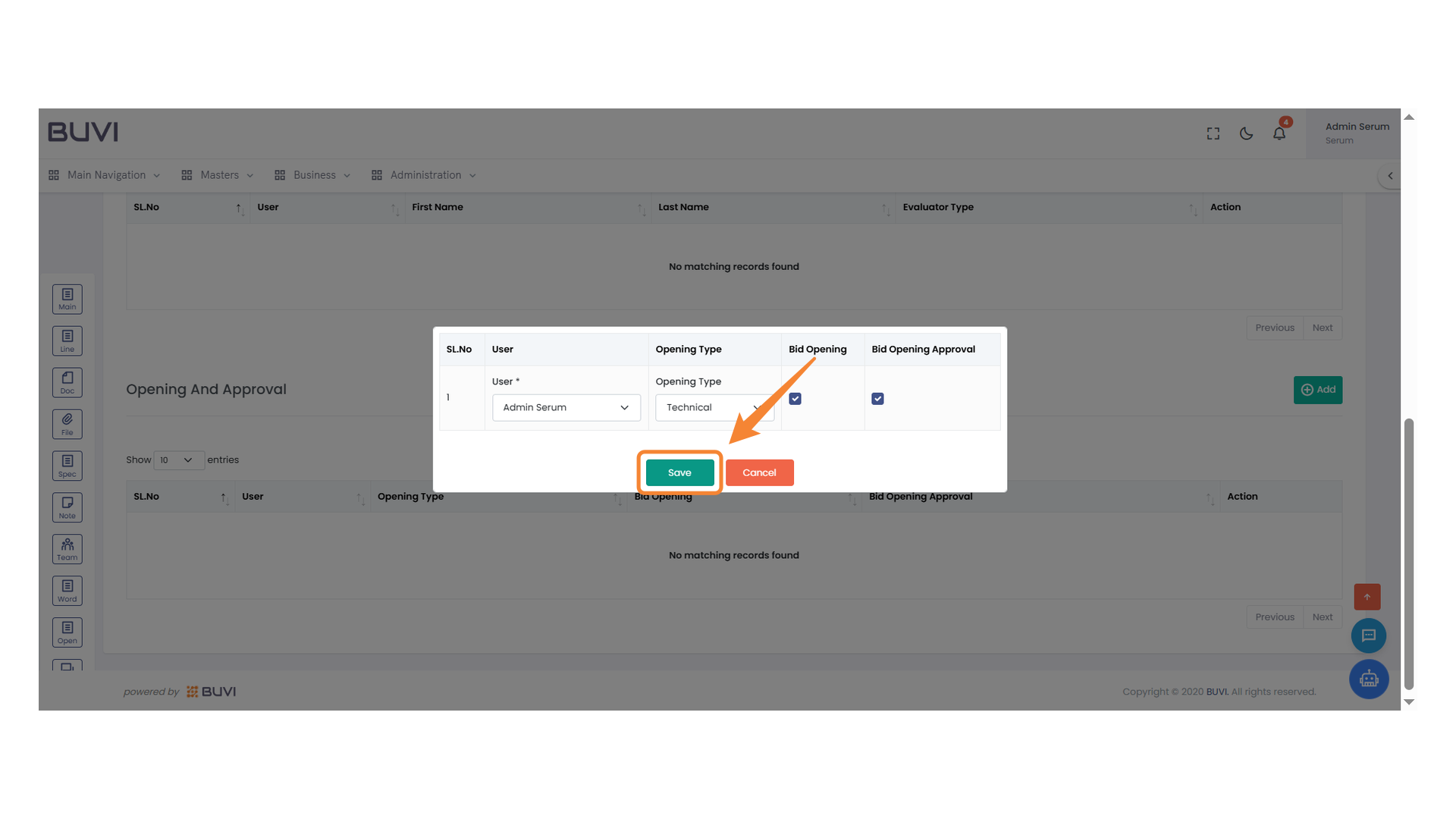
26. Set Button Icon
Click the button to configure settings or options.

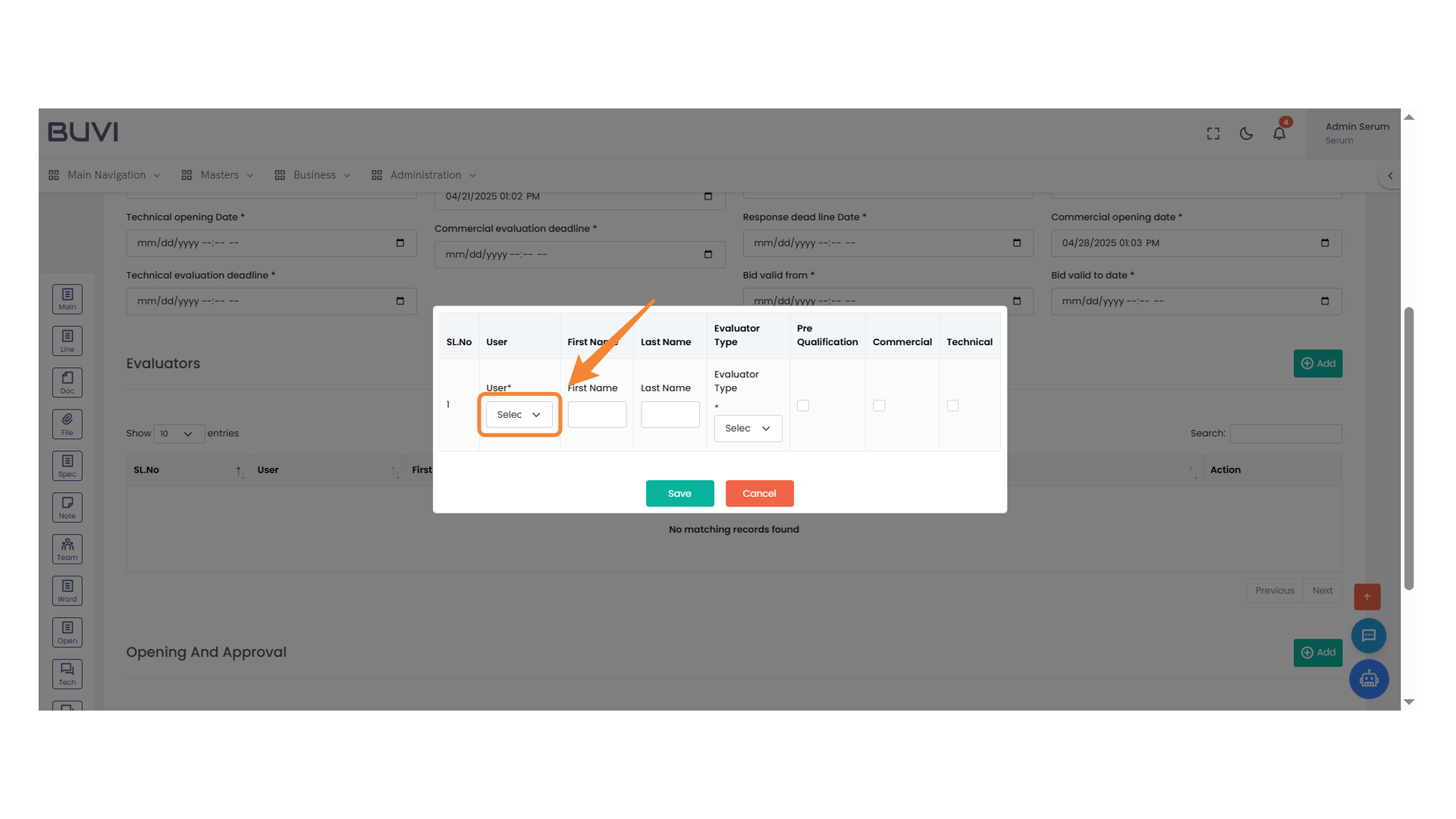
27. User Selection Dropdown
Choose a user from the dropdown menu to proceed with the evaluation process.
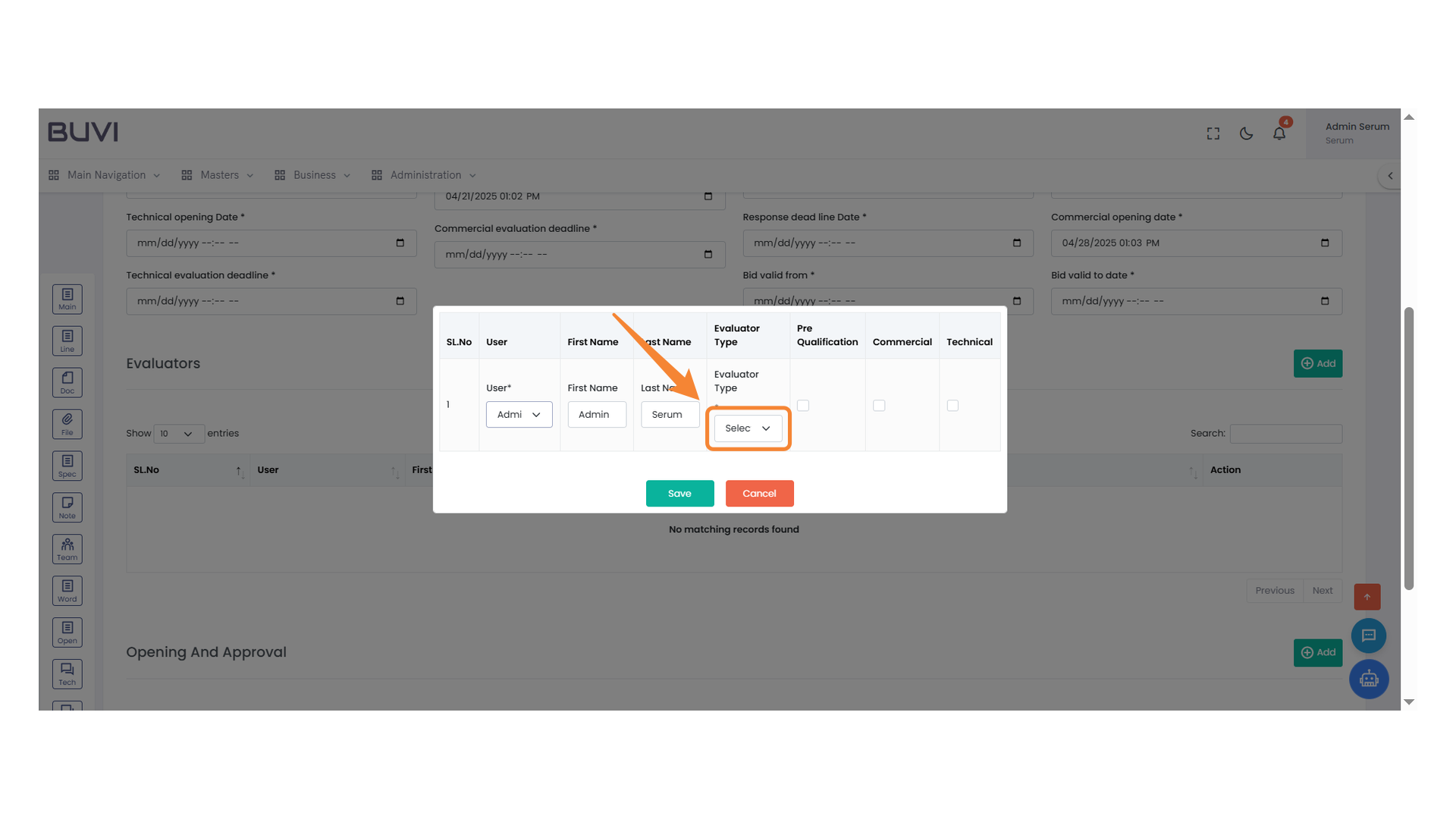
28. Evaluator Type Selection
Choose an evaluator type from the dropdown menu.
29. Commercial Evaluation Checkbox
Select this checkbox to include the user in the commercial evaluation process.

30. Save Button Highlighted
Press the 'Save' button to confirm and store your changes.
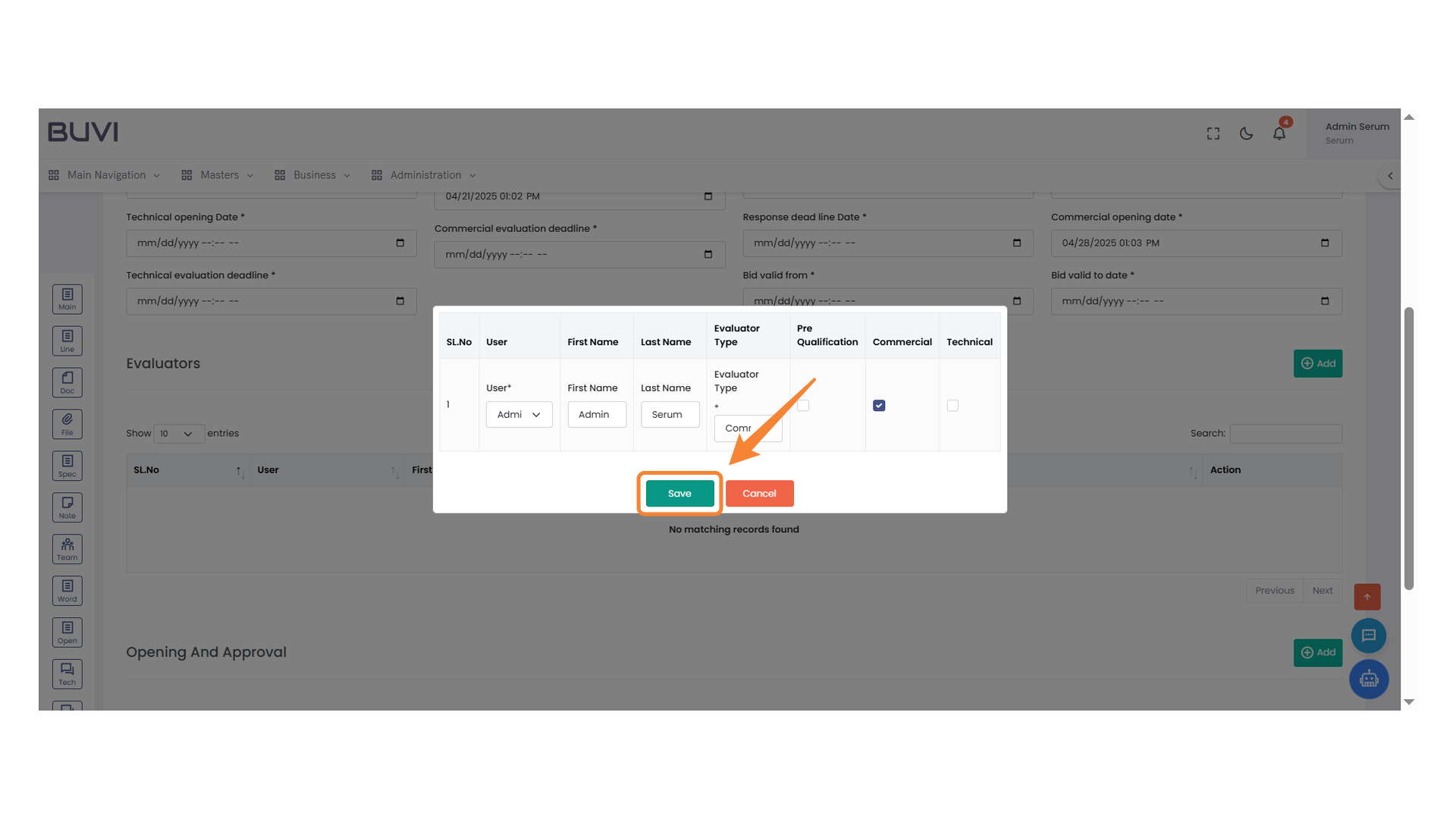
31. Save Button
Click to save the current changes.
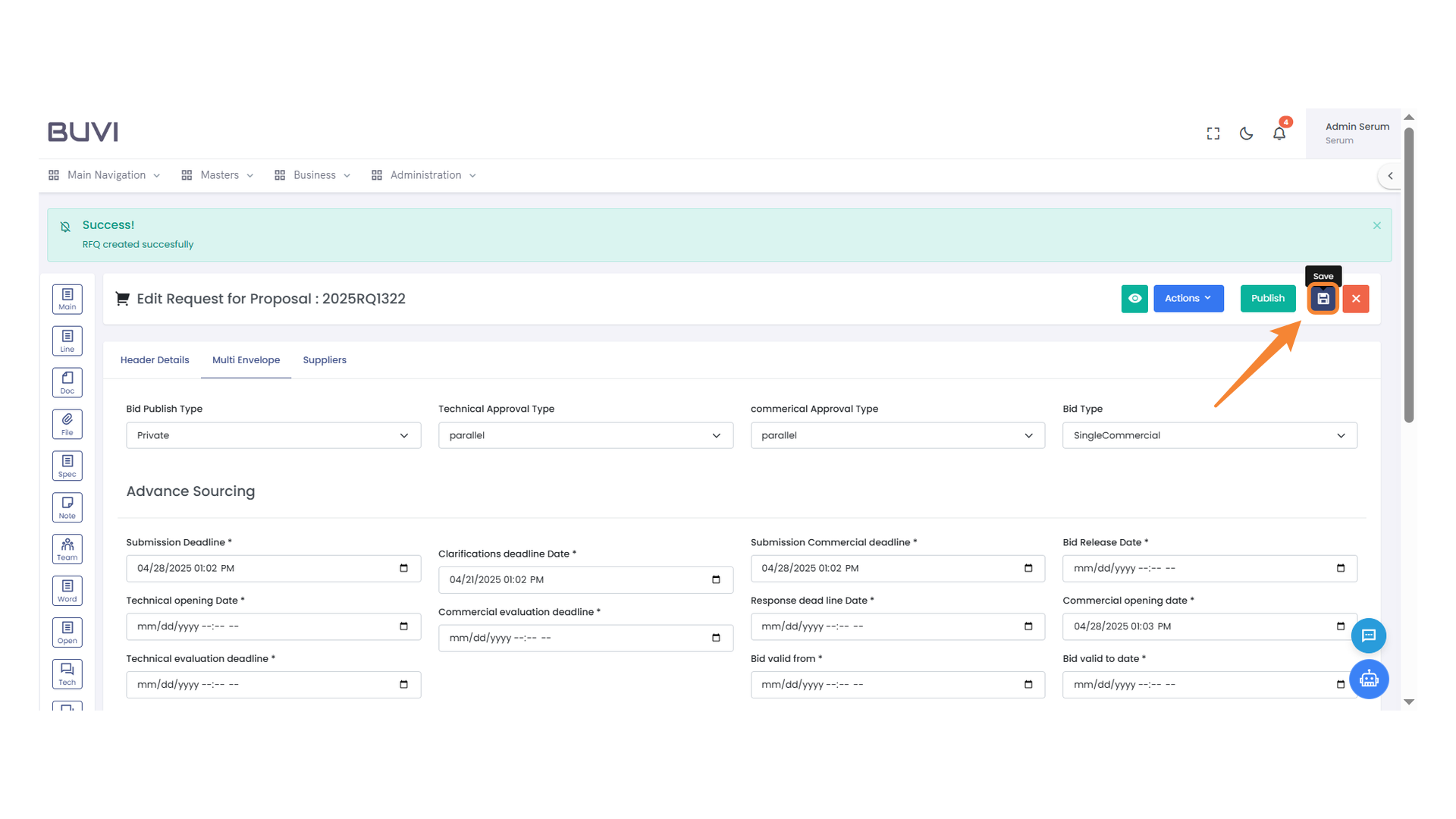
32. Confirmation Prompt
Click 'Update' to proceed with saving your changes.
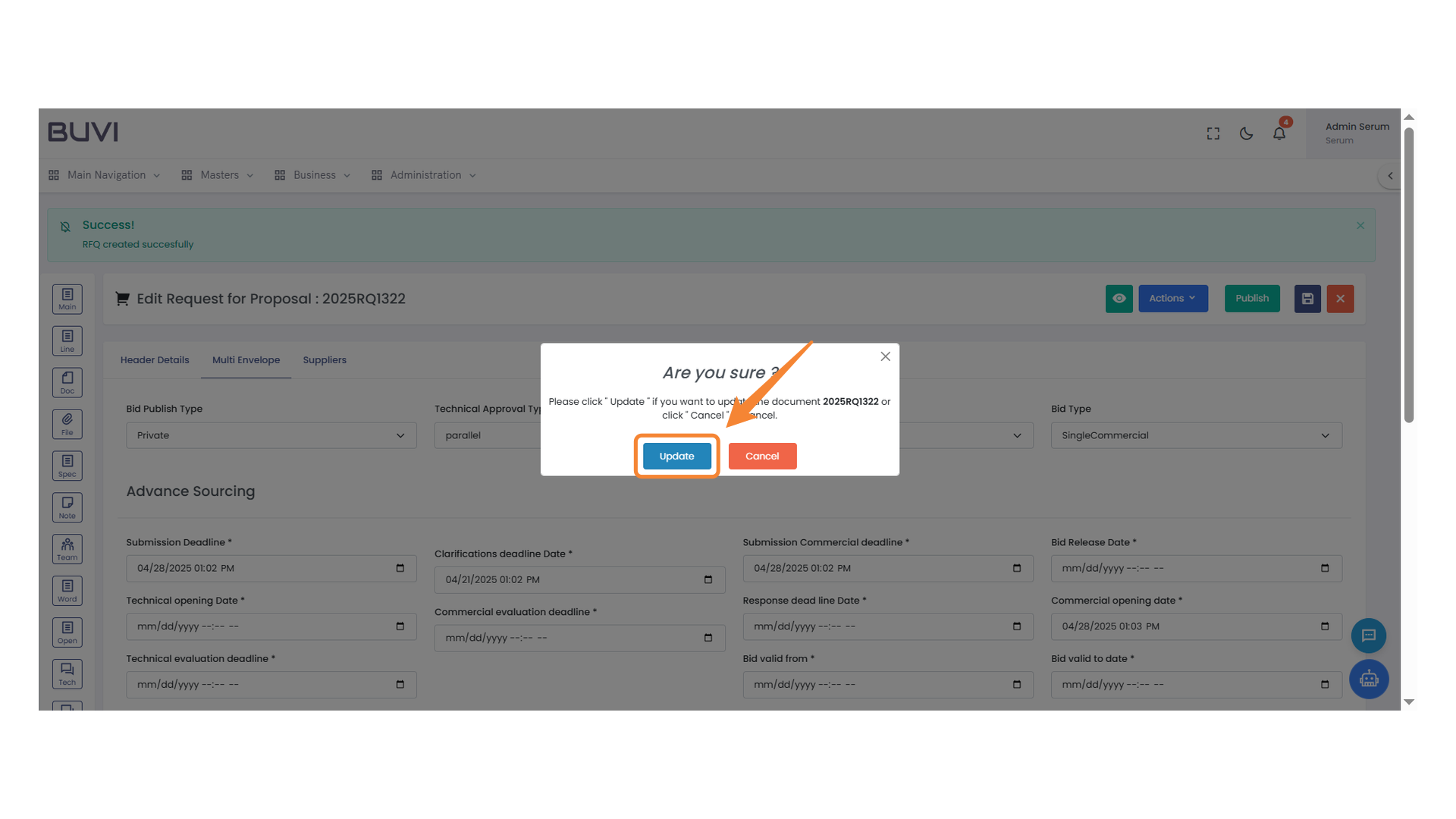
33. Line Icon Navigation
Select this icon to navigate to the Lines section.
34. Add New Line Item Button
Click to add a new line item to the list.
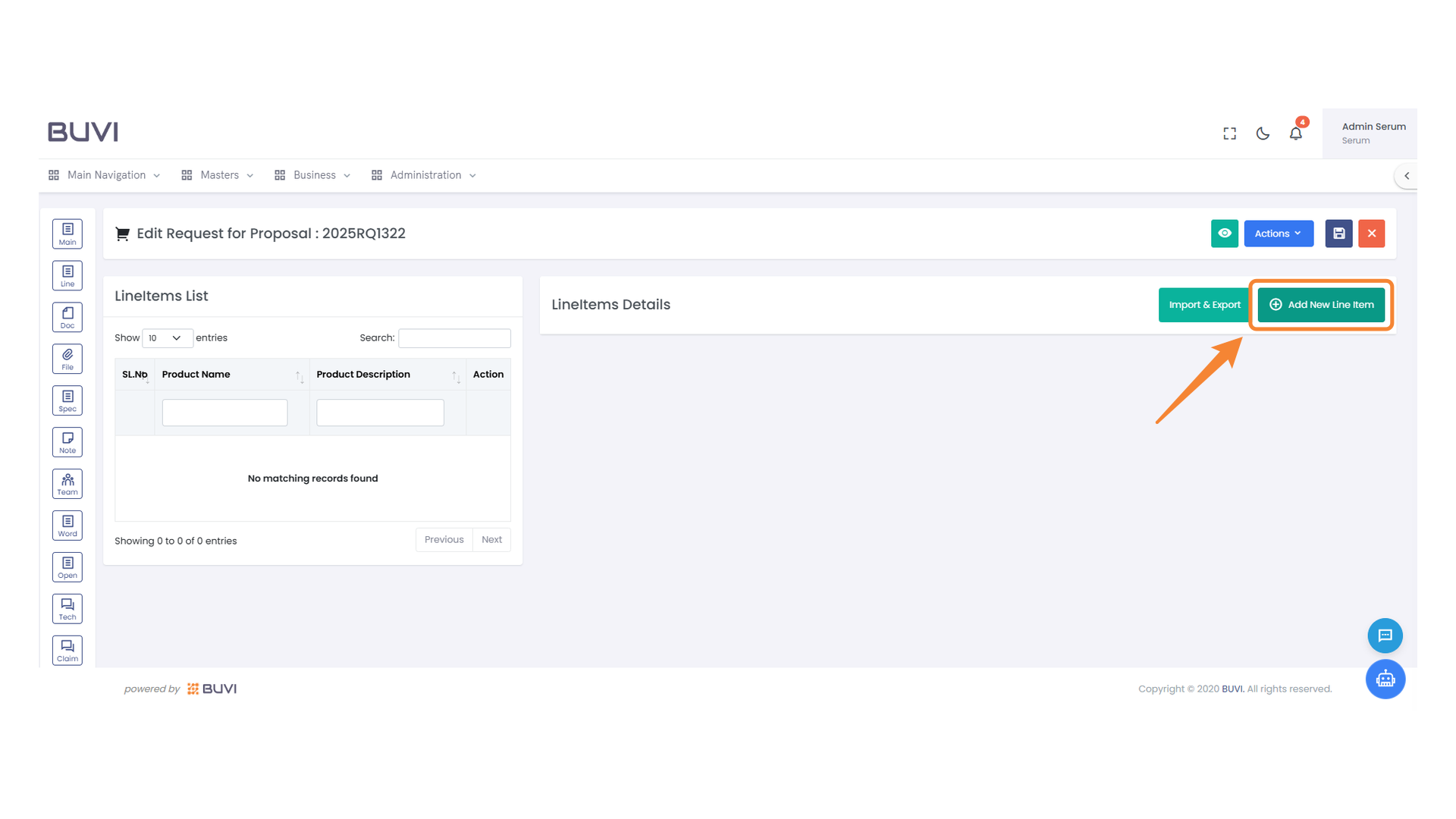
35. Product Name Input Field
Enter the product name in this field to specify the item details.
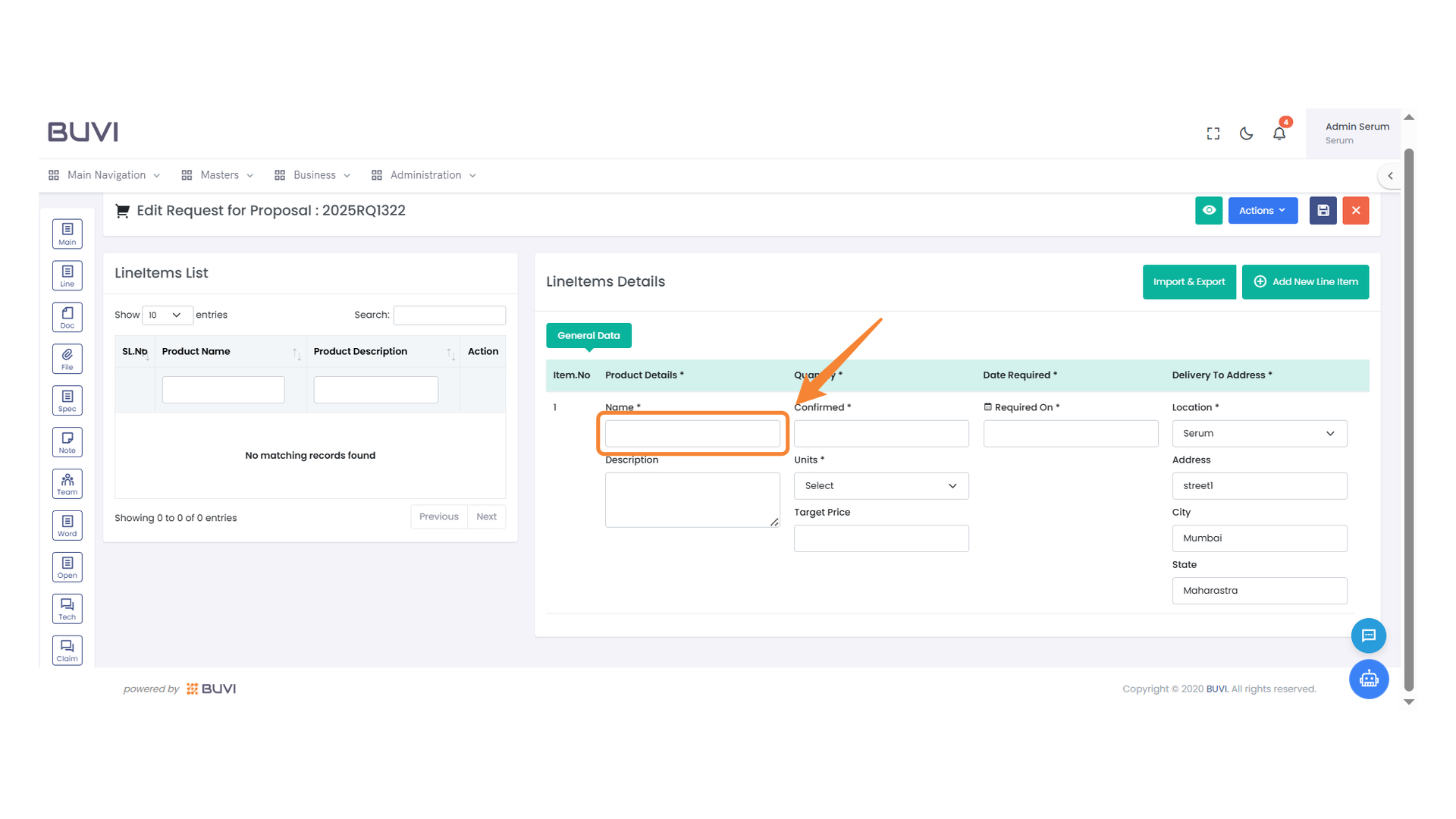
36. Product Name Input Field
Enter the product name in the designated field to search for specific products.
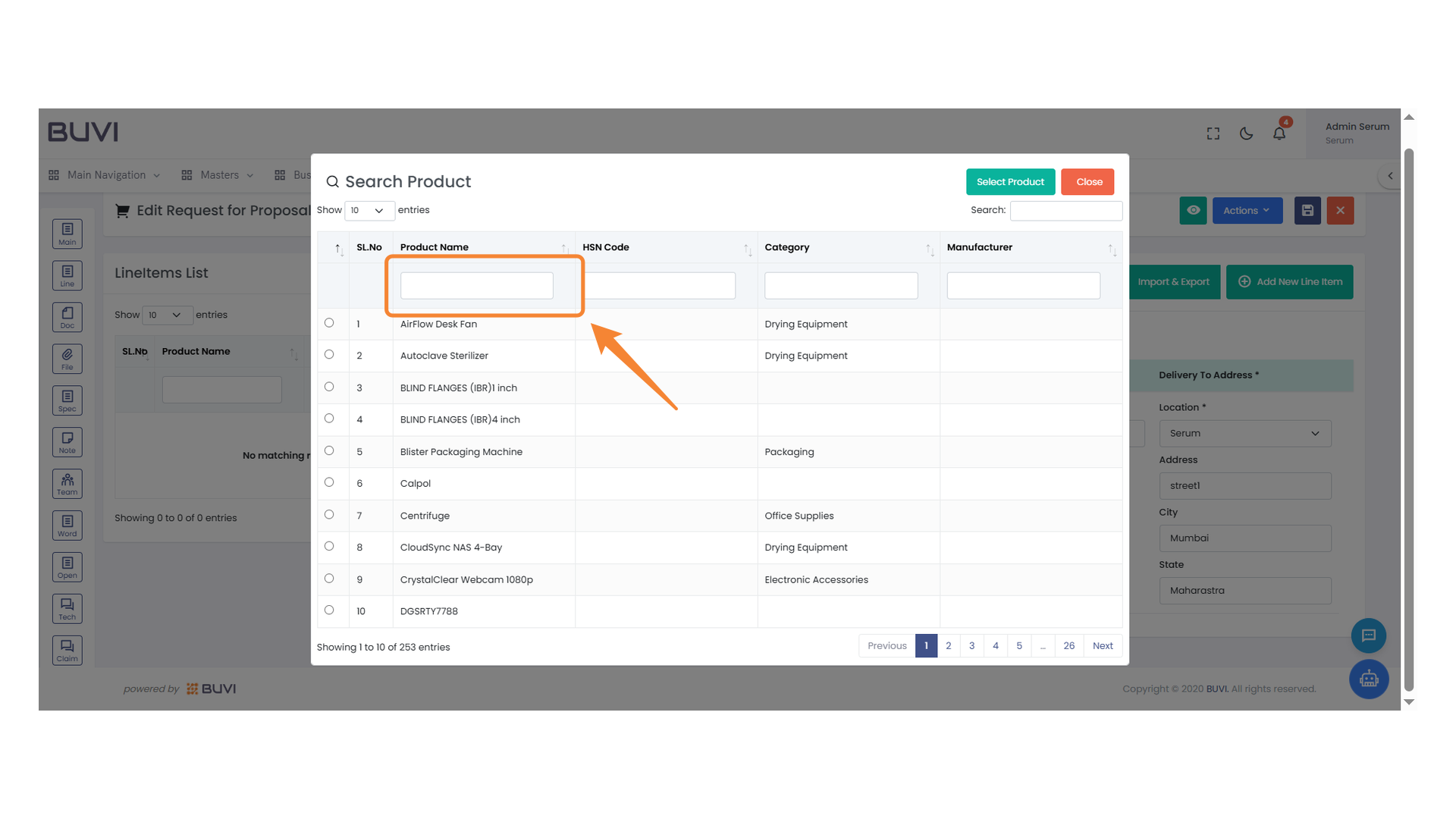
37. Product Selection Highlight
Select the bike product entry from the list and proceed with the action.
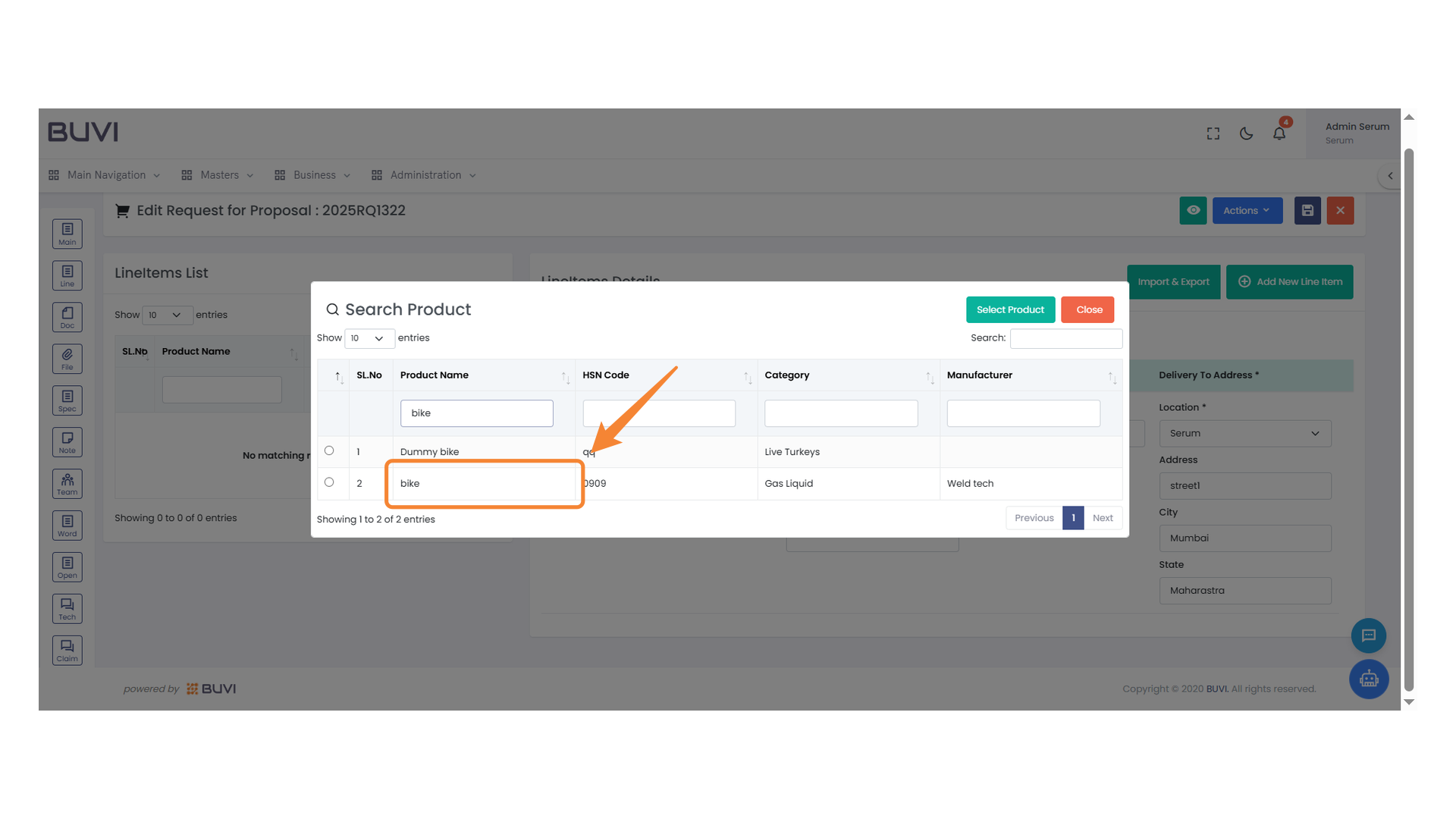
38. Product Selection Button
Click to select a product from the list.
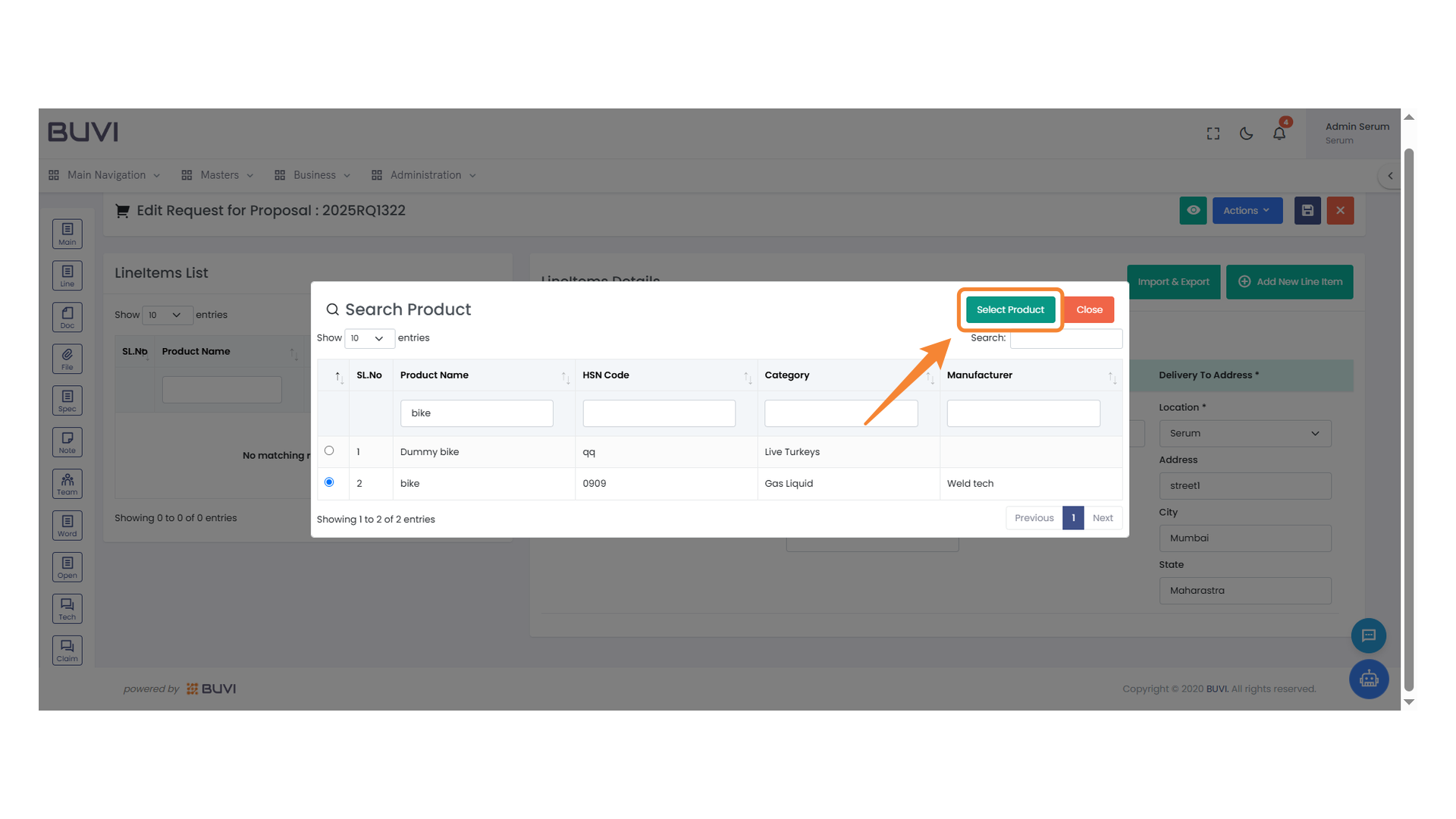
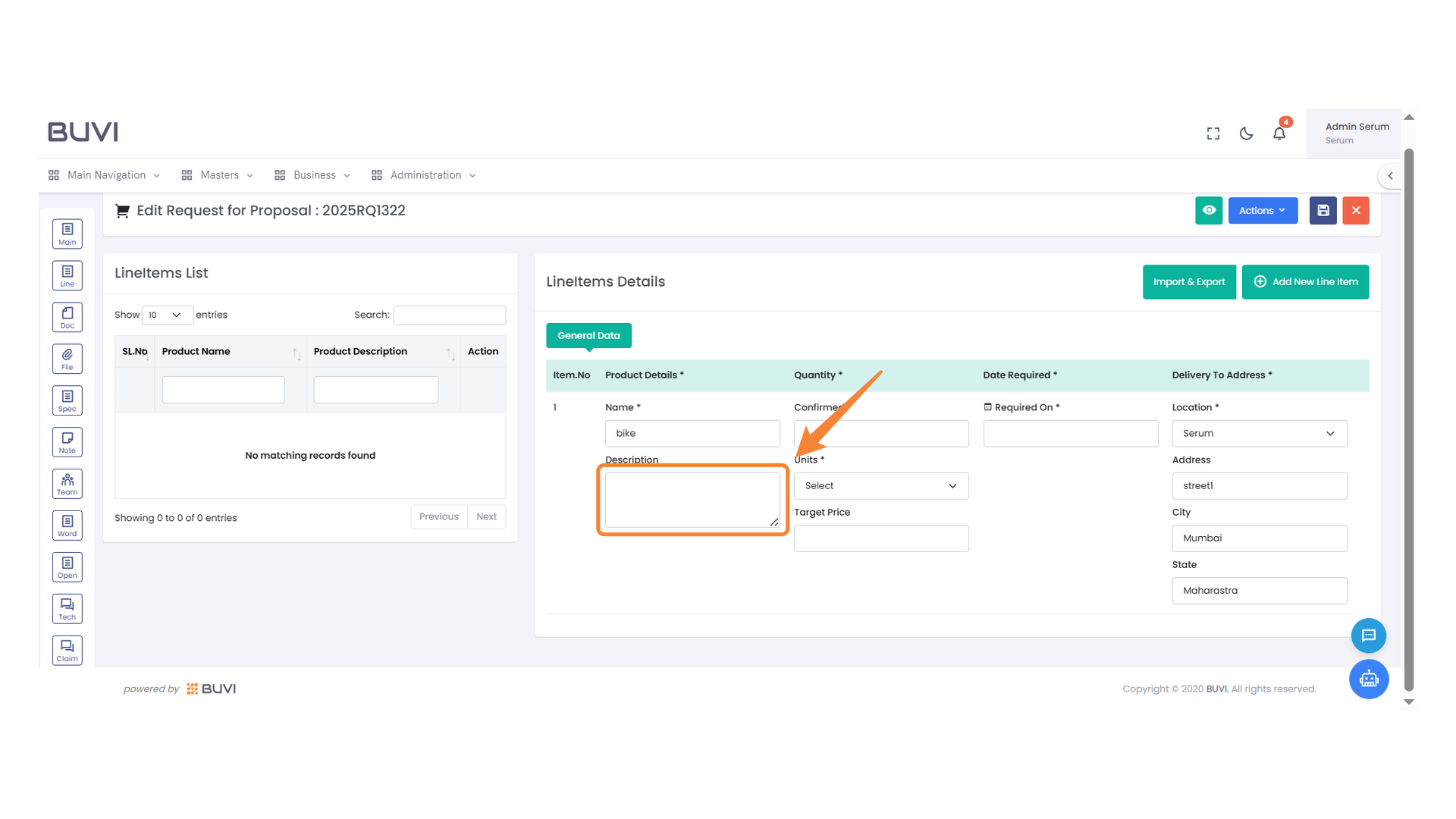
39. Description Input Field
Enter the product description in this field.
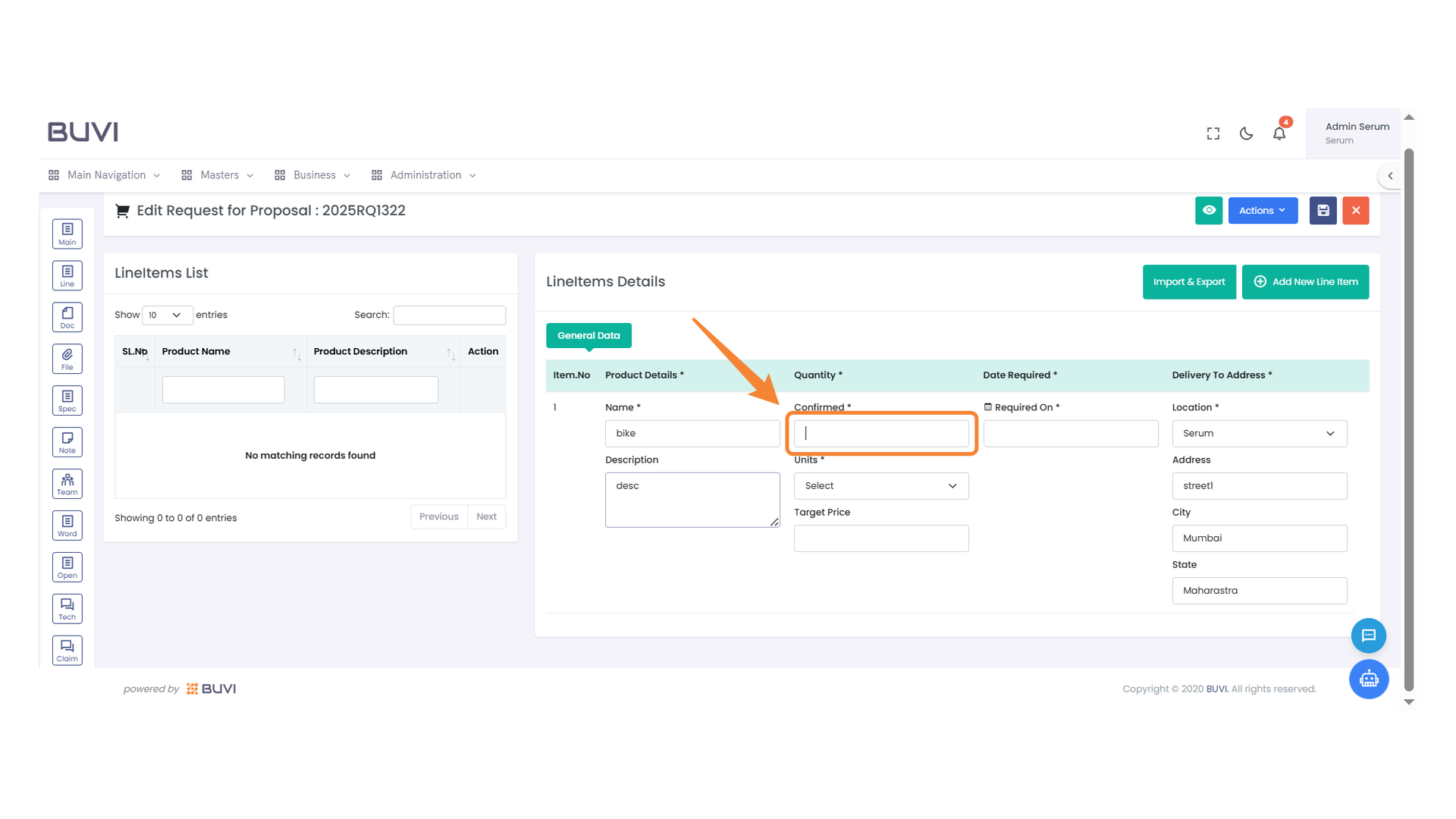
40. Confirmation Status Field
Input the confirmation status for the product here.
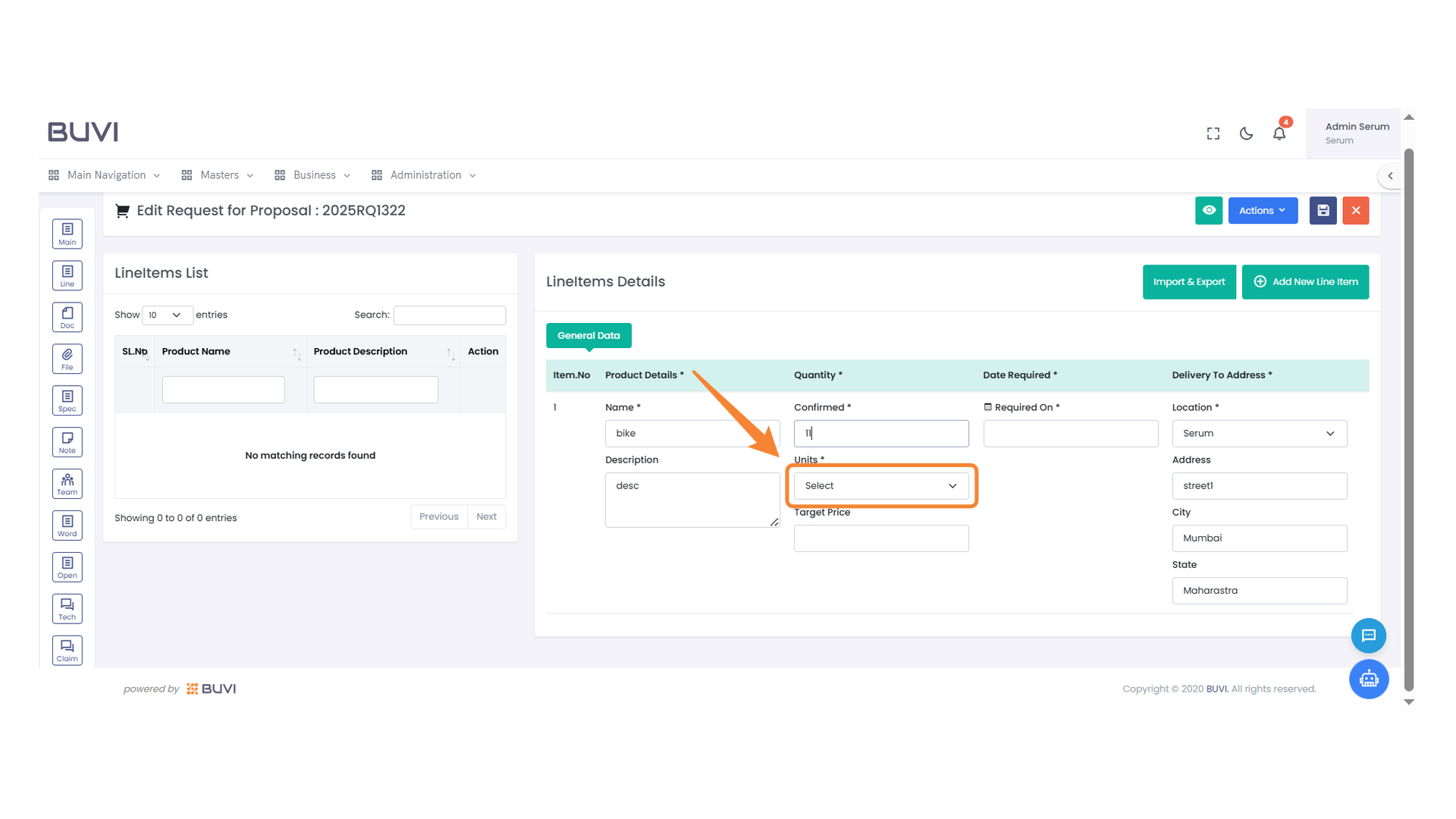
41. Units Selection Dropdown
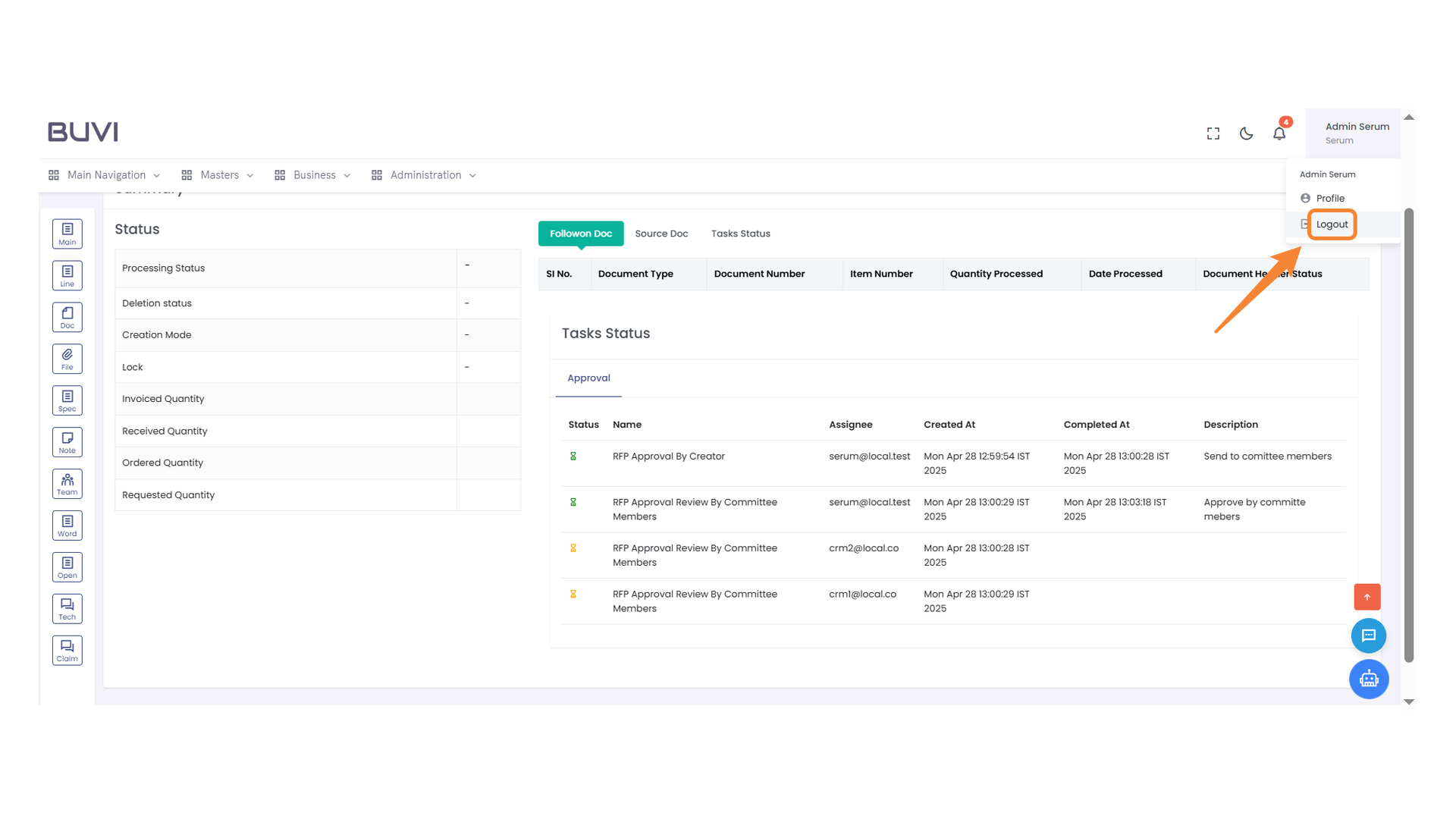
Choose the appropriate unit from the dropdown menu for the item being specified.
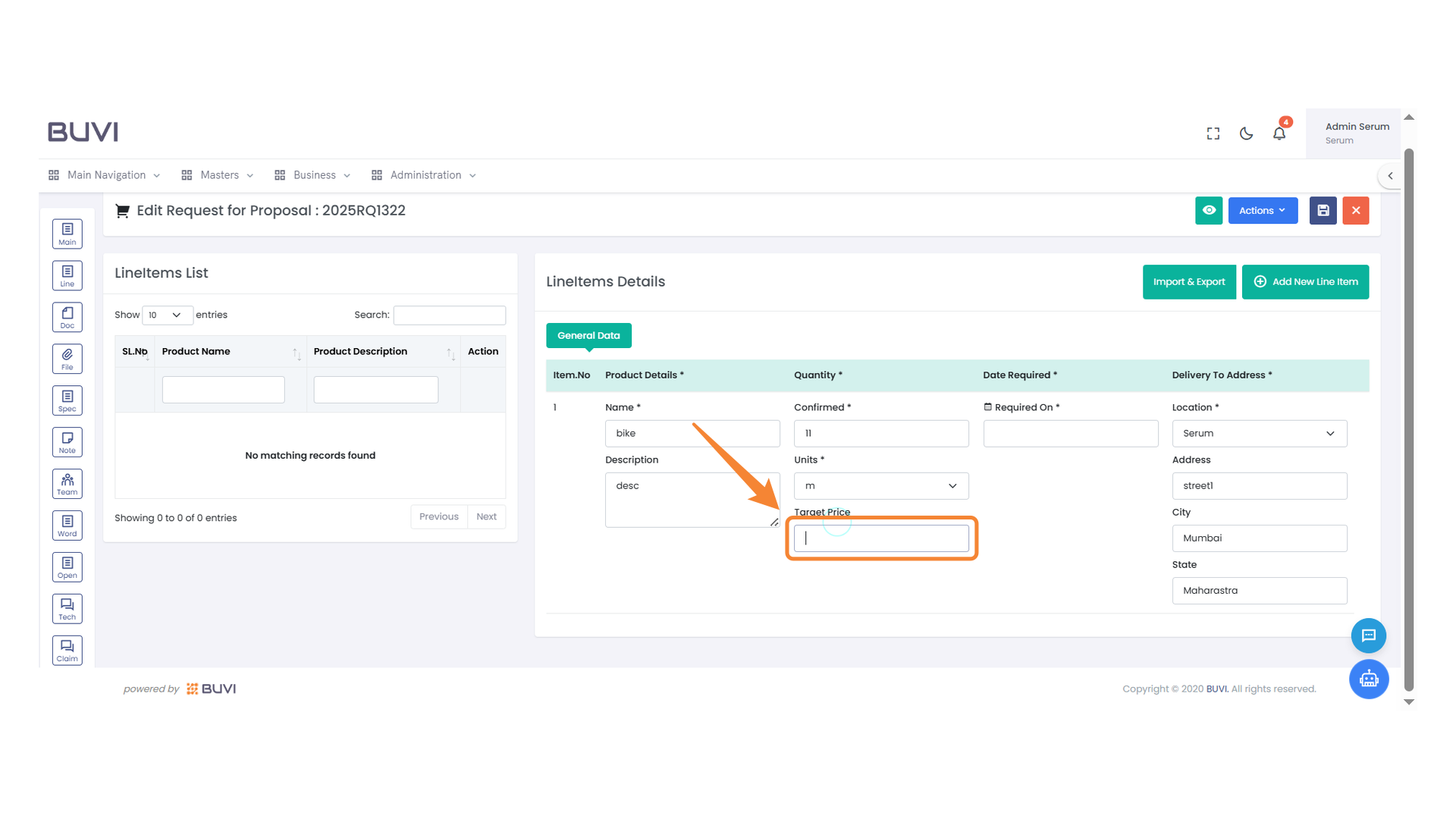
42. Target Price Input Field
Enter the target price for the item in this field.
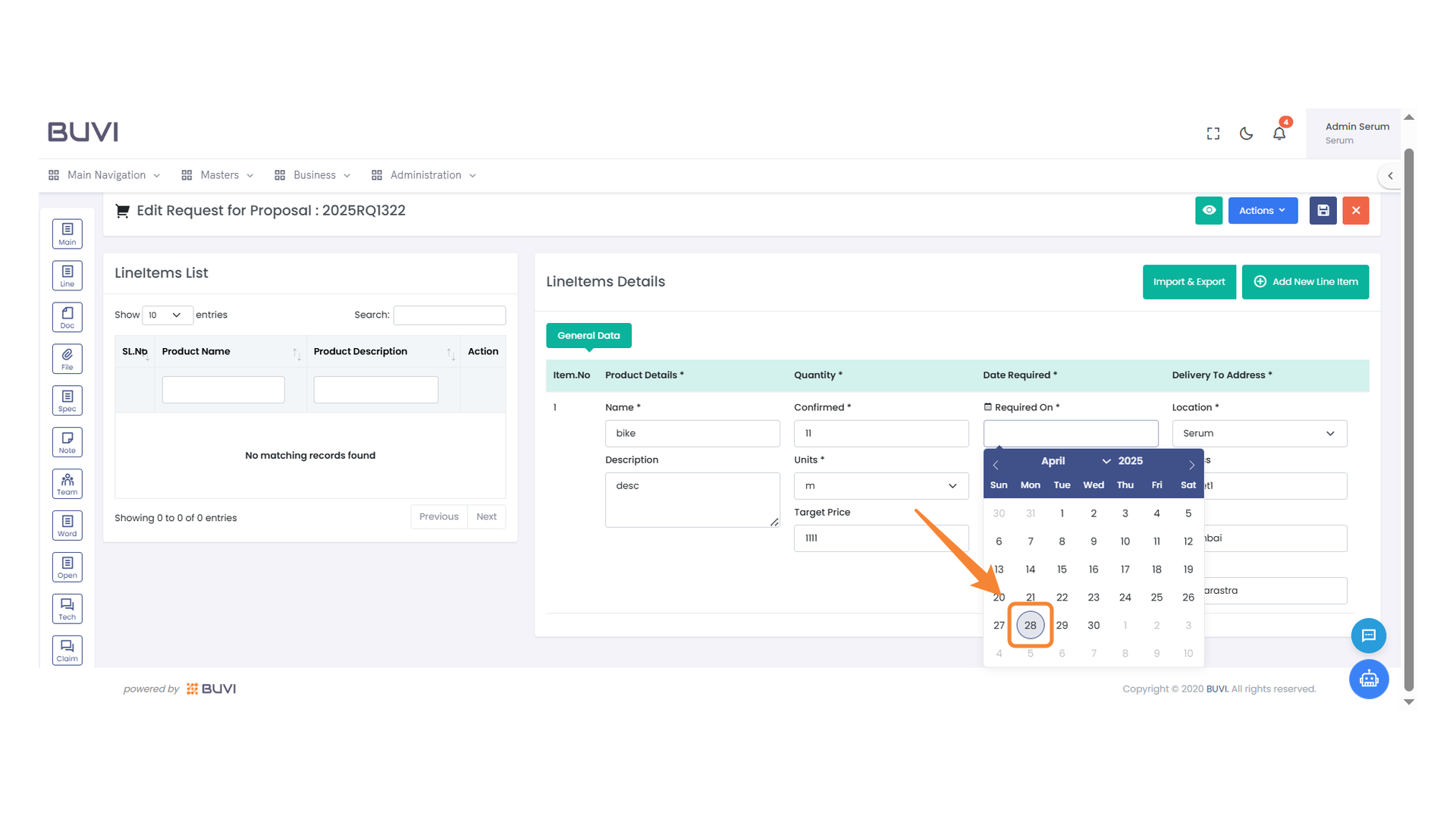
43. Date Selection
Select the 28th day on the calendar for setting the required date.
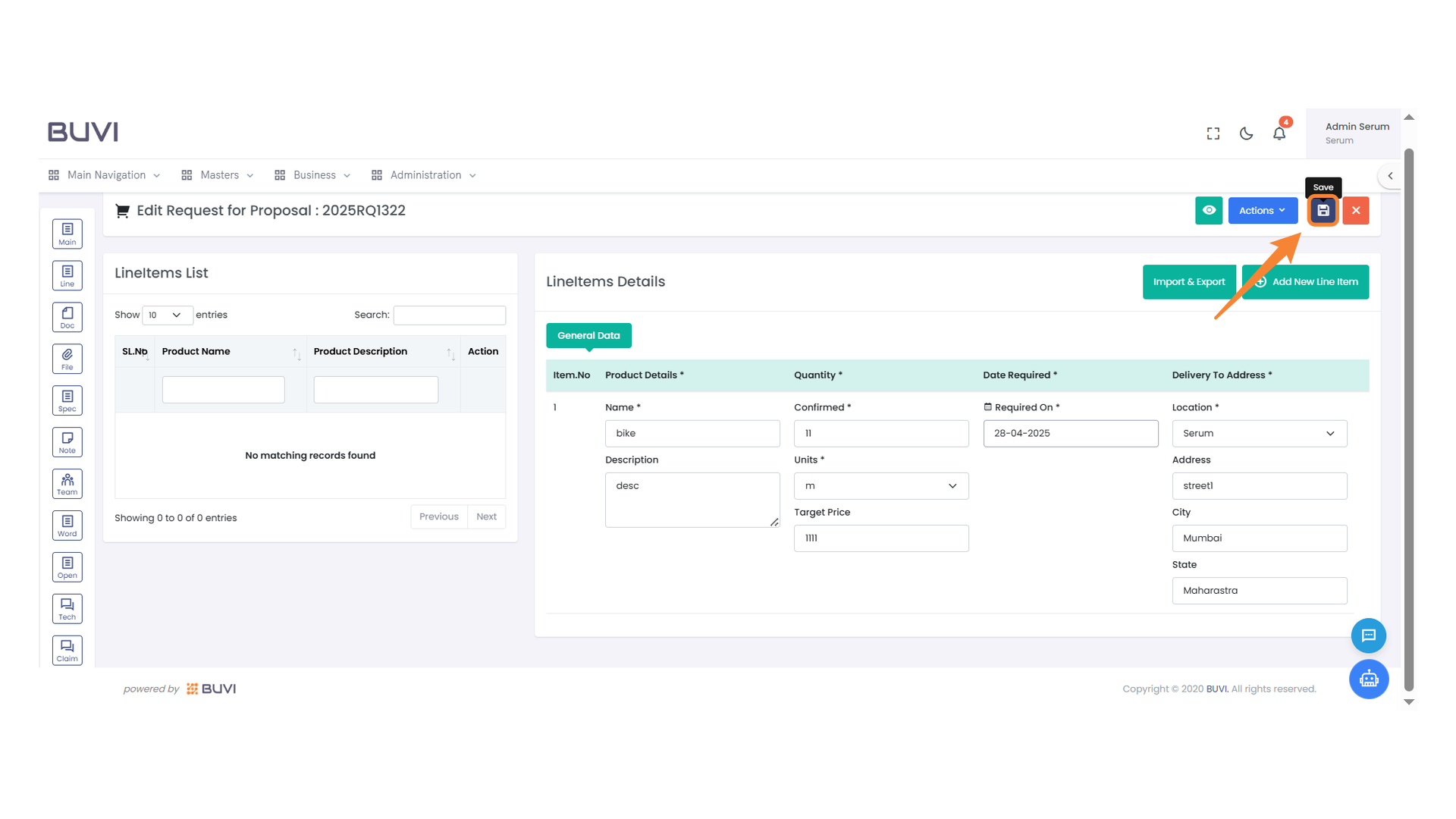
44. Save Button
Click to save your data and changes.
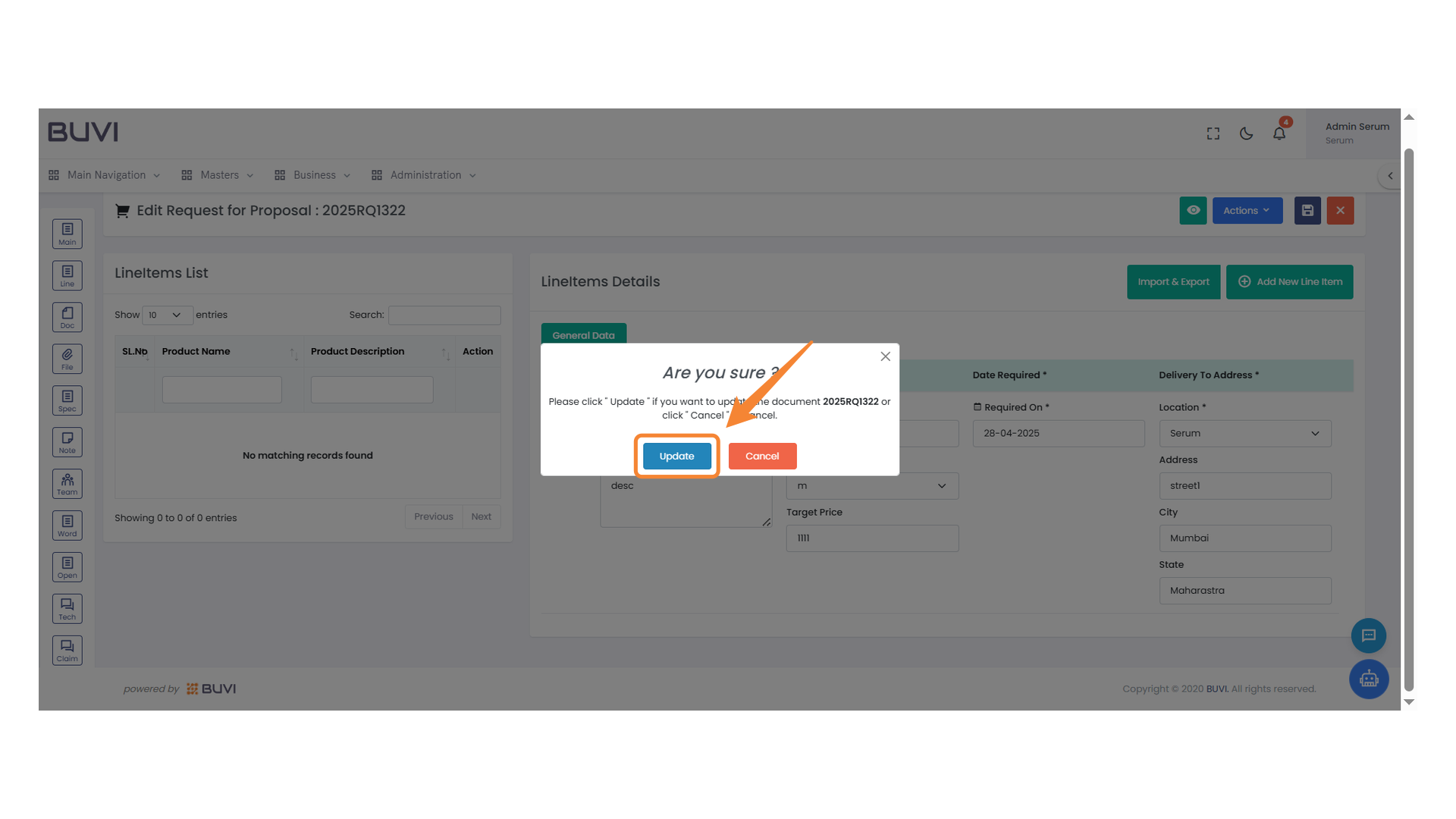
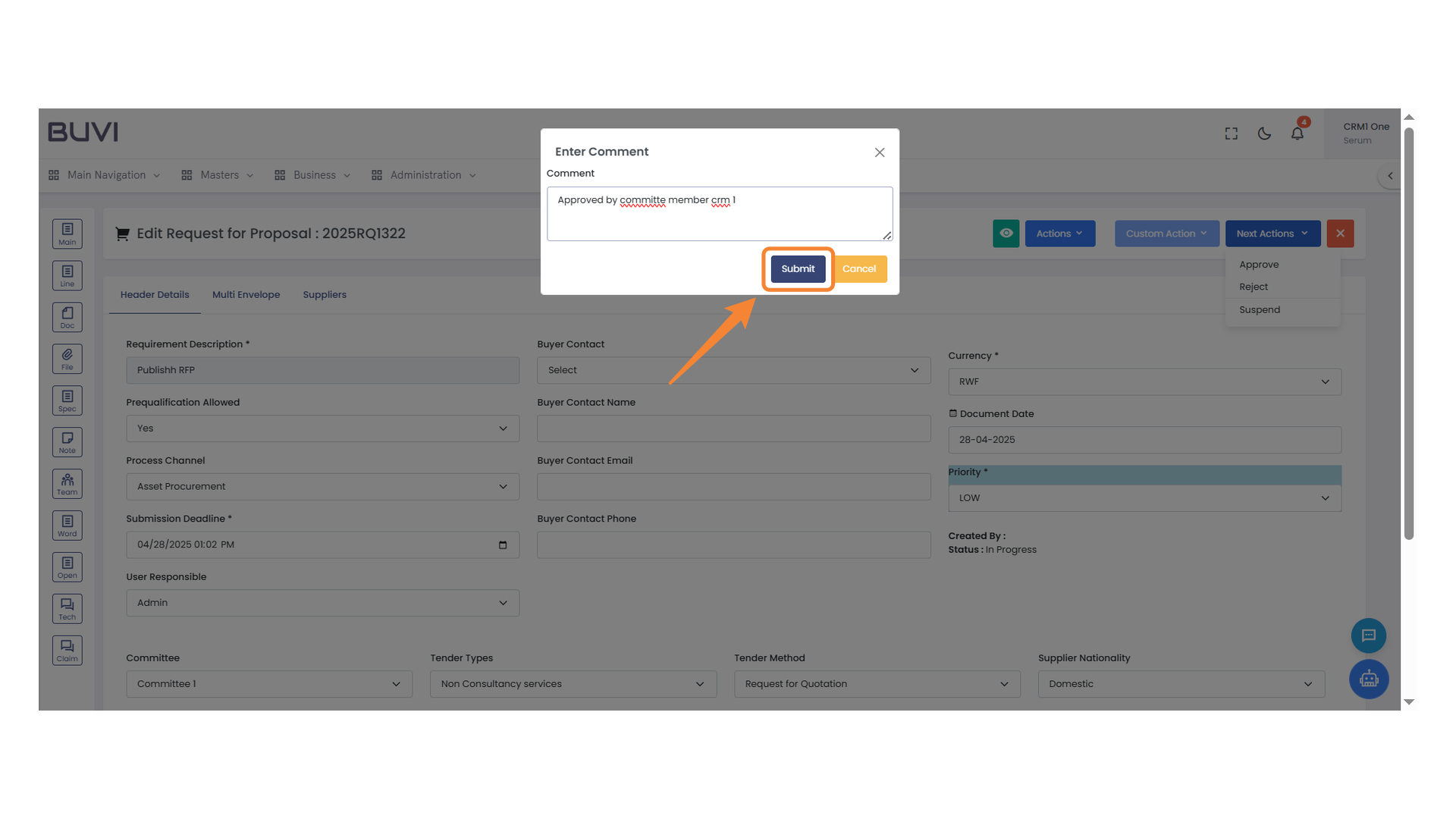
45. Confirmation Dialog
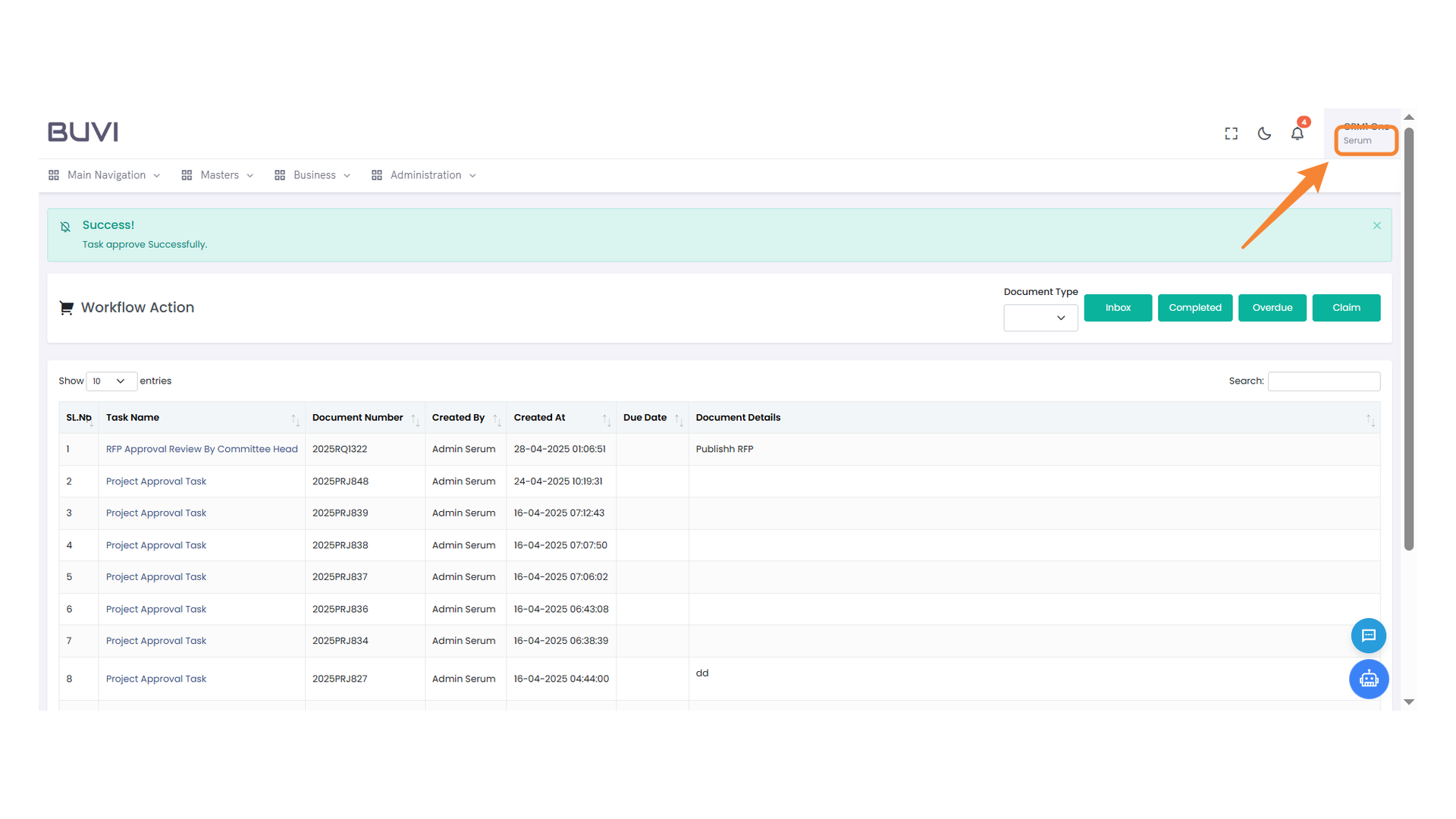
Press 'Update' to confirm changes or select 'Cancel' to abort.
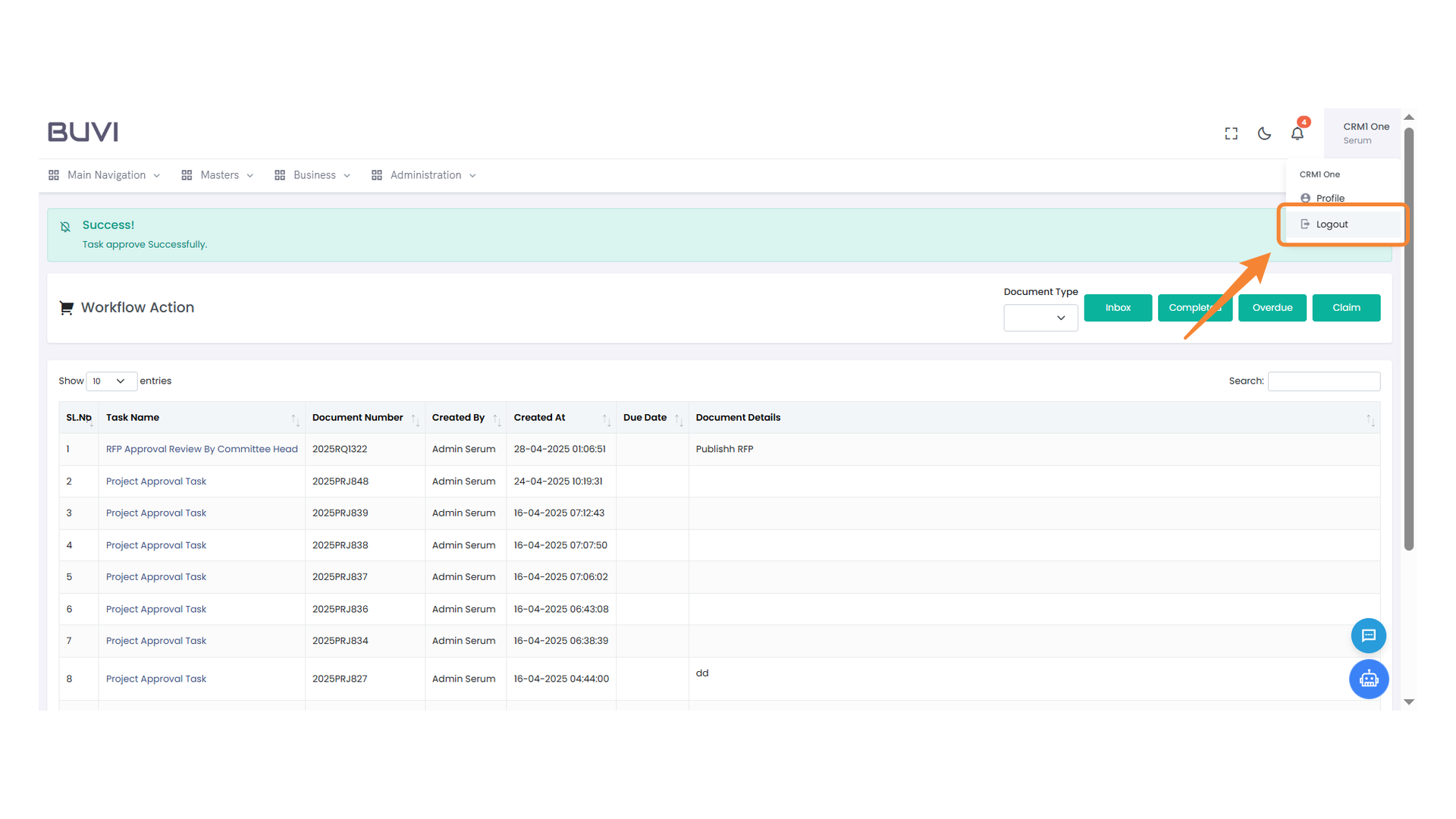
46. File Icon in Navigation Menu
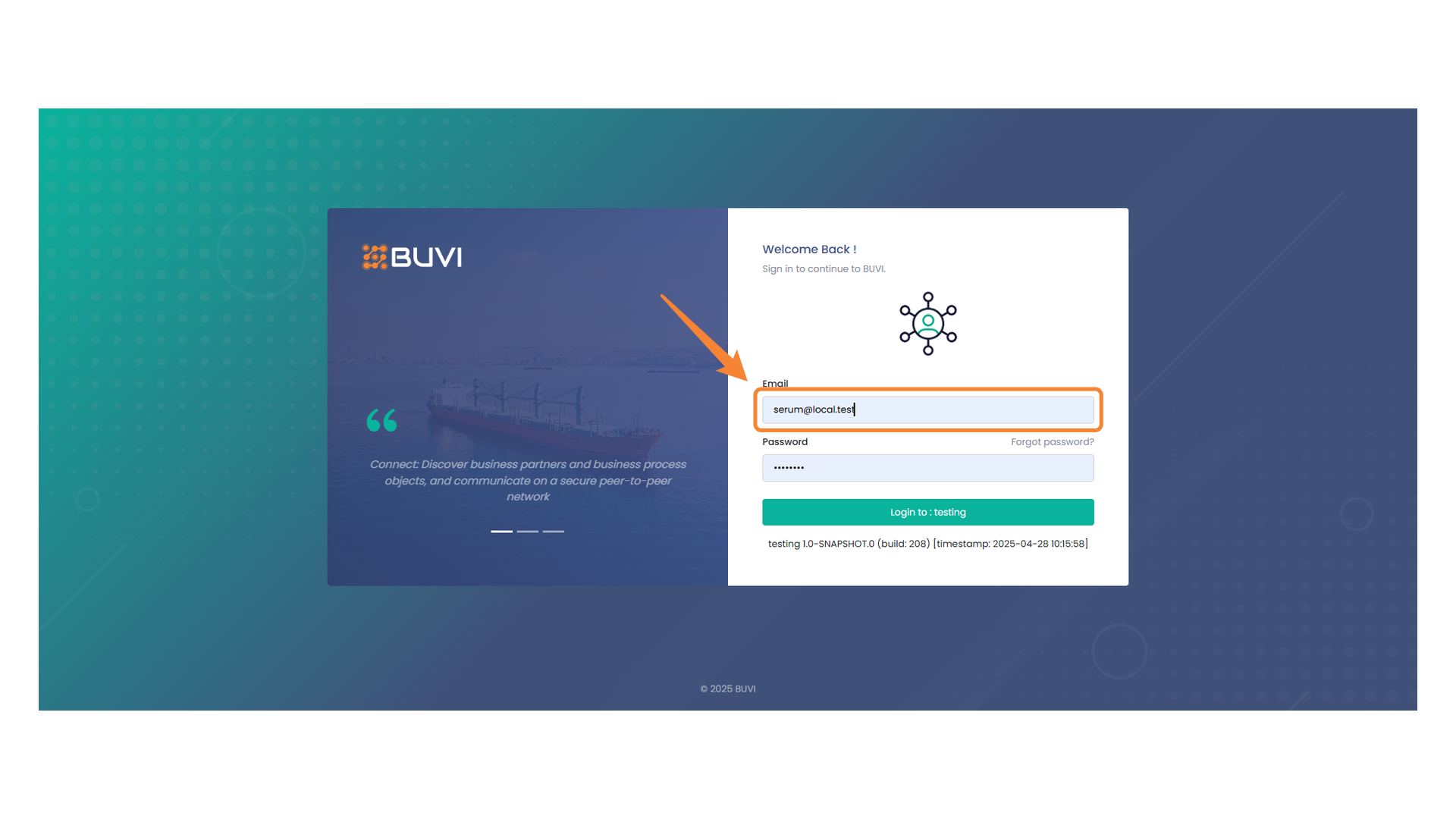
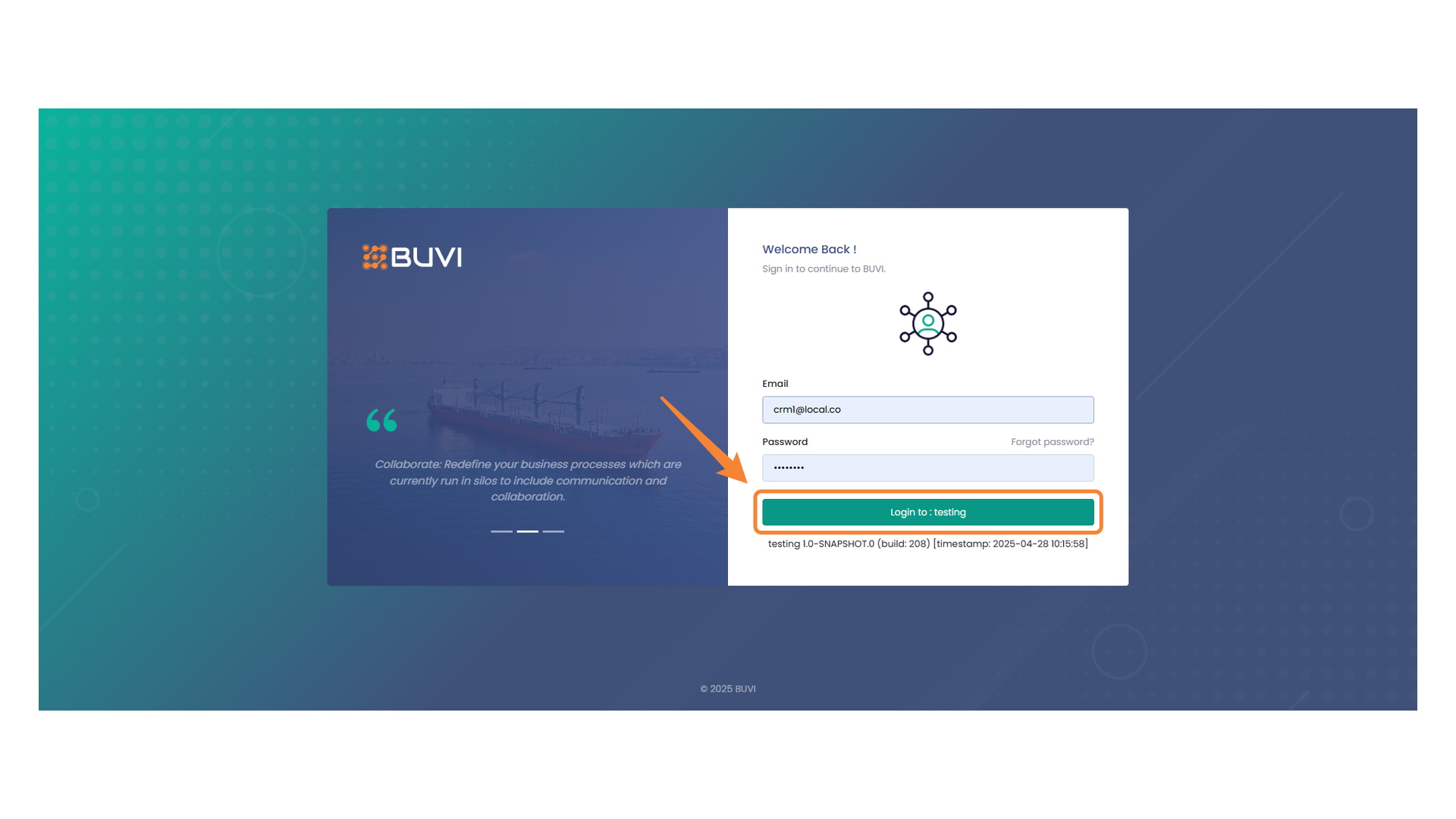
Access file-related options by selecting this icon from the side menu.
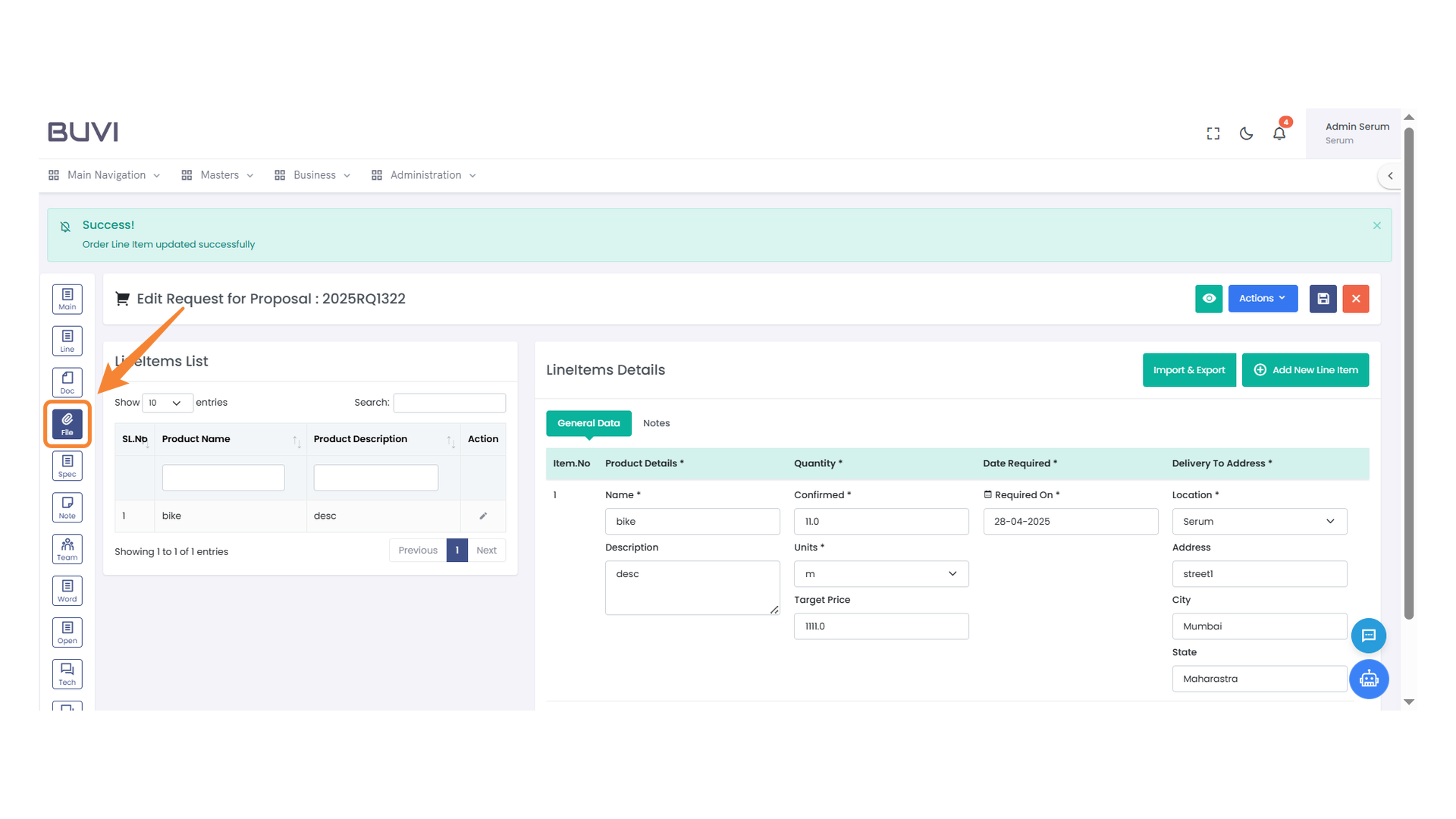
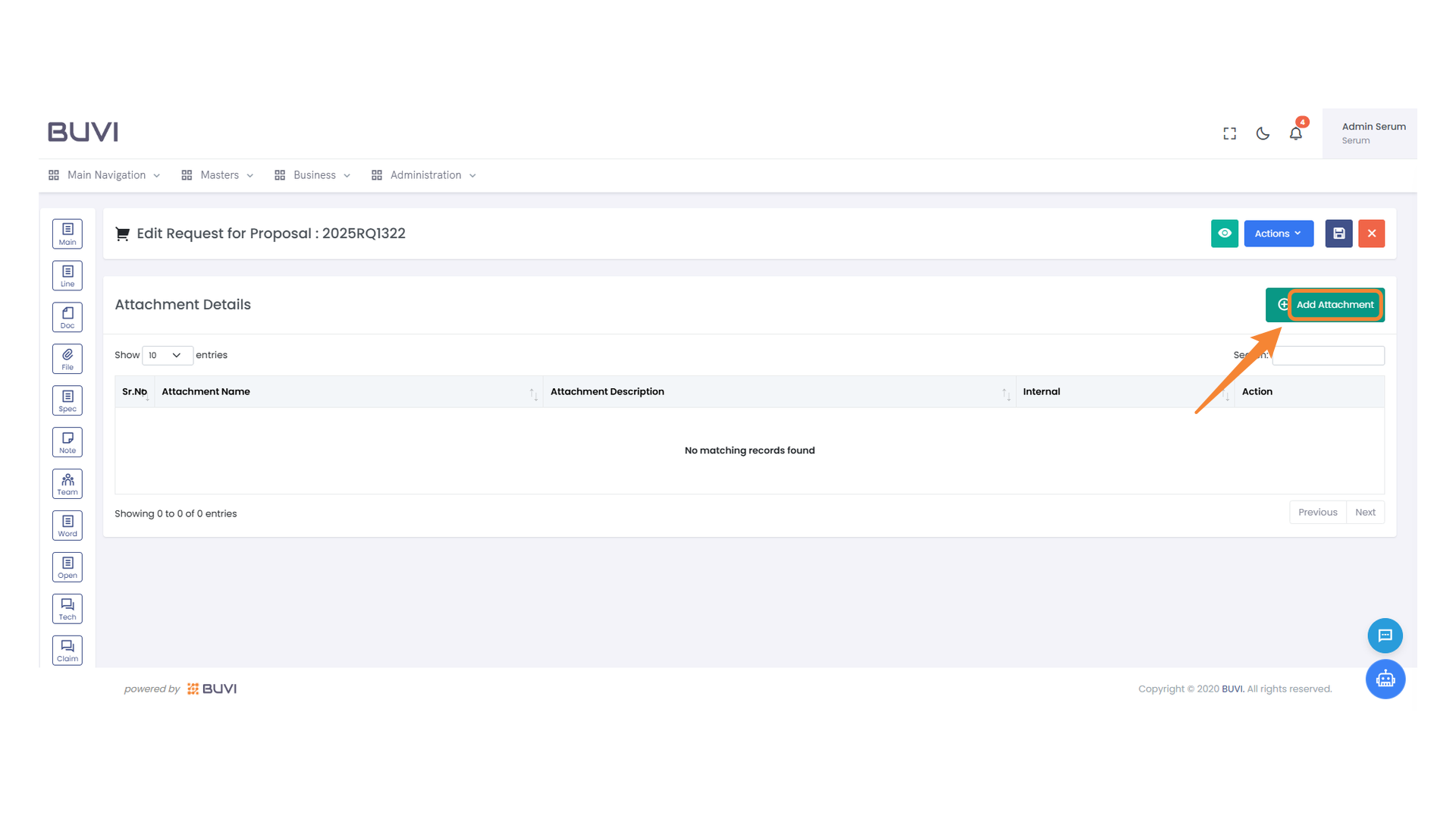
47. Add Attachment Button
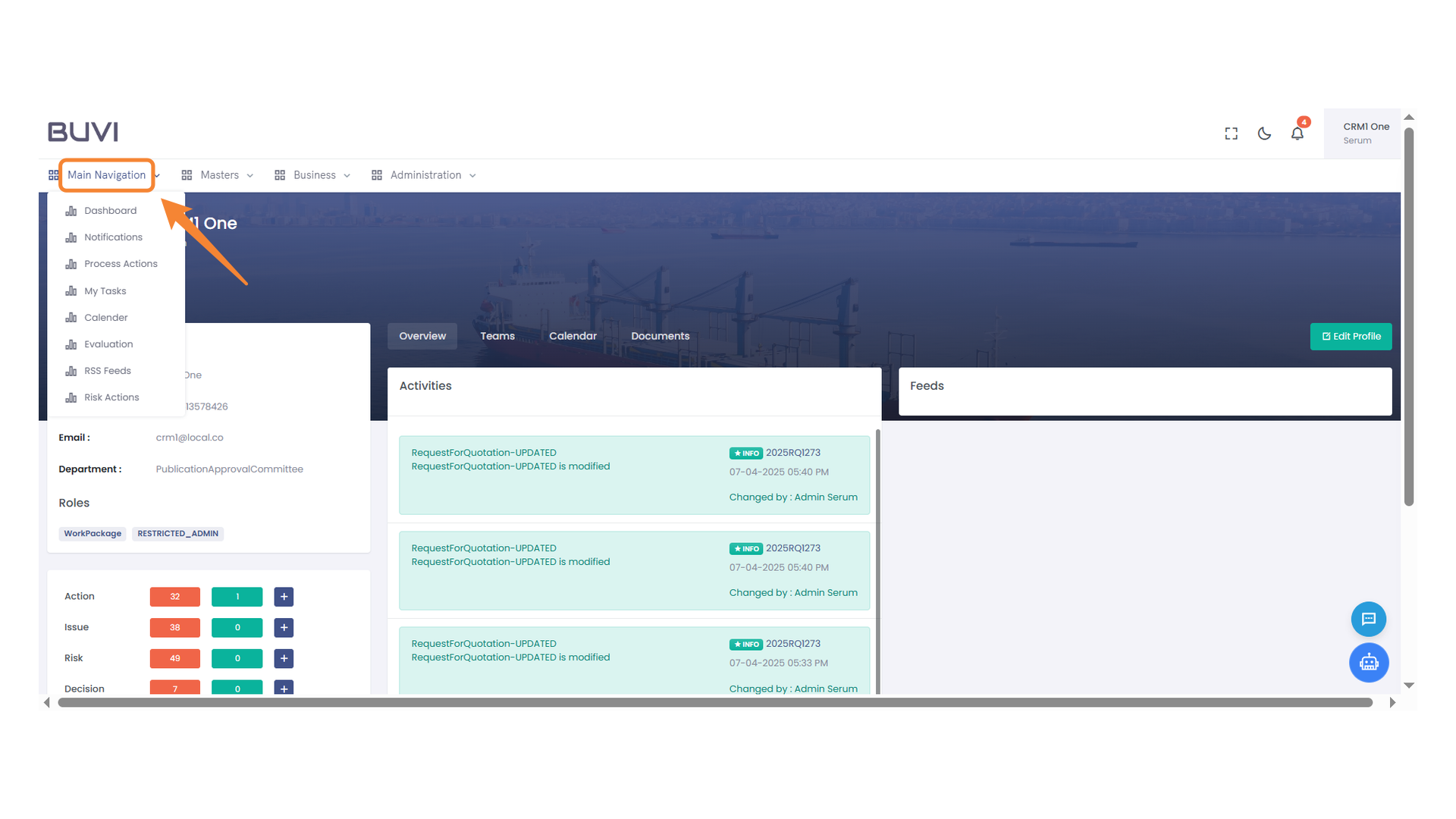
Click the button to add a new attachment to the request.
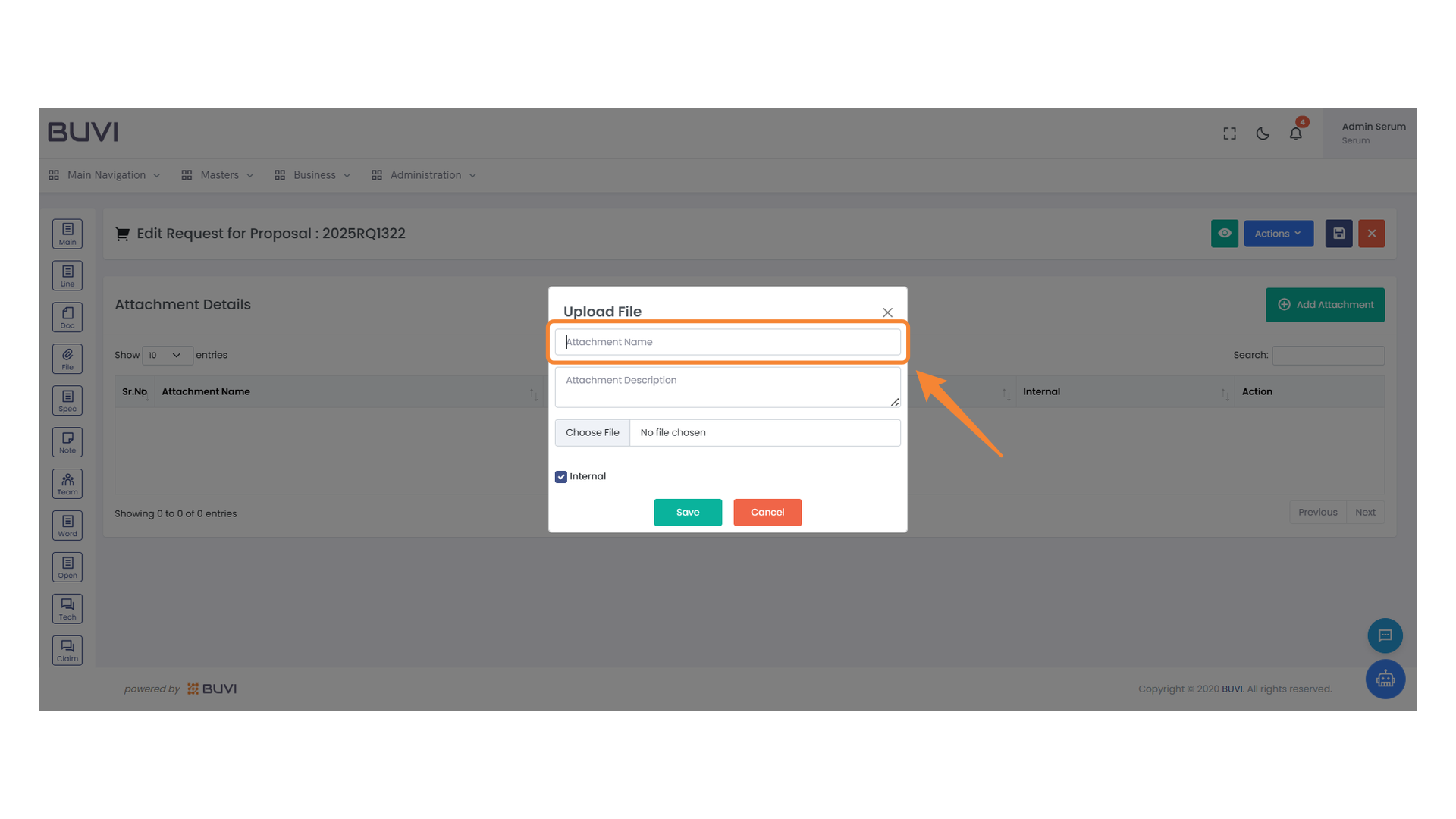
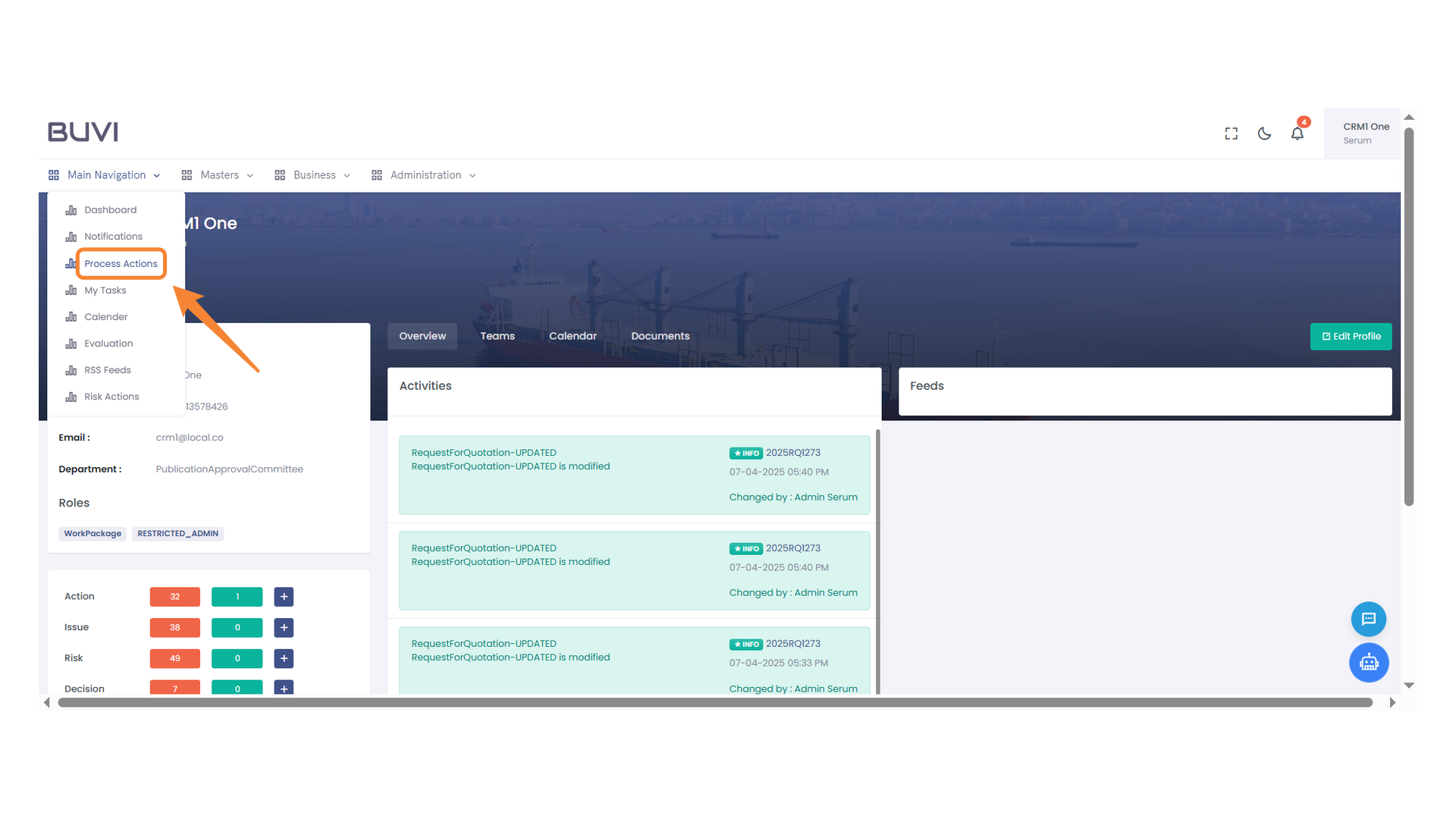
48. Attachment Name Field
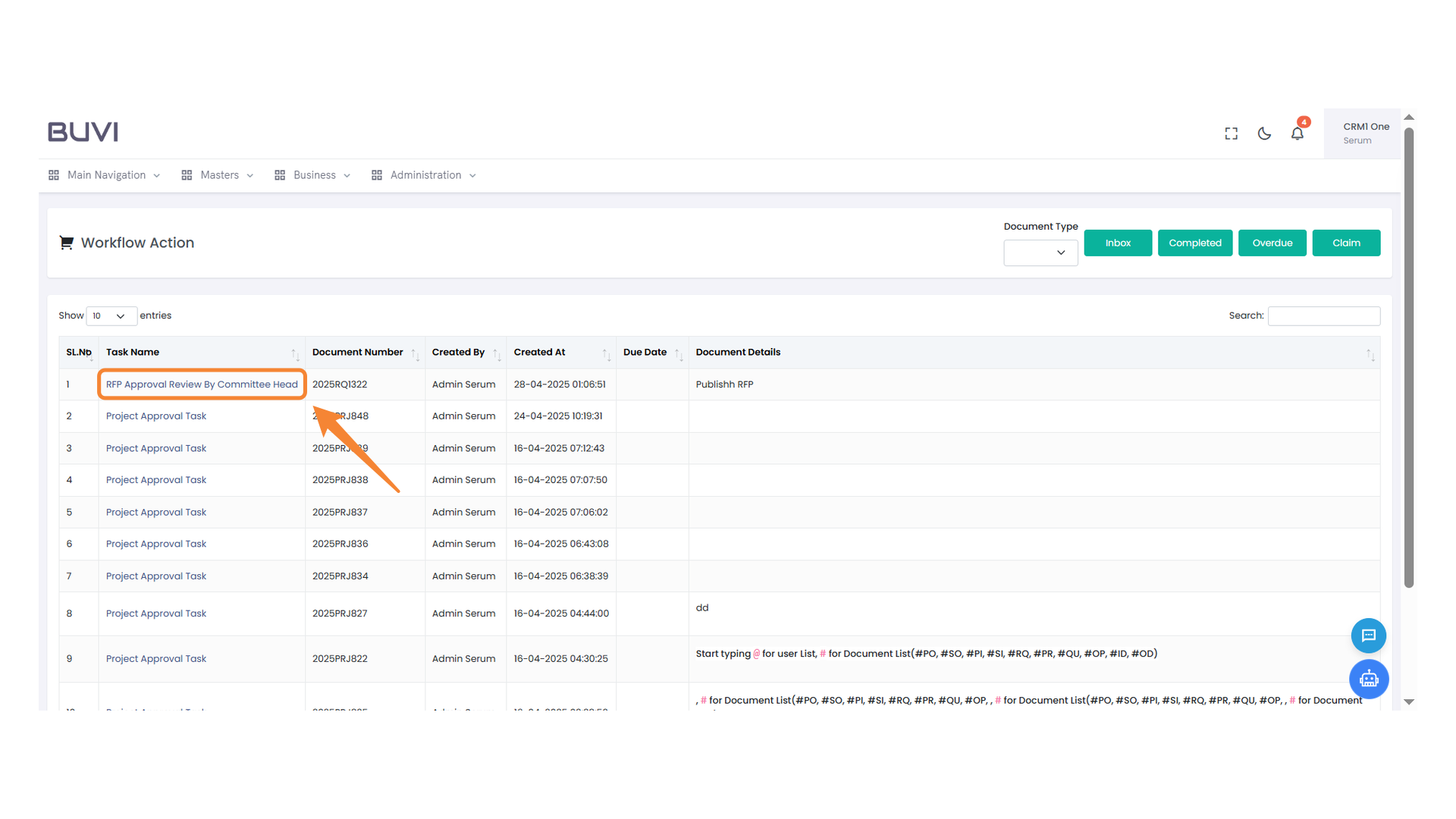
Enter the name of the attachment.
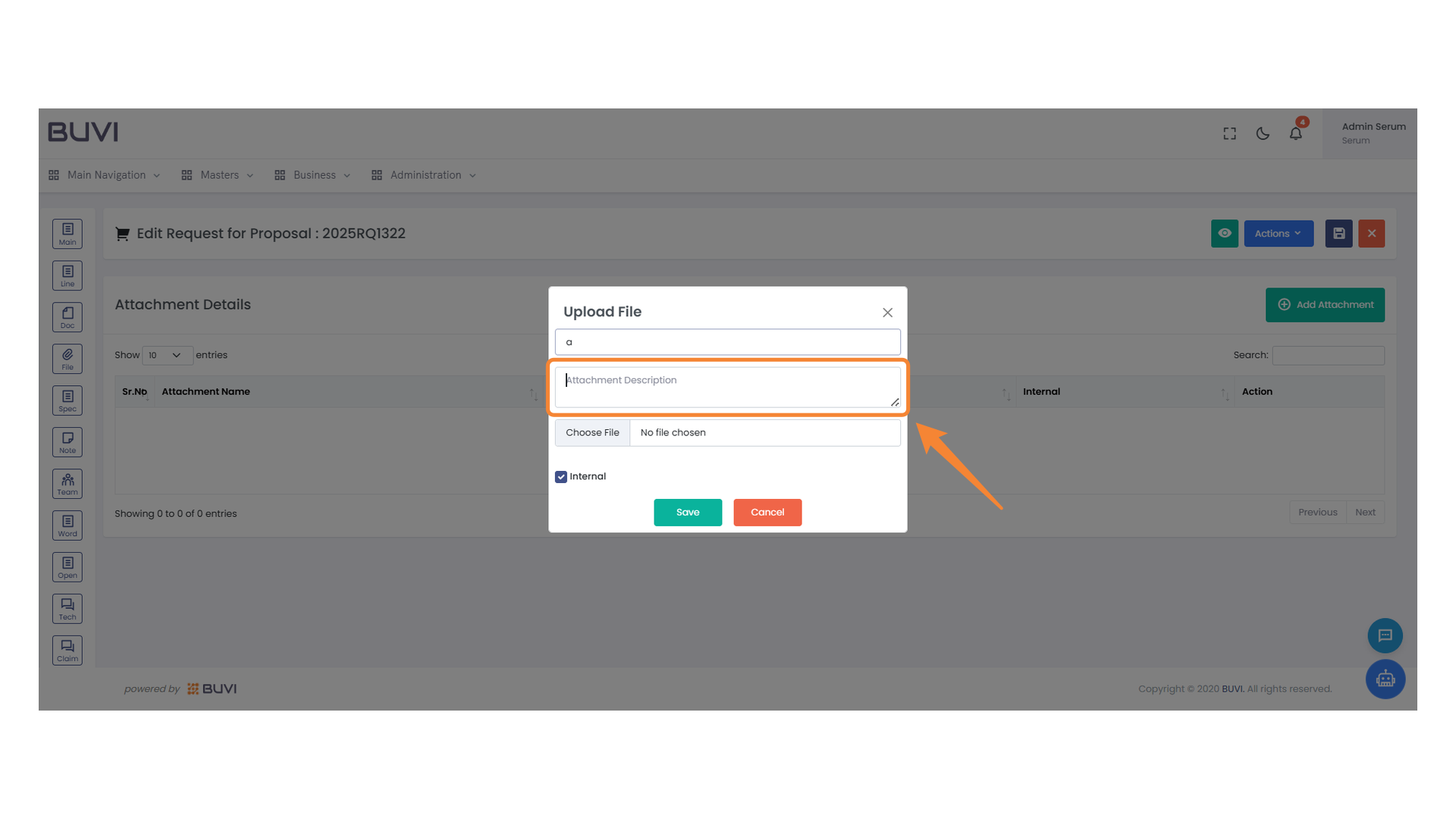
49. Attachment Description Field
Enter a description for the file you are uploading.
50. File Selection Section
Select a file to upload using this option.
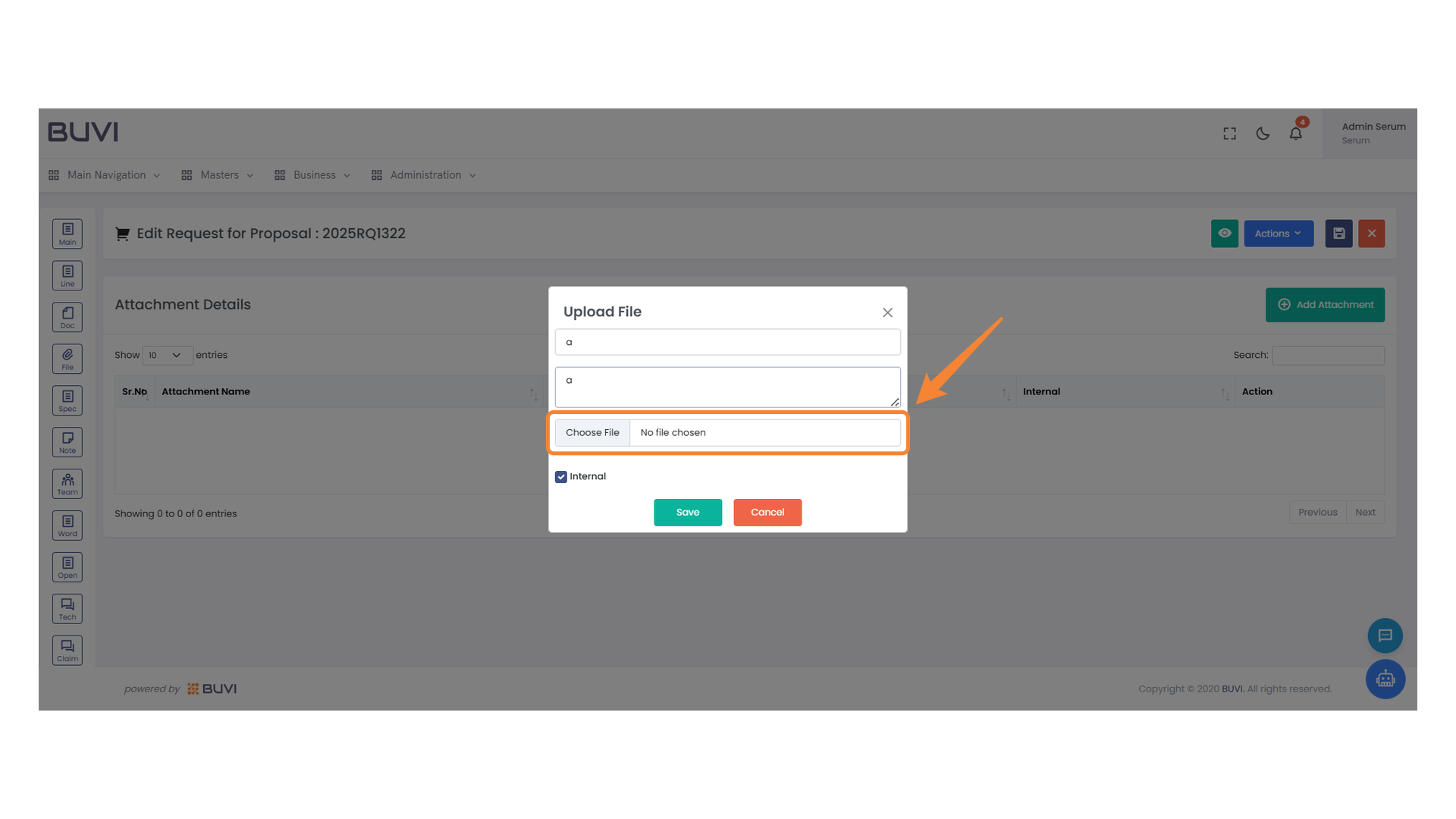
51. Save Button
Click to save the uploaded file and apply changes.
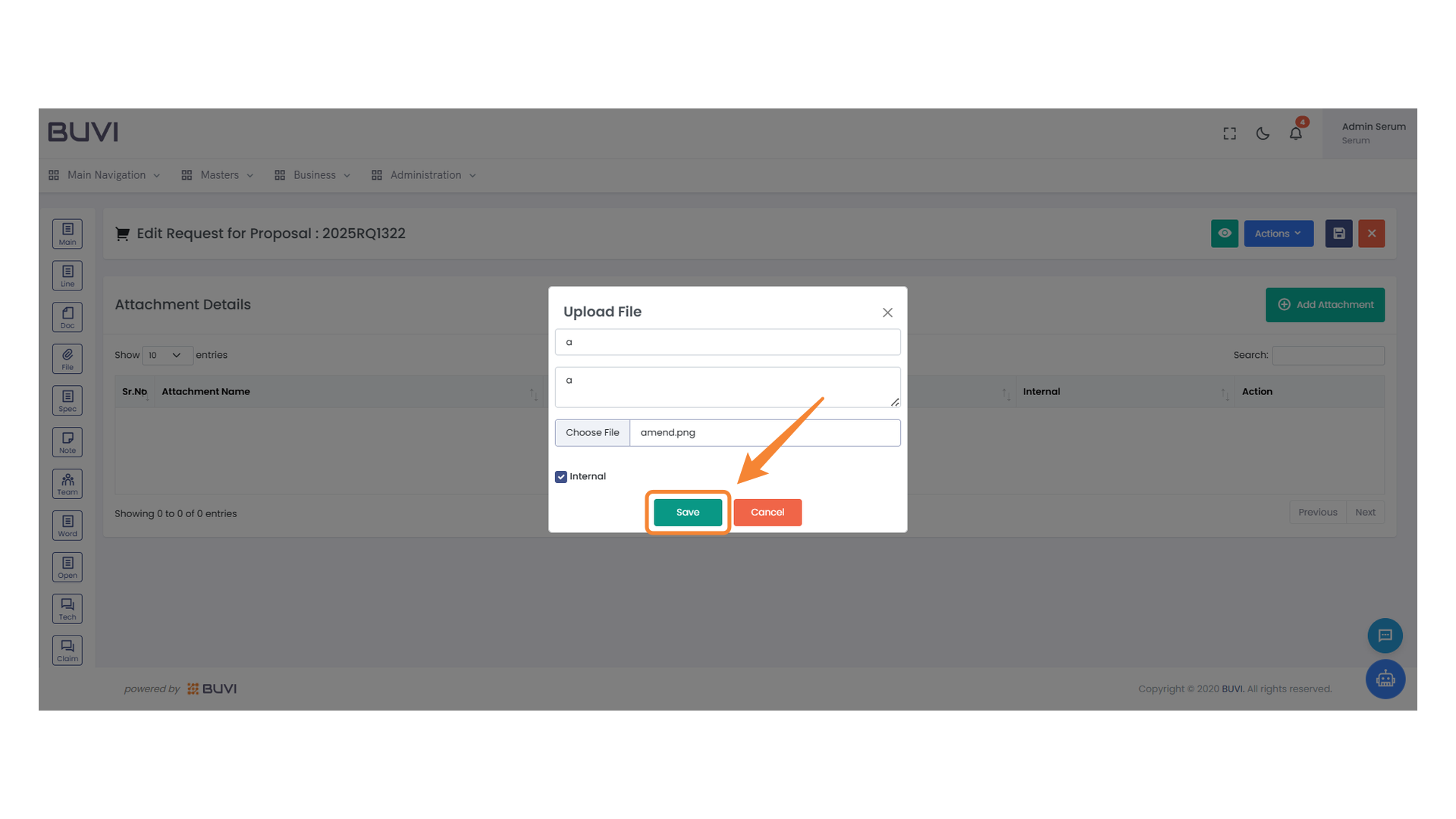
52. Tech Menu Icon
Select this icon to access the technology-related features.
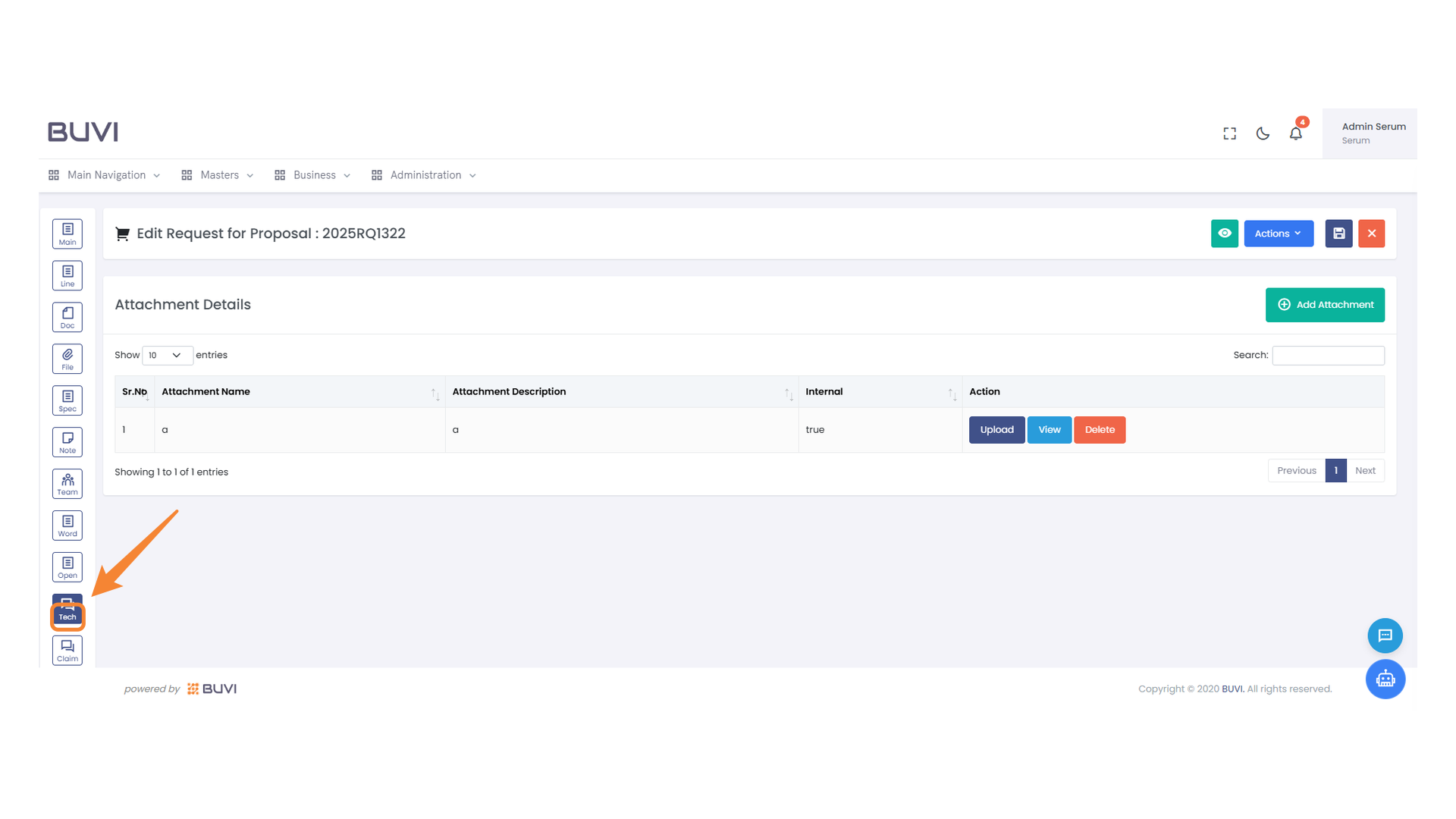
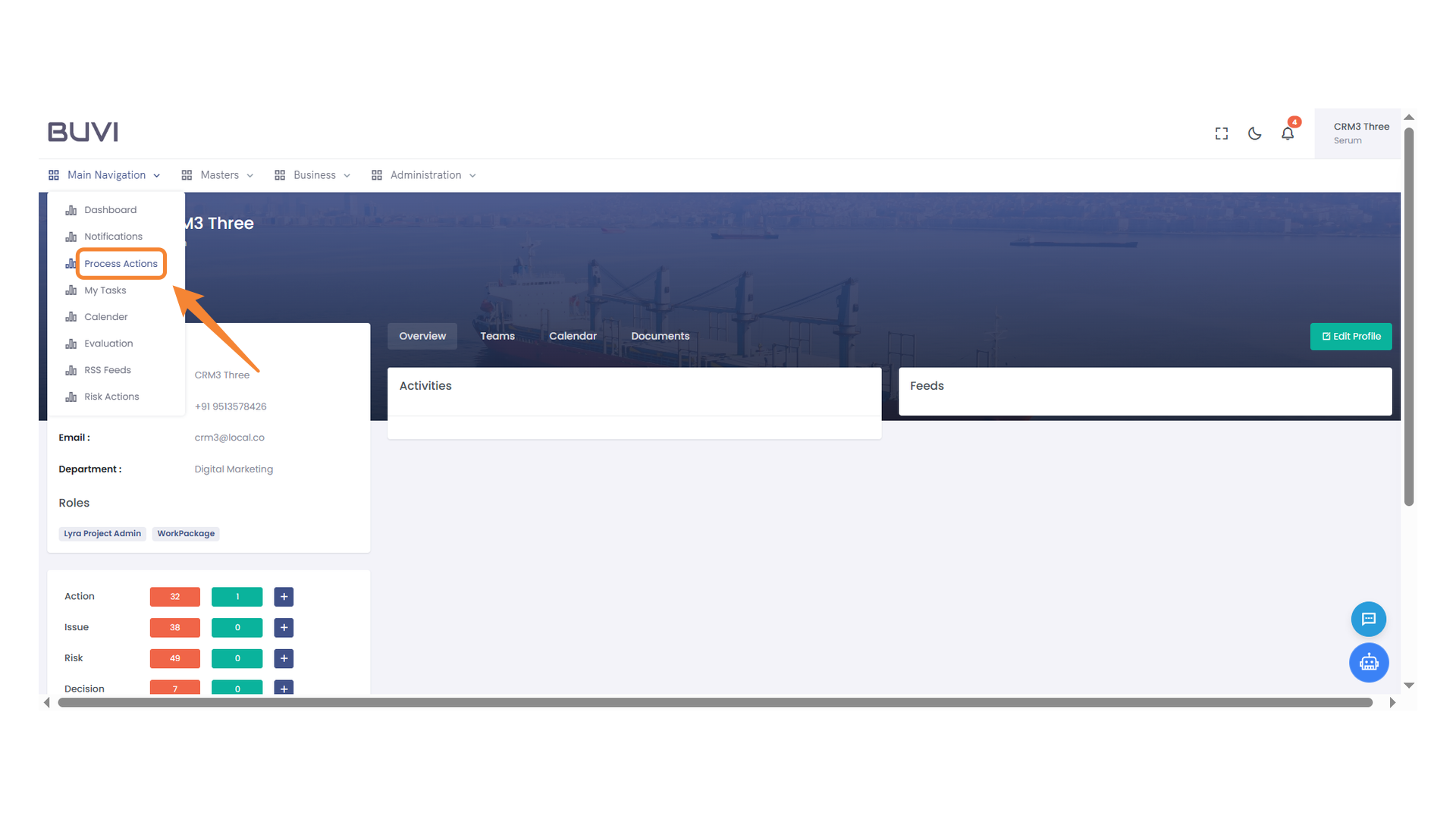
53. Attachment Requirement Checkbox
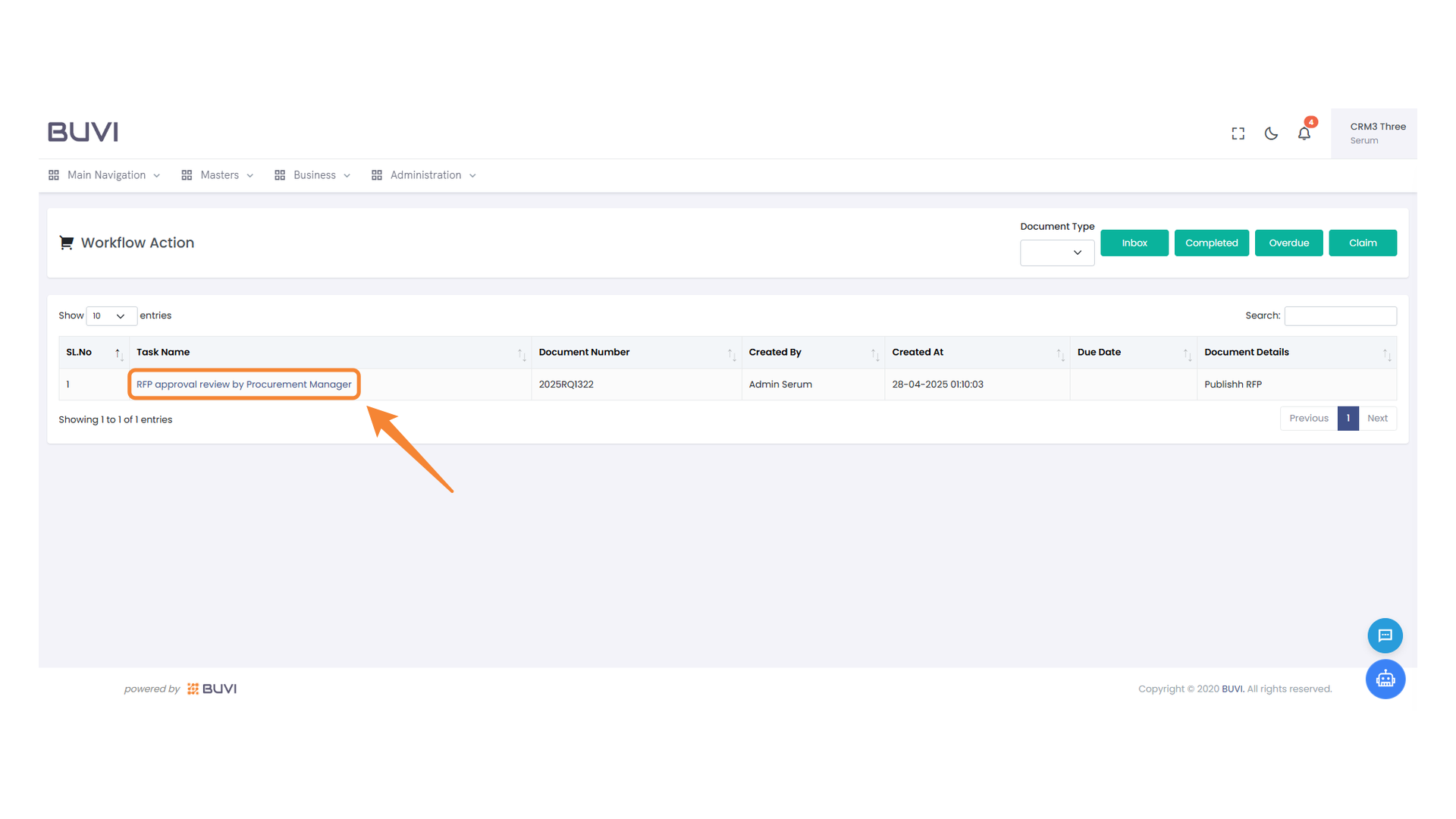
Select this checkbox to indicate that an attachment is required for the corresponding question.
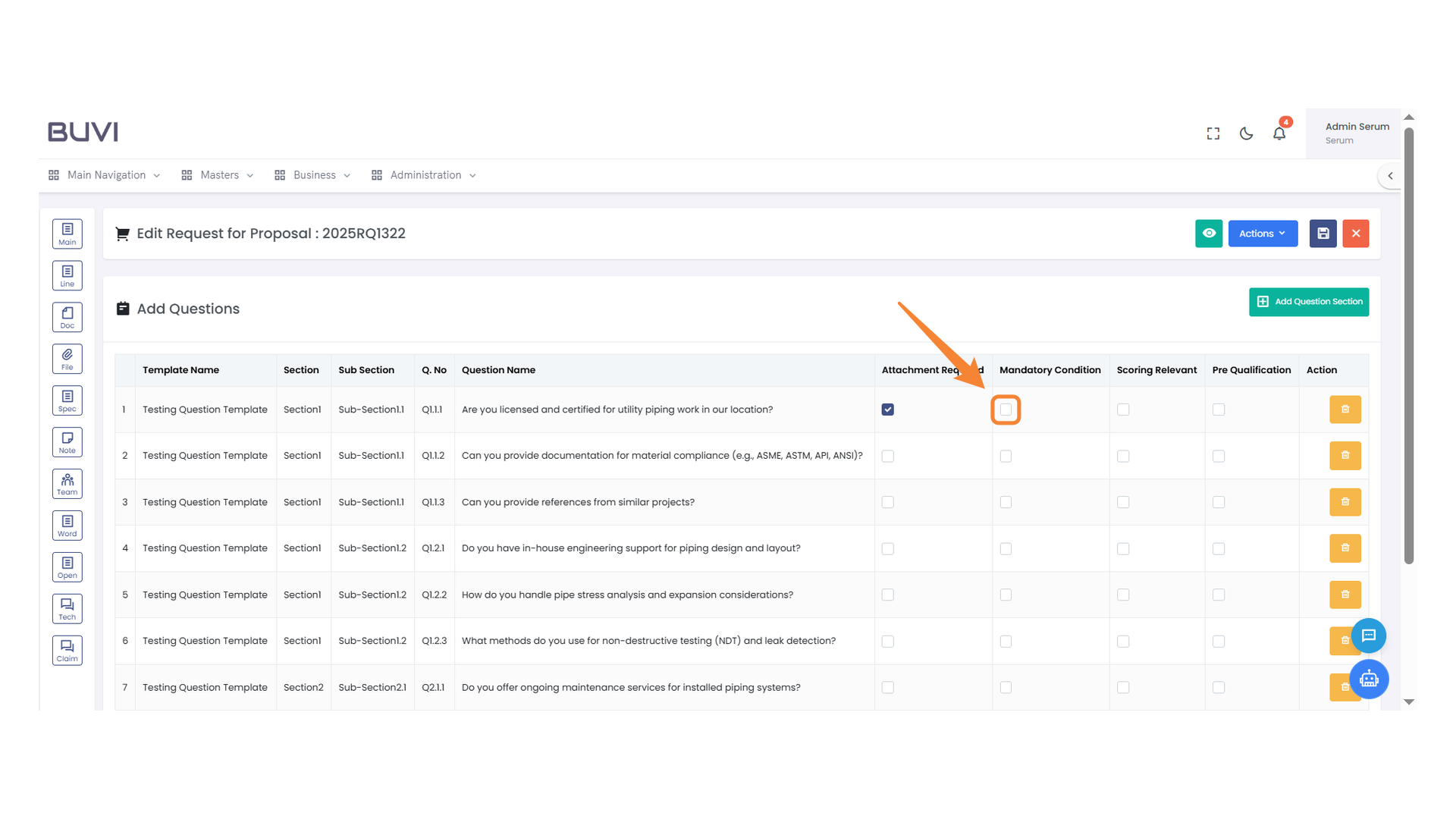
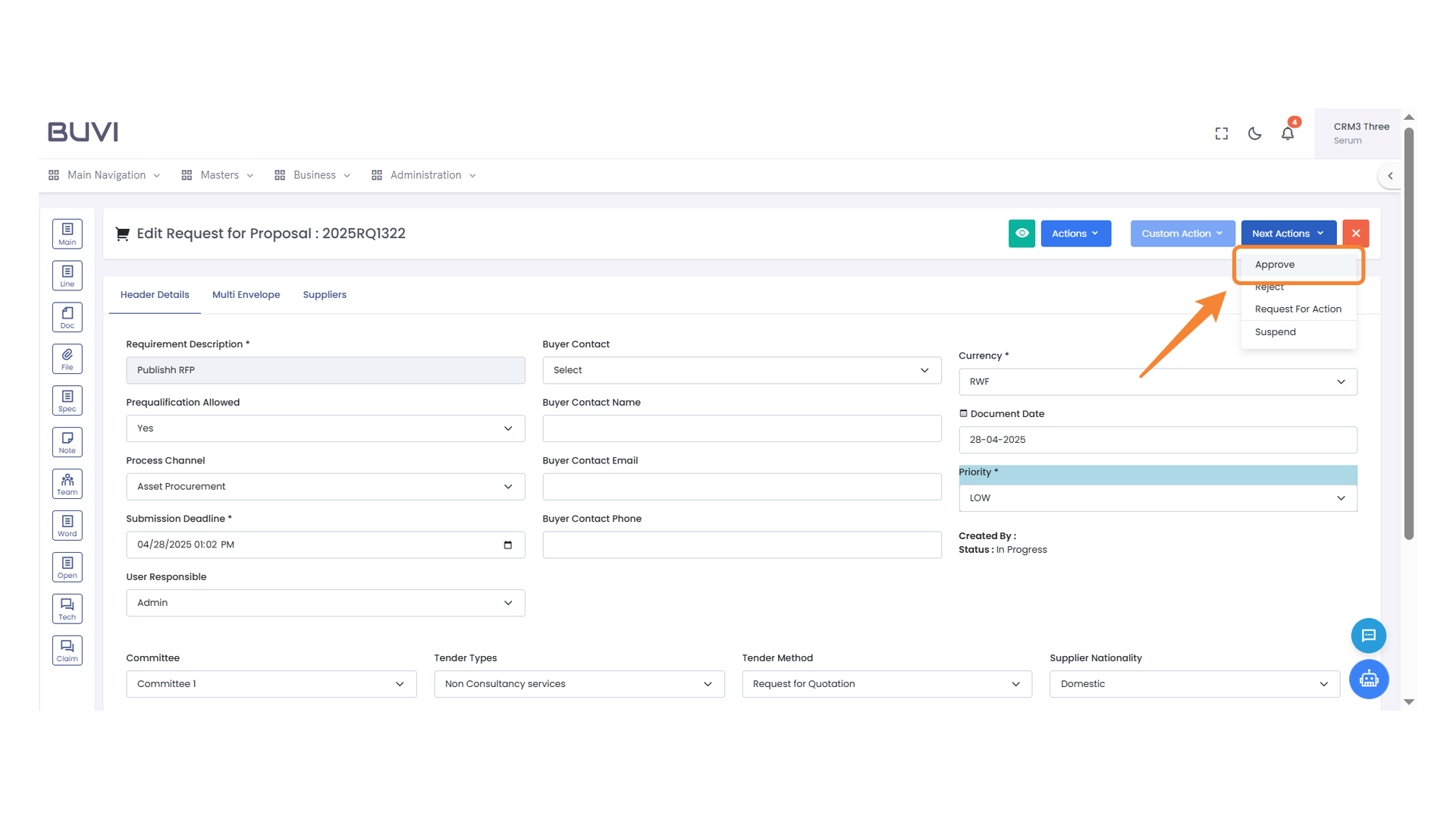
54. Mandatory Condition Checkbox
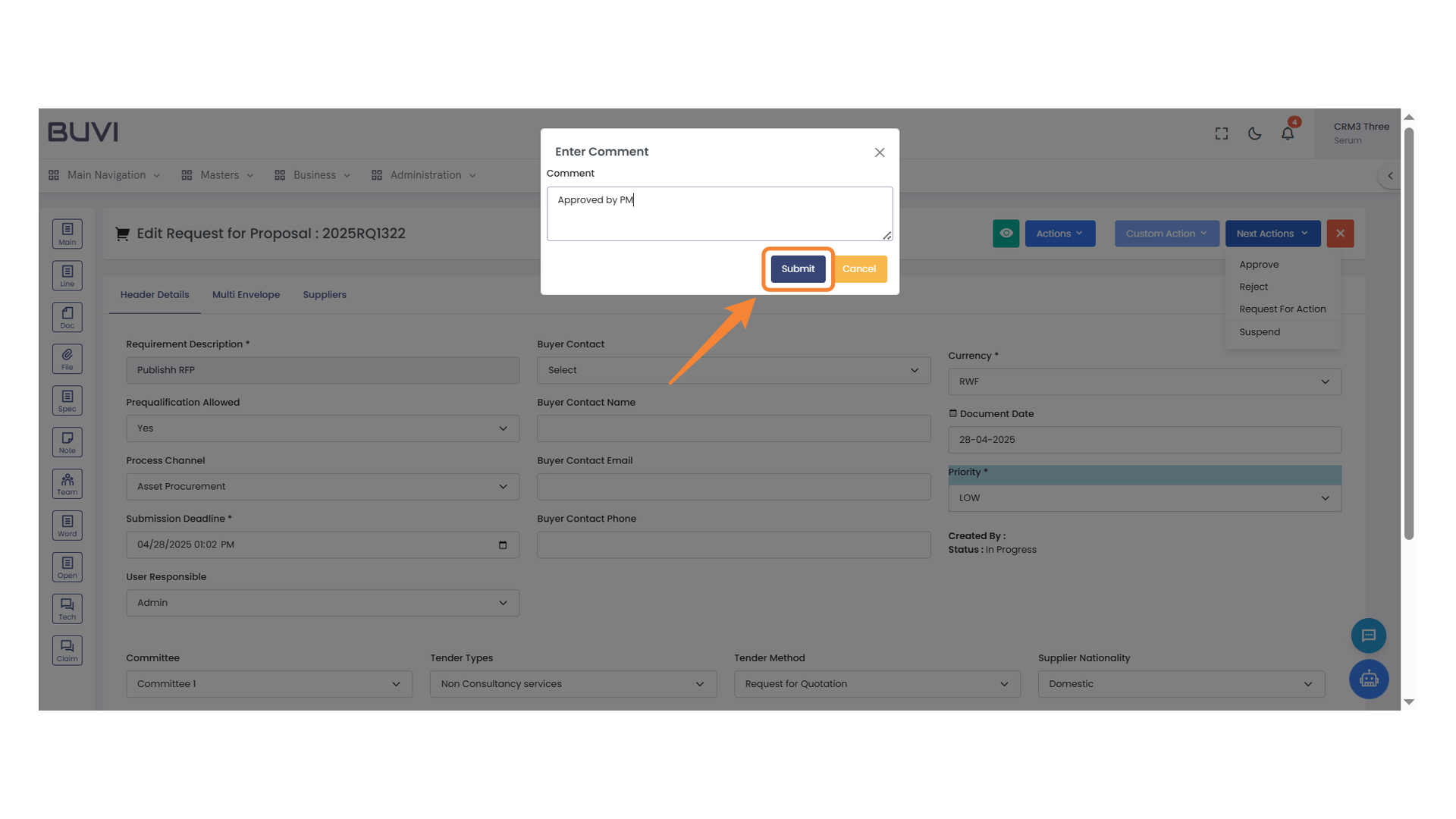
Check this box if the question is mandatory for the proposal.
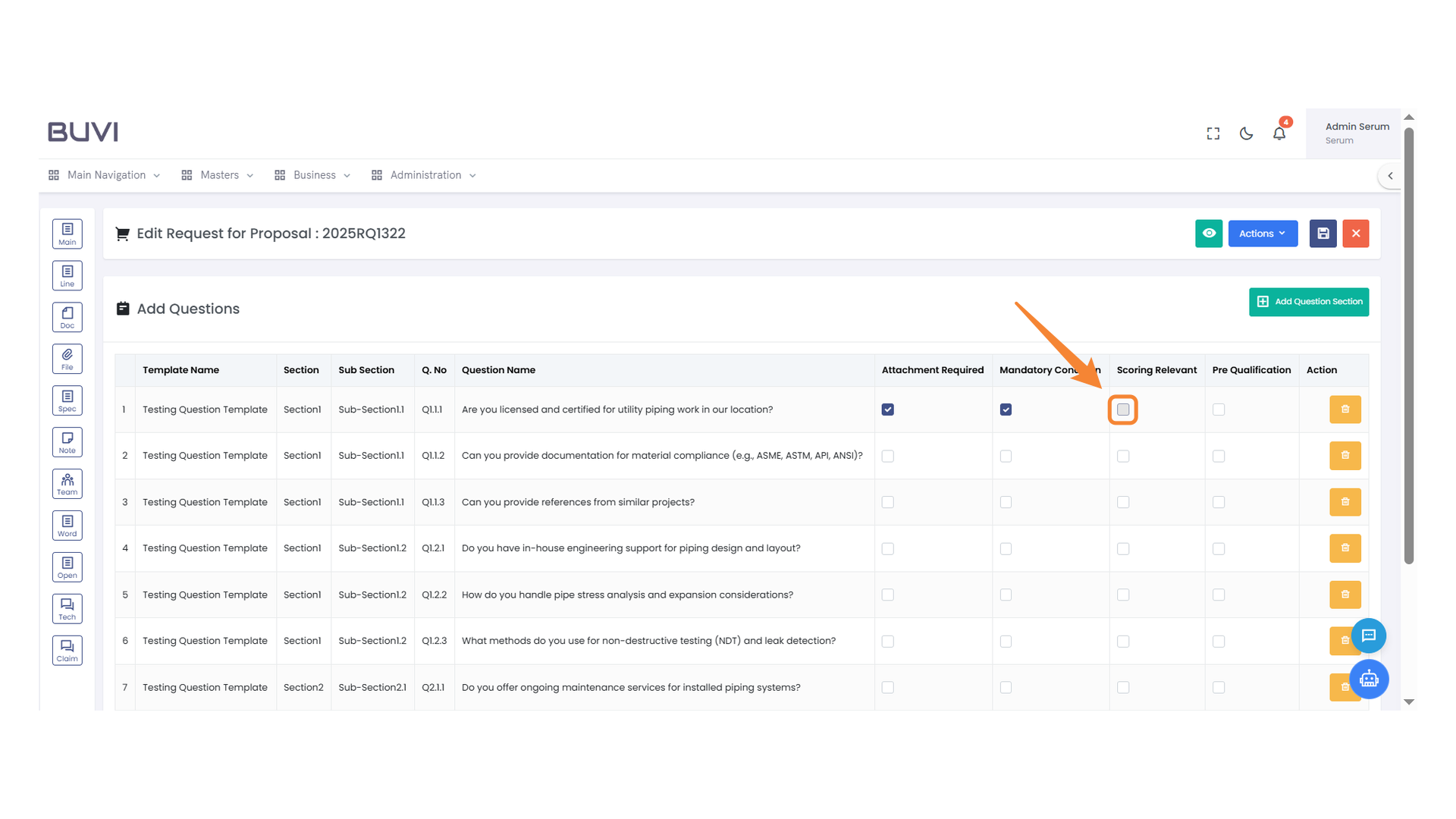
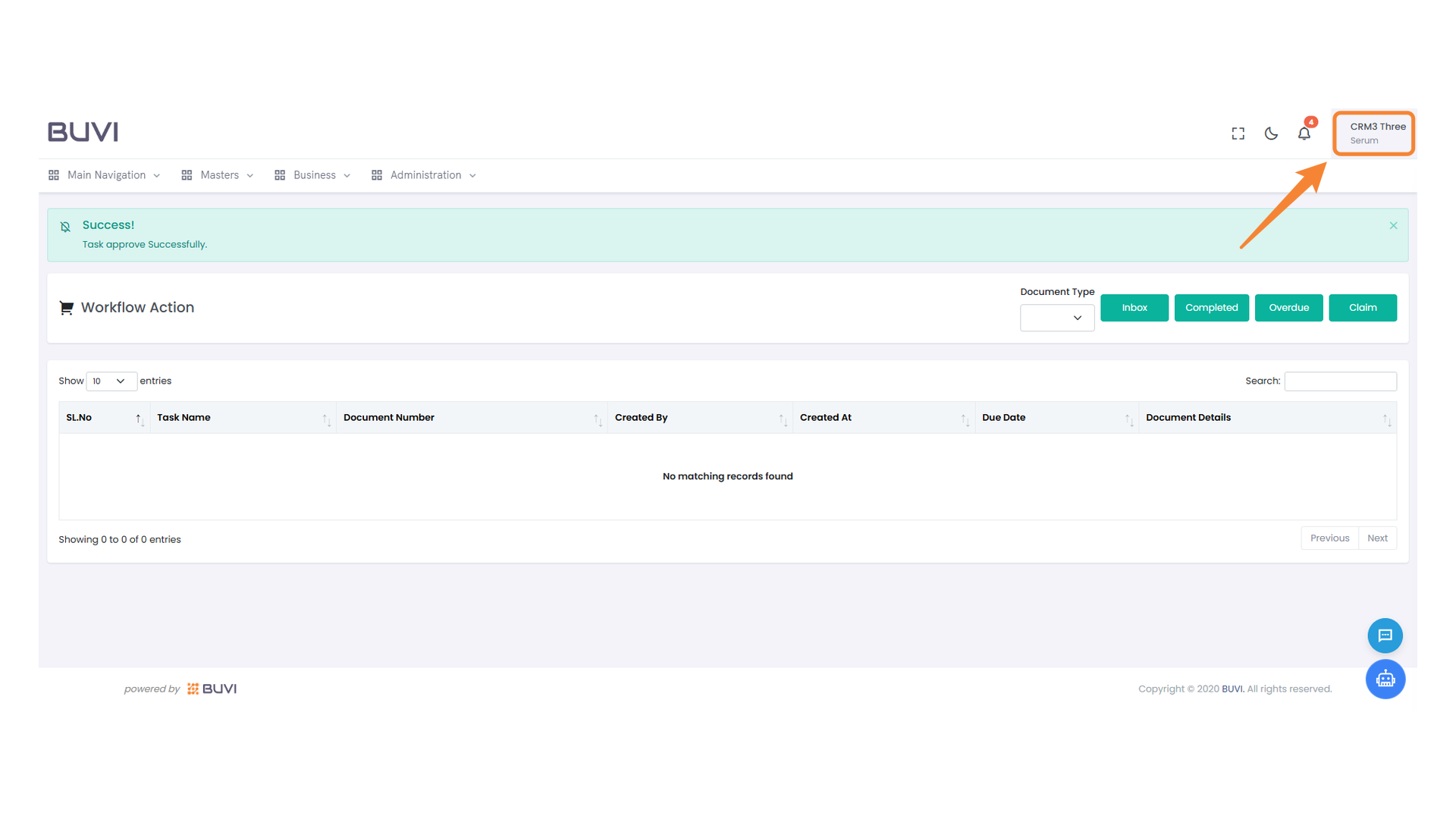
55. Scoring Relevant Checkbox
Select this checkbox to mark the question as relevant for scoring purposes.
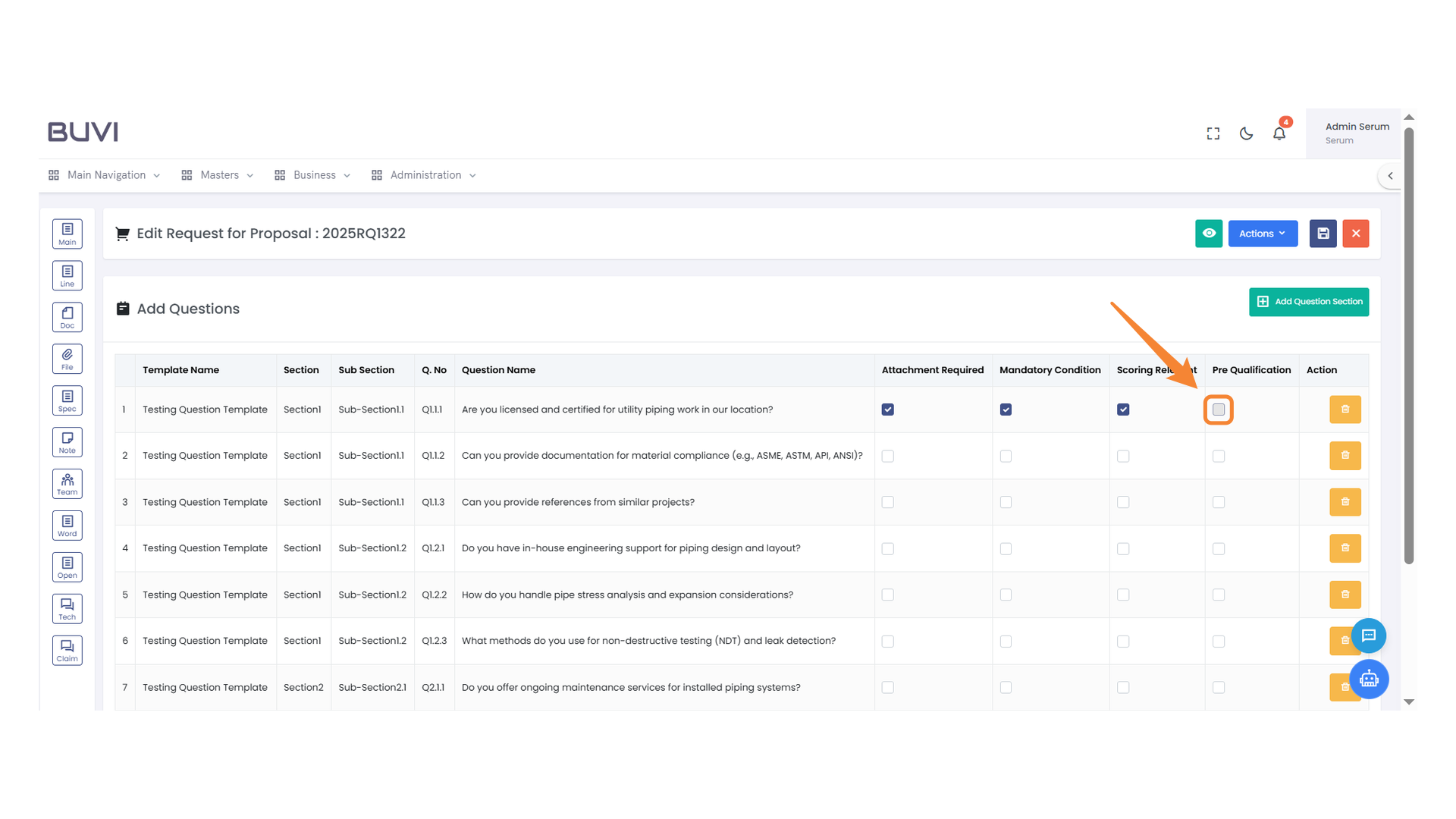
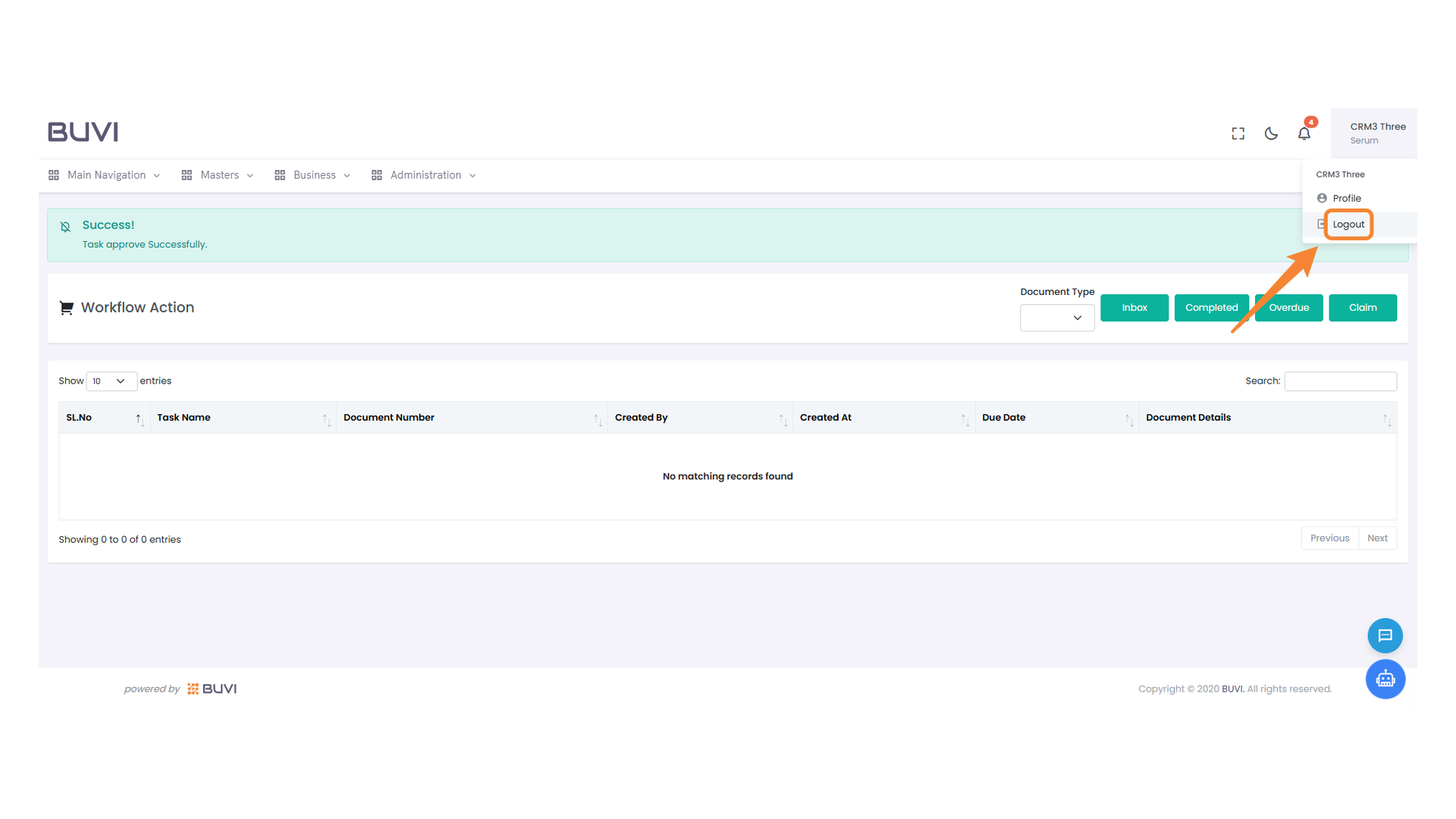
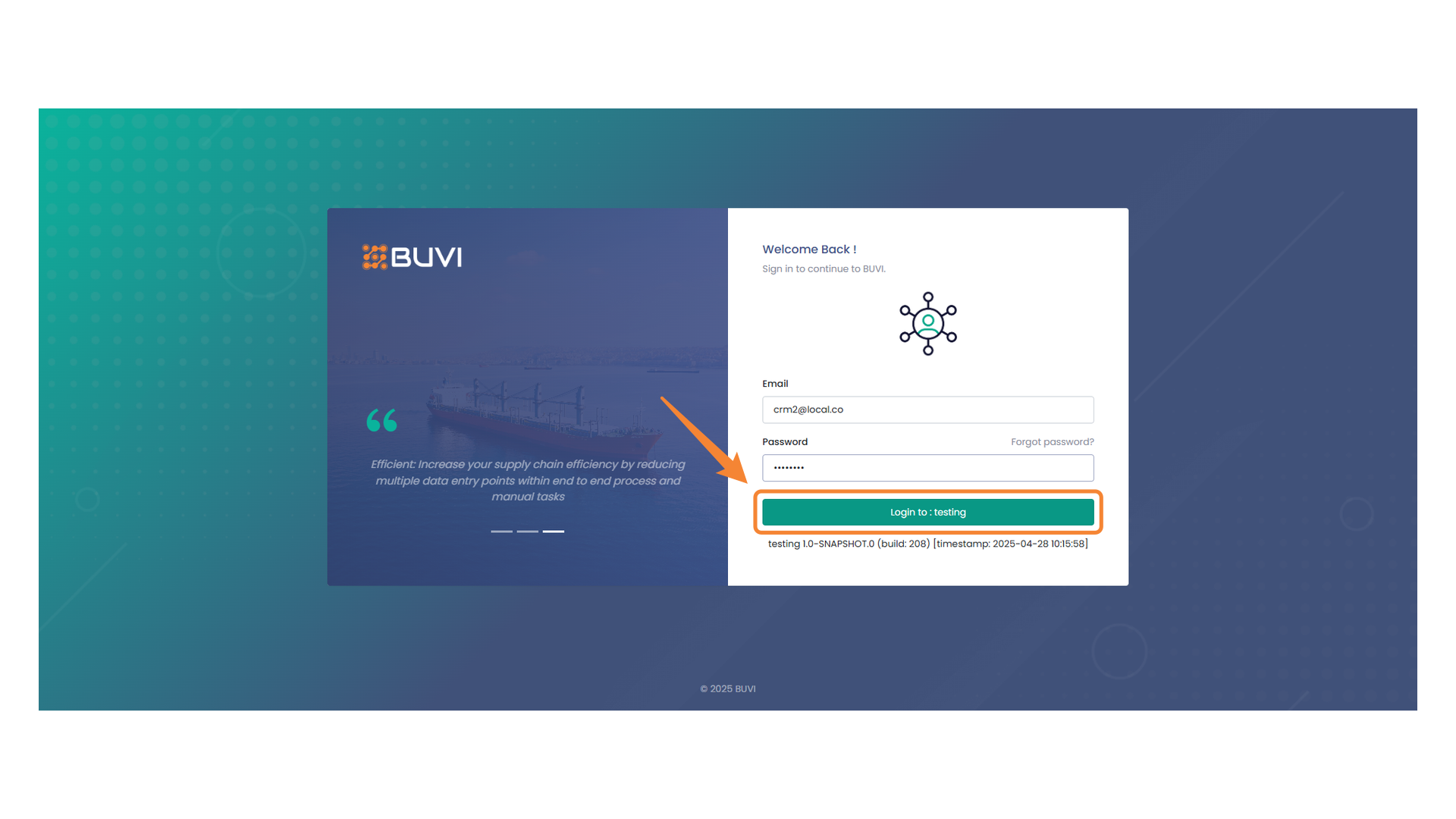
56. Scoring Relevance Checkbox
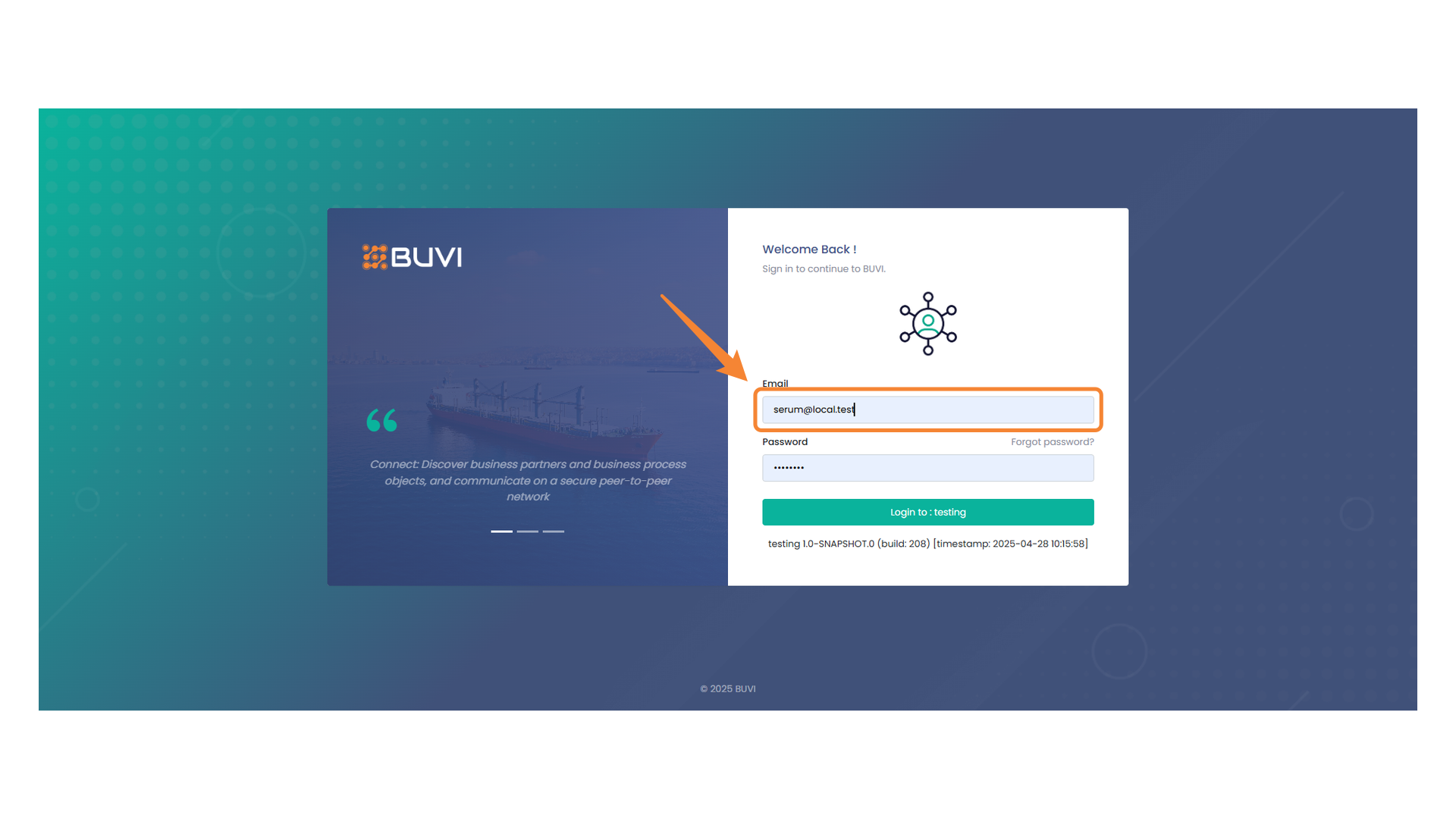
Select this checkbox to determine if the question is relevant for scoring.
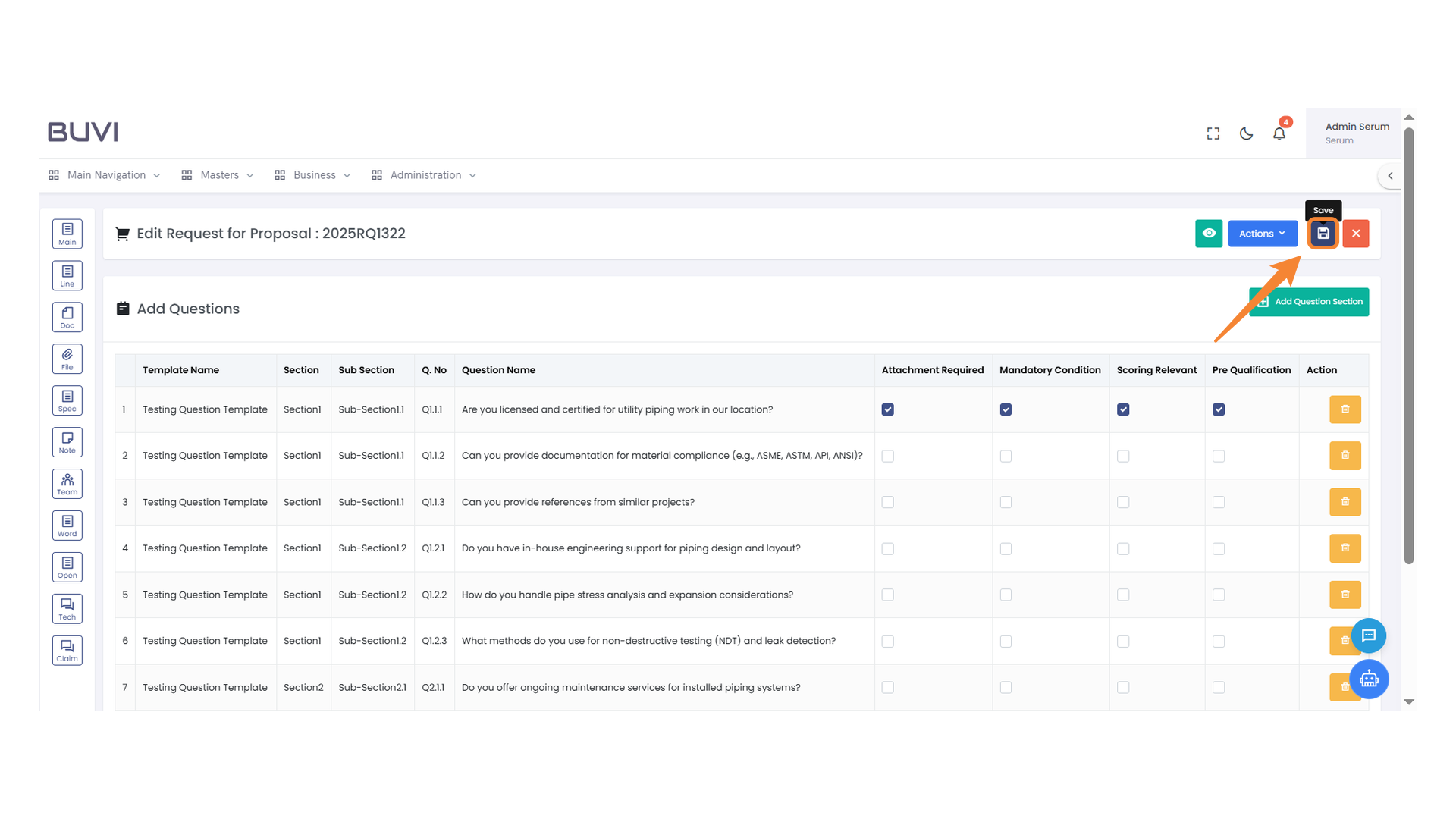
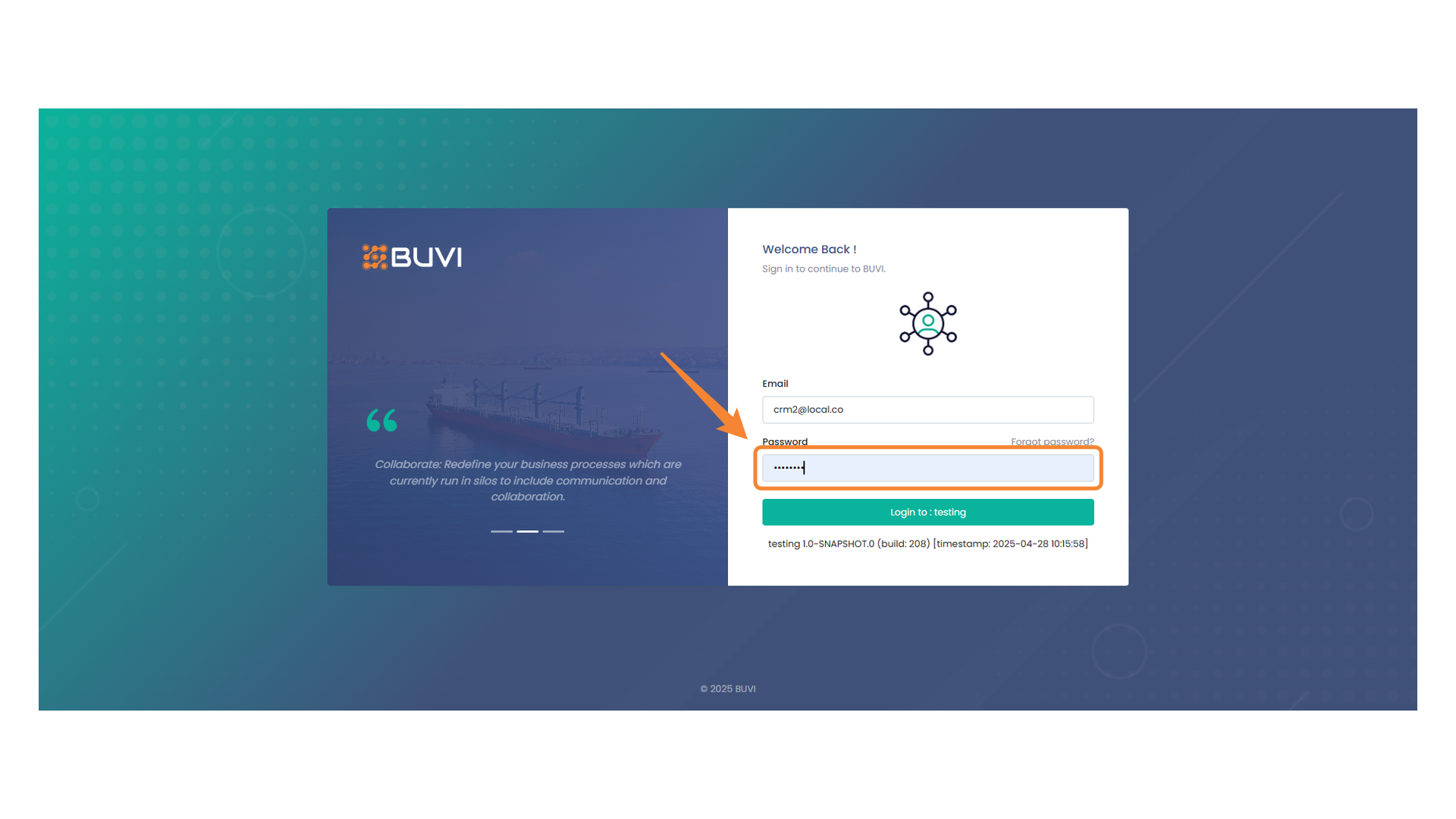
57. Save Changes Button
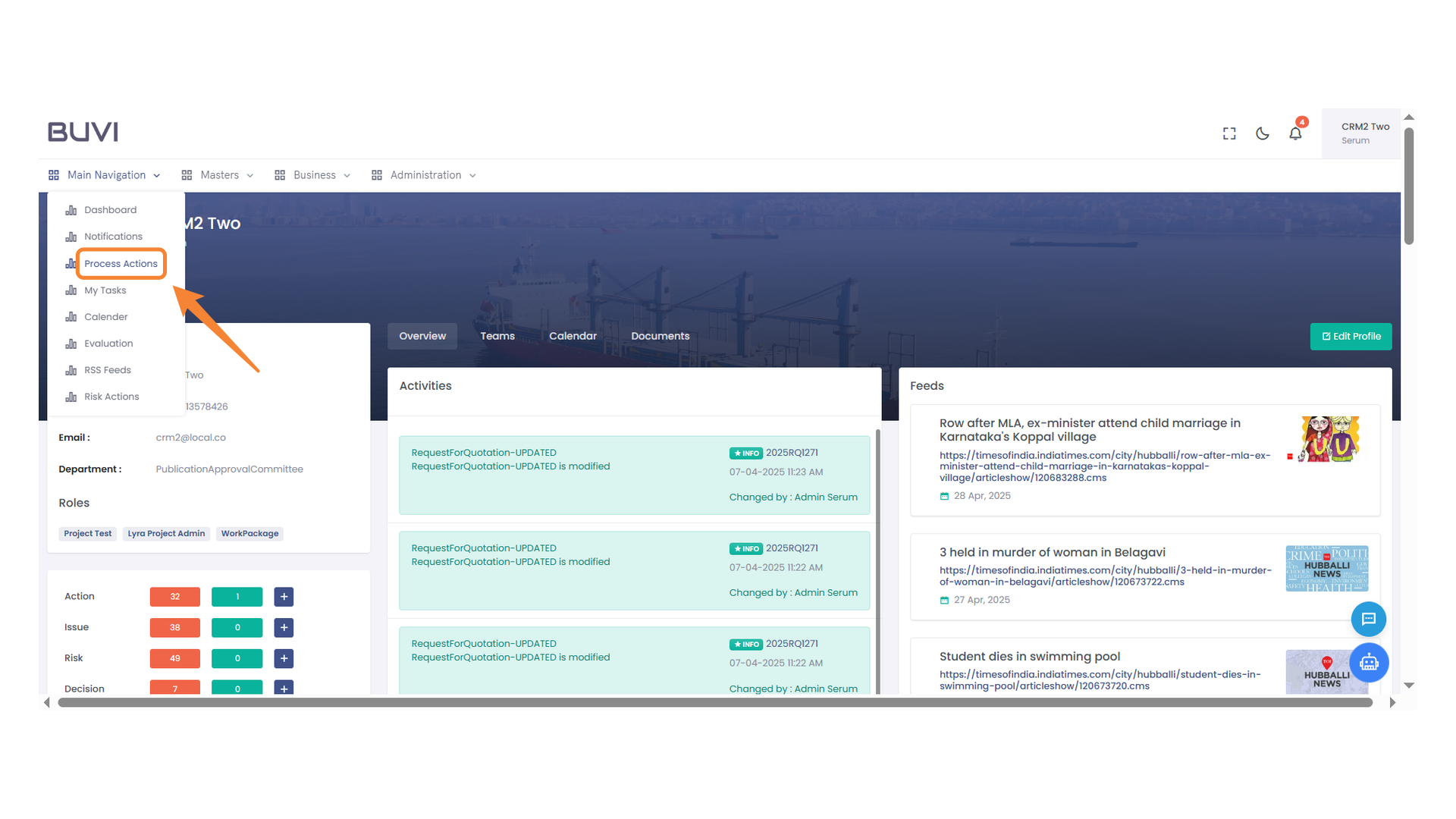
Click this button to save any changes made to the current proposal request.
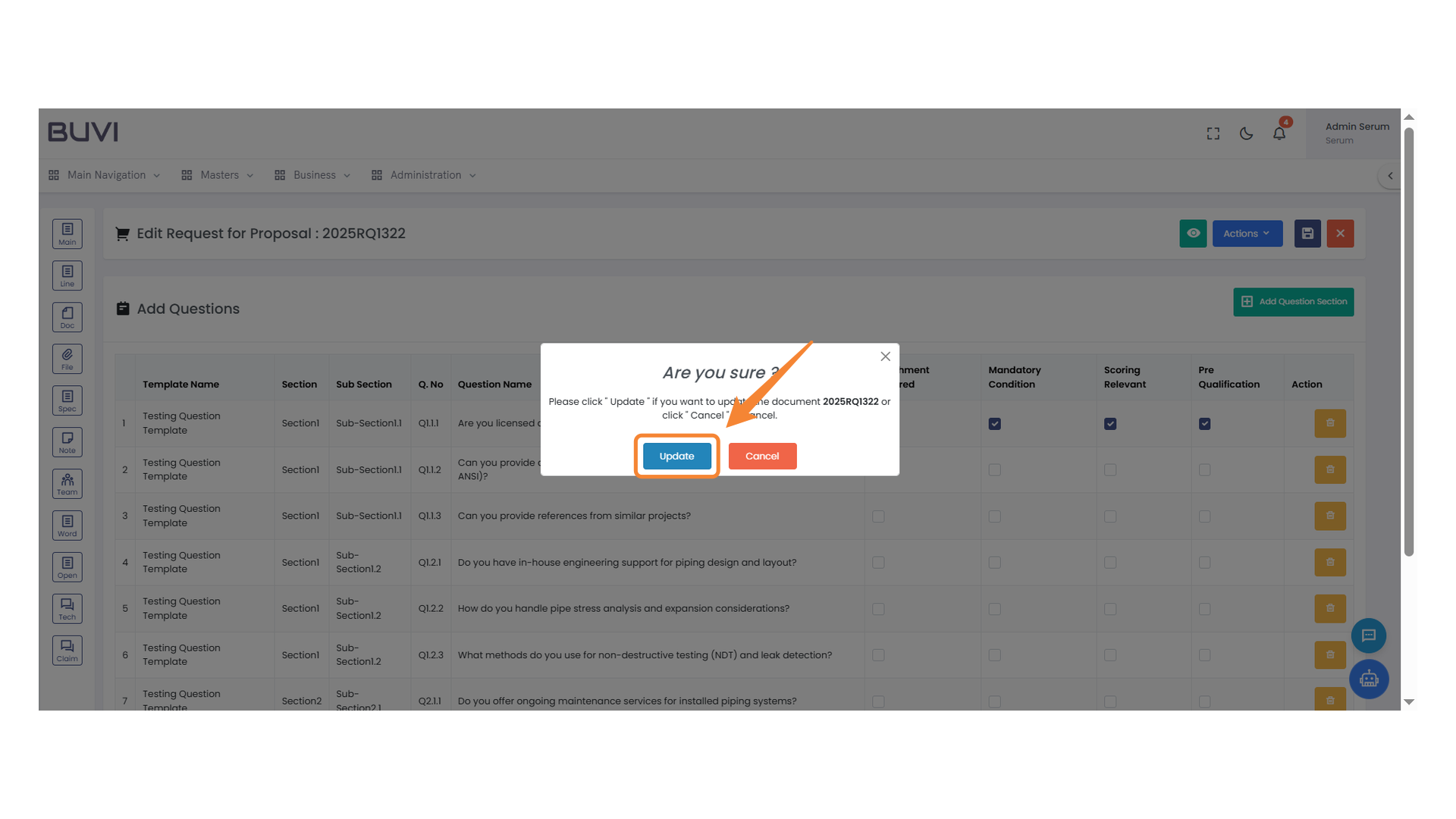
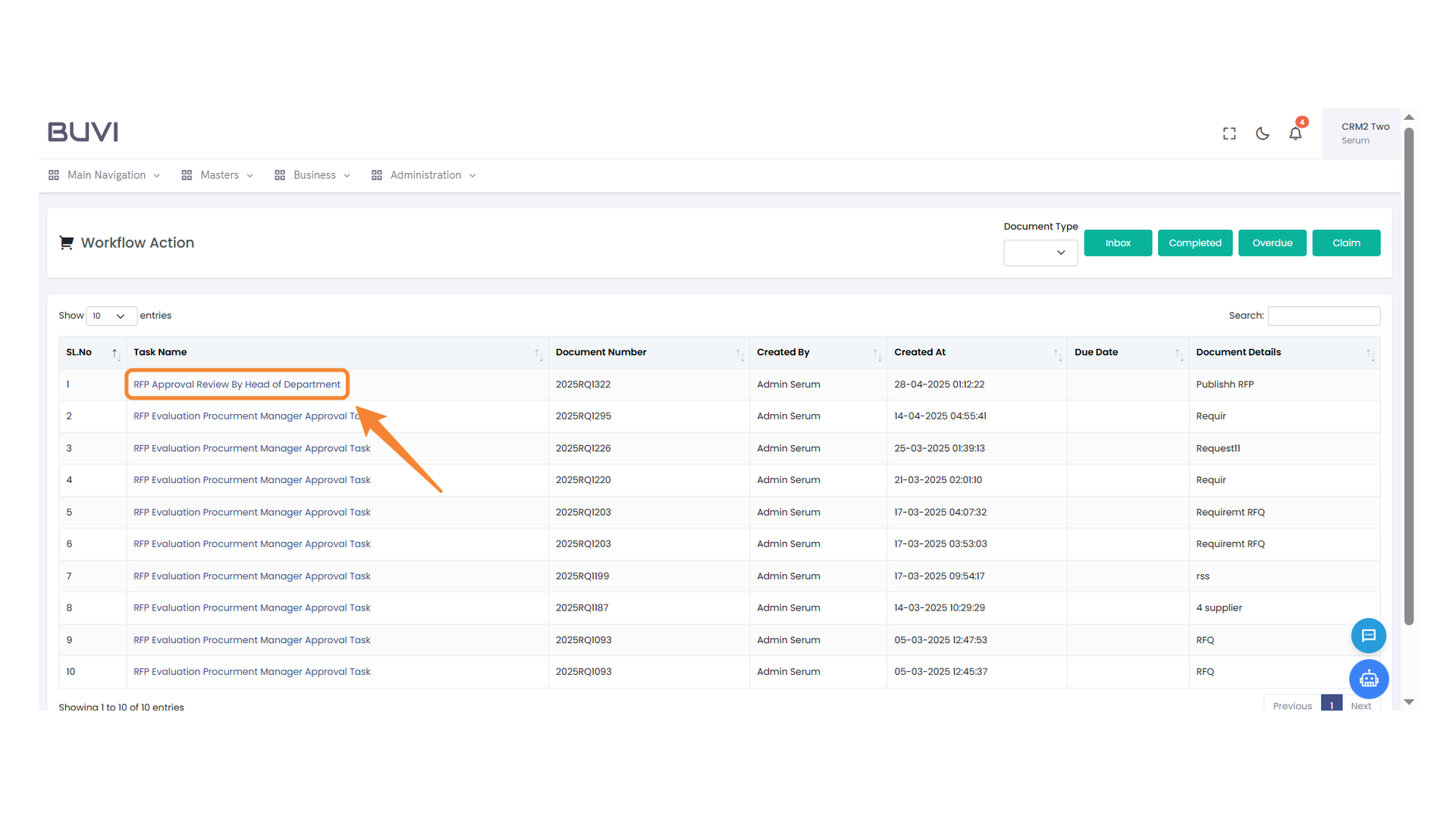
58. Confirmation Dialog Box
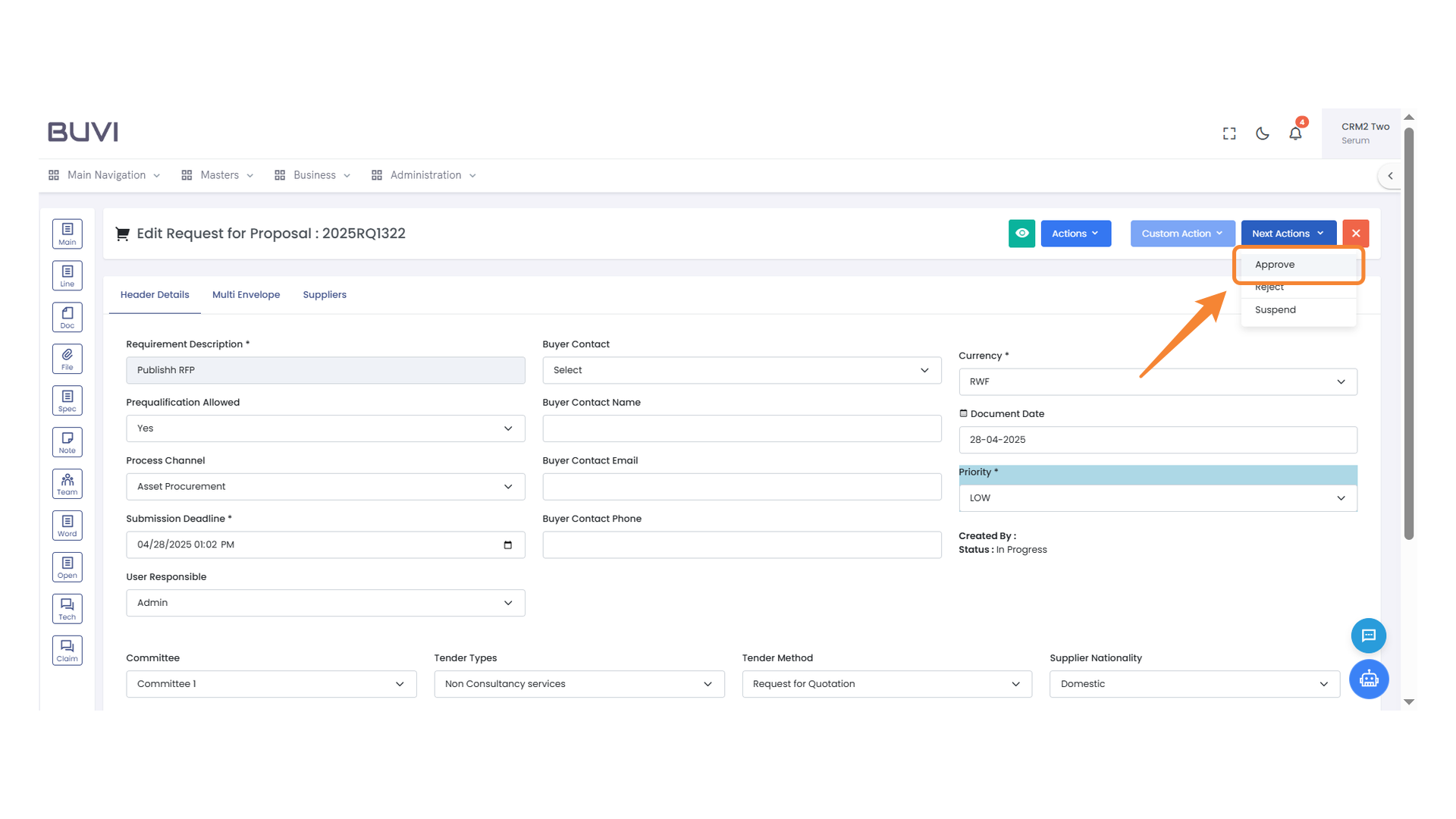
Select 'Update' to proceed with saving the changes.
59. Navigation Menu
Access the main navigation panel to explore various sections.

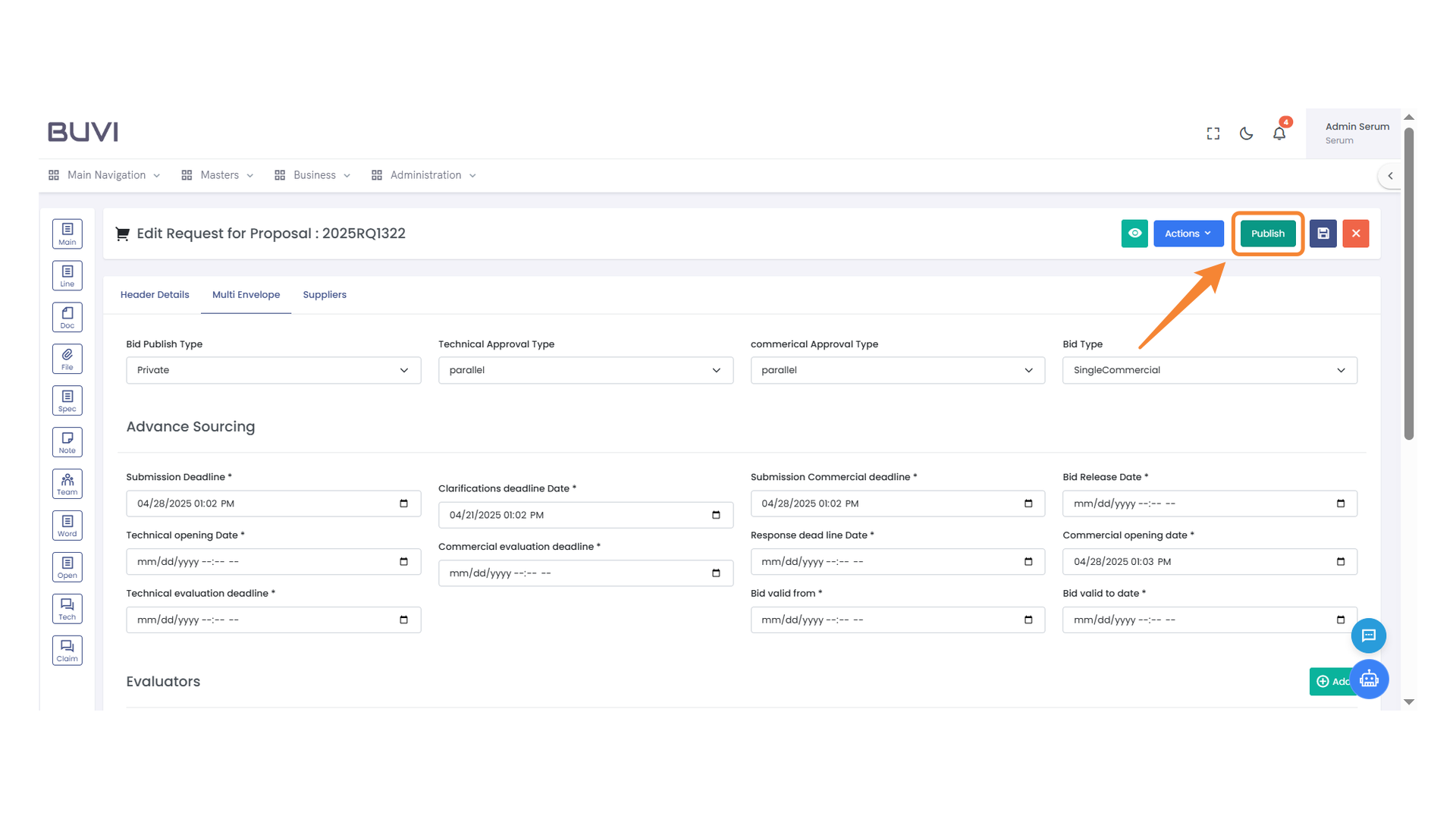
60. Publish Button
Click to publish the proposal.
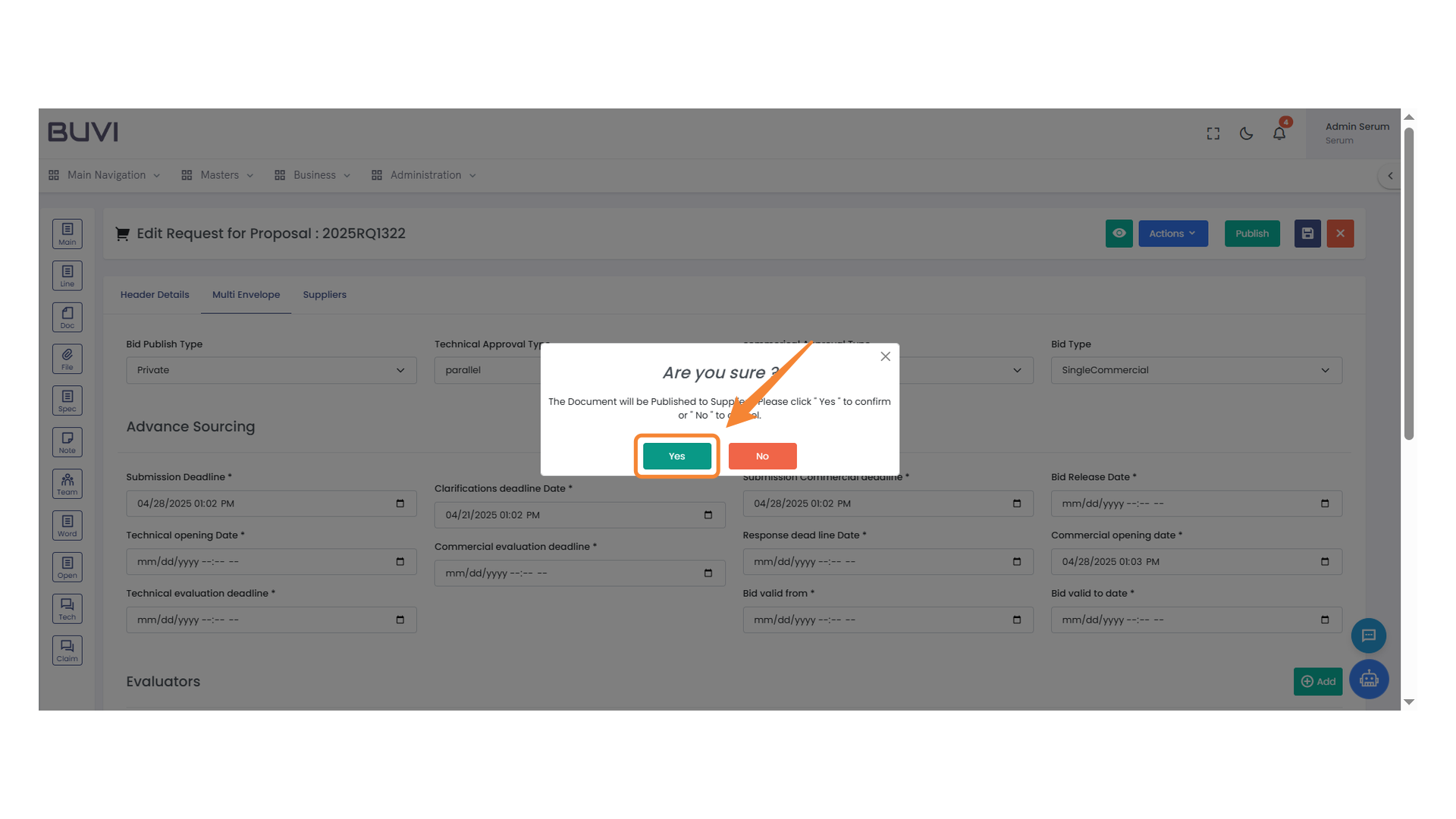
61. Confirmation Dialog
Click 'Yes' to proceed with the publishing process.
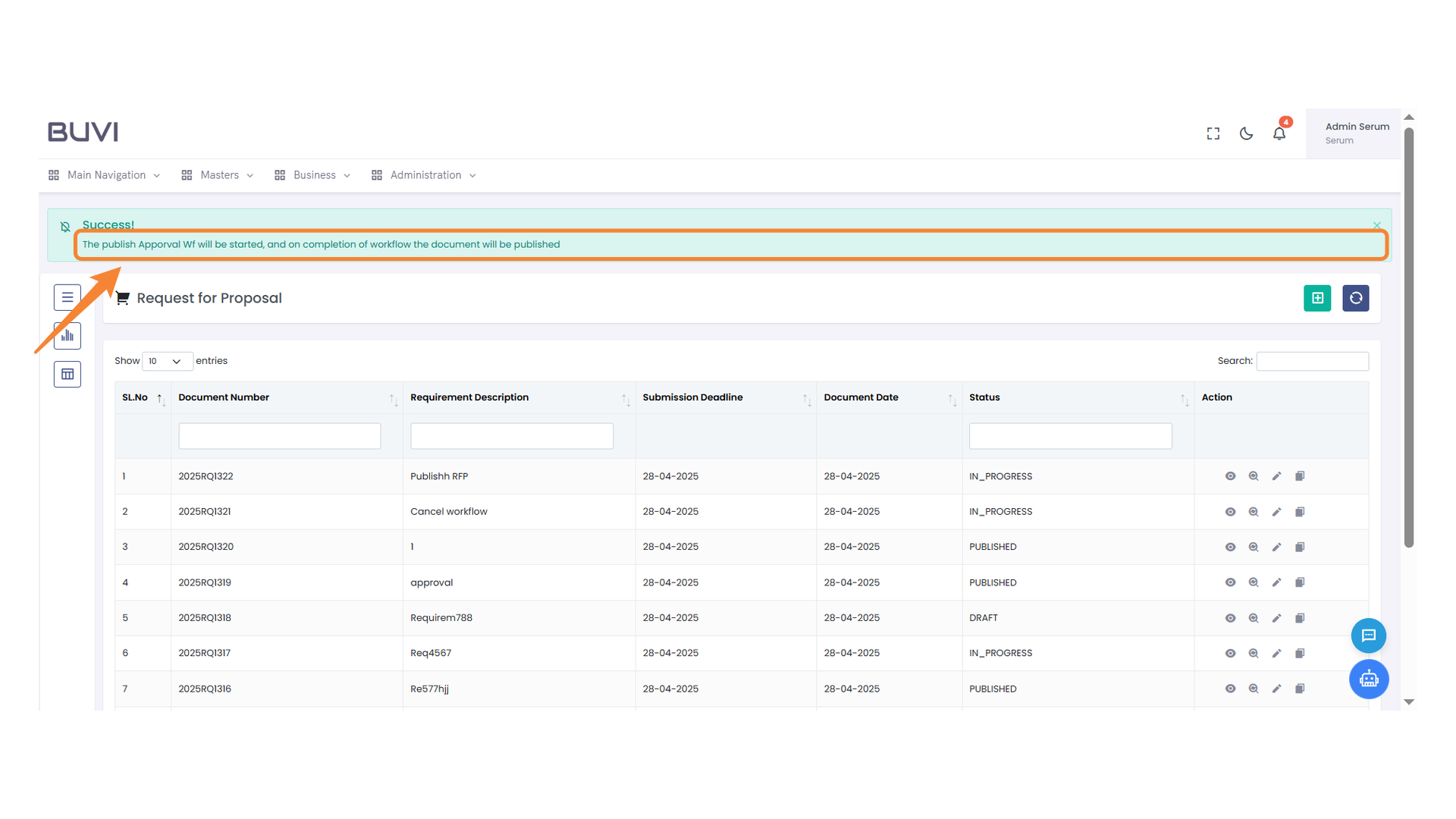
62. Workflow Approval Notification
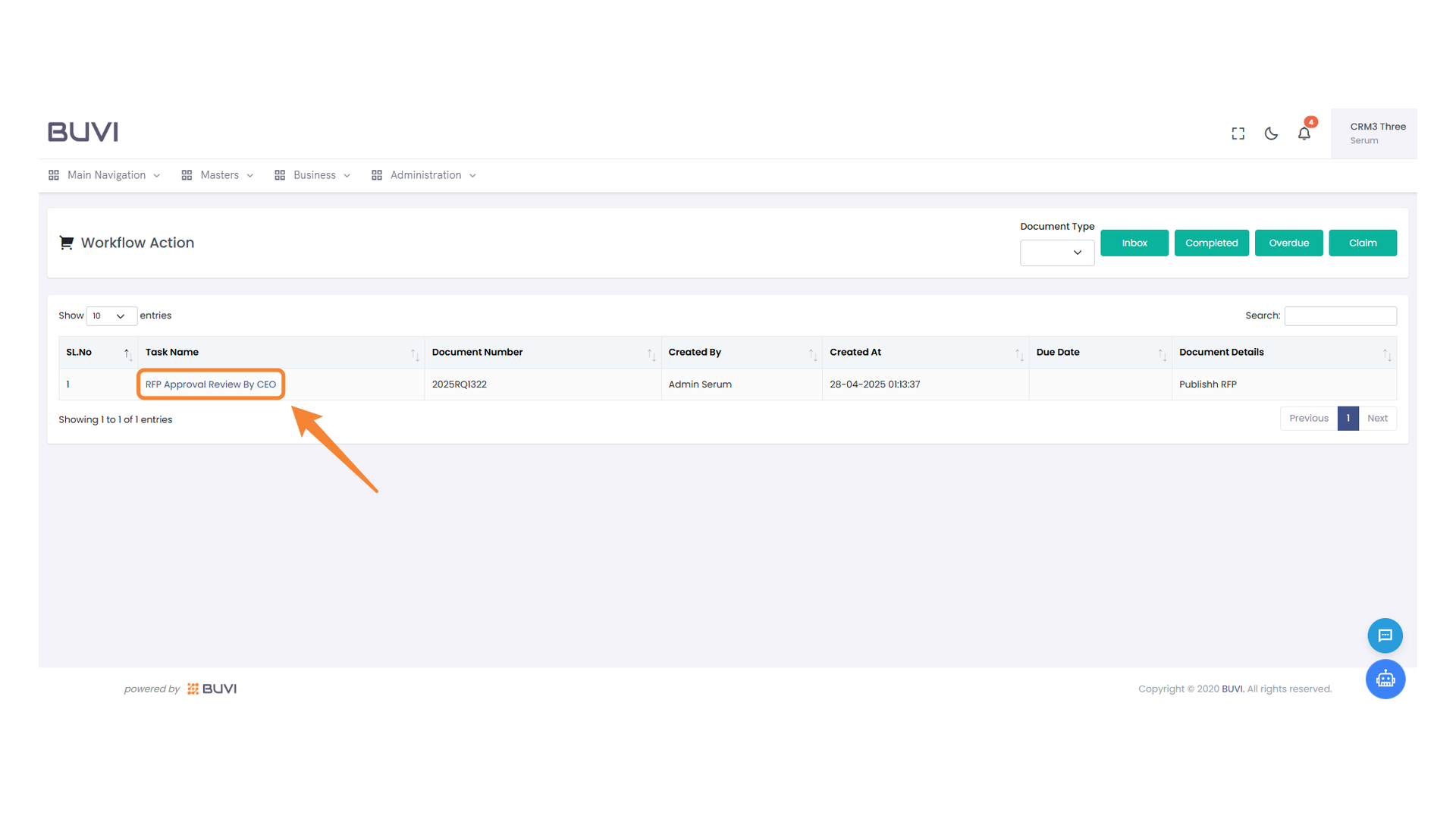
Initiate the publish approval workflow to finalize and publish the document.
63. Navigation Menu Access Point
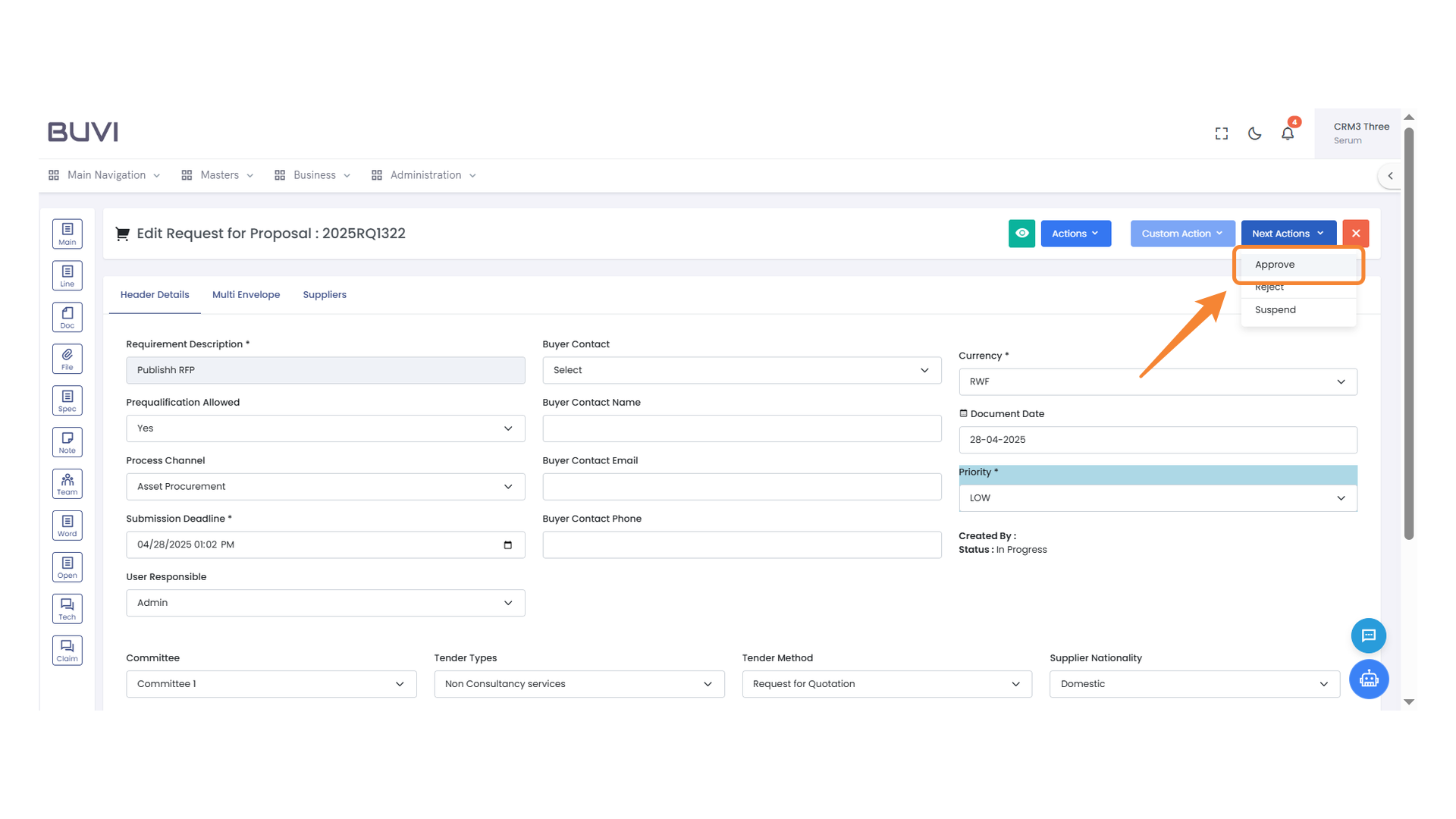
Explore the available menu options for efficient navigation throughout the platform.
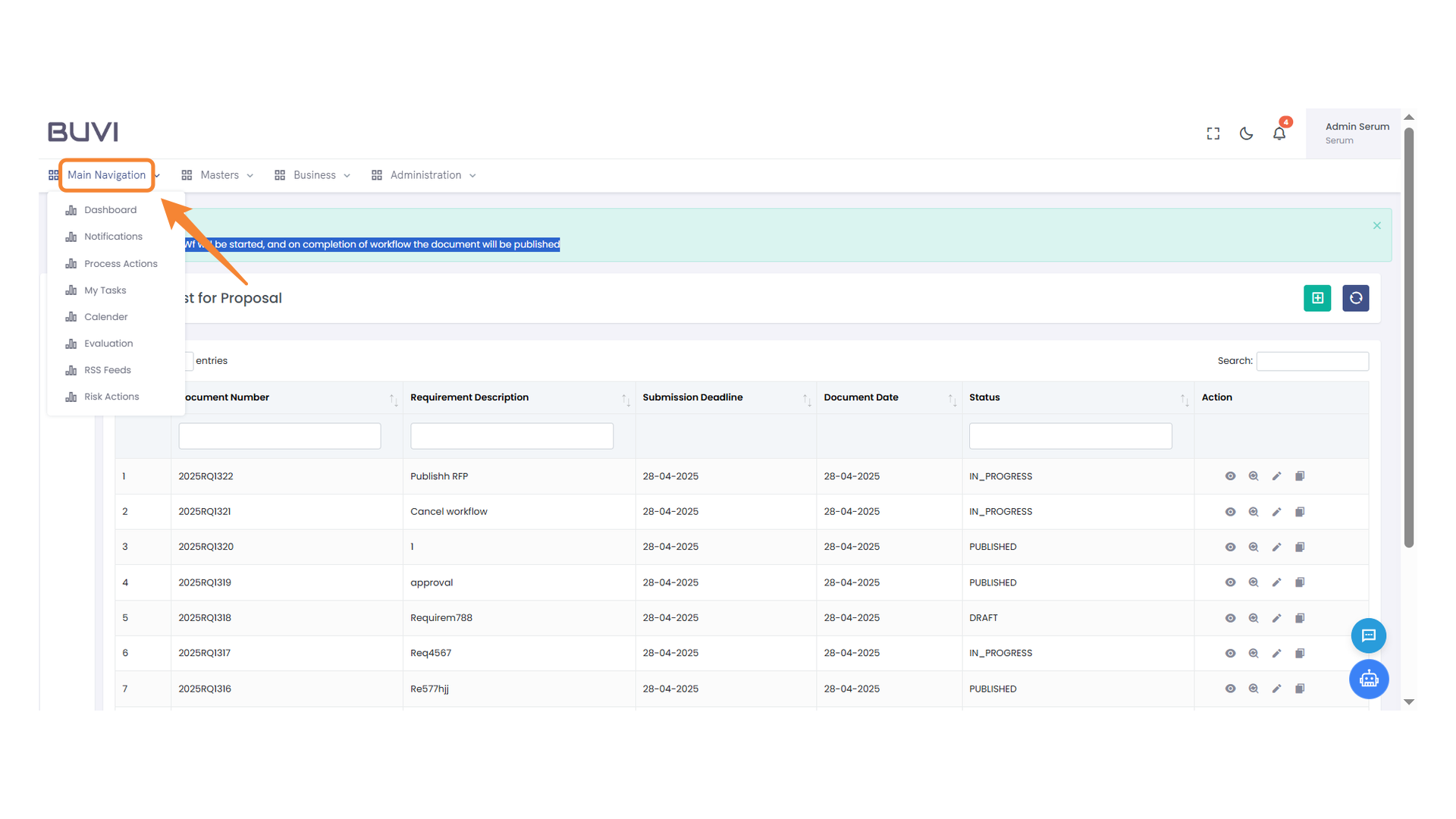
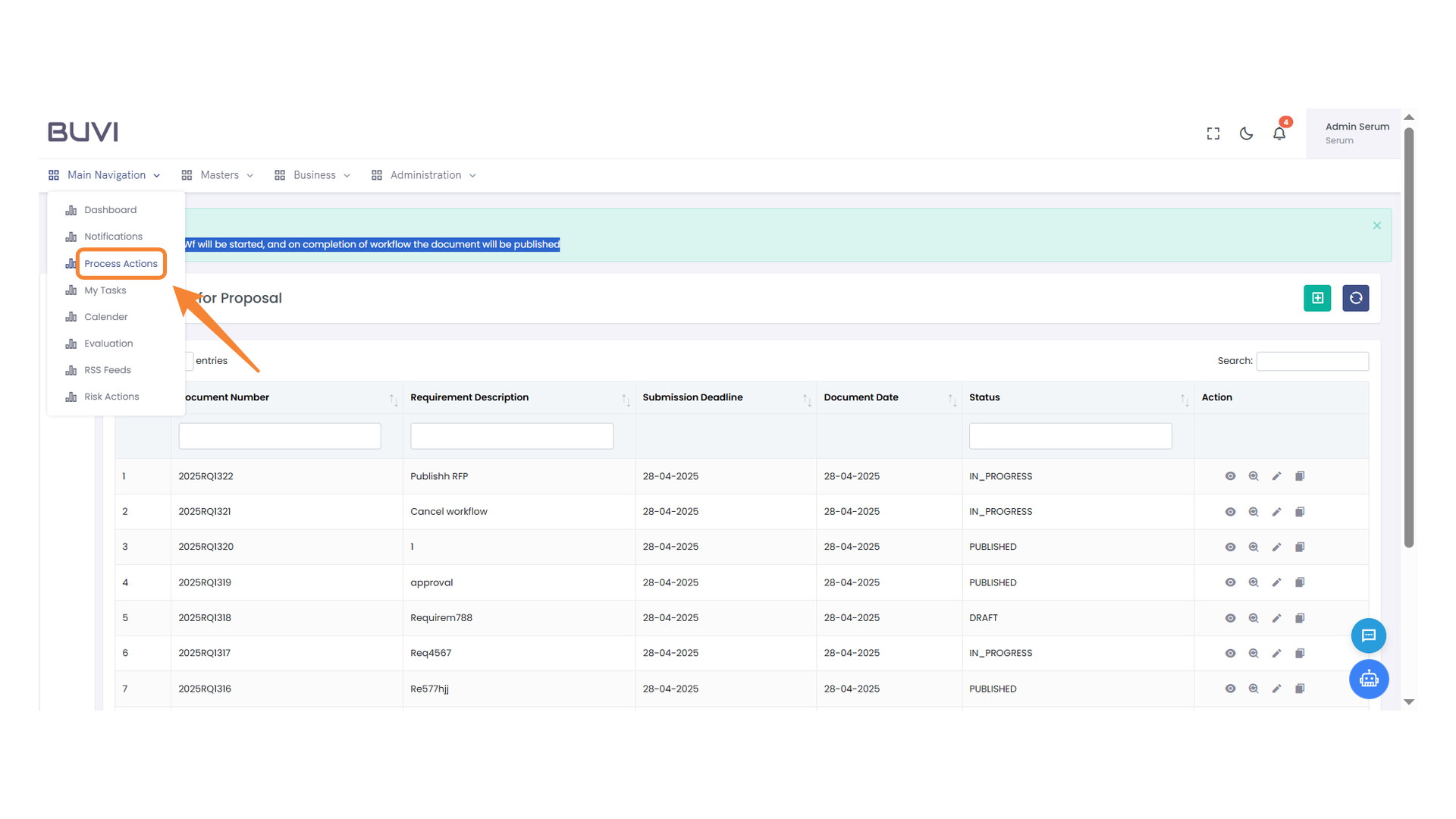
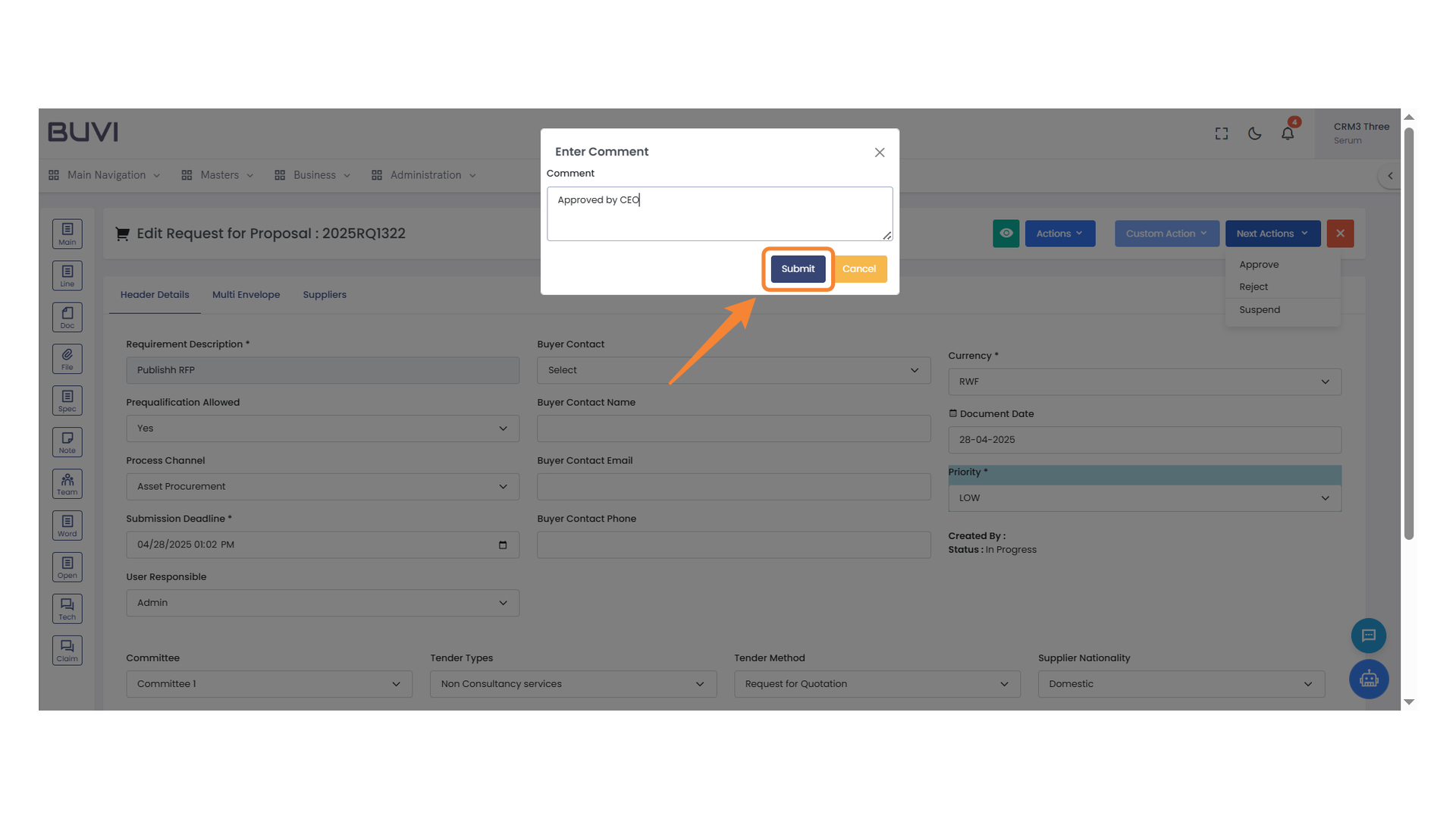
64. Process Actions Menu
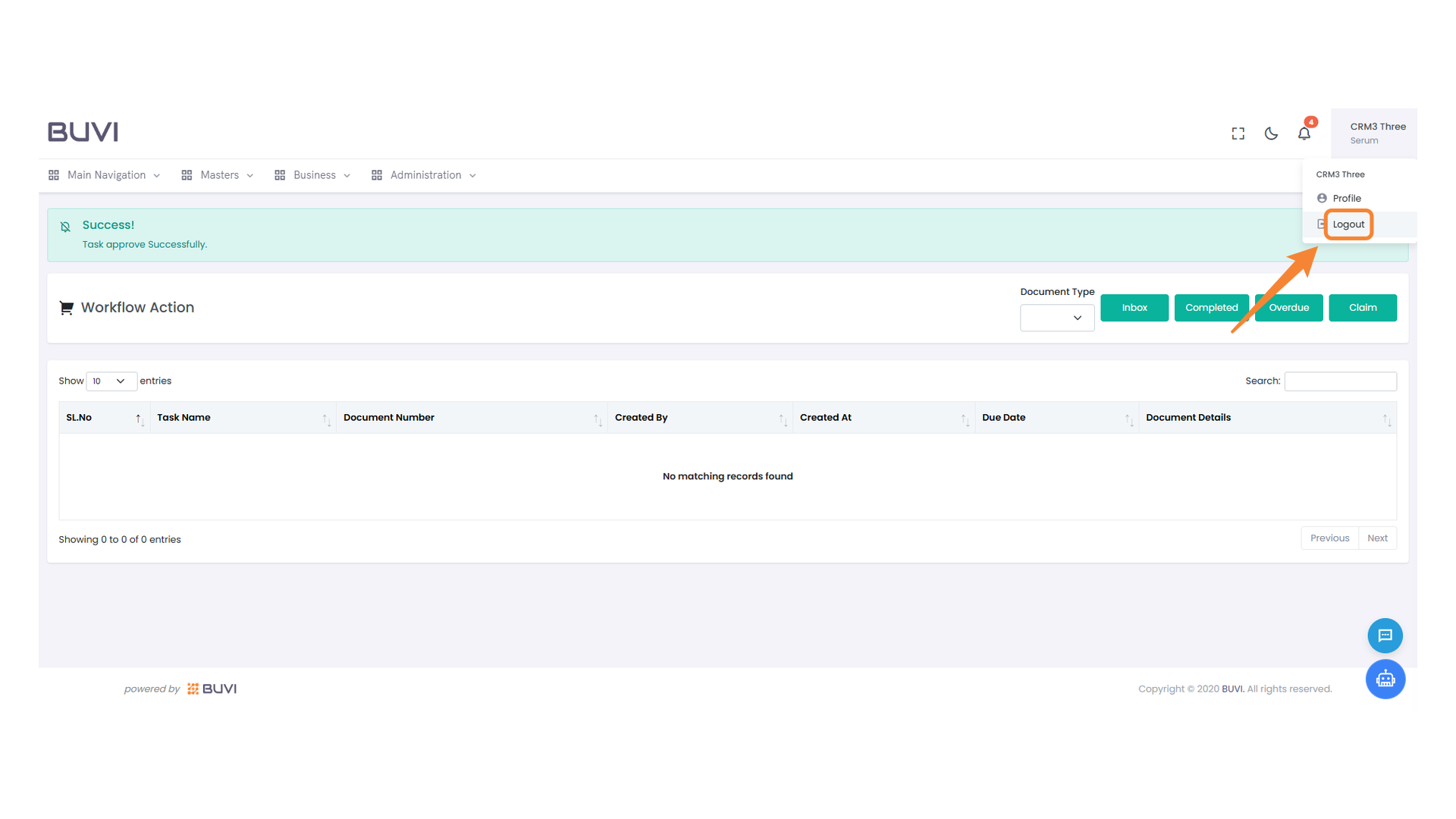
Select this option to manage and execute workflow processes within the system.
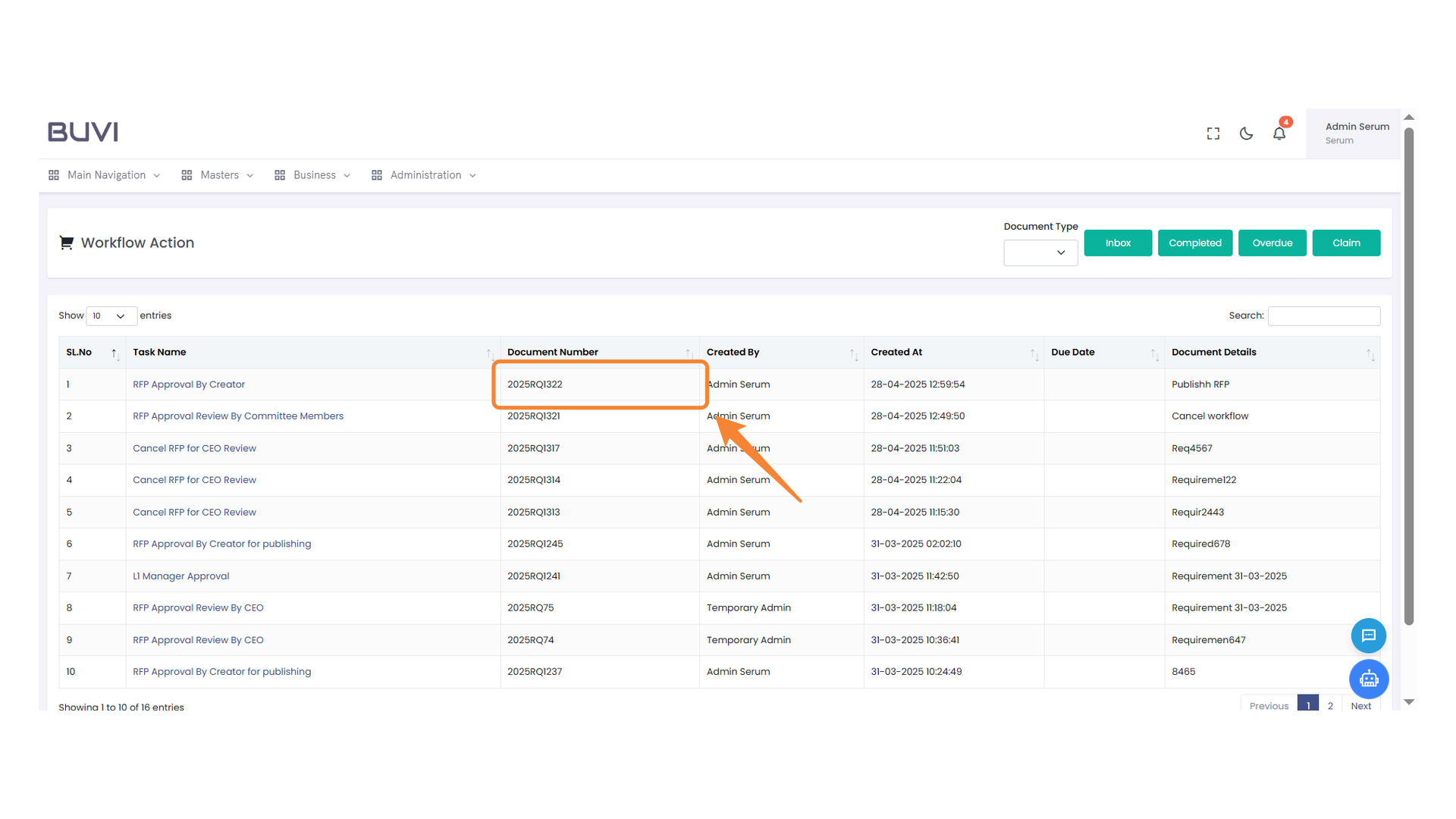
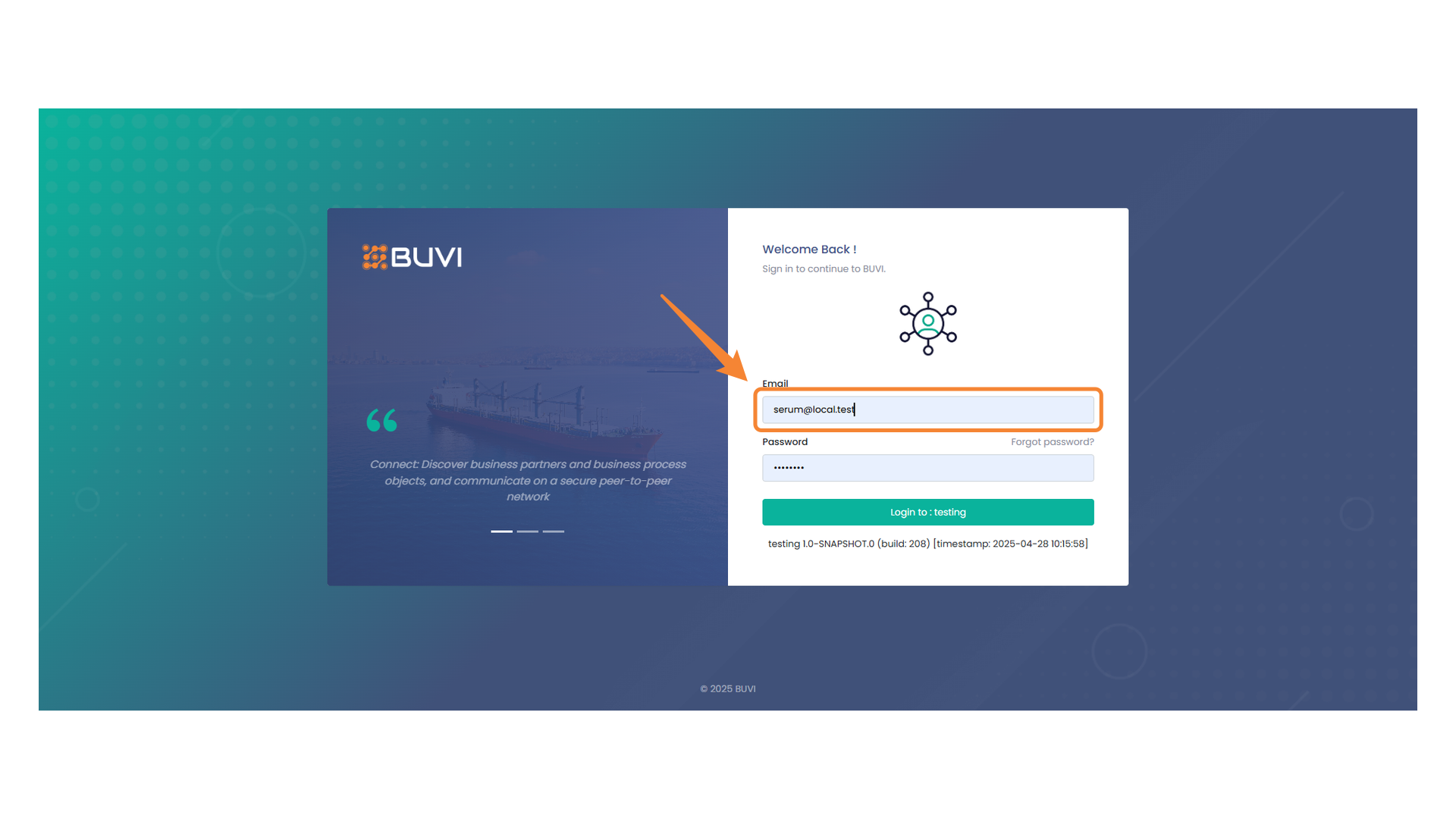
65. Document Number Highlighted
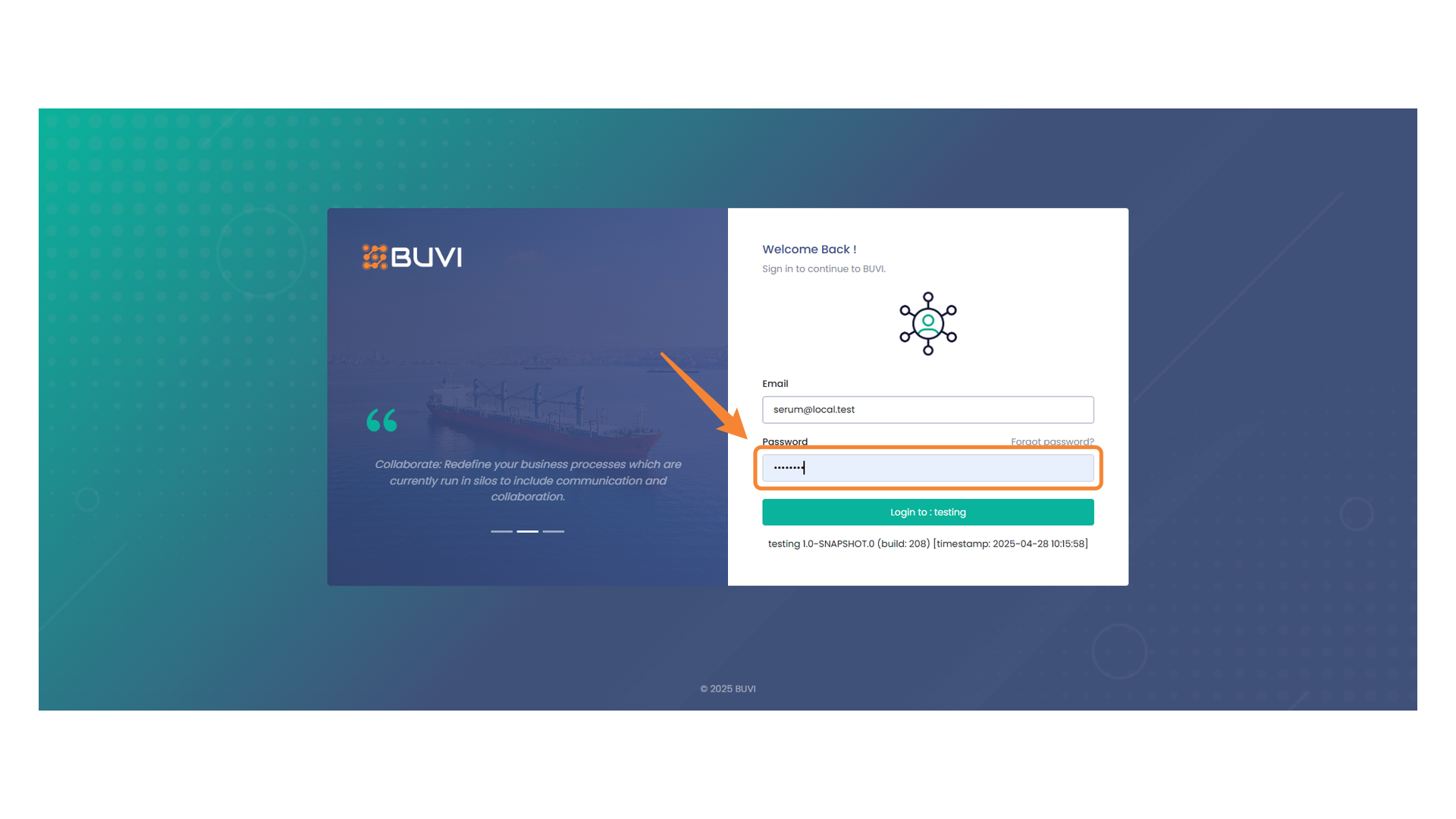
Focus on the selected document number for further details.
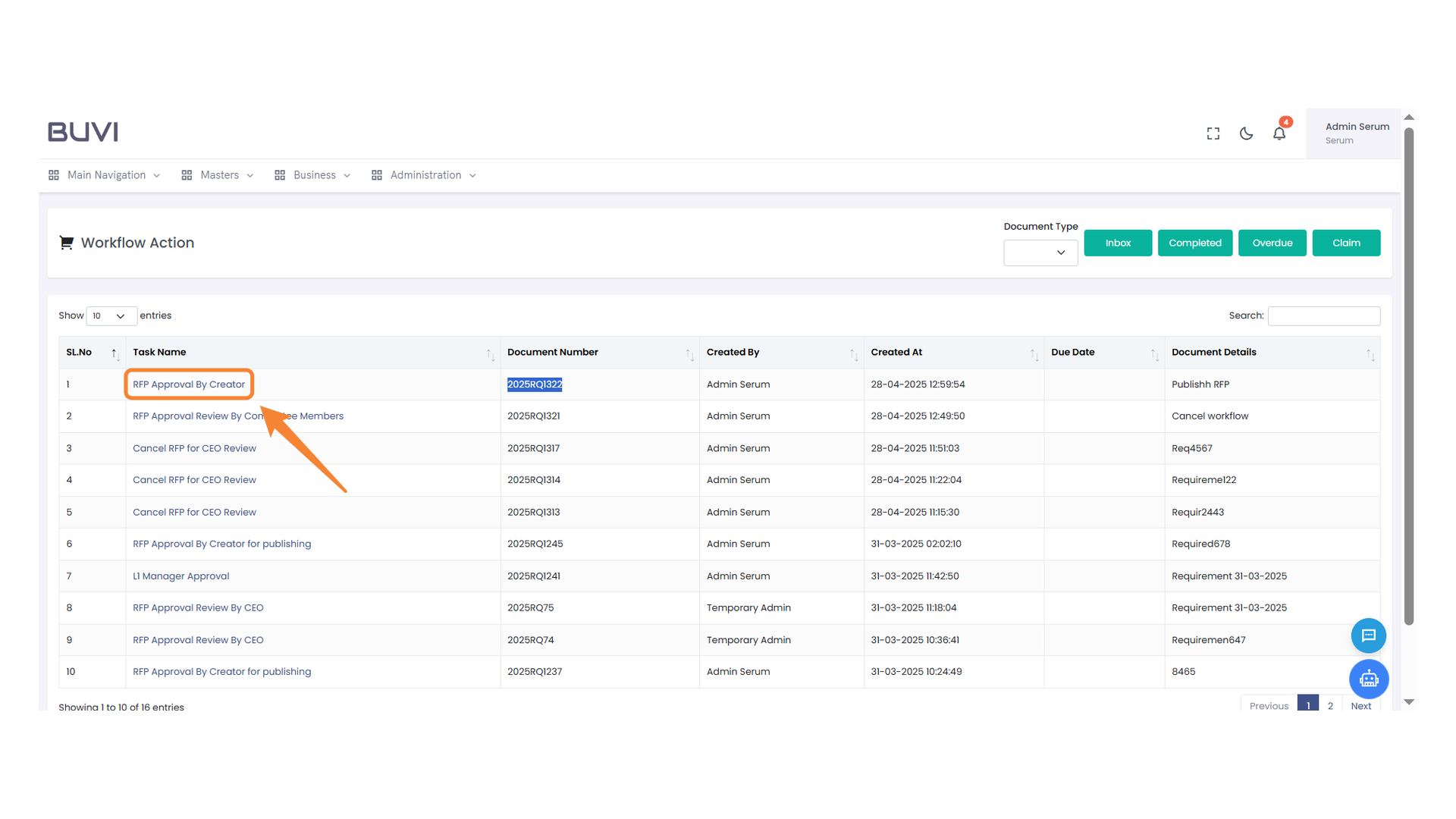
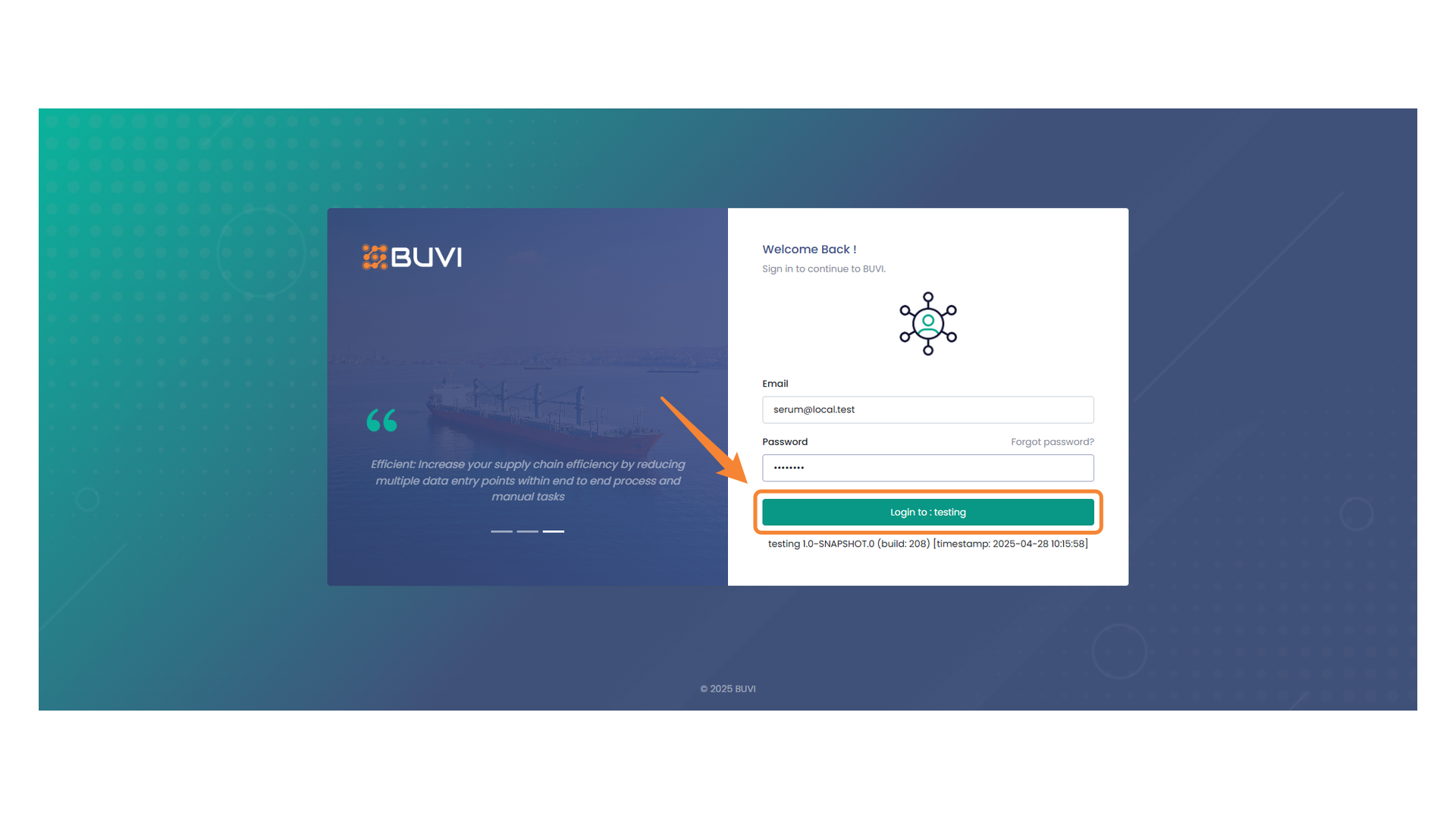
66. RFP Approval Task
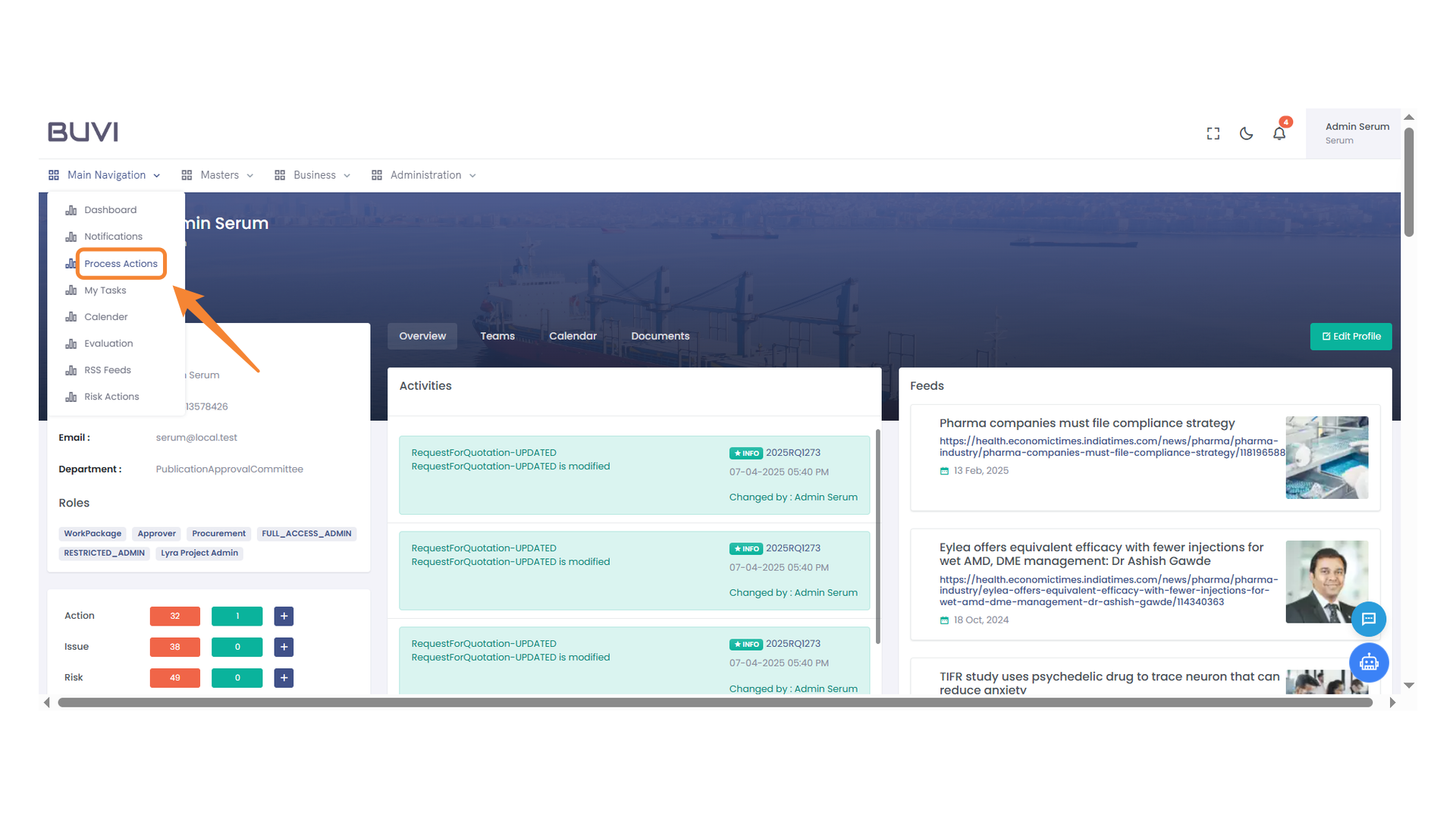
Review and approve the RFP as the creator.
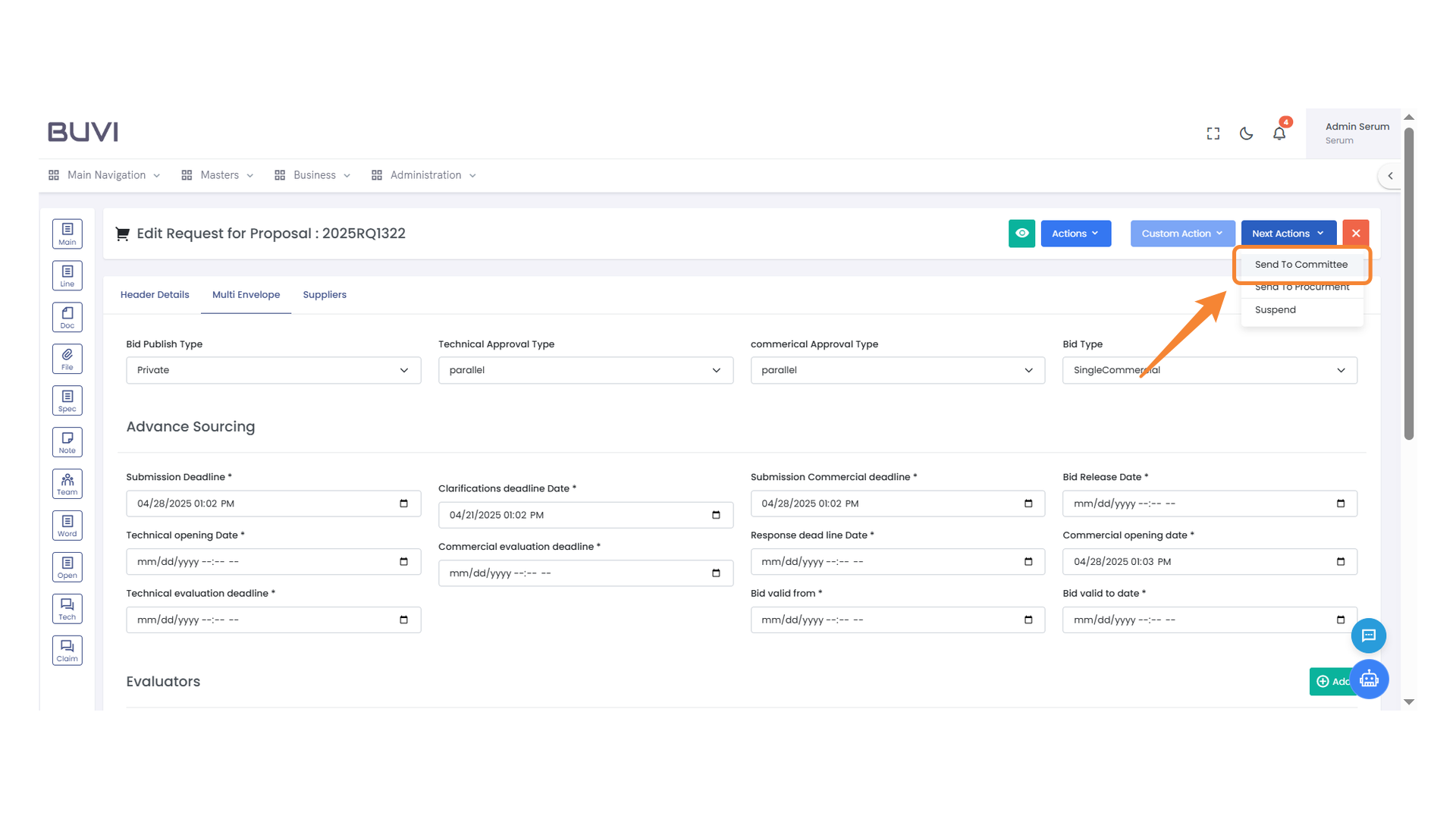
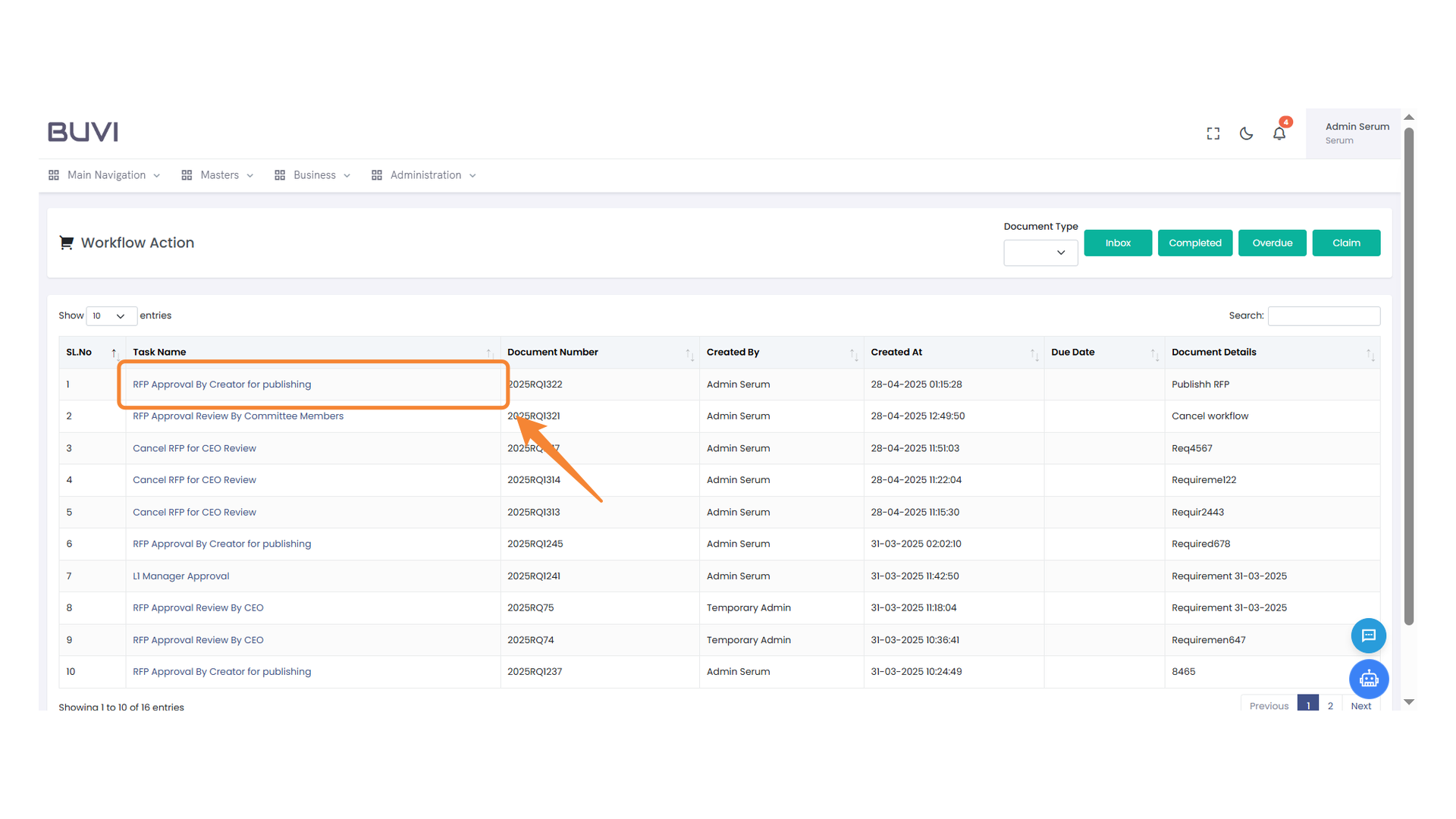
67. Option Selection
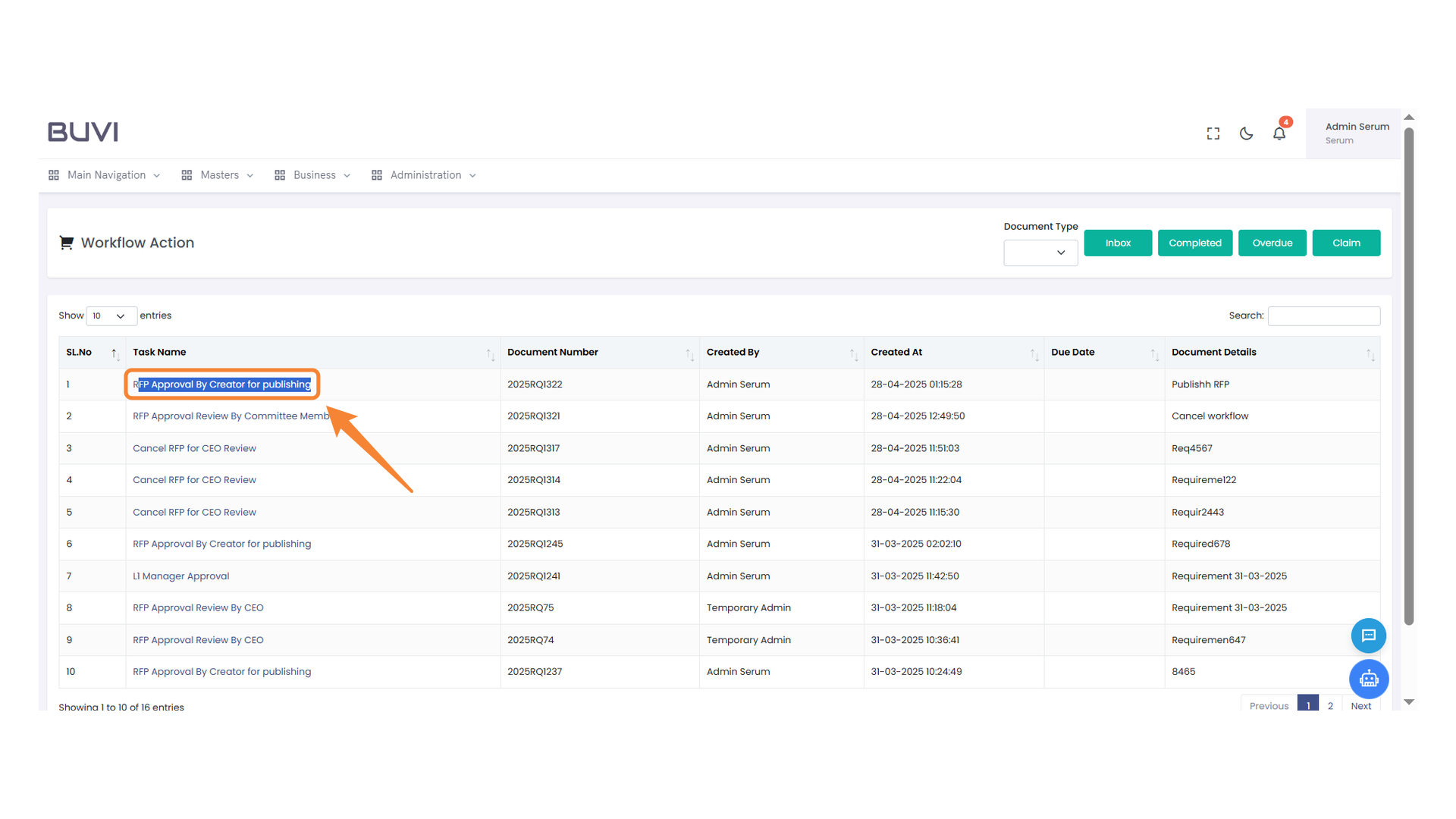
Choose 'Send To Committee' to forward the proposal for review.
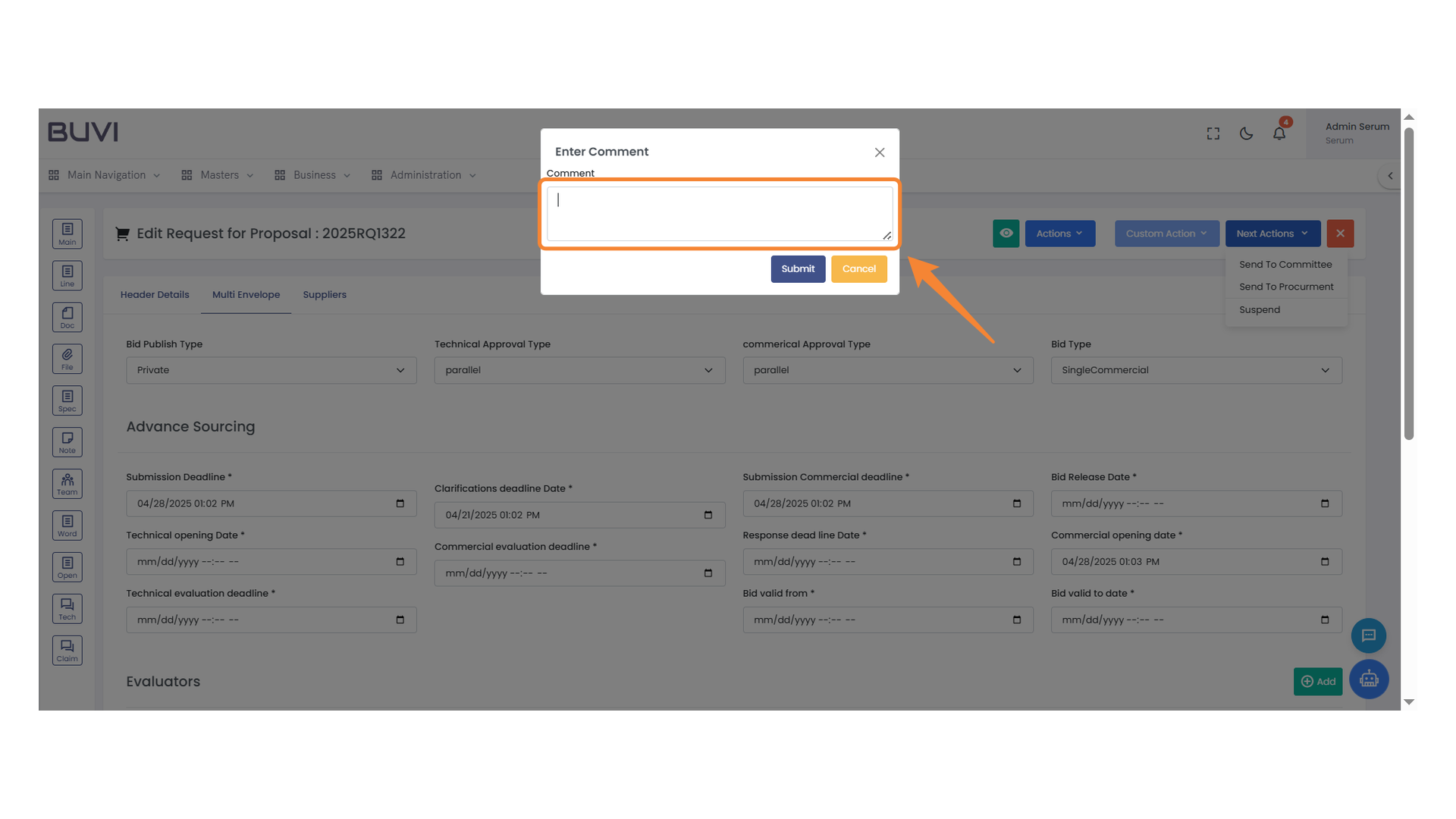
68. Enter Comment Box
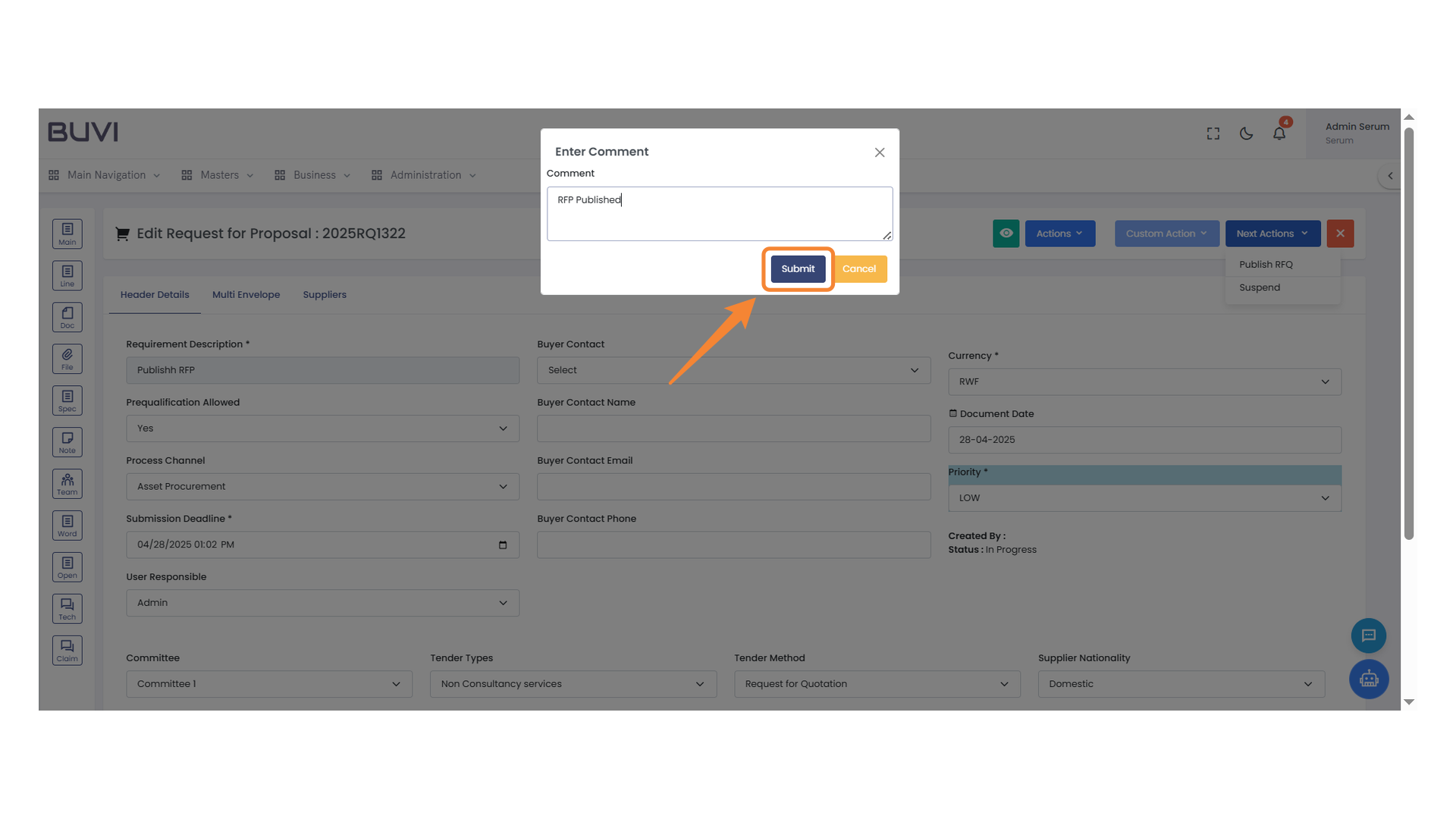
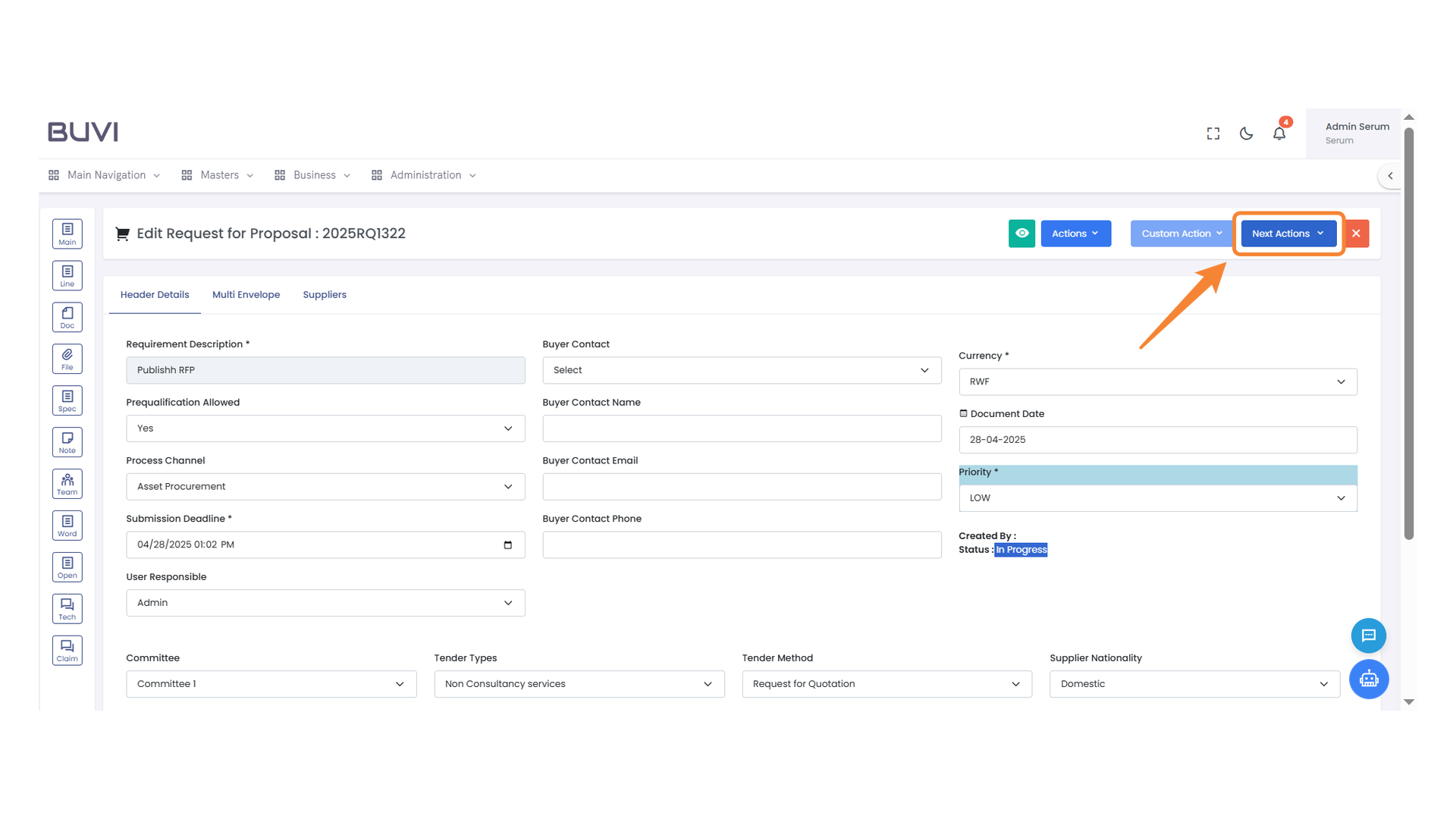
Type your comment in the provided input field.
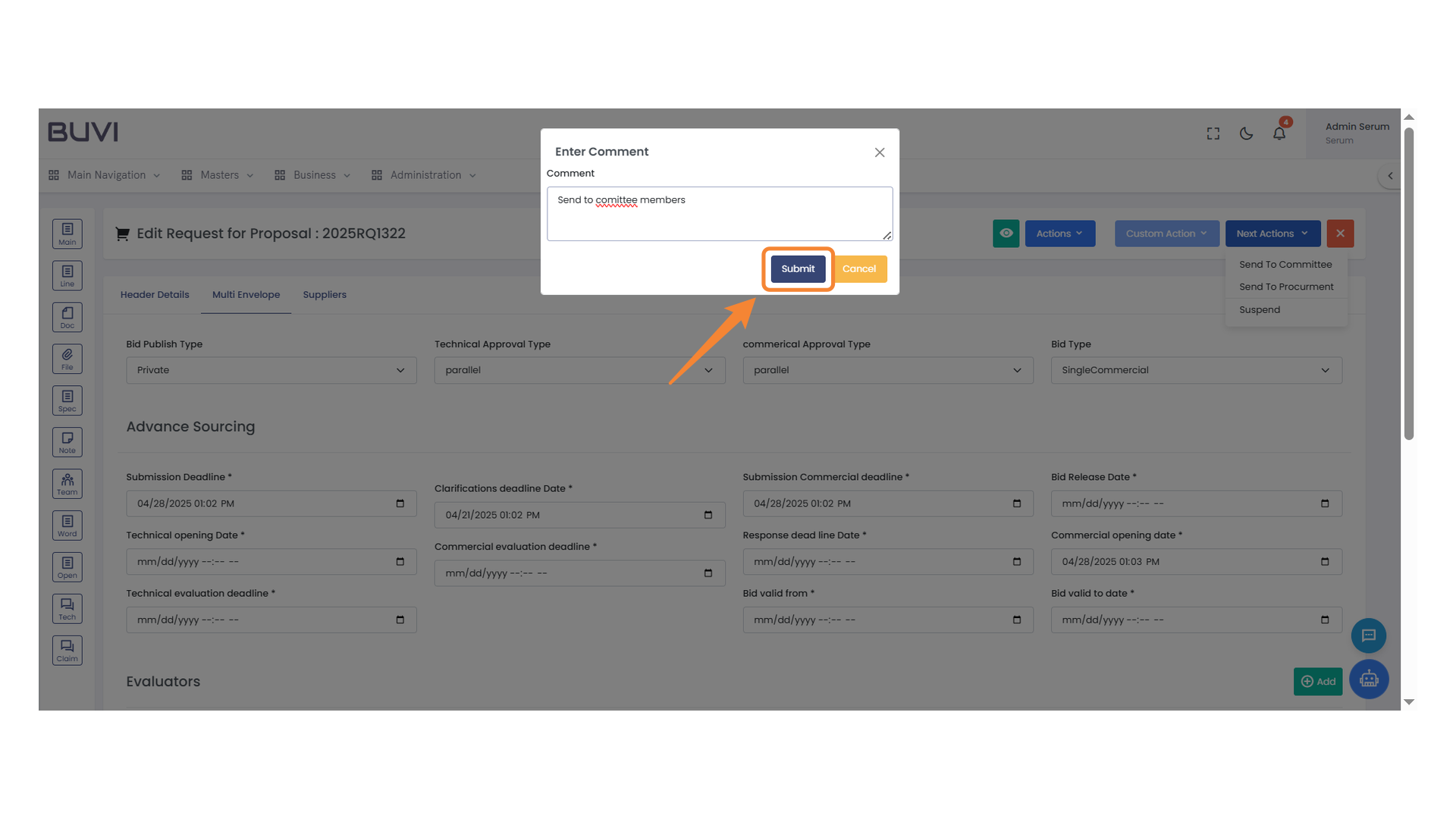
69. Submit Button
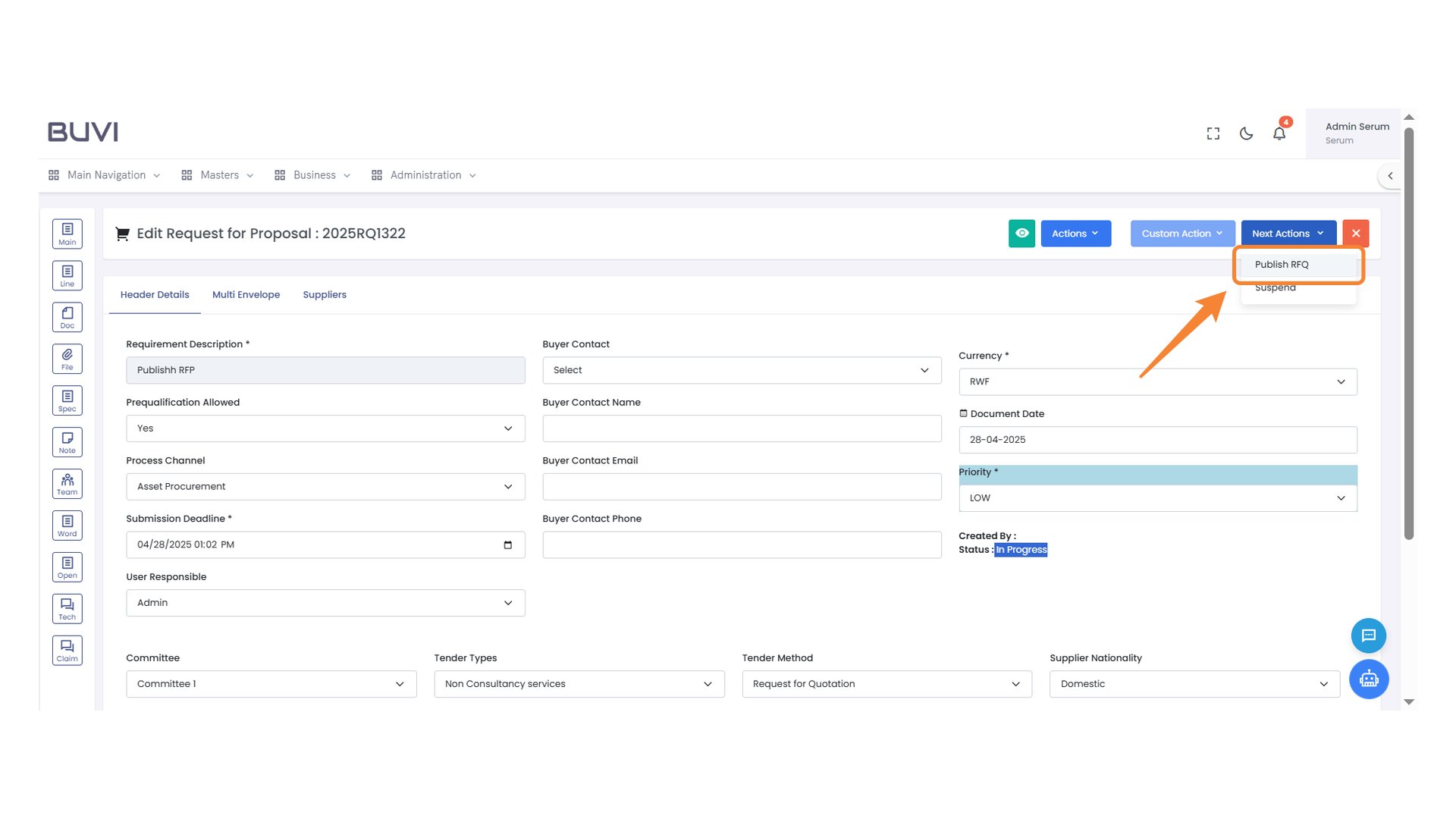
Press the button to complete the action.
70. Request for Proposal Menu Item
Access the Request for Proposal section by selecting this option from the dropdown menu.

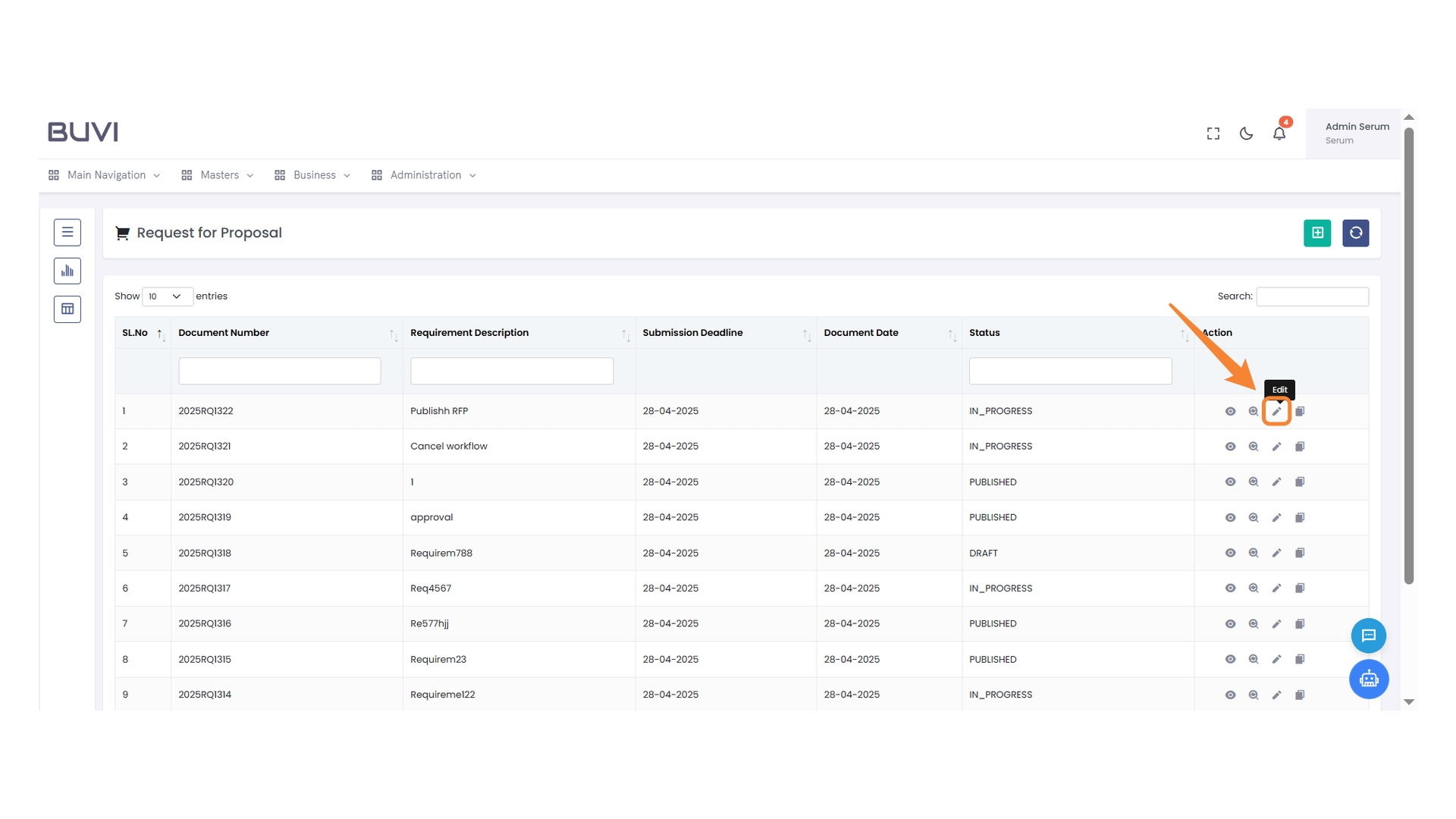
71. Edit Action Button
Click to modify the selected document entry.
72. Process Actions Menu
Select 'Process Actions' to view available process-related actions.
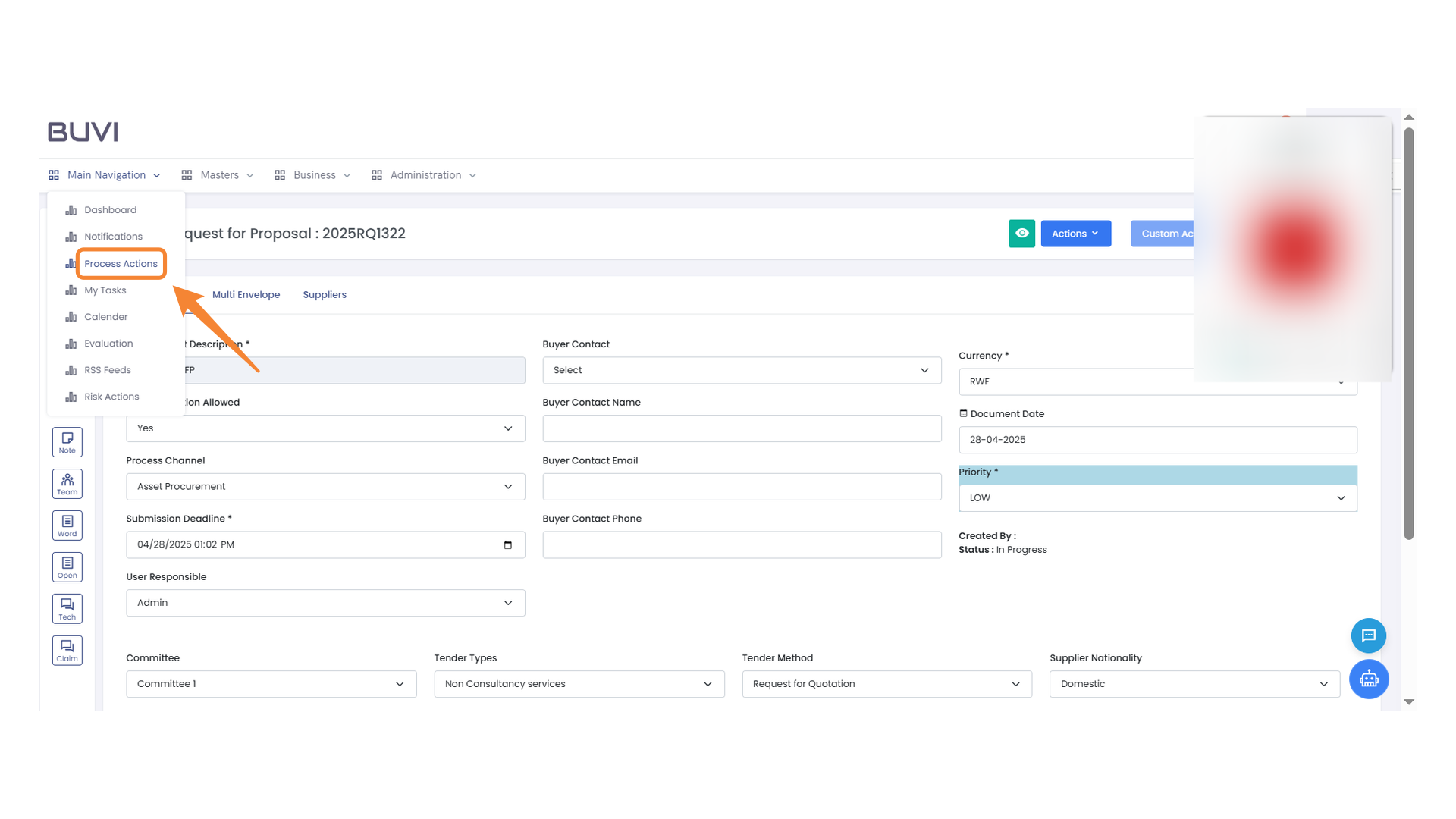
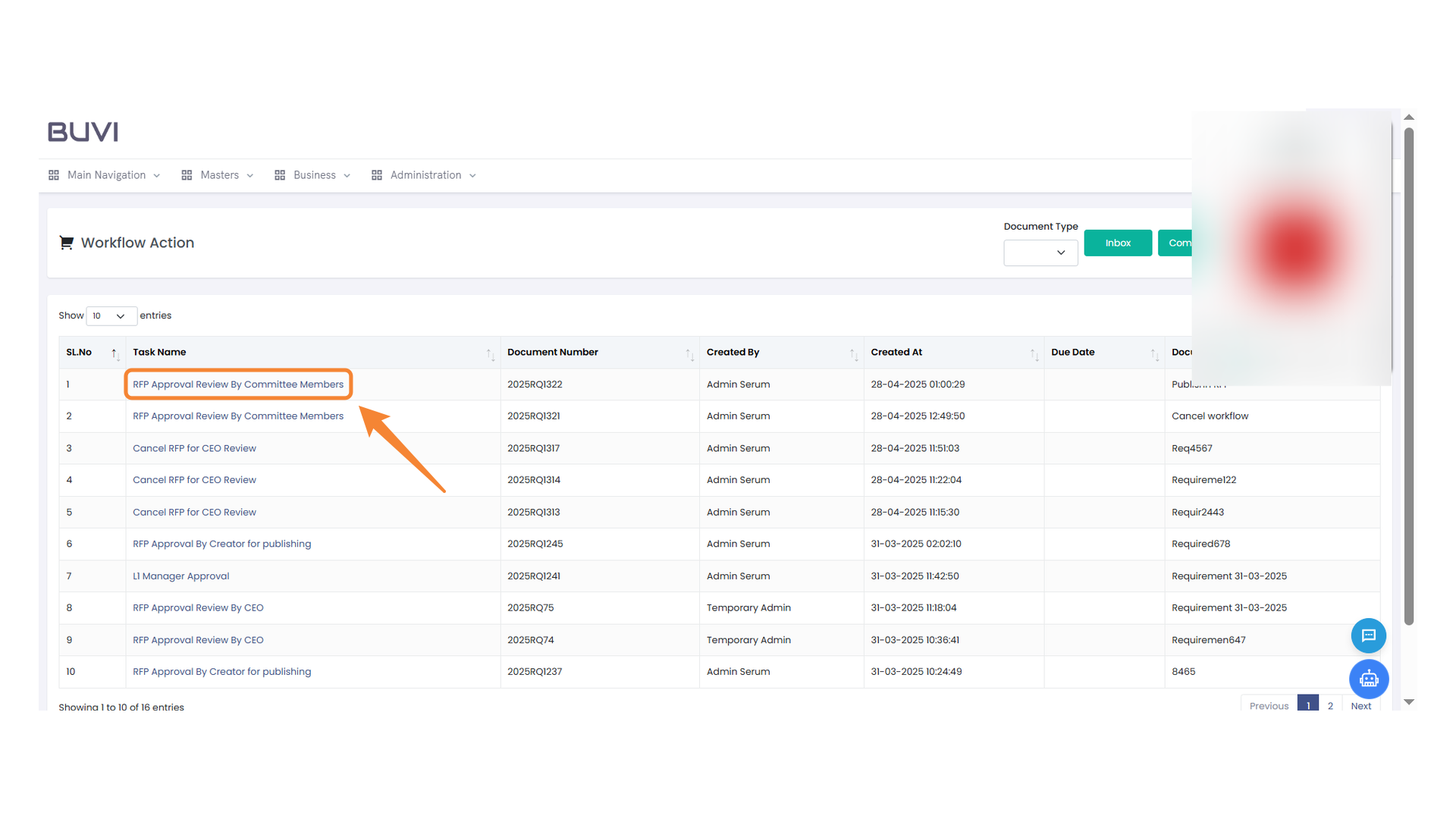
73. RFP Approval Review by Committee
Review the RFP approval process as conducted by committee members.
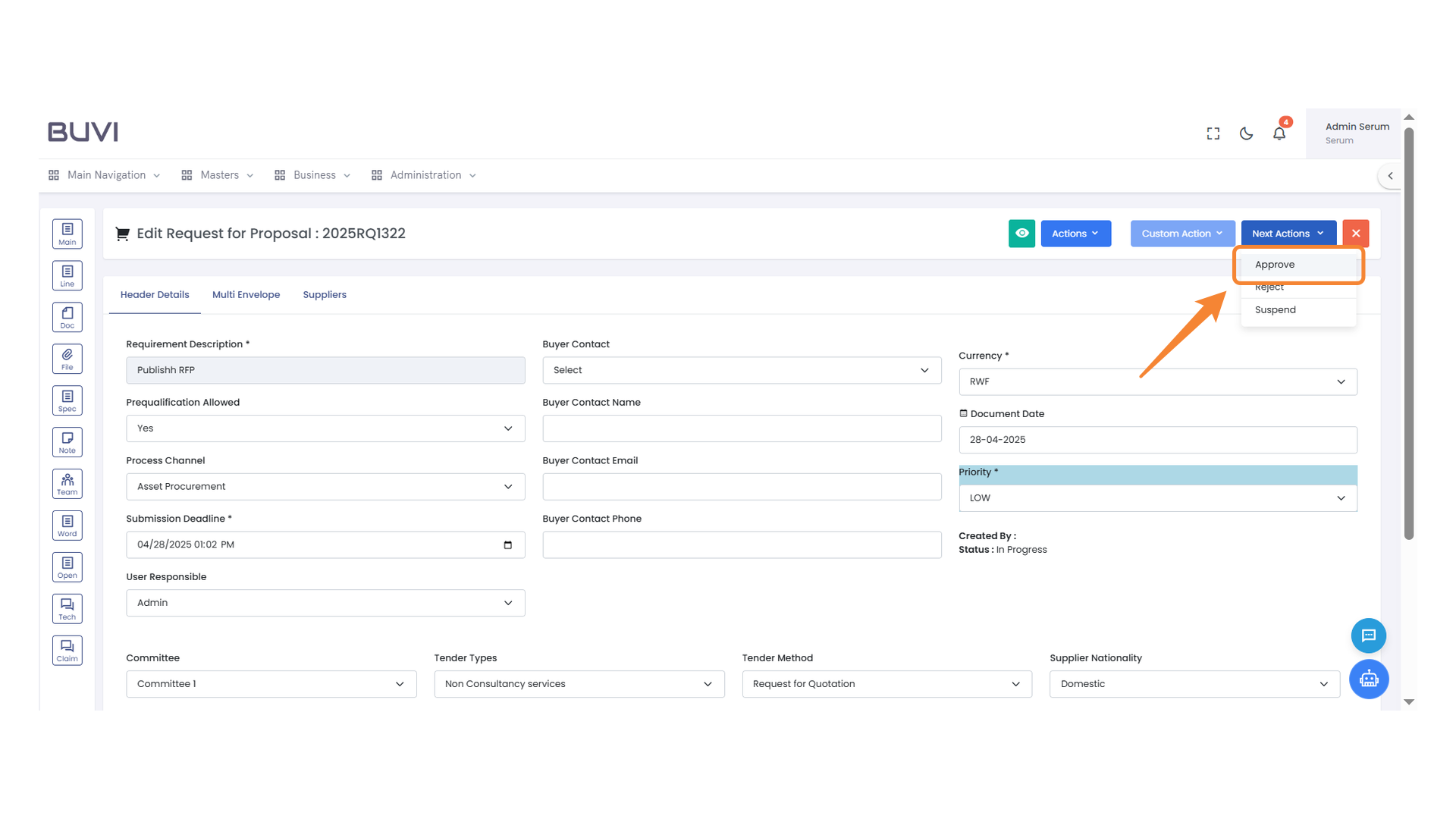
74. Approval Action Selection
Click to approve the current proposal.
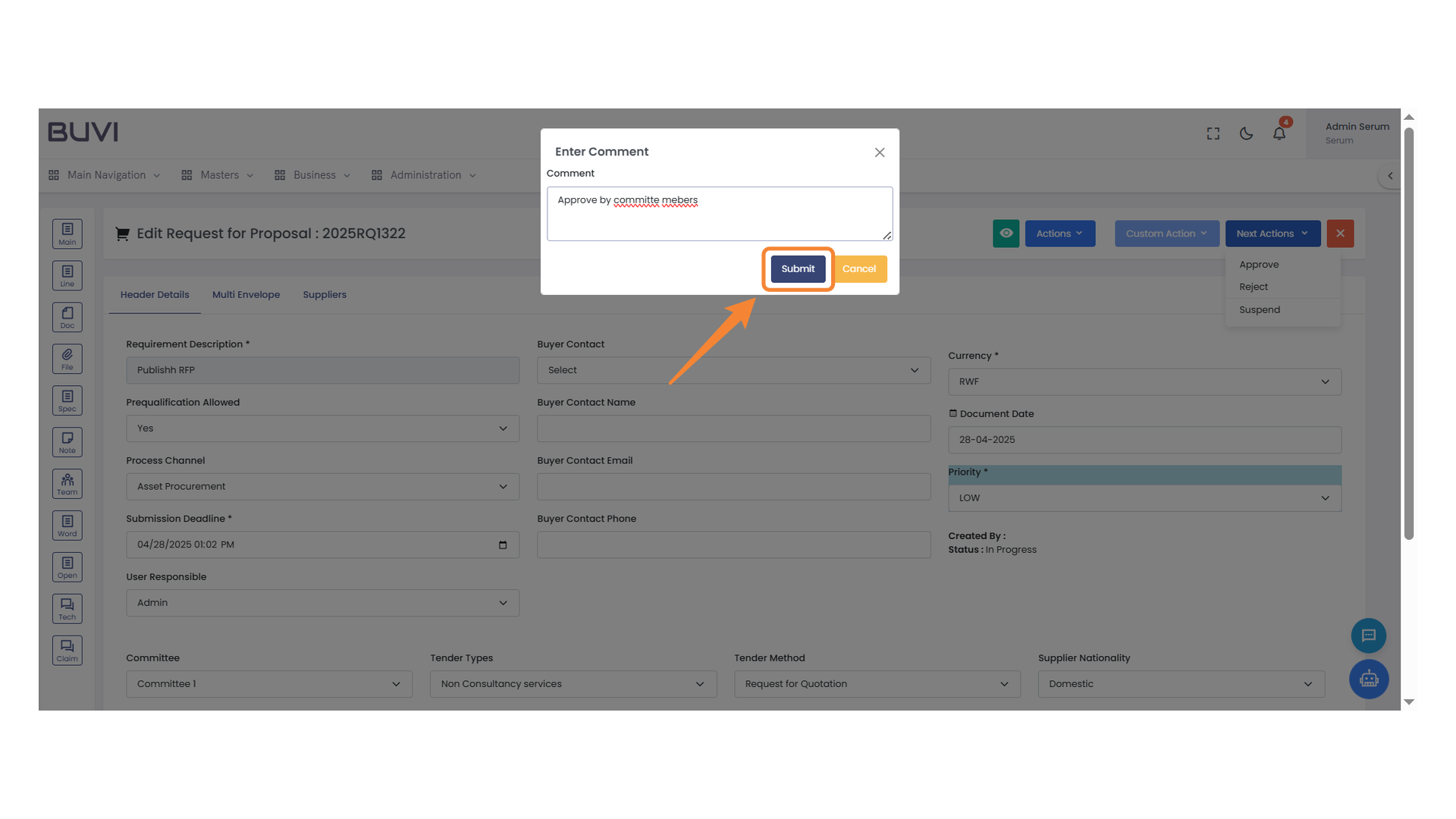
75. Submit Button in Comment Dialog
Press the button to submit your comment and approve the proposal.
76. Logout Button
Click to sign out of your account.
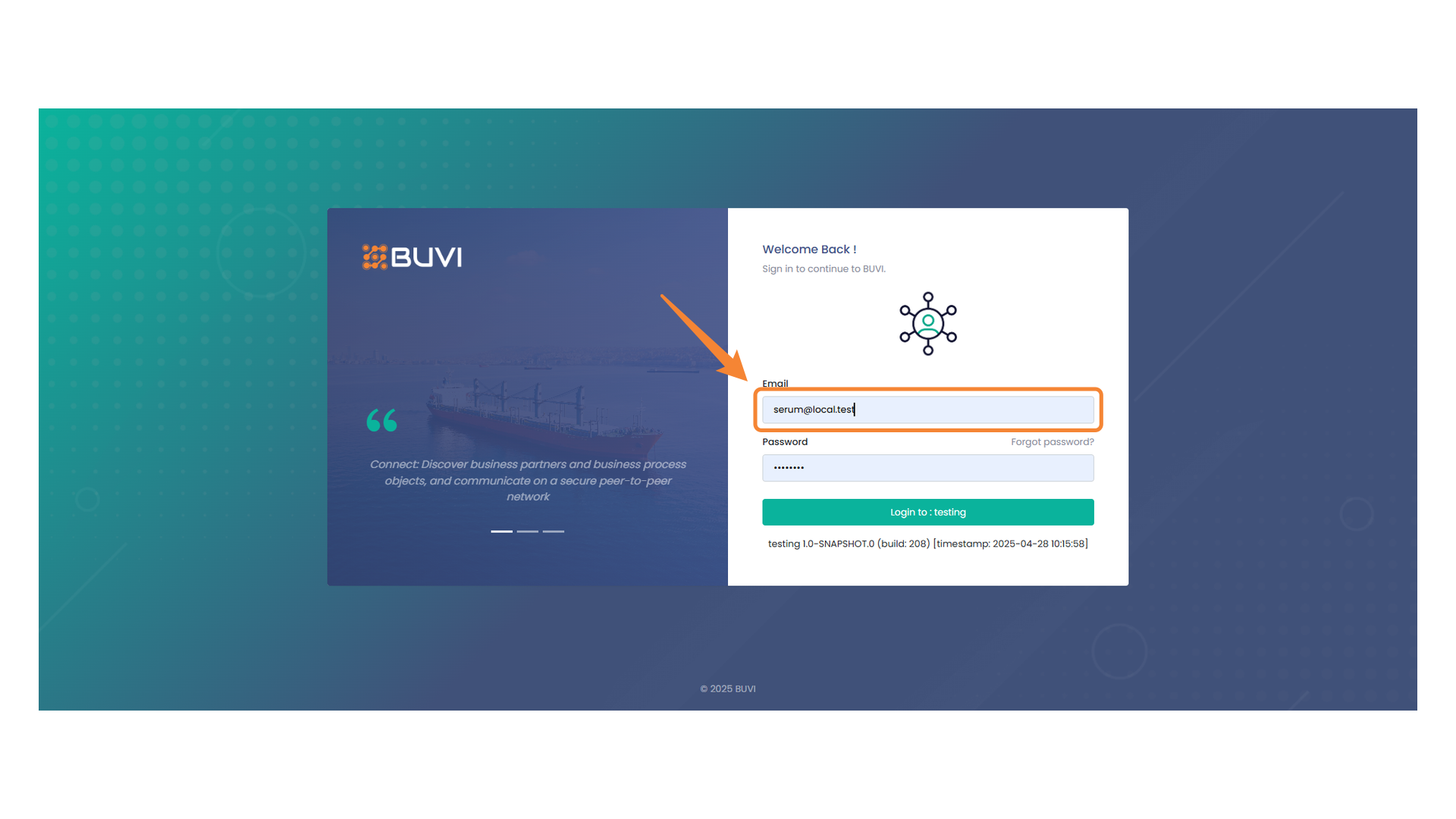
77. Email Input Field
Enter your email address here to sign in for second committee members.
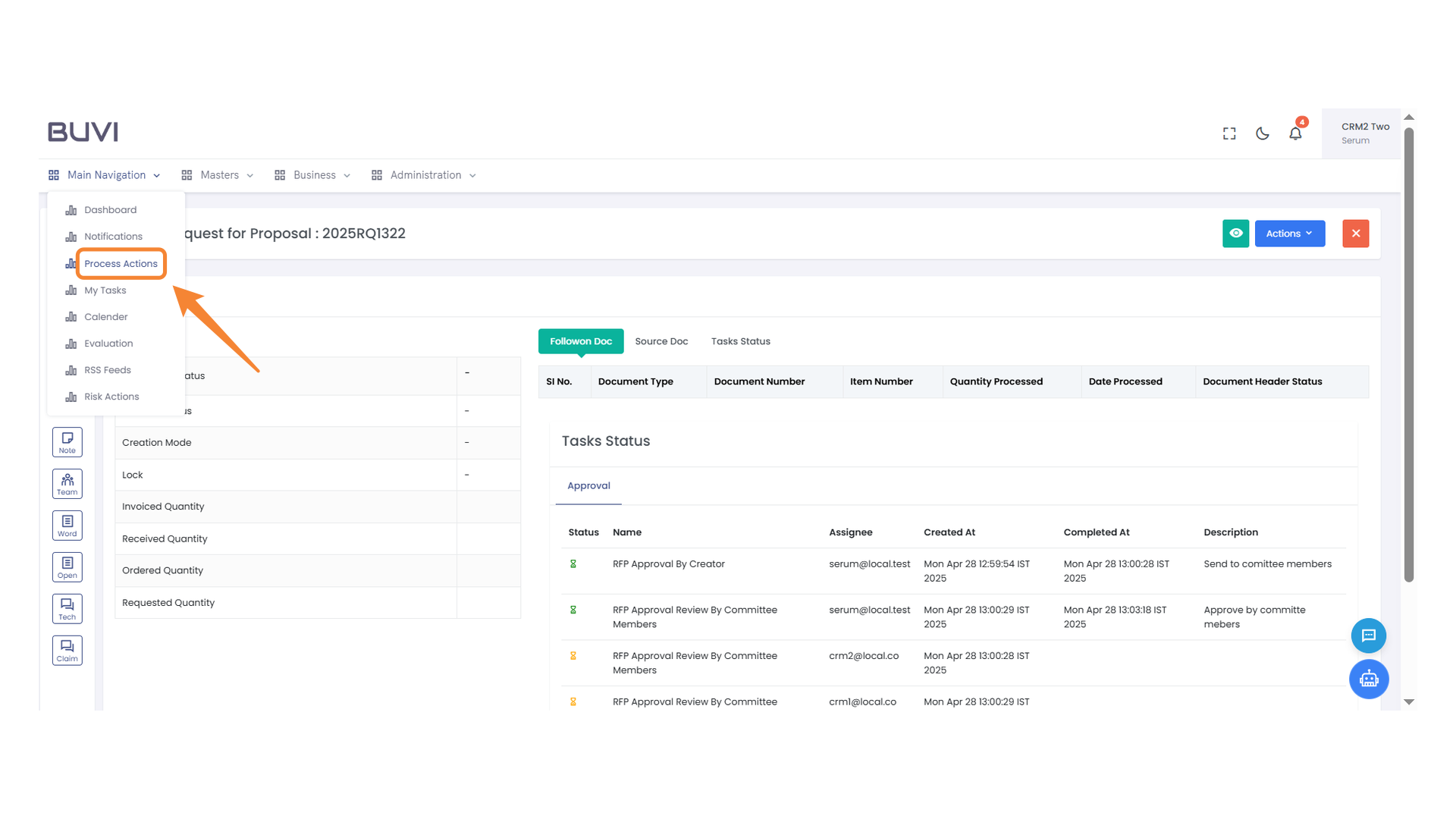
78. Process Actions Menu
Select this section to manage and initiate various process-related actions effectively.
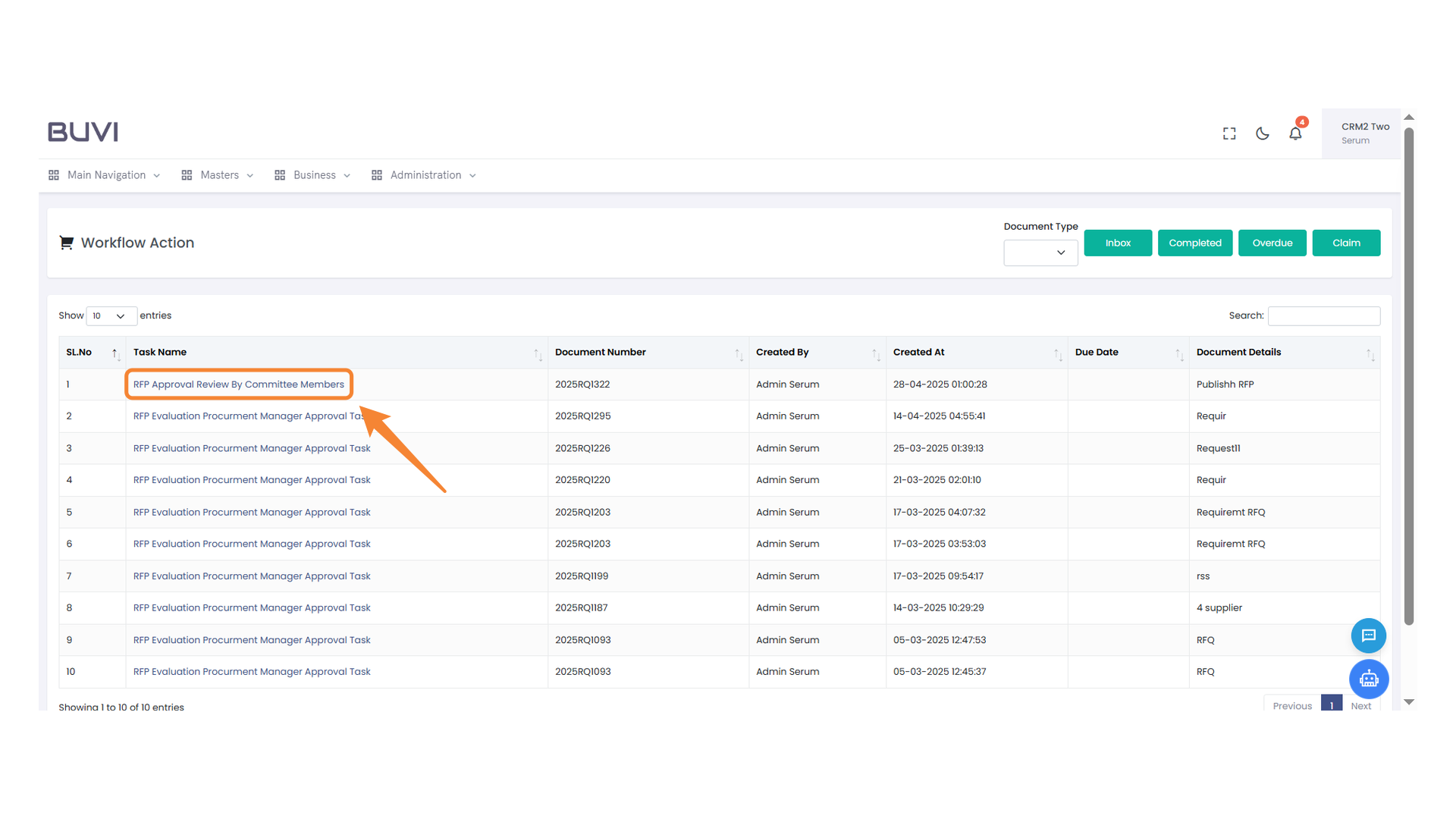
79. RFP Review by Committee
Highlight the task 'RFP Approval Review By Committee Members' for further details and assessment.
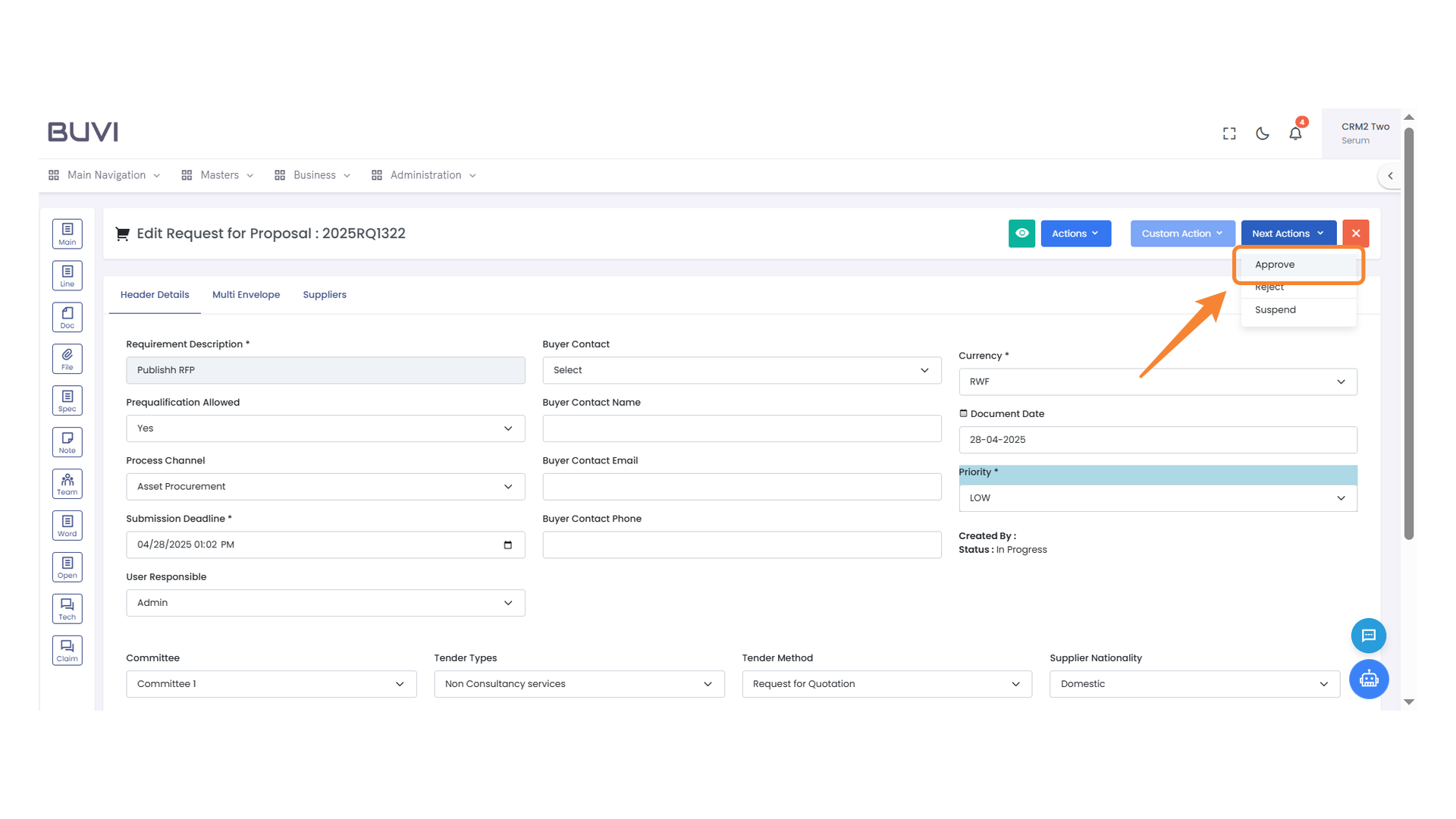
80. Approval Button
Click to approve the request for proposal.
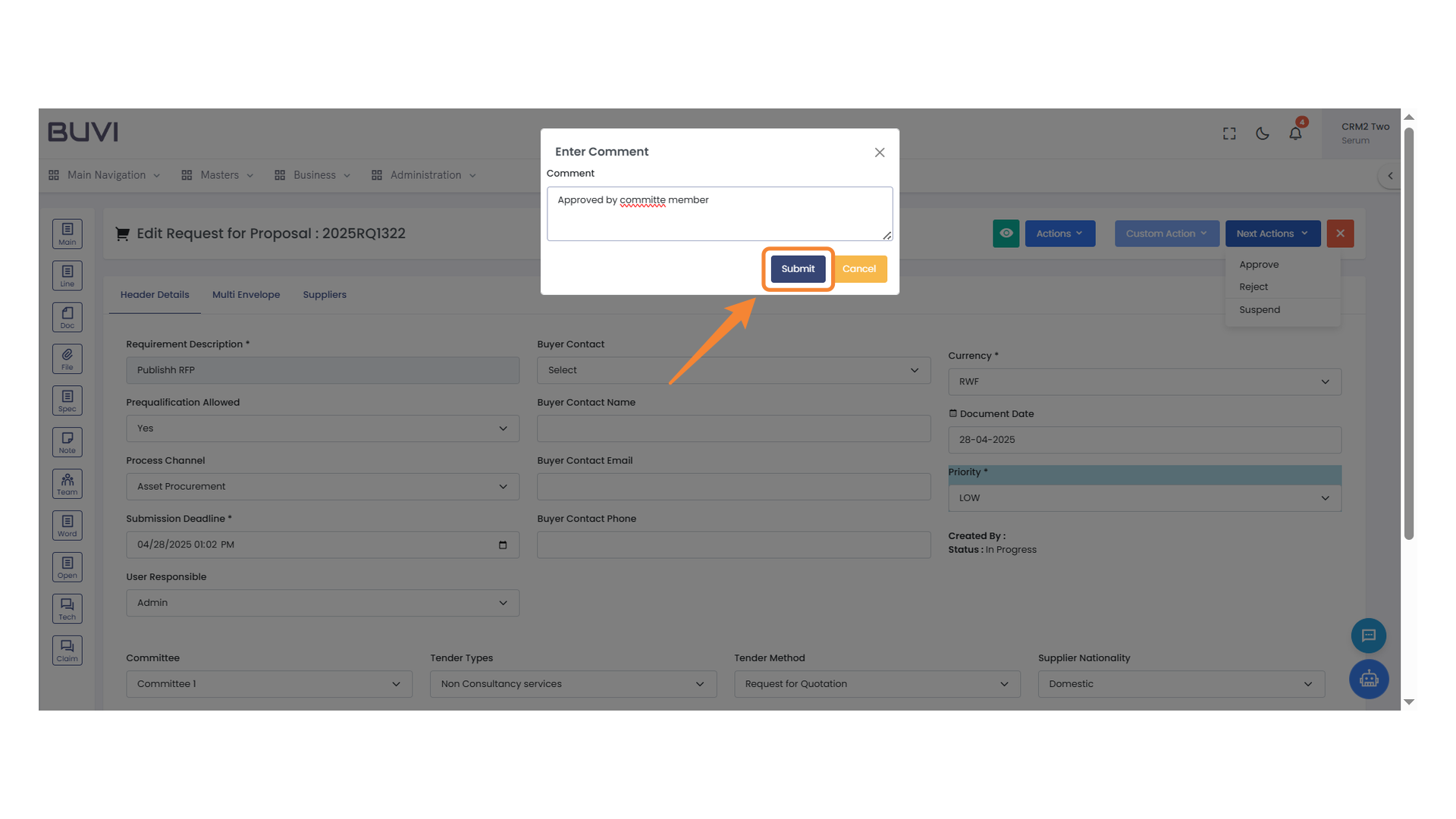
81. Submit Button
Click to finalize and send the comment.
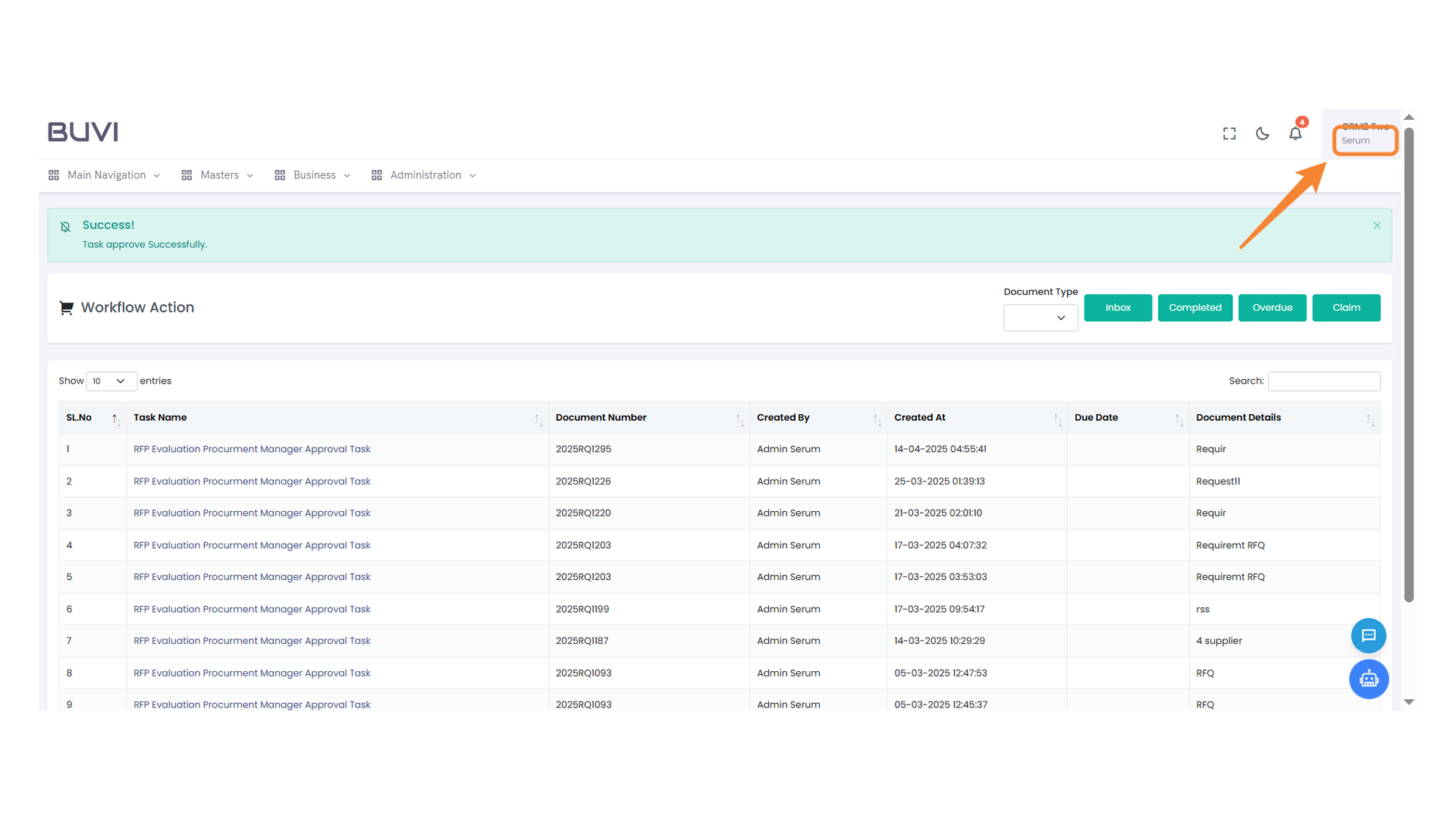
82. Profile Menu Access
Select the Serum option to access profile settings or logout options.
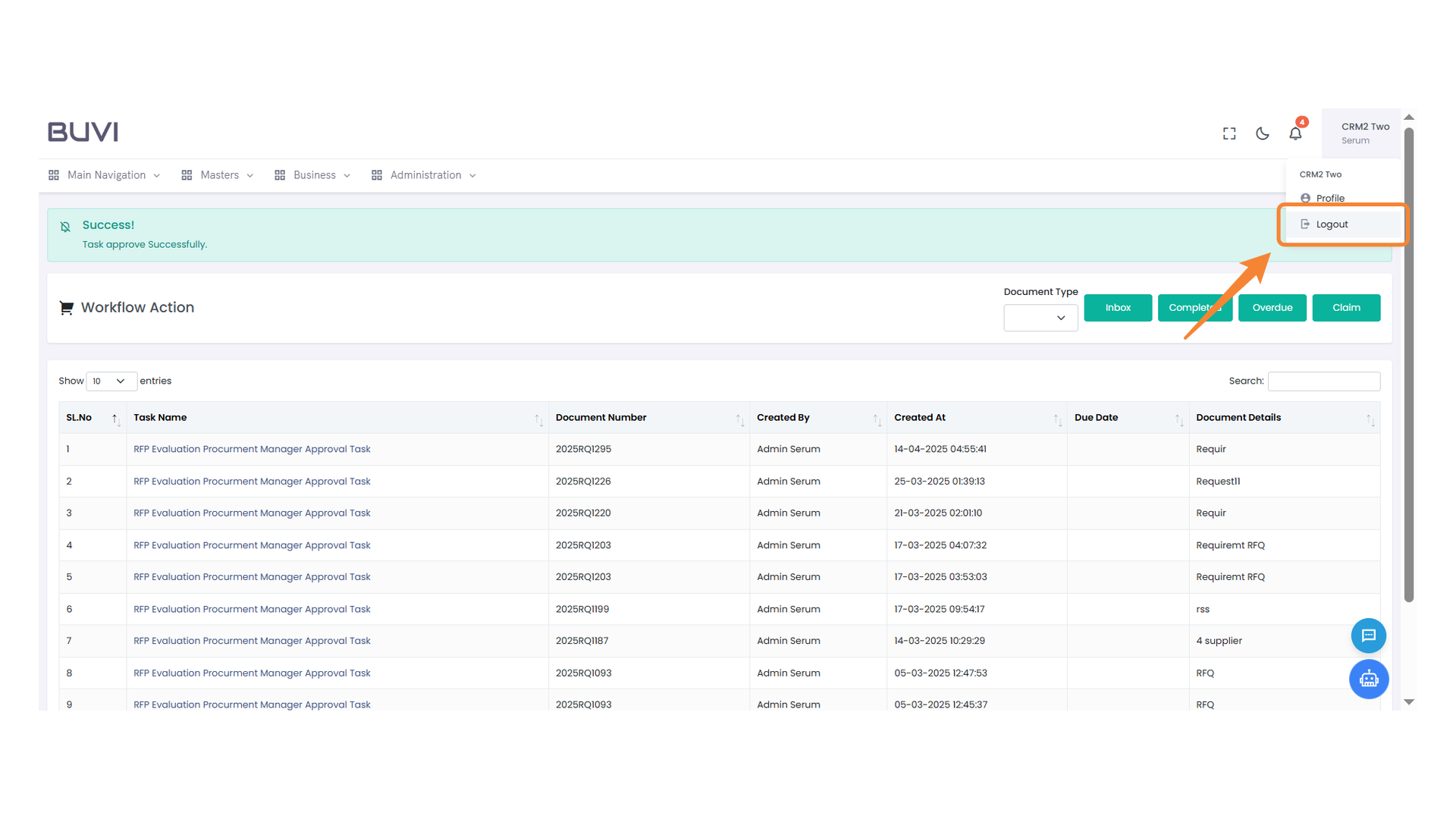
83. Logout Option
Click to log out of your account.
84. Email Input Field
Enter your email address in the designated field to proceed with login with third committee member.
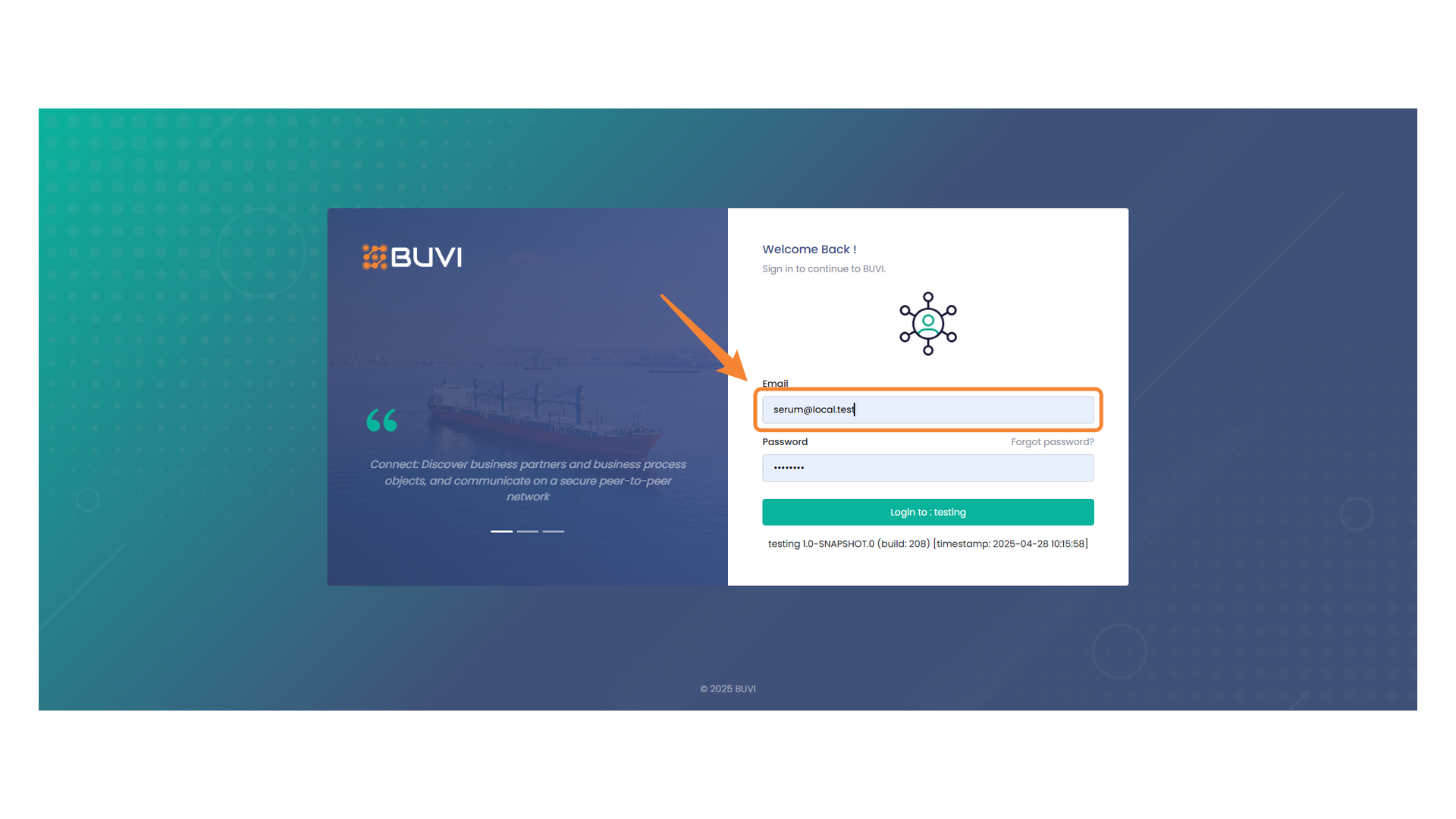
85. Password Input Field
Enter your password to access your account.

86. Login Button
Click to proceed with logging into the testing environment.
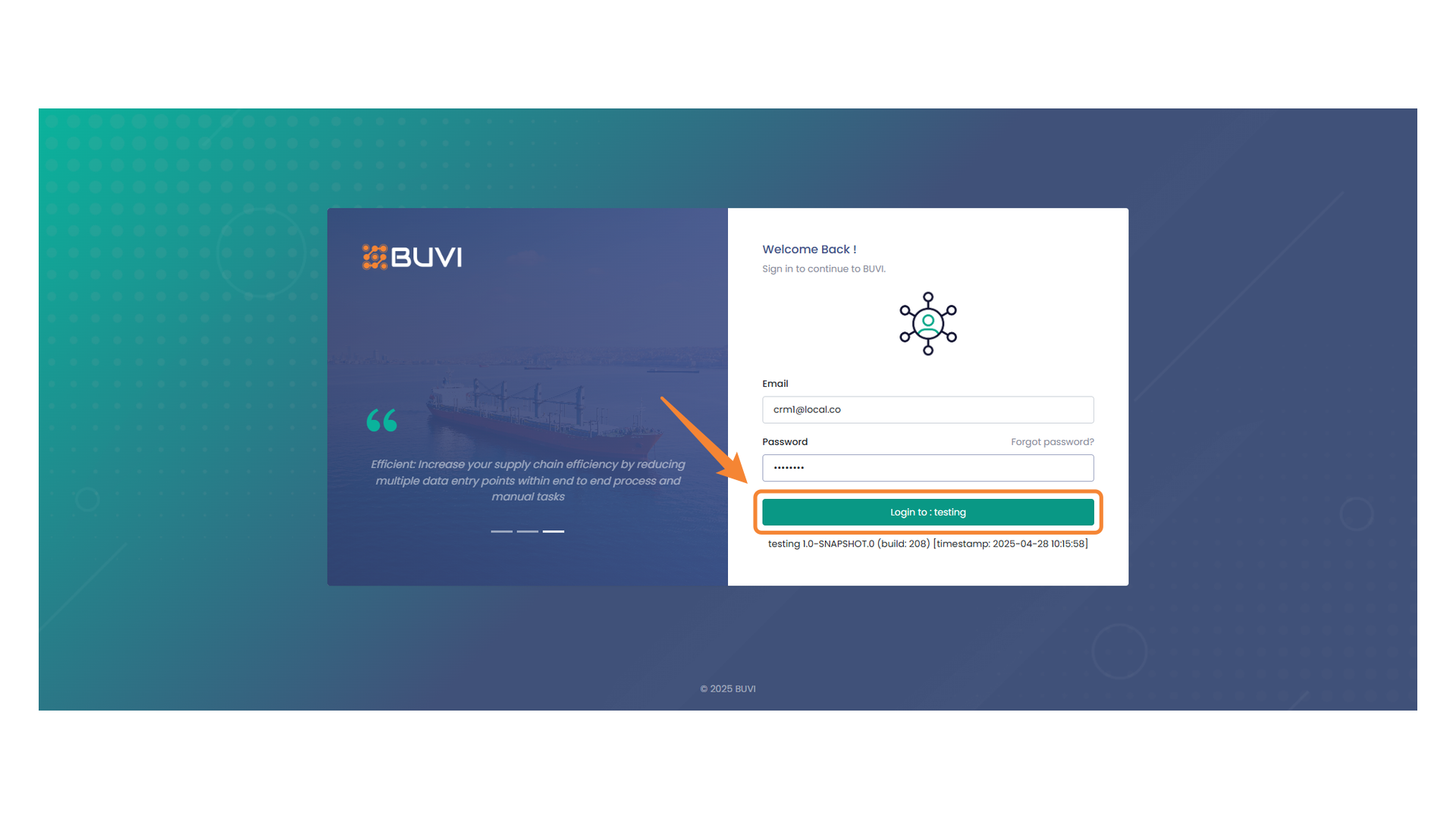
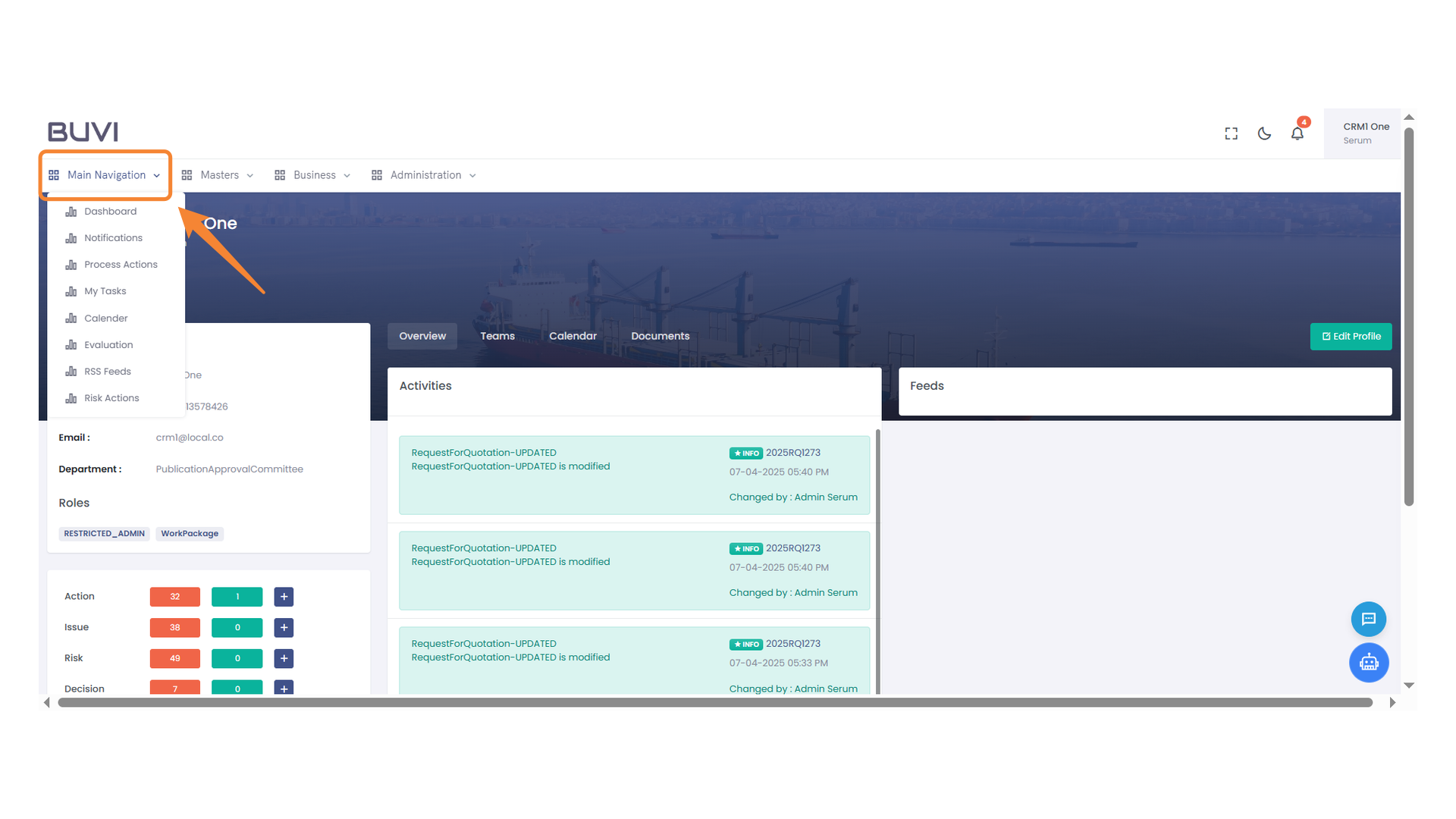
87. Main Navigation Menu
Select an option from the dropdown to navigate through different sections.
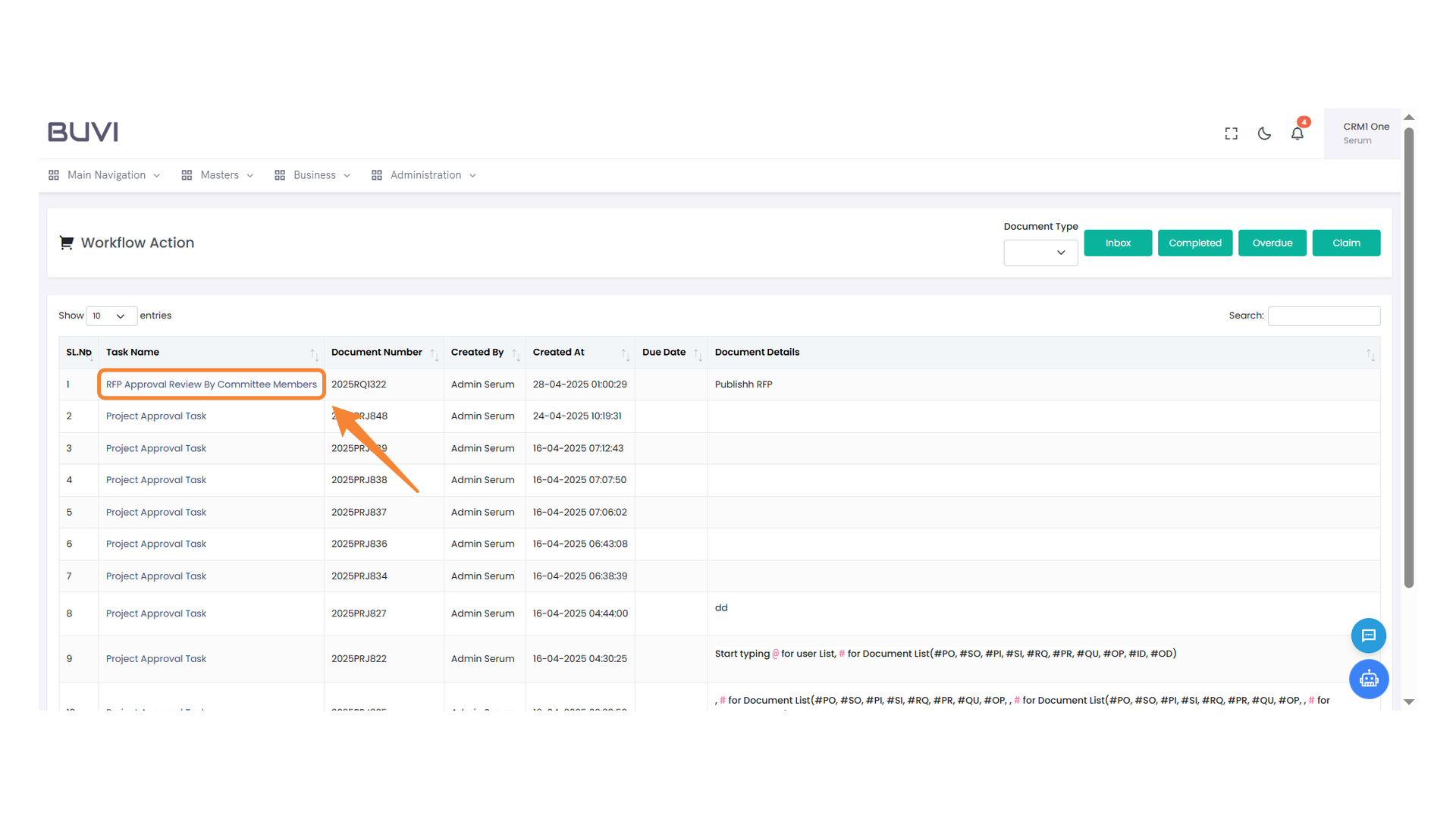
88. Task Review Section
Review the RFP approval process conducted by committee members.
89. Submit Button Highlighted
Press the highlighted button to submit your comment.
90. Profile Access Button
Click here to access your profile and account settings.
91. Logout Button
Click to log out of your account.
92. Email Input Field
Enter your email address in the provided field.
93. Login Button
Click to proceed with logging in to the testing environment.
94. Main Navigation Menu
Explore the dropdown to access various dashboard options including Notifications, My Tasks, and more.
95. Process Actions Menu
Select this option to manage and execute various process-related actions within the system.
96. Committee Head Review Task
Review the RFP approval task assigned to the Committee Head.
97. Approval Action
Click to approve the current request for proposal.
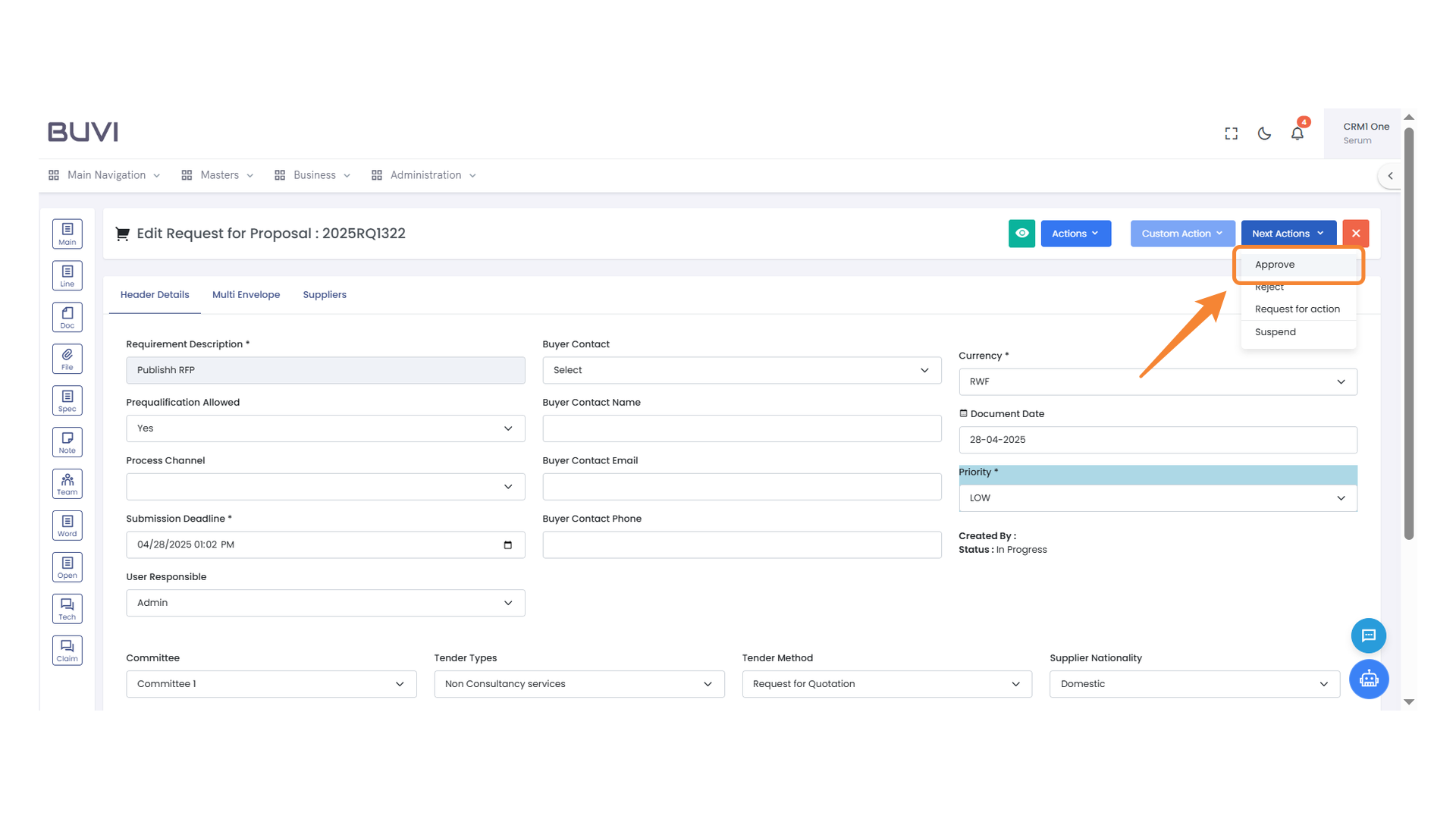
98. Submit Button in Comment Box
Click the submit button to finalize your comment.
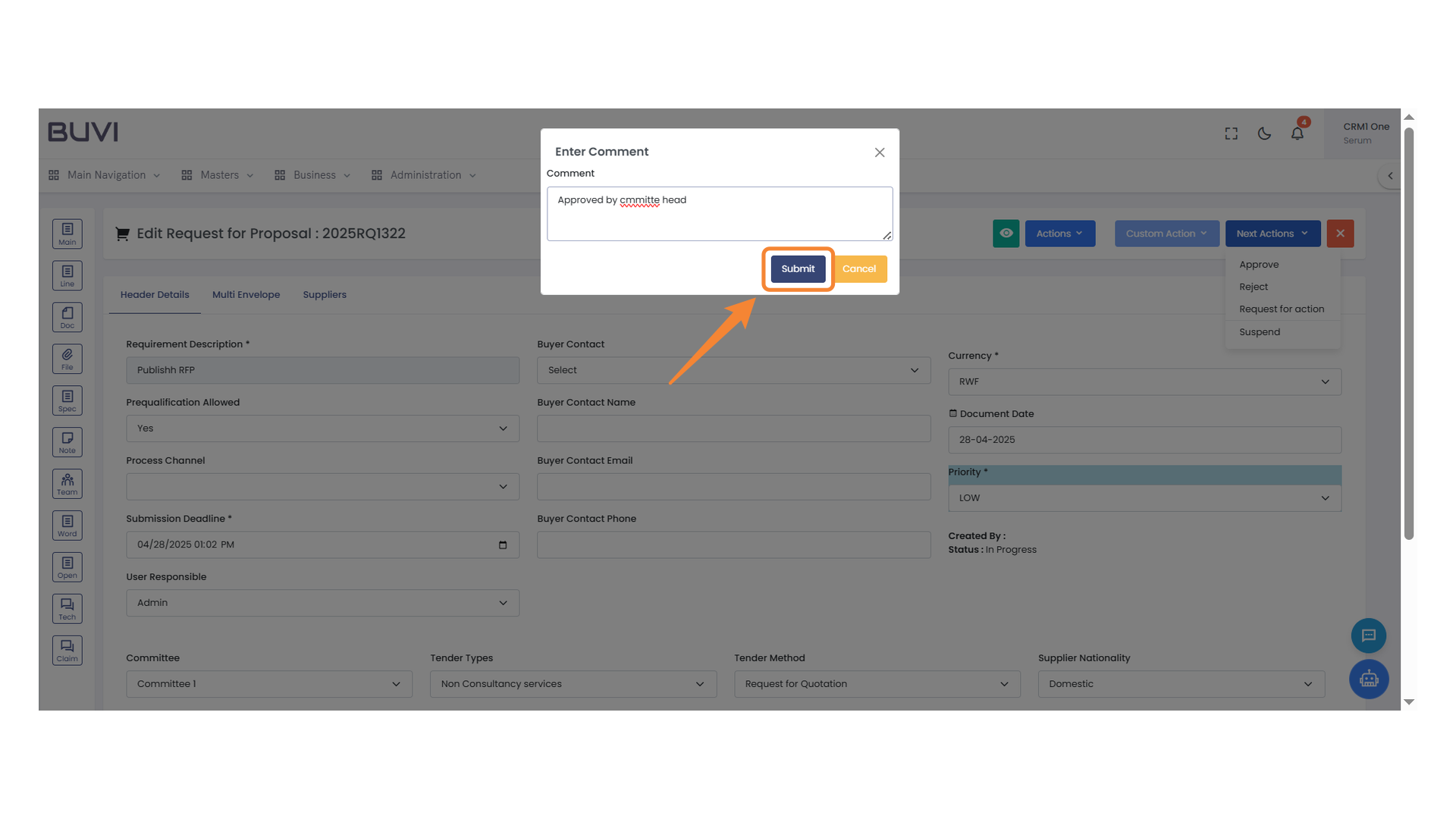
99. User Profile Access
Click on 'Serum' to access user profile settings and options.
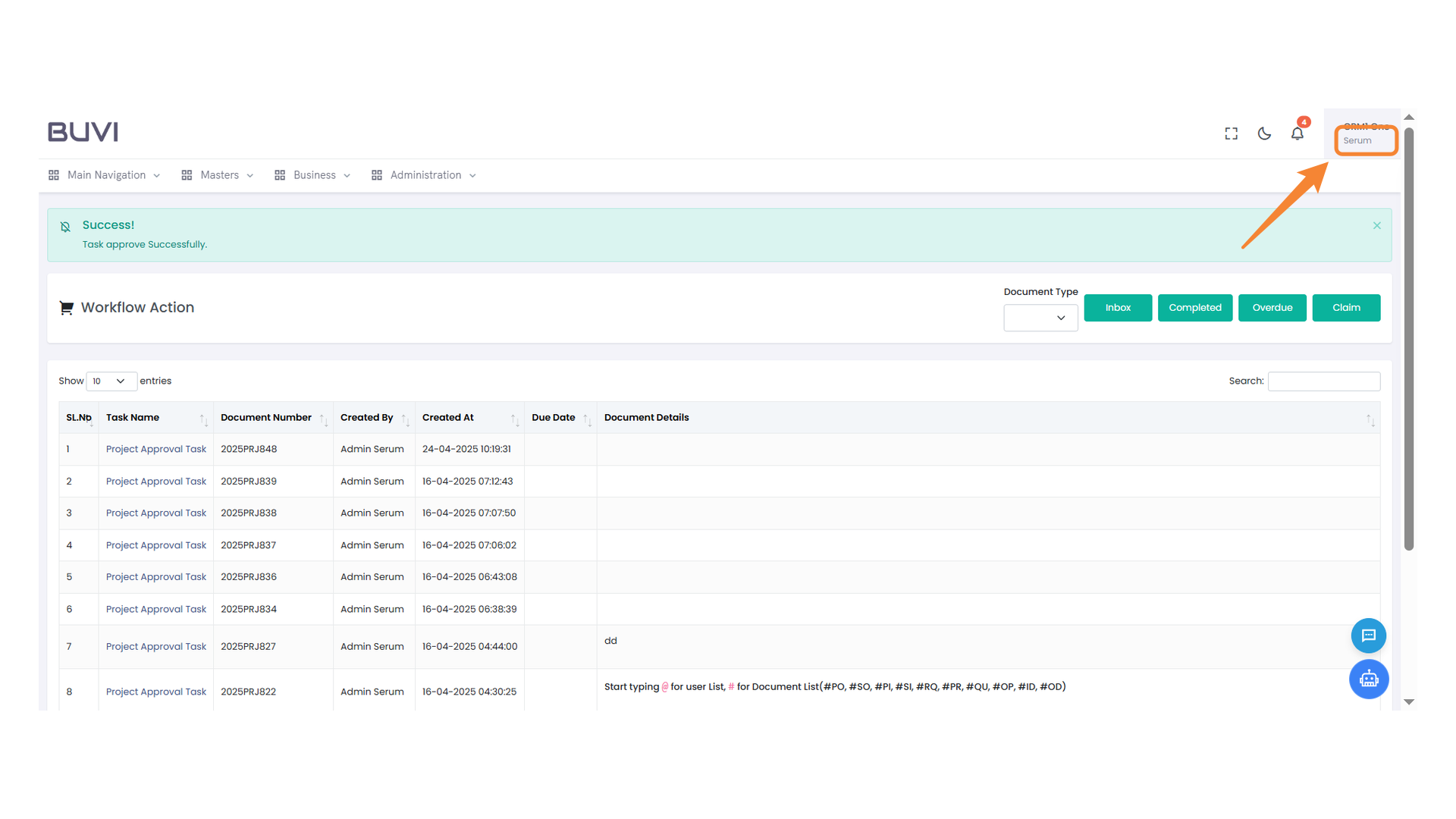
100. Logout Button
Click here to log out of your account.
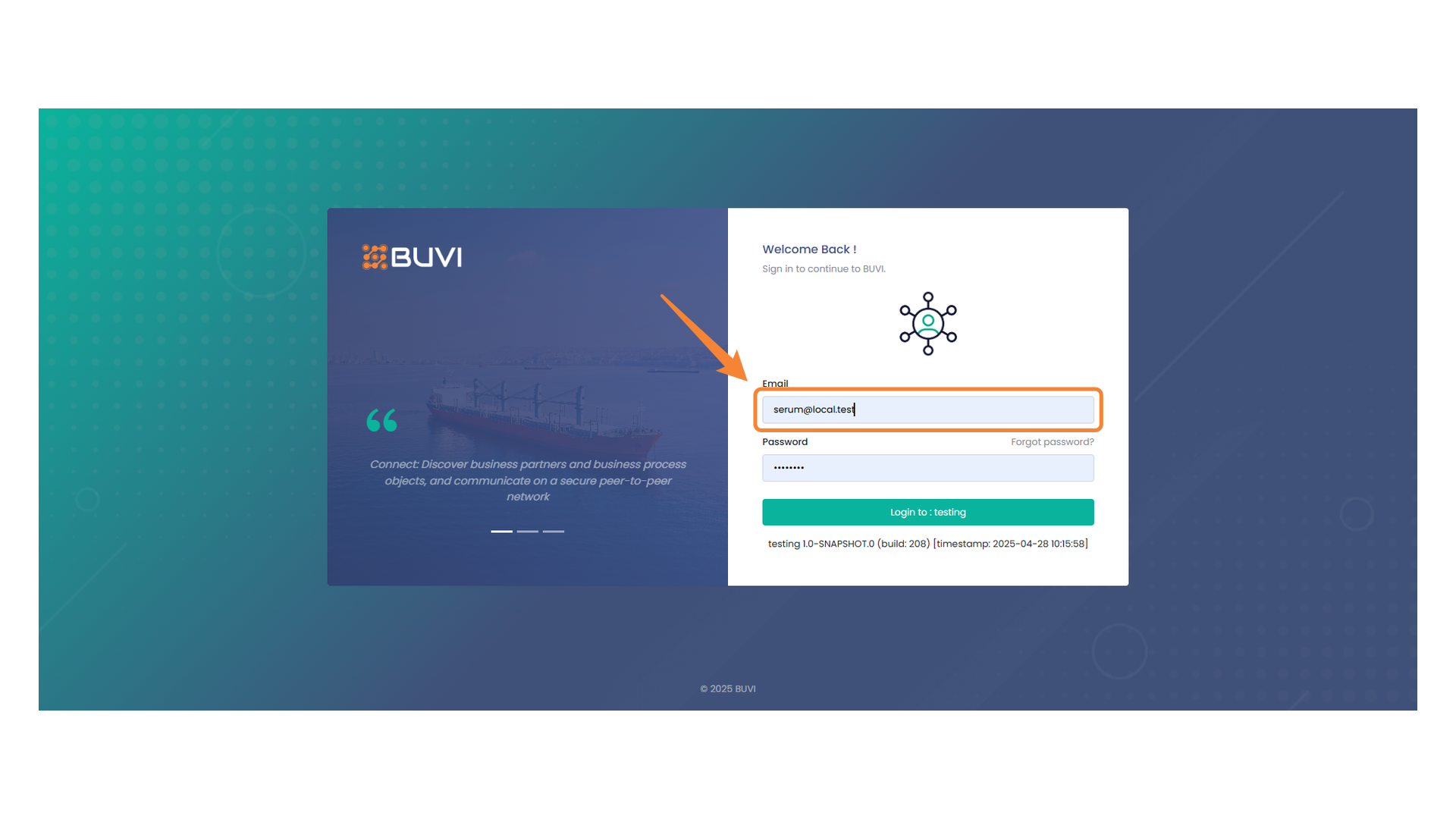
101. Email Input Field
Enter your email address to log in.
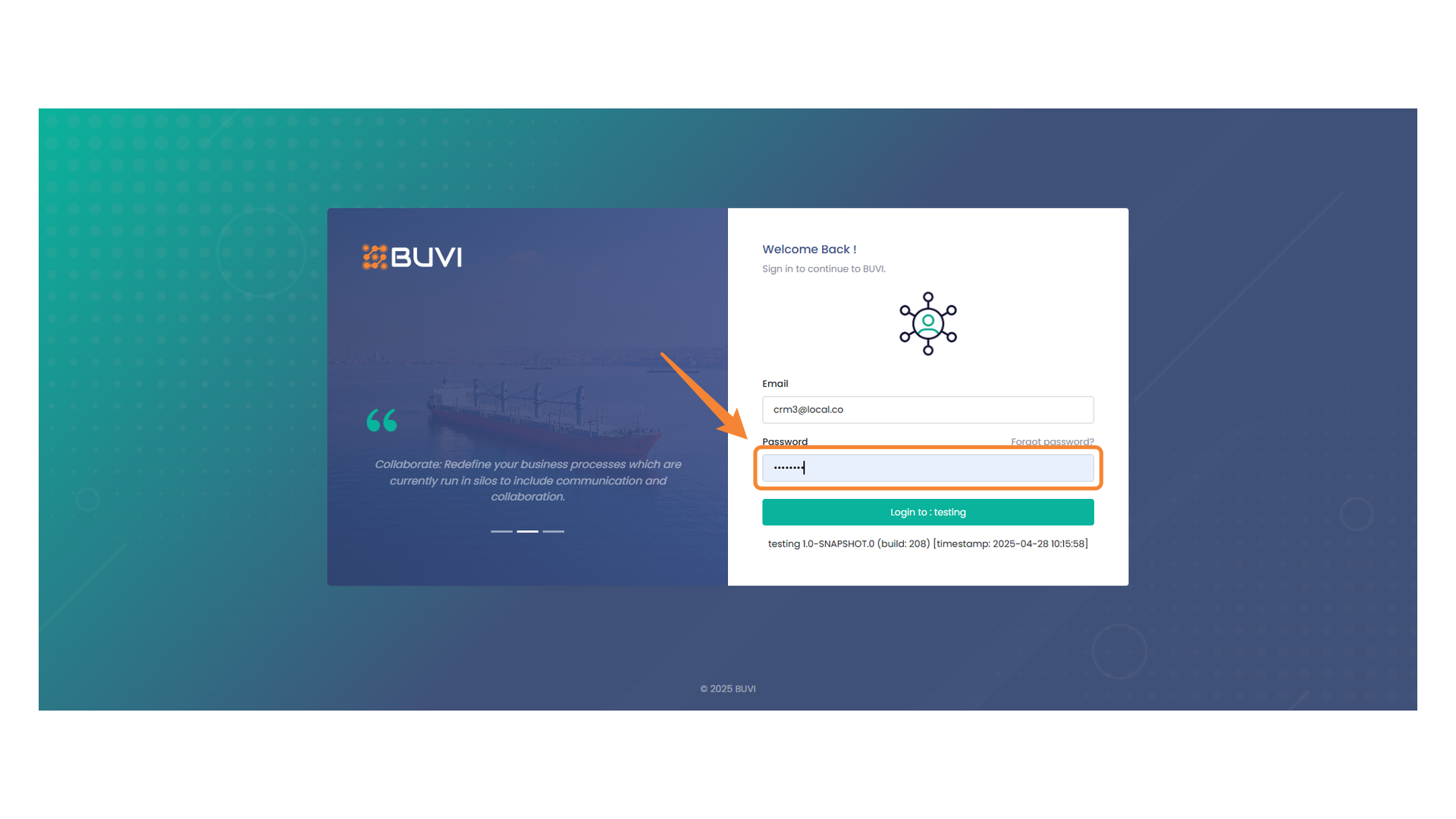
102. Password Entry
Enter your password to proceed with the login process.
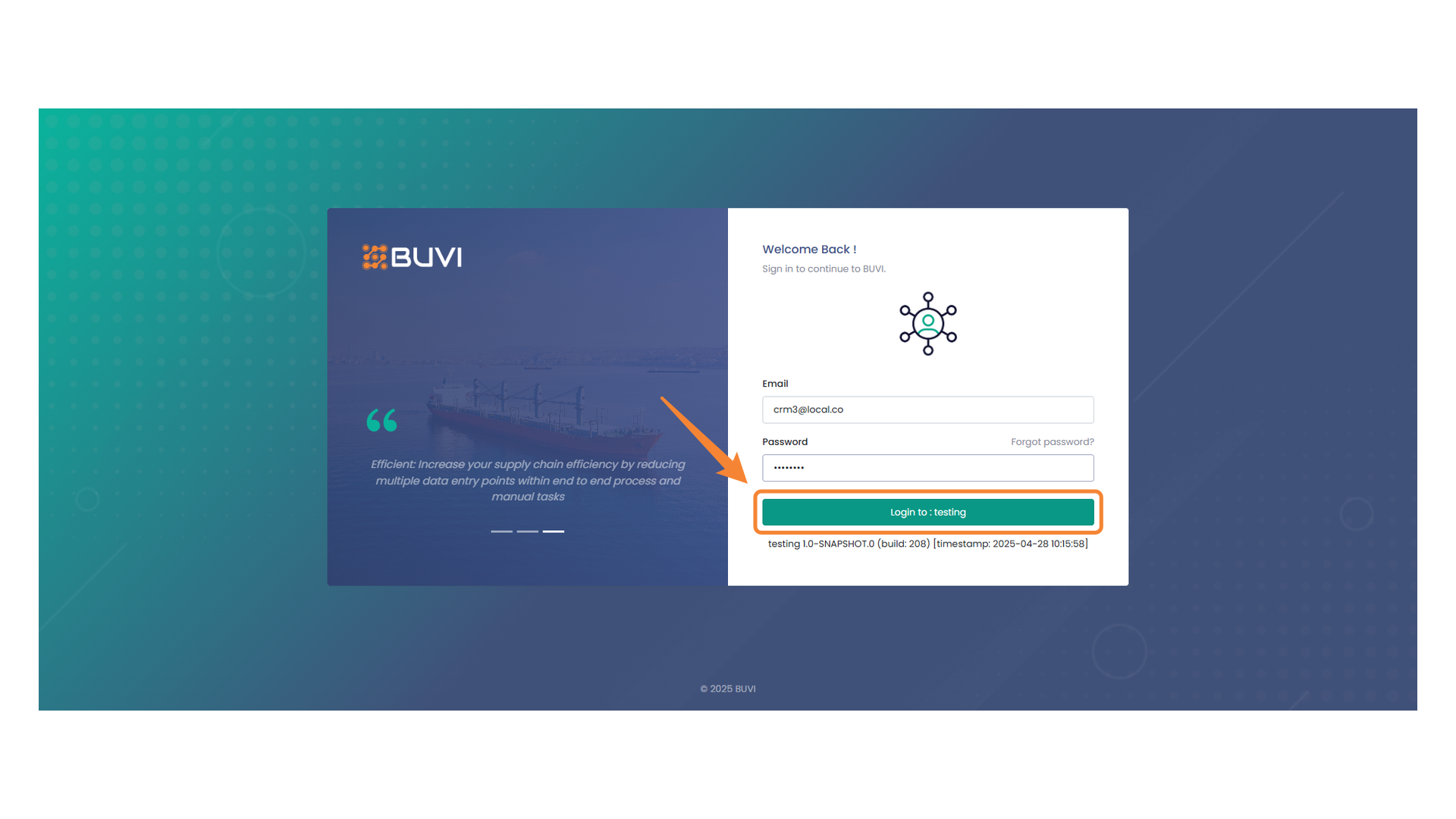
103. Login Button
Click the button to proceed with logging in to the testing environment.
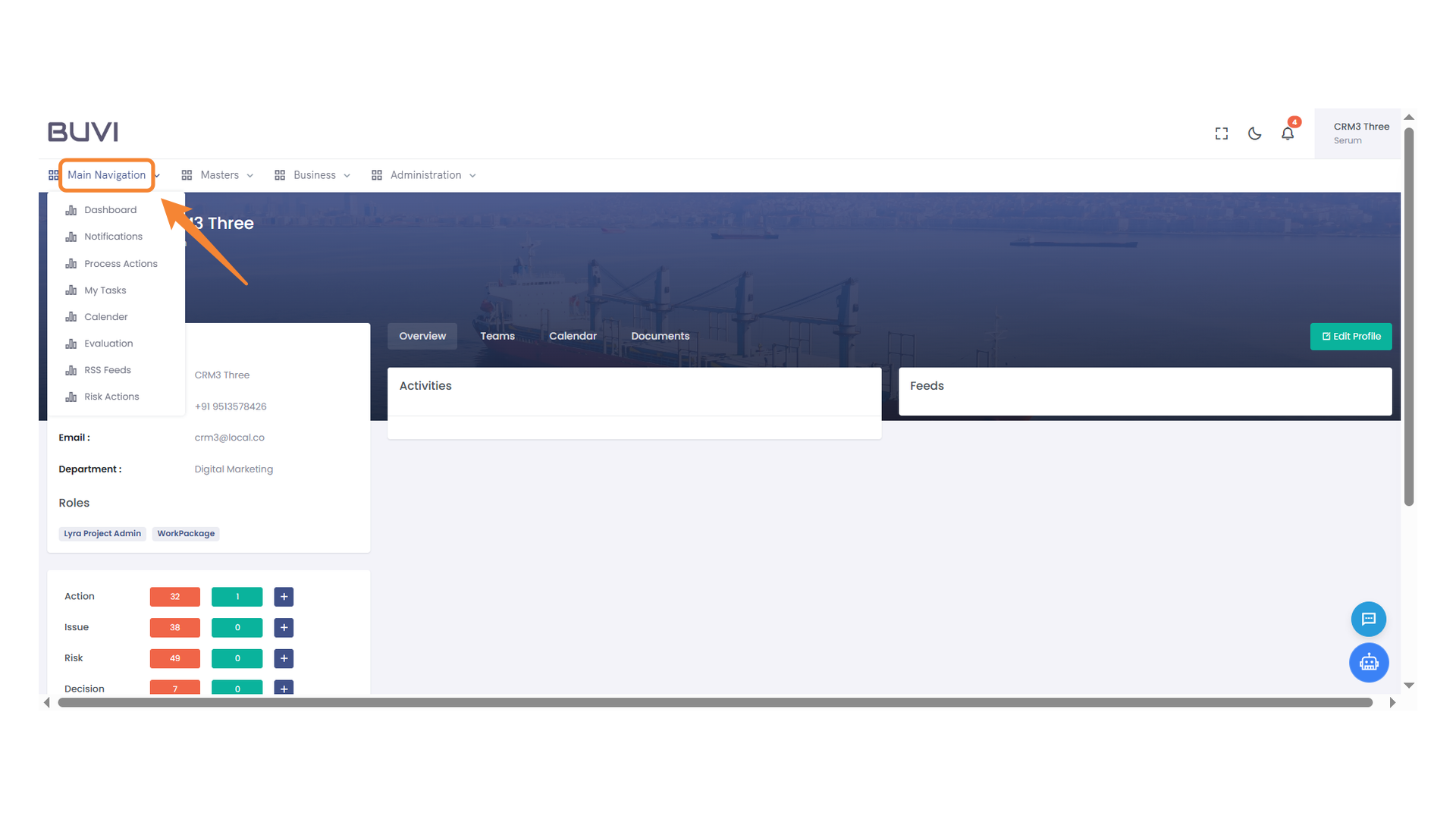
104. Main Navigation Menu
Access different sections and features by clicking on the menu items.
105. Navigating to Process Actions
Select the 'Process Actions' option from the menu to manage workflows effectively.
106. Task Approval Process
Review the RFP approval task assigned to the Procurement Manager.
107. Approve Action Button
Select 'Approve' to confirm the action.
108. Submit Button
Click the button to submit your comment.
109. User Profile Information
Check the user profile details displayed at the top section.
110. Logout Option
Select this option to log out of the application.
111. Email Input Field
Enter your email address into the provided field to proceed with login for HOD
112. Password Entry Field
Enter your password in this field to proceed with the login.
113. Login Button
Click to access the testing environment.
114. Process Actions Menu
Select this menu to manage and execute various process actions within the platform.
115. RFP Approval Review Task
Review the RFP approval process as conducted by the Head of Department.
116. Approval Option
Click to approve the request in the dropdown menu.
117. Submit Button in Comment Dialog
Click the submit button to finalize your comment.
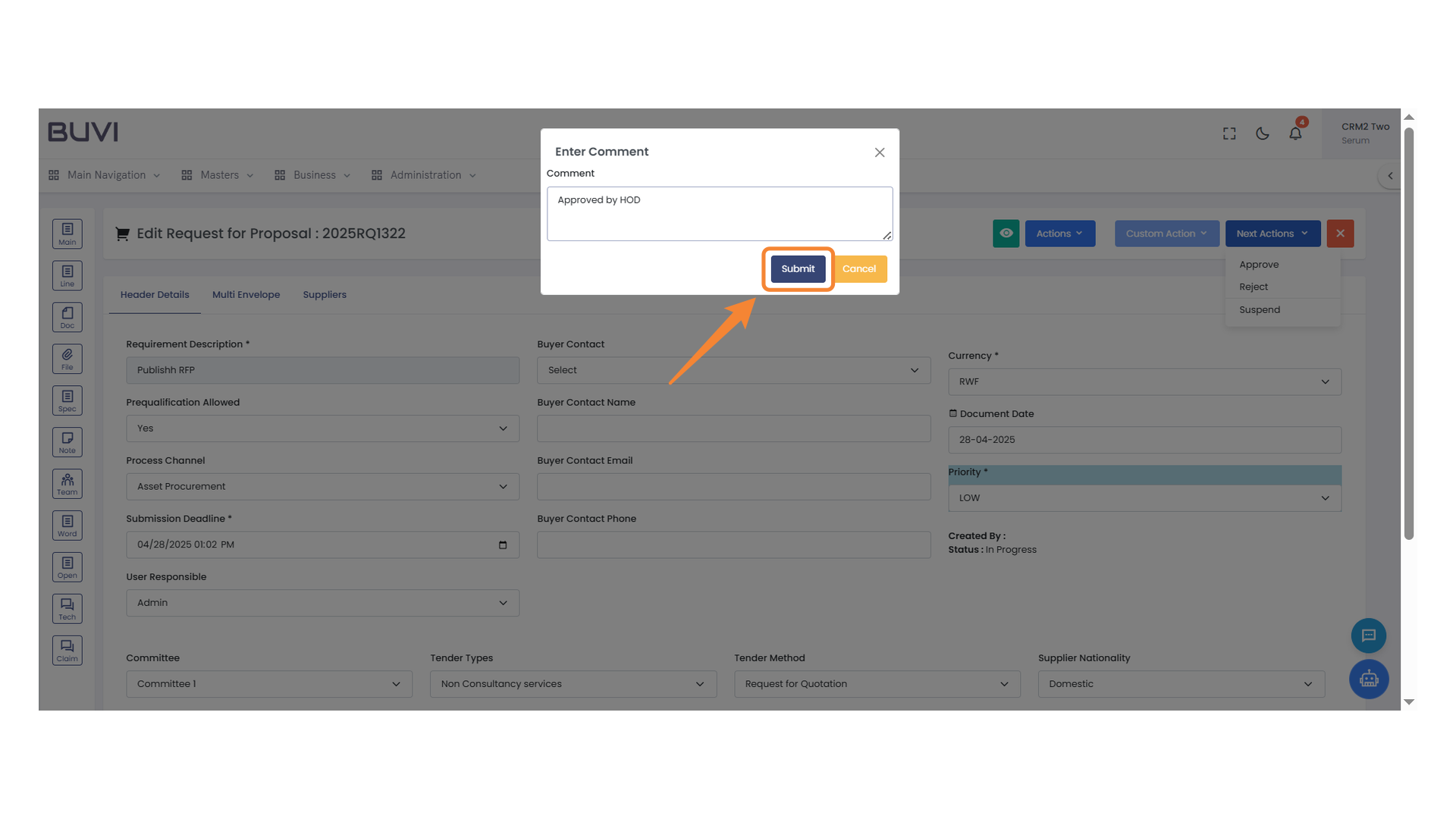
118. CRM2 User Information
Review the user identification and current status displayed here.
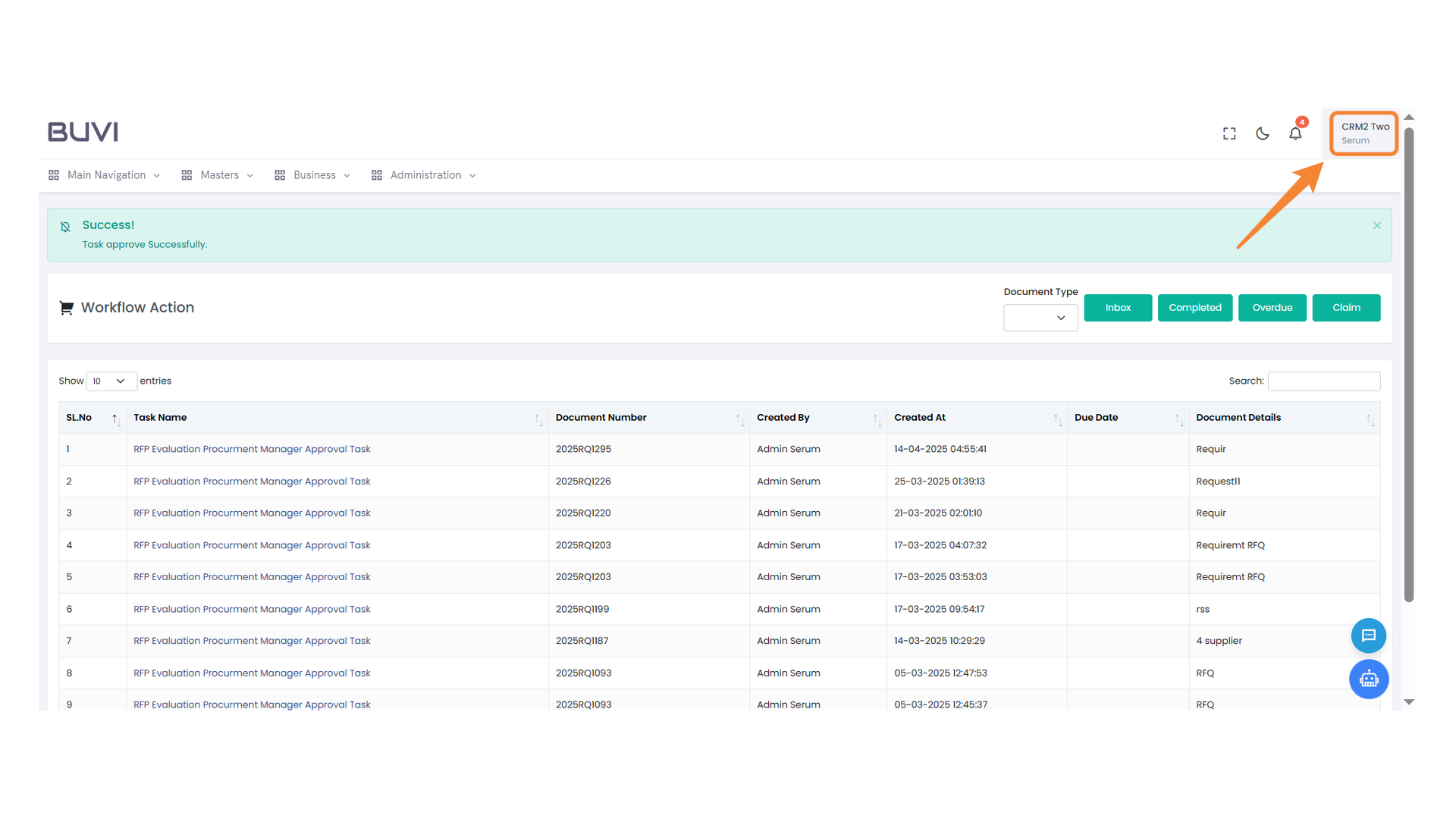
119. Logout Button
Click this button to safely log out from your account.
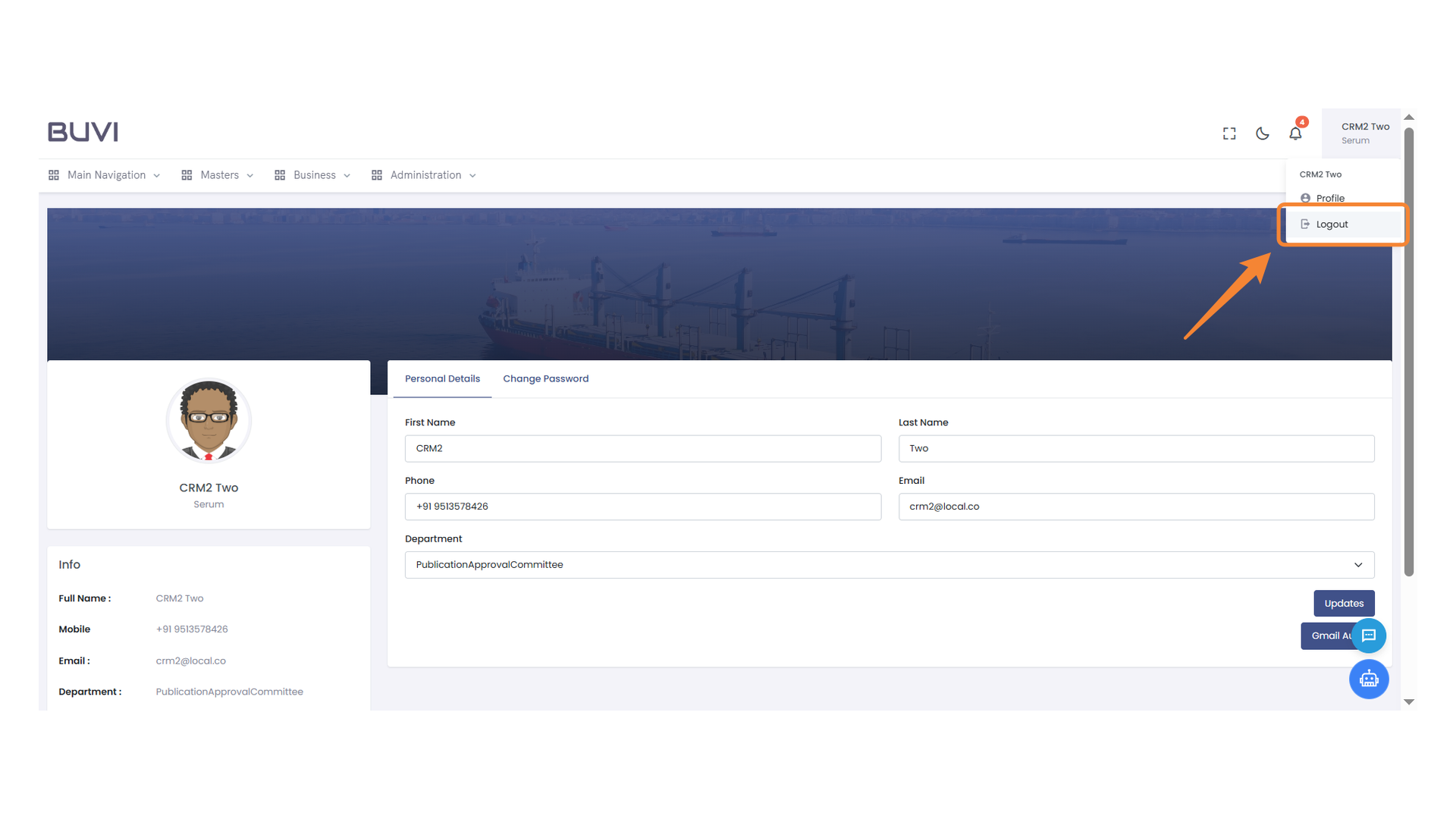
120. Email Input Field
Enter your email address in the provided field to proceed with login for CEO
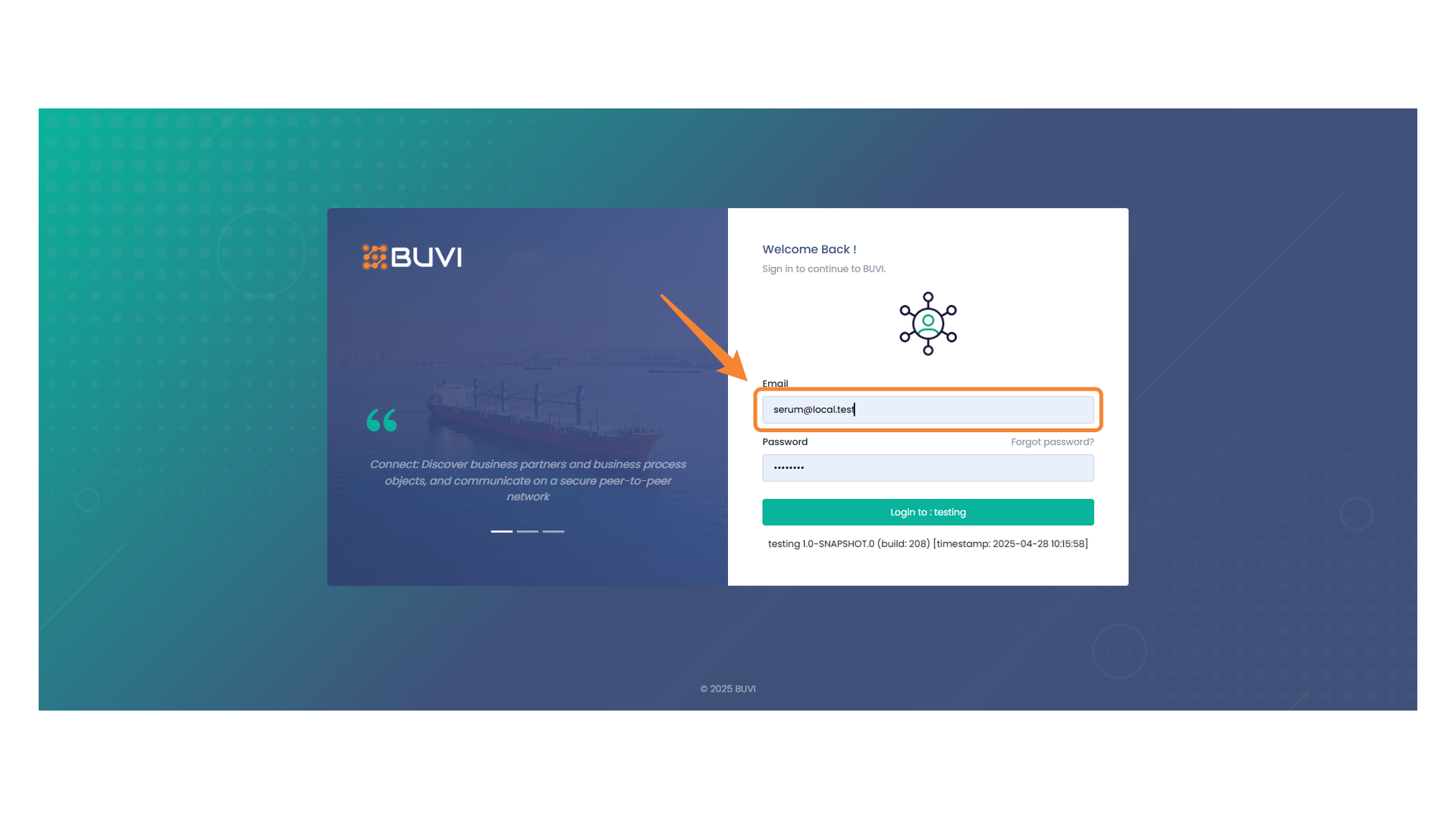
121. Password Input Field
Enter your password to access the application.
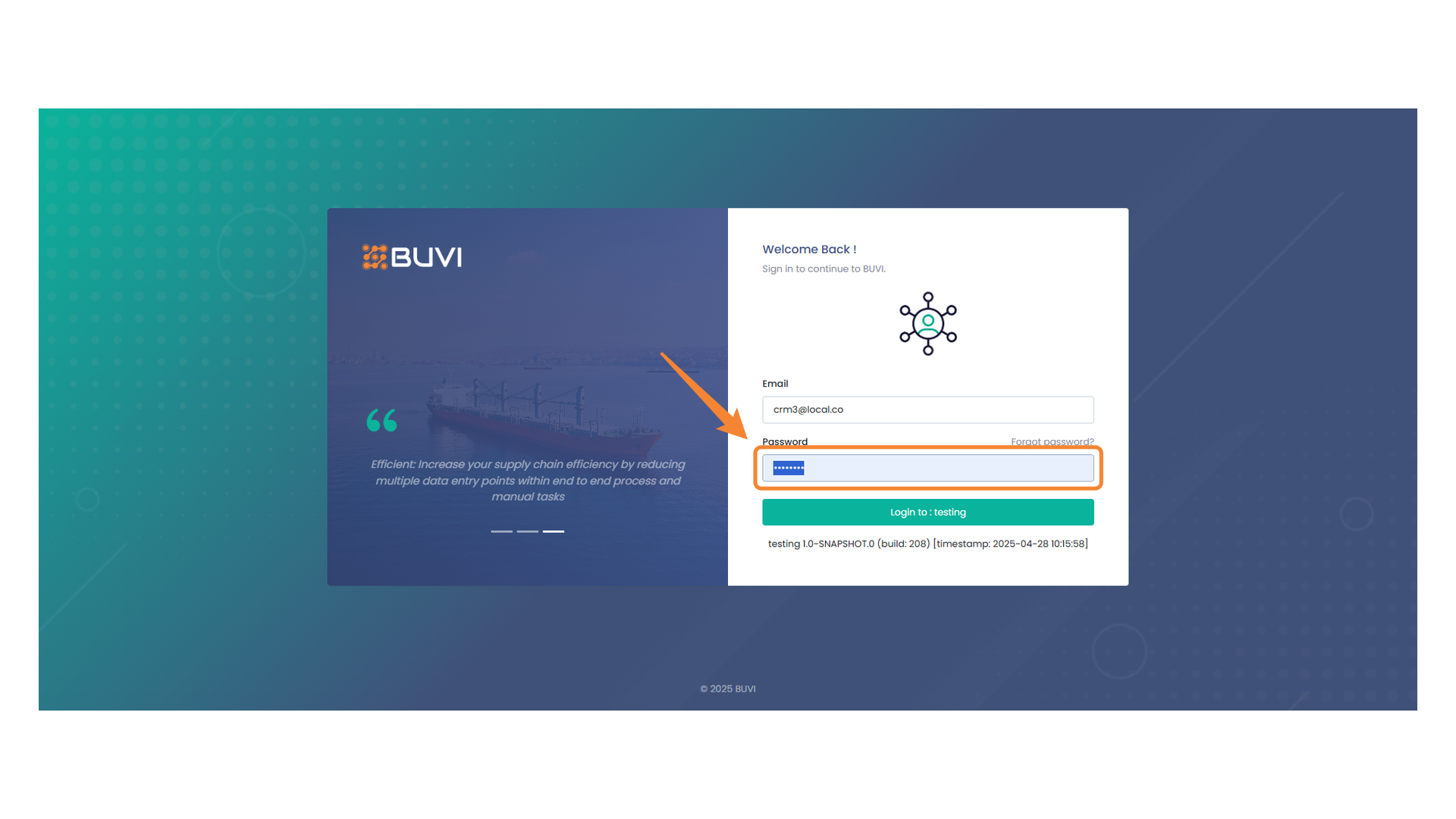
122. Login Button on Testing Page
Click to enter the testing environment.
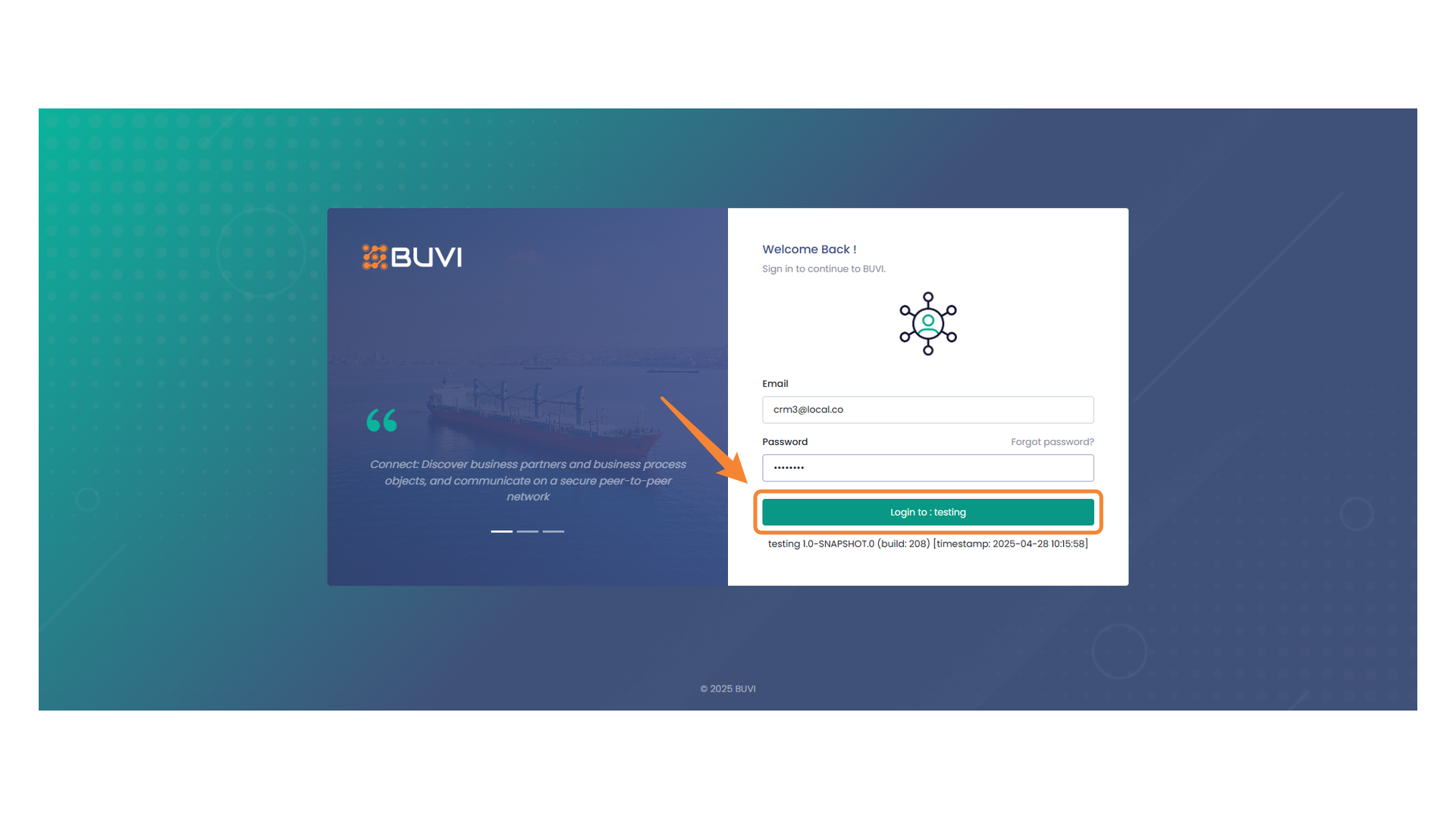
123. Main Navigation Menu
Explore different options and access key functionalities by interacting with the main navigation menu.
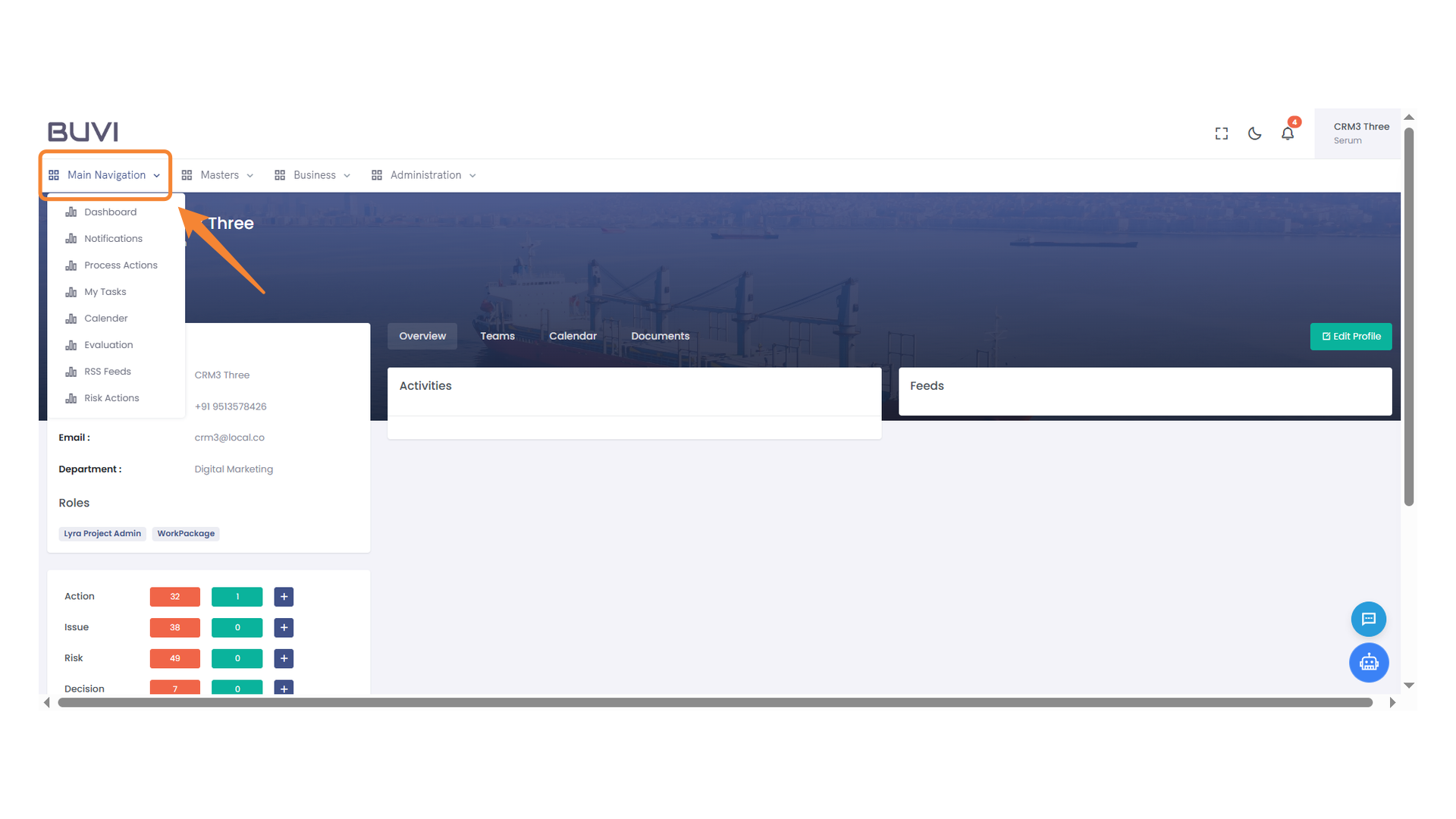
124. Process Actions Menu
Access and manage the list of process-oriented actions from this menu.
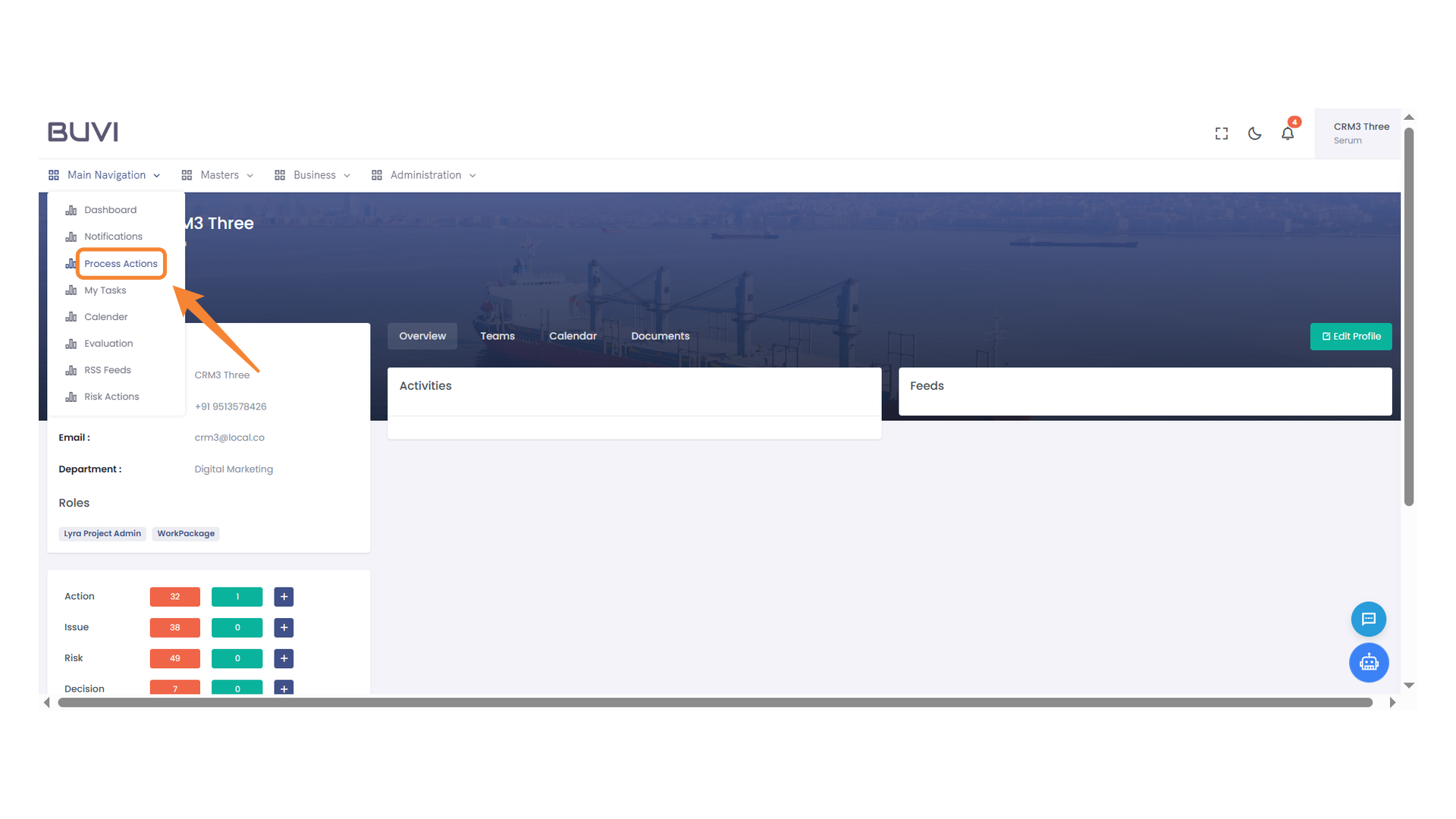
125. RFP Review Task
Review the RFP approval assigned to the CEO.
126. Approval Action
Select the option to approve the proposal request.
127. Submit Button for Comment Approval
Press the button to submit your comment and confirm the approval.
128. Logout Option
Select this option to log out from your account.
129. Email Input Field
Enter your email address here to log in.
130. Password Input Field
Enter your password to log in.
131. Login Button Highlight
Click the highlighted button to proceed with logging in to the testing environment.
132. Process Actions Menu
Access and manage your process actions from this menu.
133. RFP Approval Process
Verify the task name for the RFP approval process initiated by the creator for publishing.
134. RFP Approval Task Highlighted
Review and approve the RFP as the creator for publishing.
135. Next Actions Menu Button
Click to view additional options available for the current process.
136. Publish RFQ Option
Click on 'Publish RFQ' to proceed with the request for quotation publication.
137. Submission Confirmation
Press the 'Submit' button to finalize your comment entry.